
Send visitors from one website address to another. Use your own domain and destination when following this example.
Log in to cPanel from your client area. If unavailable, use the panel address in your welcome email. The cPanel dashboard appears after successful sign-in.
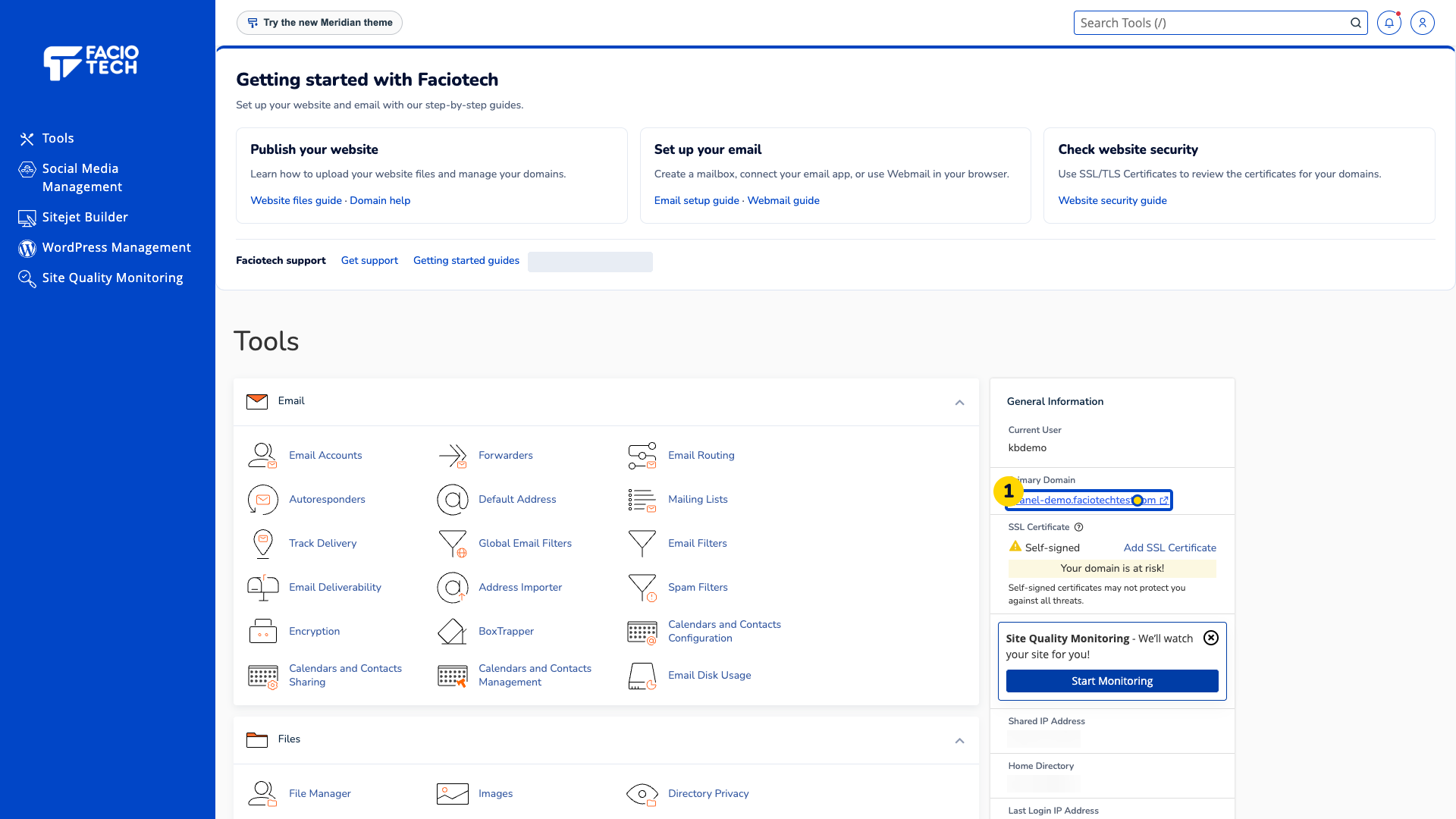
Open Redirects. The Redirects page opens with the Add Redirect form.
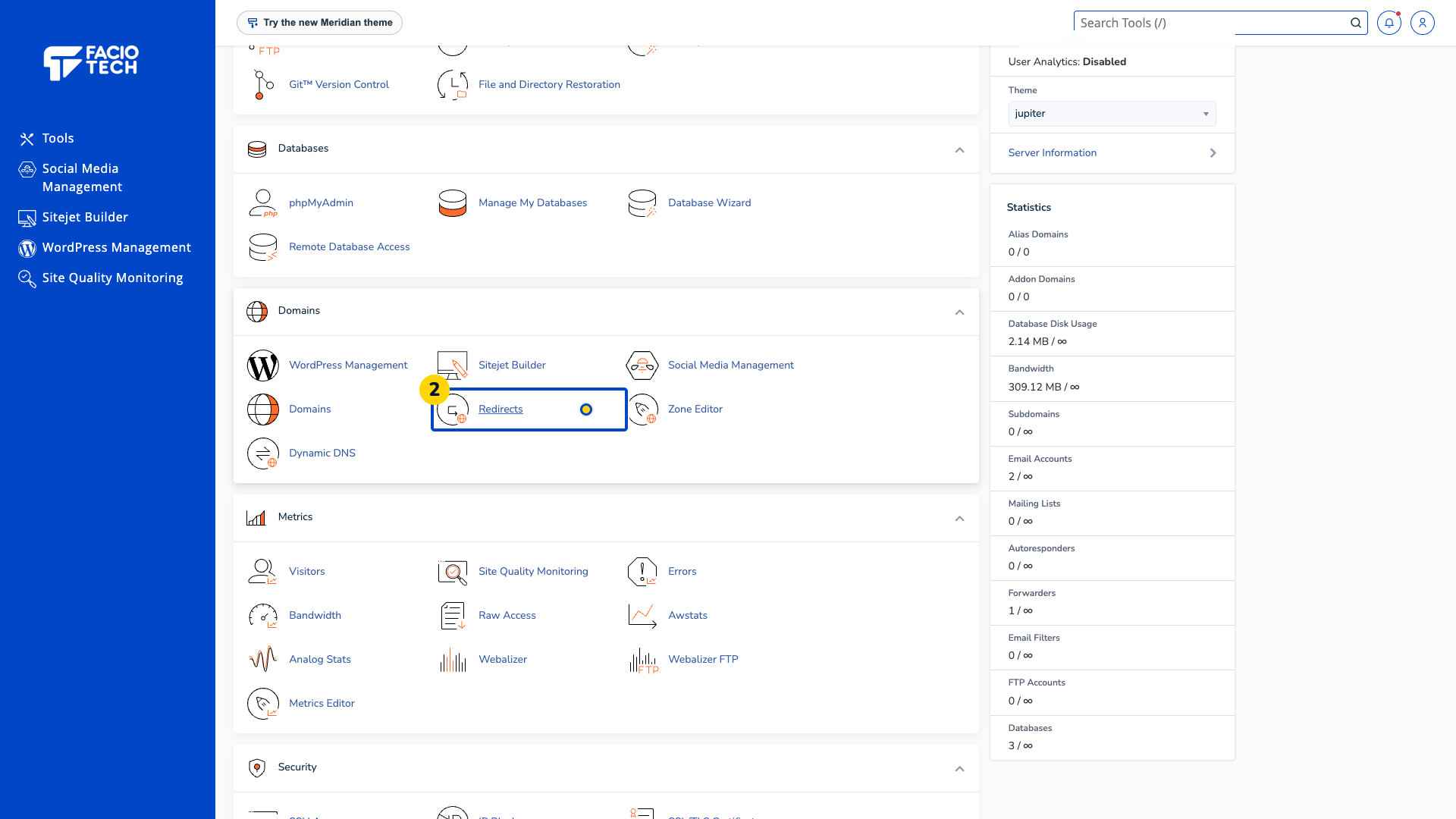
Choose the Type you need. This demo uses Temporary (302).
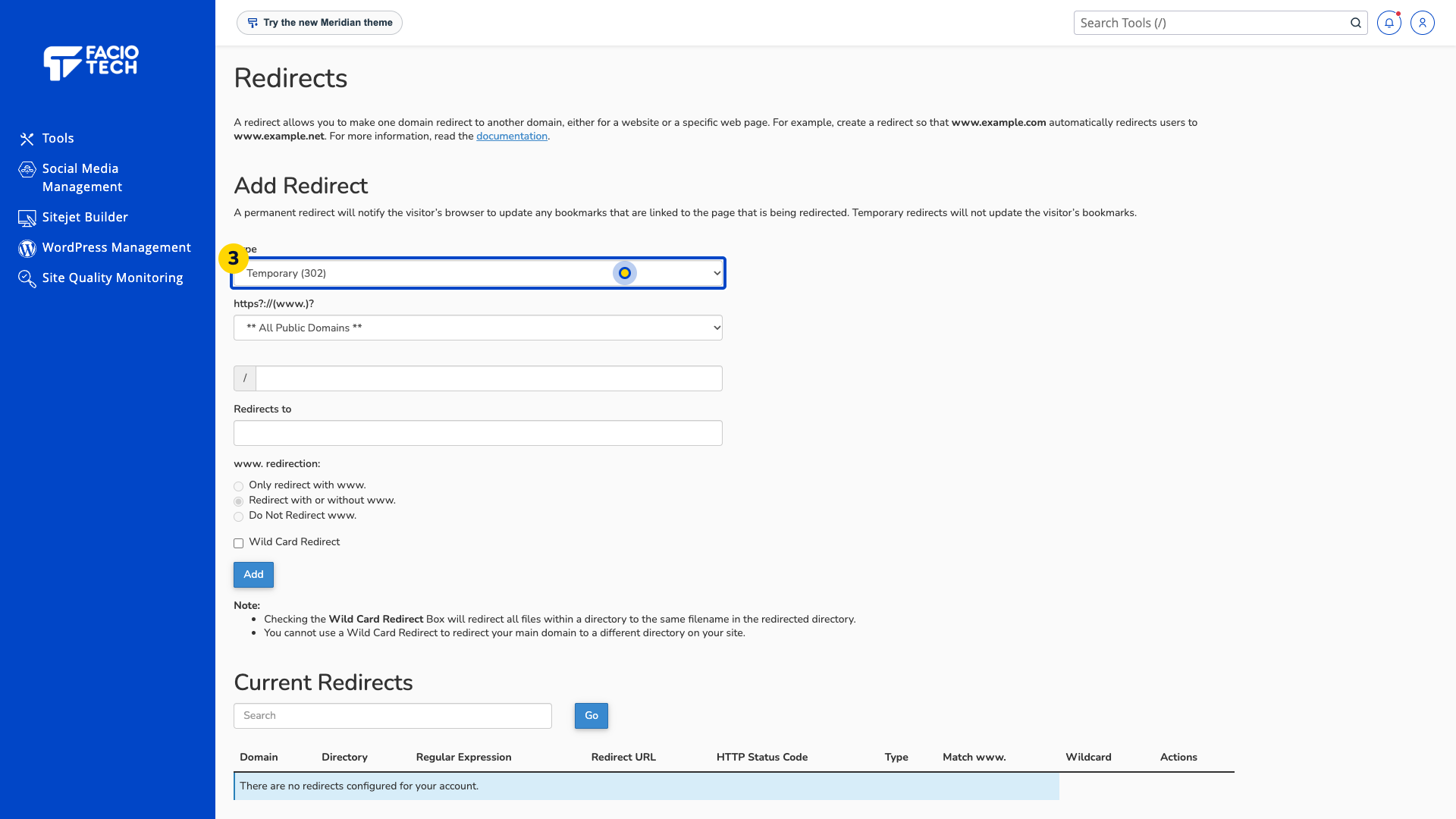
Select the intended domain. The domain selector shows the website that should redirect.
Enter the source path in the box beside /. This example uses kb-redirect-demo, which appears in the path field.
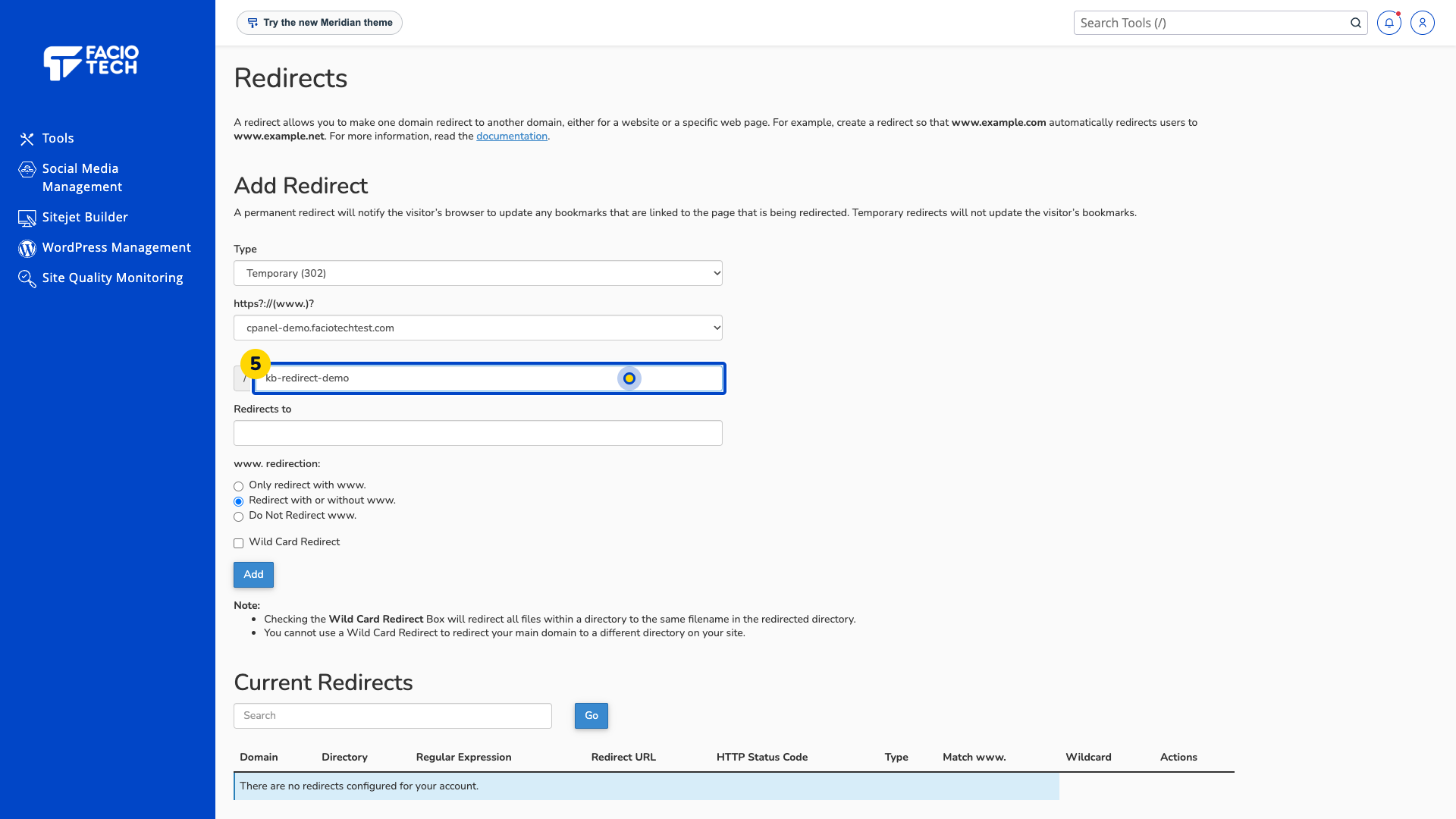
Enter the full destination in Redirects to, including https:// or http://. The example destination is a harmless file on the same demo website.
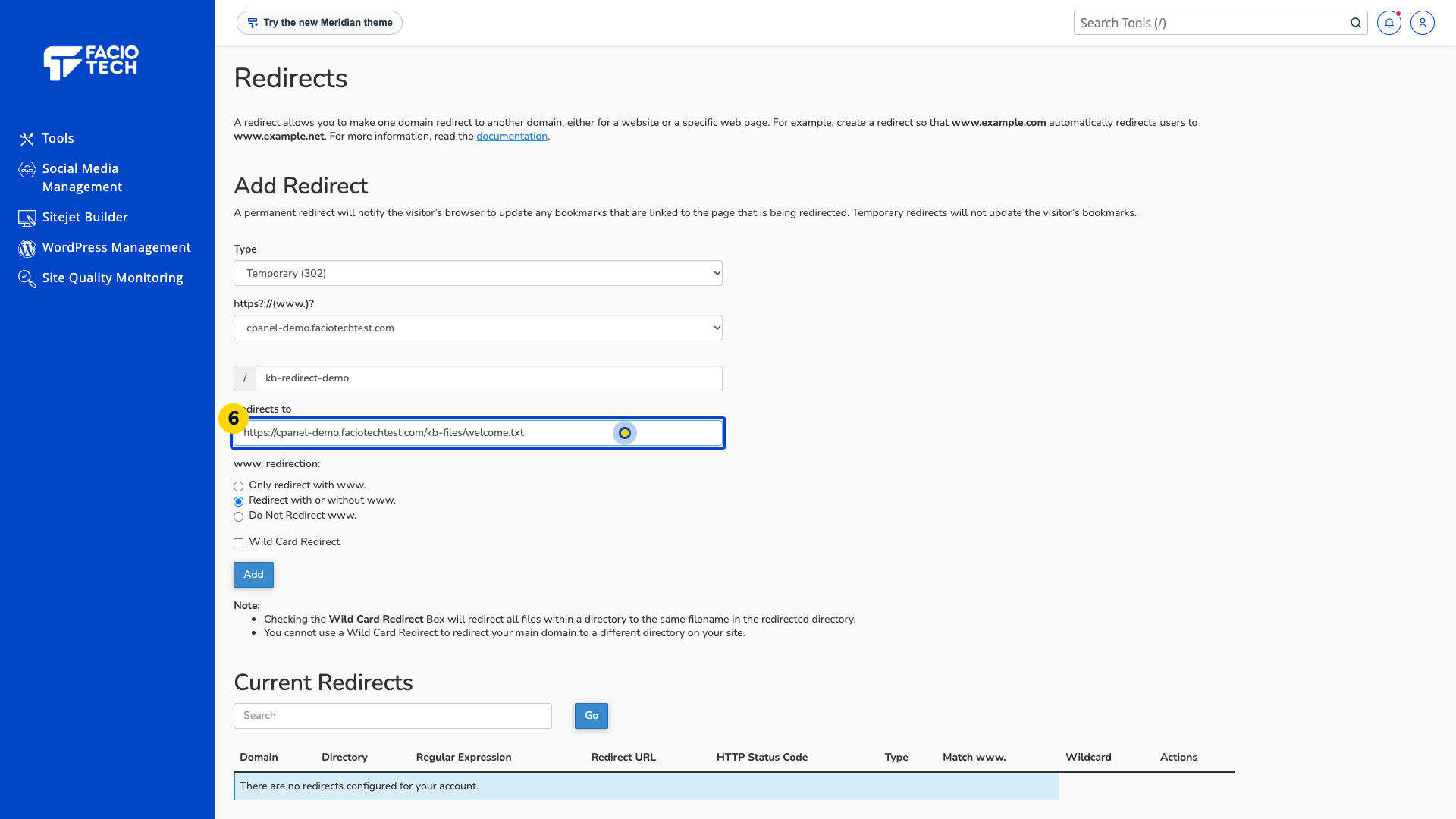
Choose the www. redirection option you need. This example uses Do Not Redirect www.
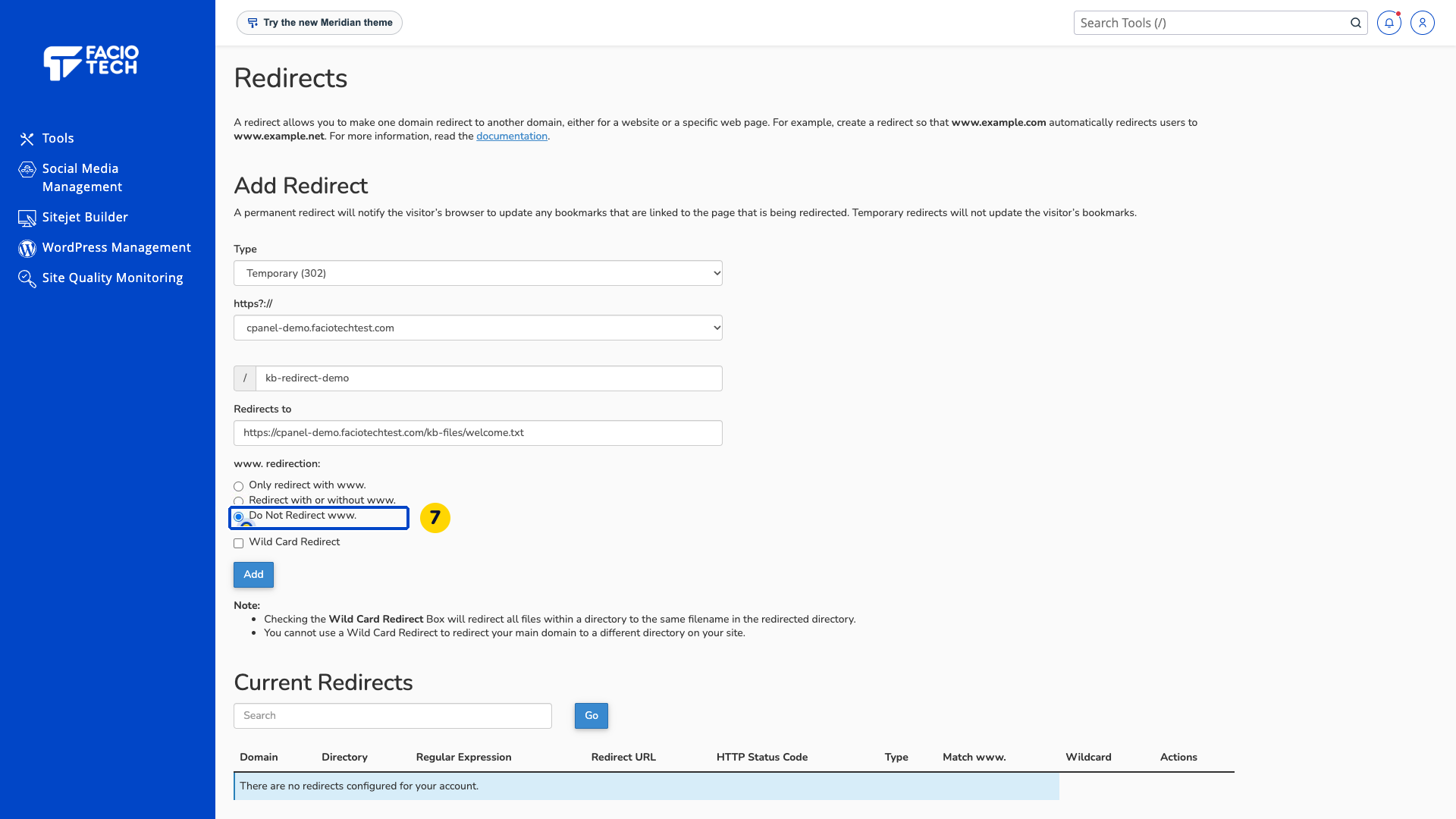
Leave Wild Card Redirect clear for this example. The checkbox remains unselected.
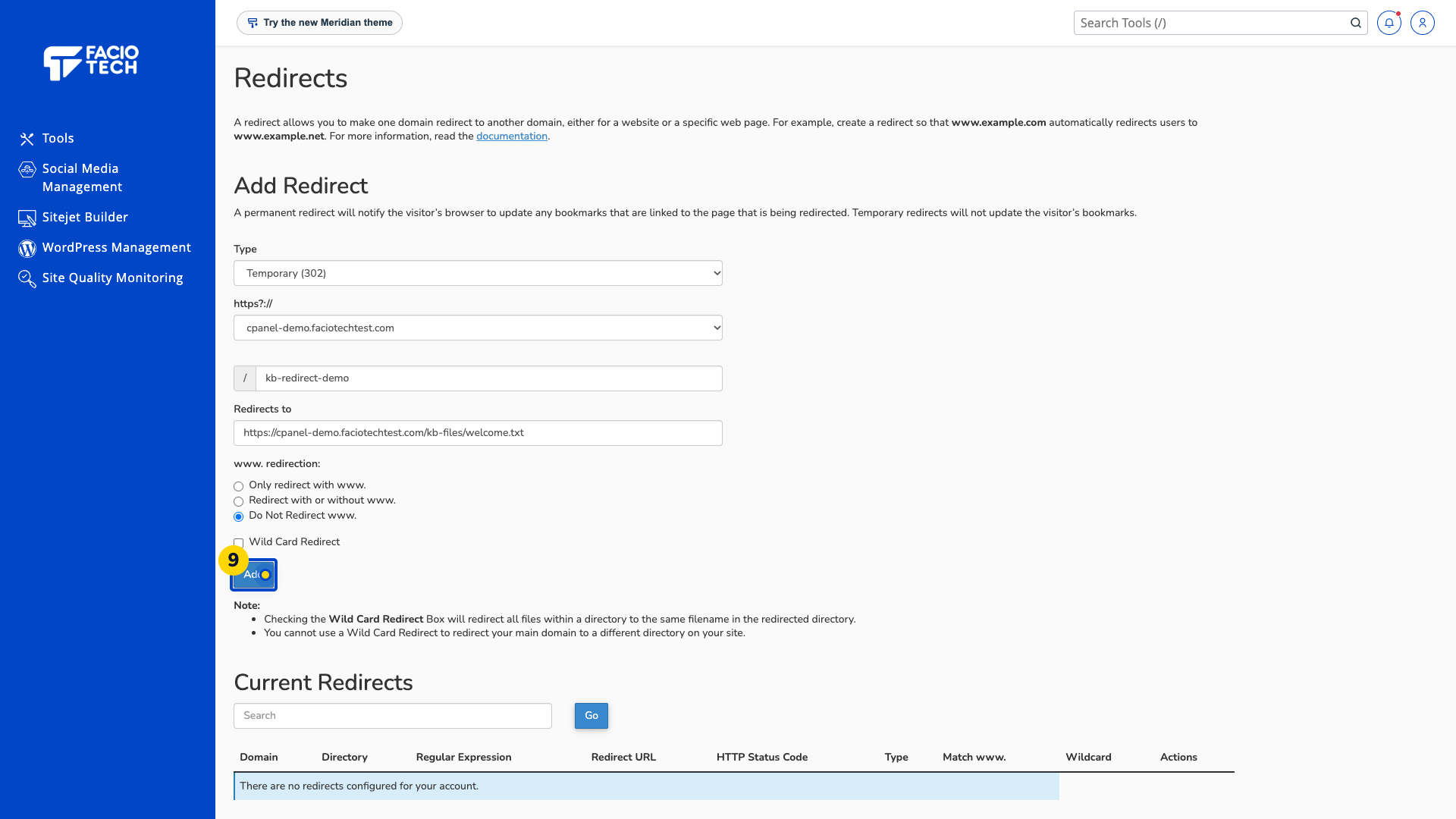
Choose Add. Wait for the confirmation.
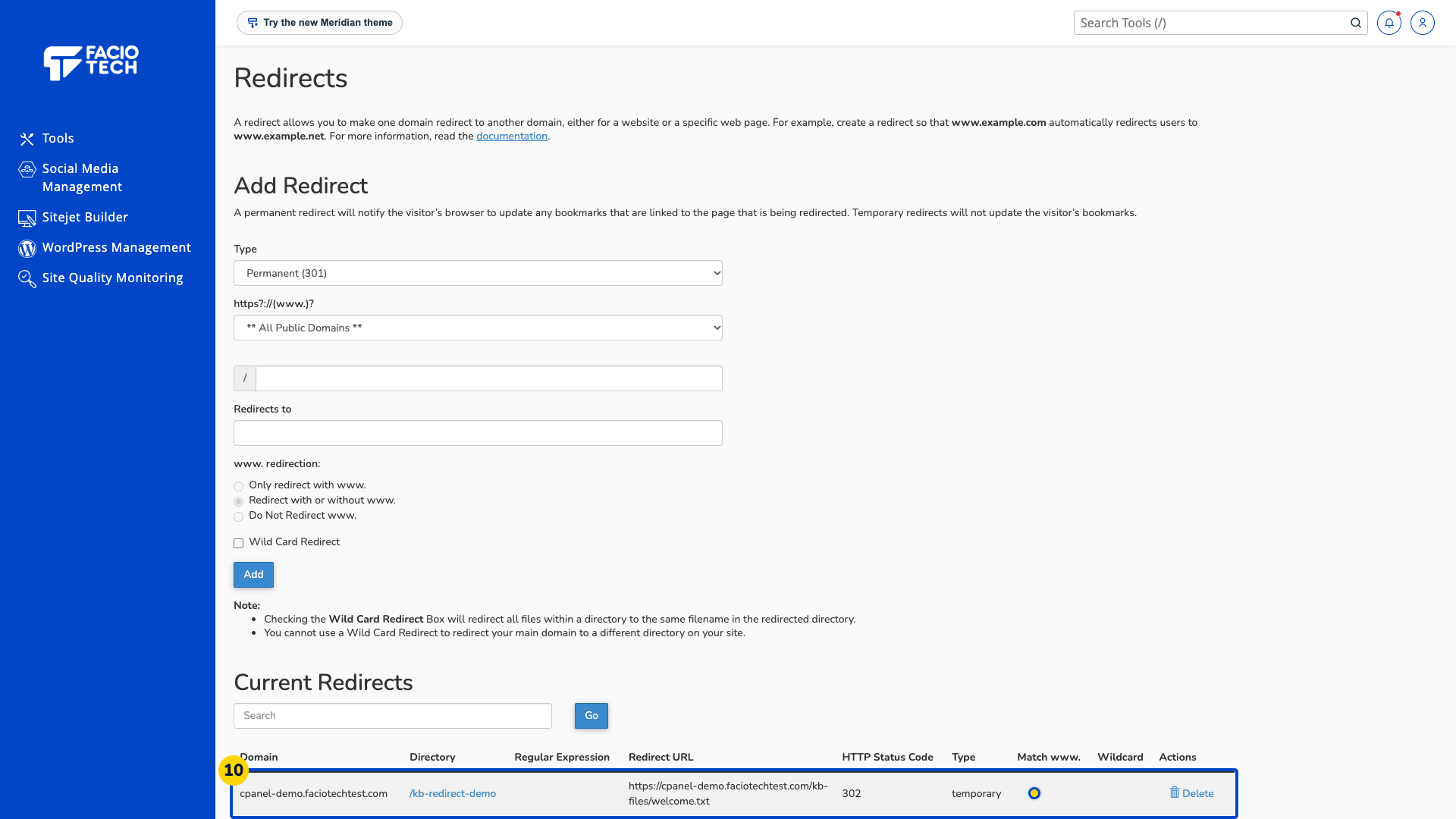
Return to Current Redirects. The saved row should show the intended domain, path, destination and status code.
Open that exact source address in your browser. The browser should reach the intended destination.
Permanent (301) redirects can be cached by browsers. Use the type that matches your intended change.
Select All Public Domains or Wild Card Redirect only when you intend that broader scope.
Video walkthrough
Sources
For help, contact Faciotech support.
