
Find an existing DNS record in cPanel and collect its details before asking for a change.
Log in to cPanel from your client area. If that link is unavailable, use the panel address in your welcome email. The cPanel dashboard appears after successful sign-in.
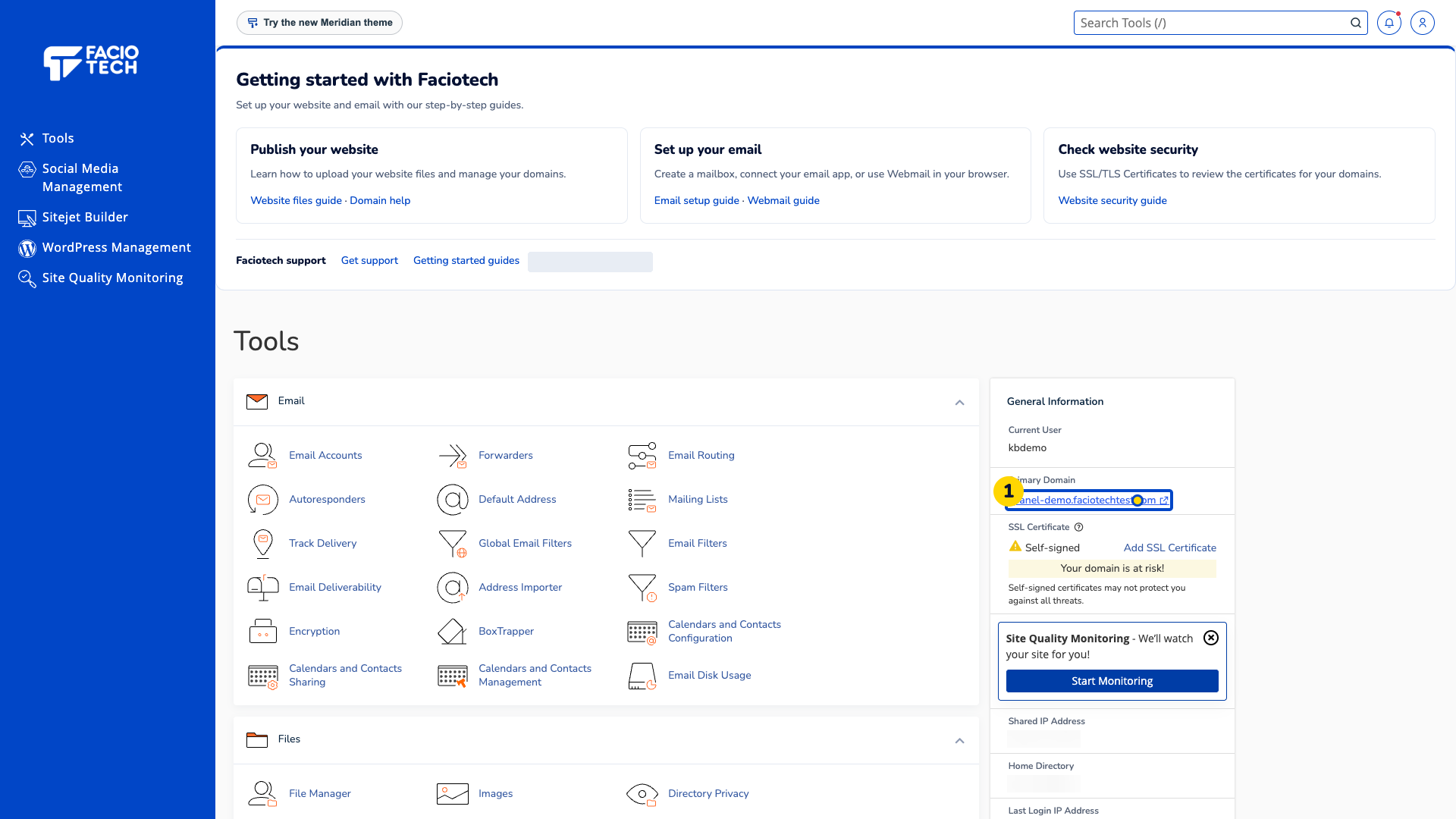
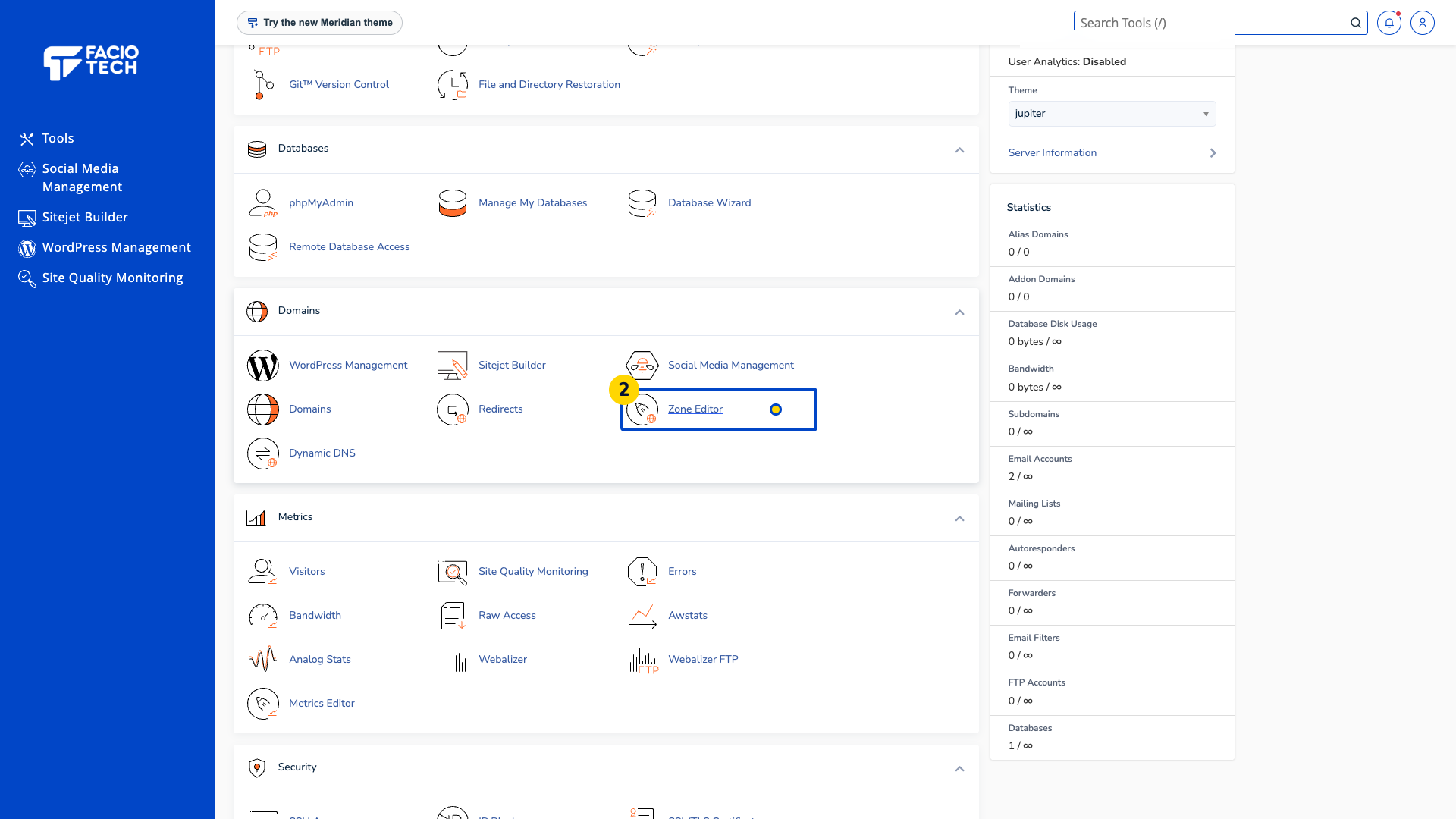
Open Zone Editor from Tools.
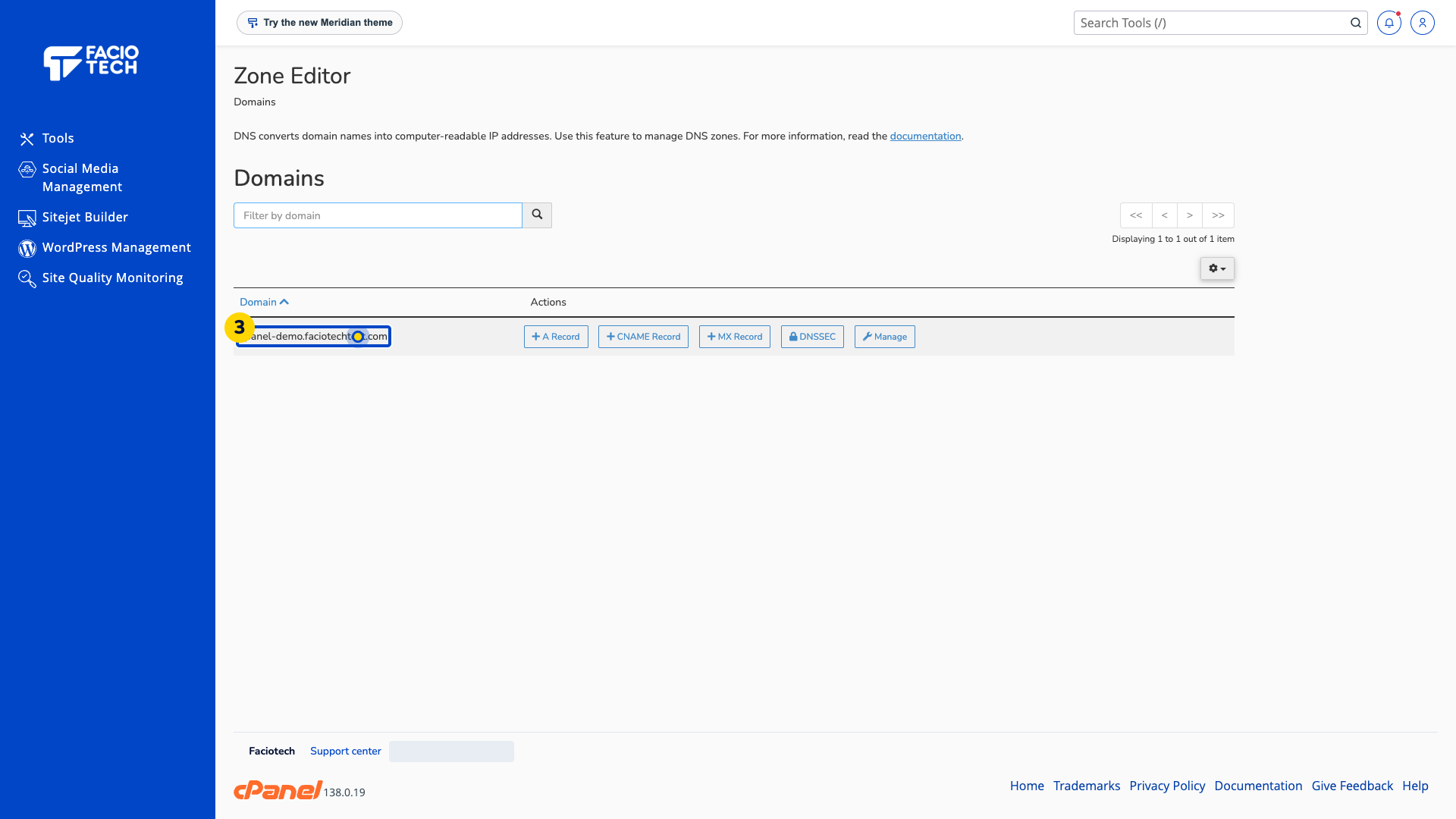
Find the domain you want to inspect.
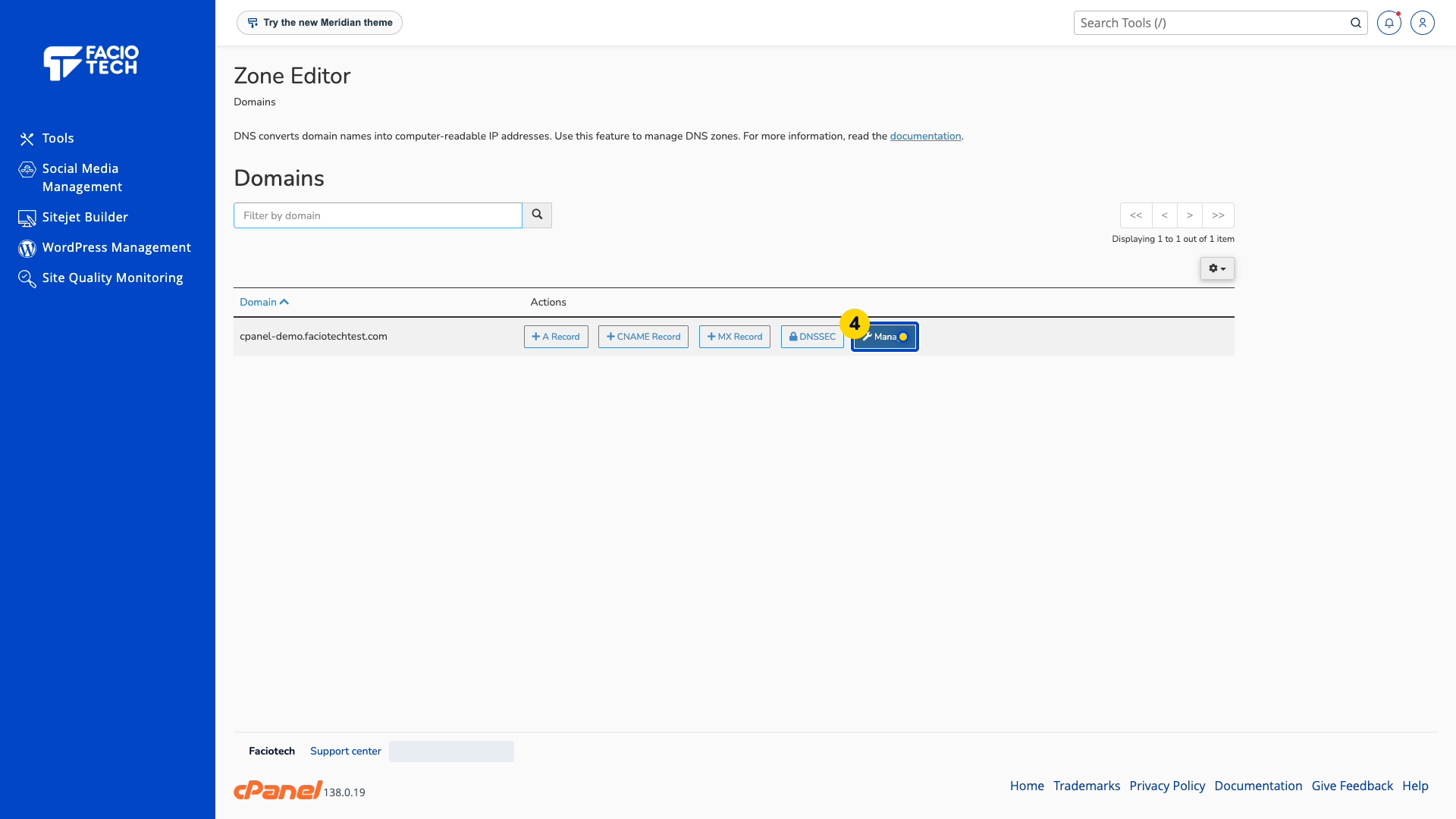
Choose Manage beside that domain. Its record list opens.
Choose a record-type filter, such as A, to narrow the list.
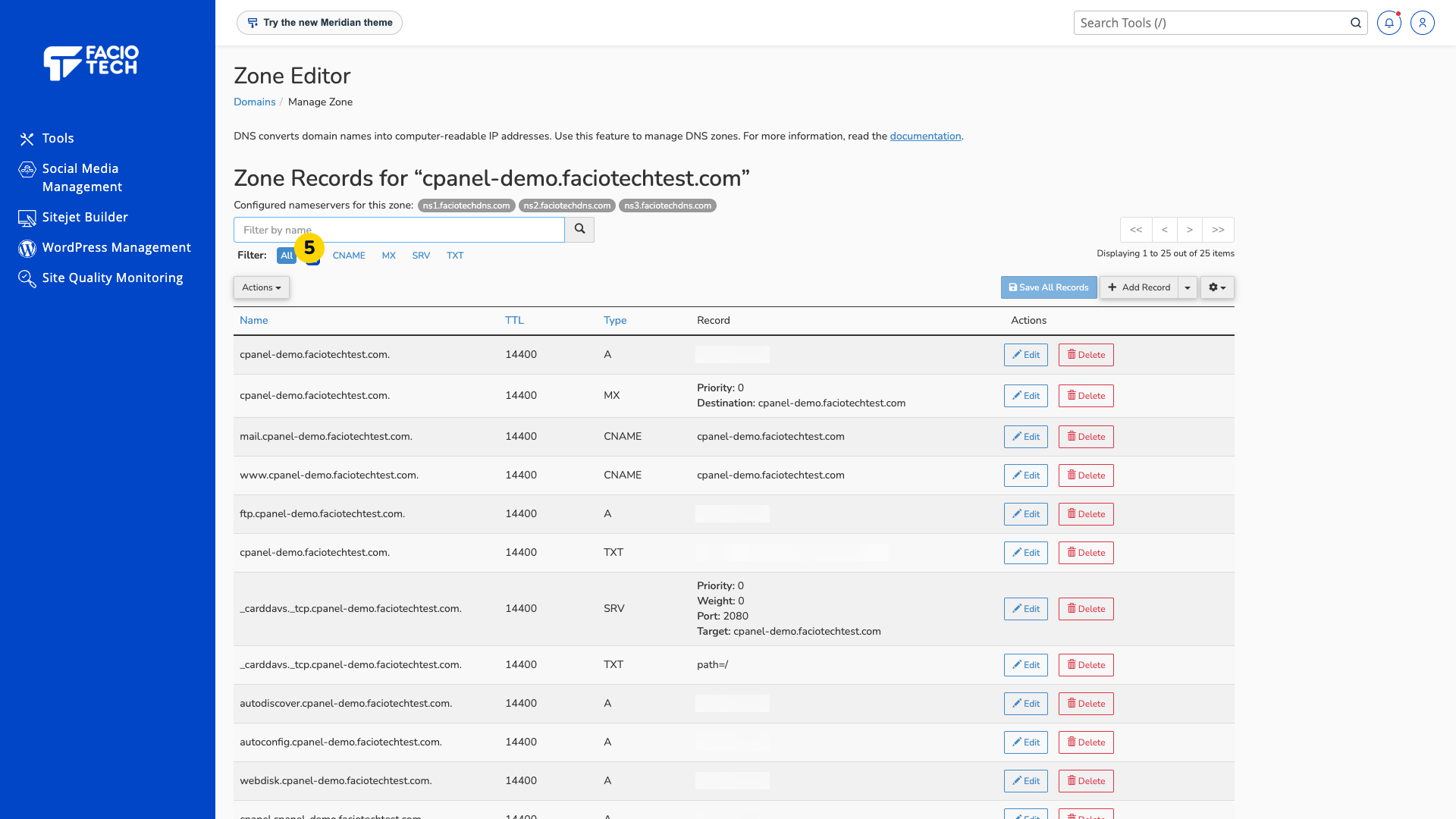
Read the record Name, TTL, Type and Record value. Make sure the name is the one you intended to check.
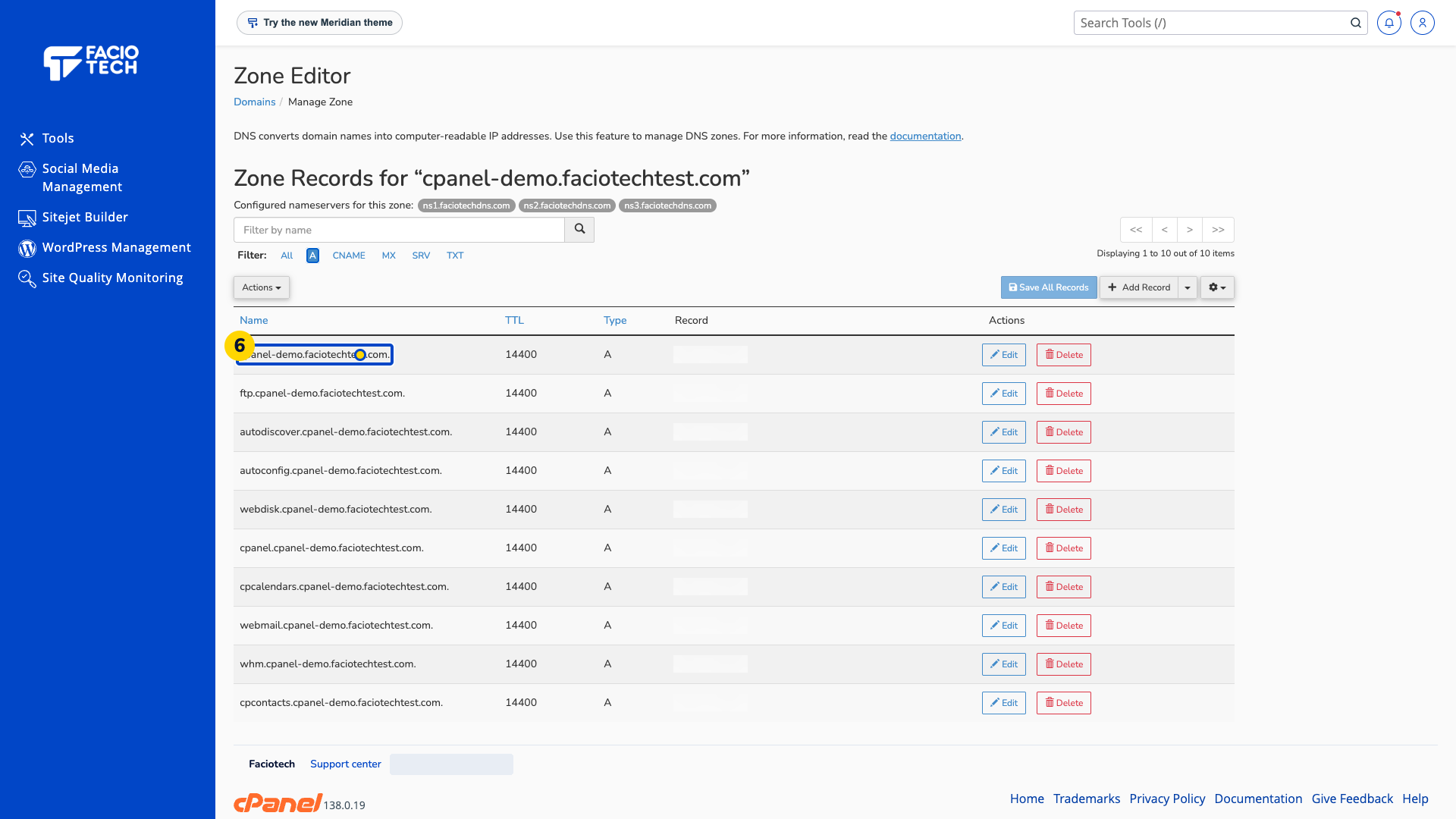
Contact support with the record name and type if something looks wrong. Confirm where your DNS is managed before making a change.
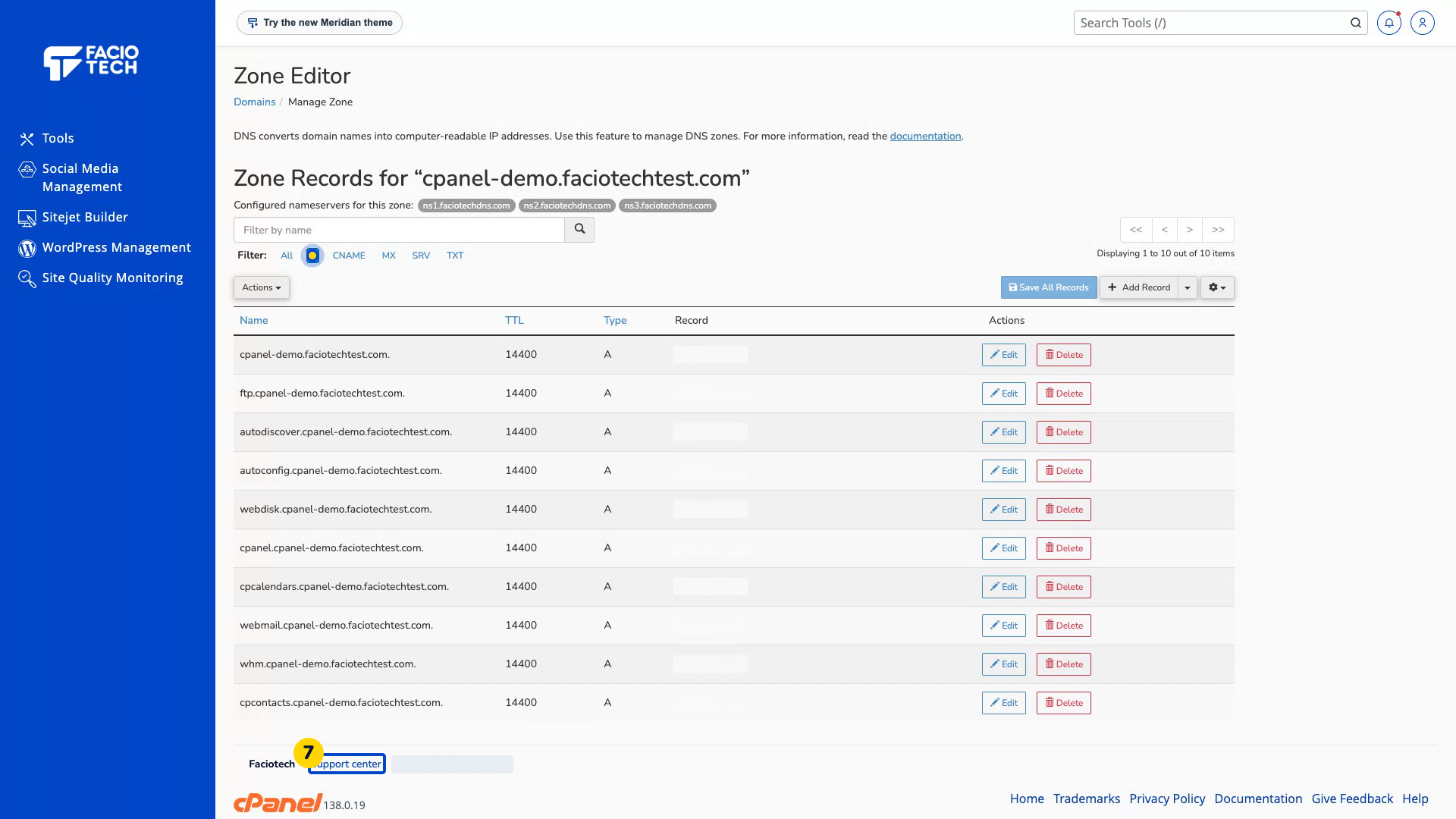
Video walkthrough
Sources
For help, contact Faciotech support.
