
Use the certificate status page to check the result for the exact domain you want to visit.
Log in to cPanel from your client area. If that link is unavailable, use the panel address in your welcome email. The cPanel dashboard appears after successful sign-in.
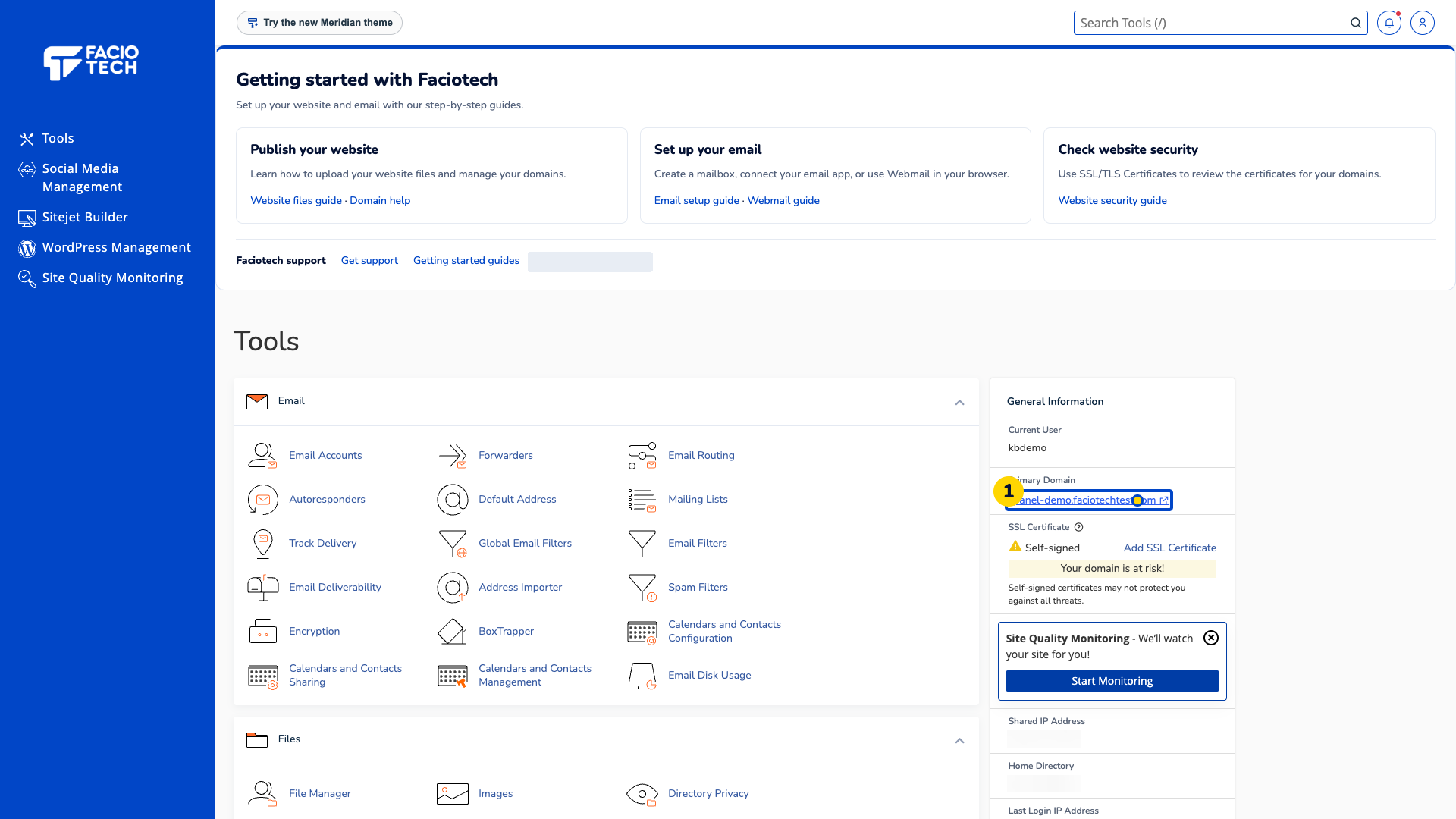
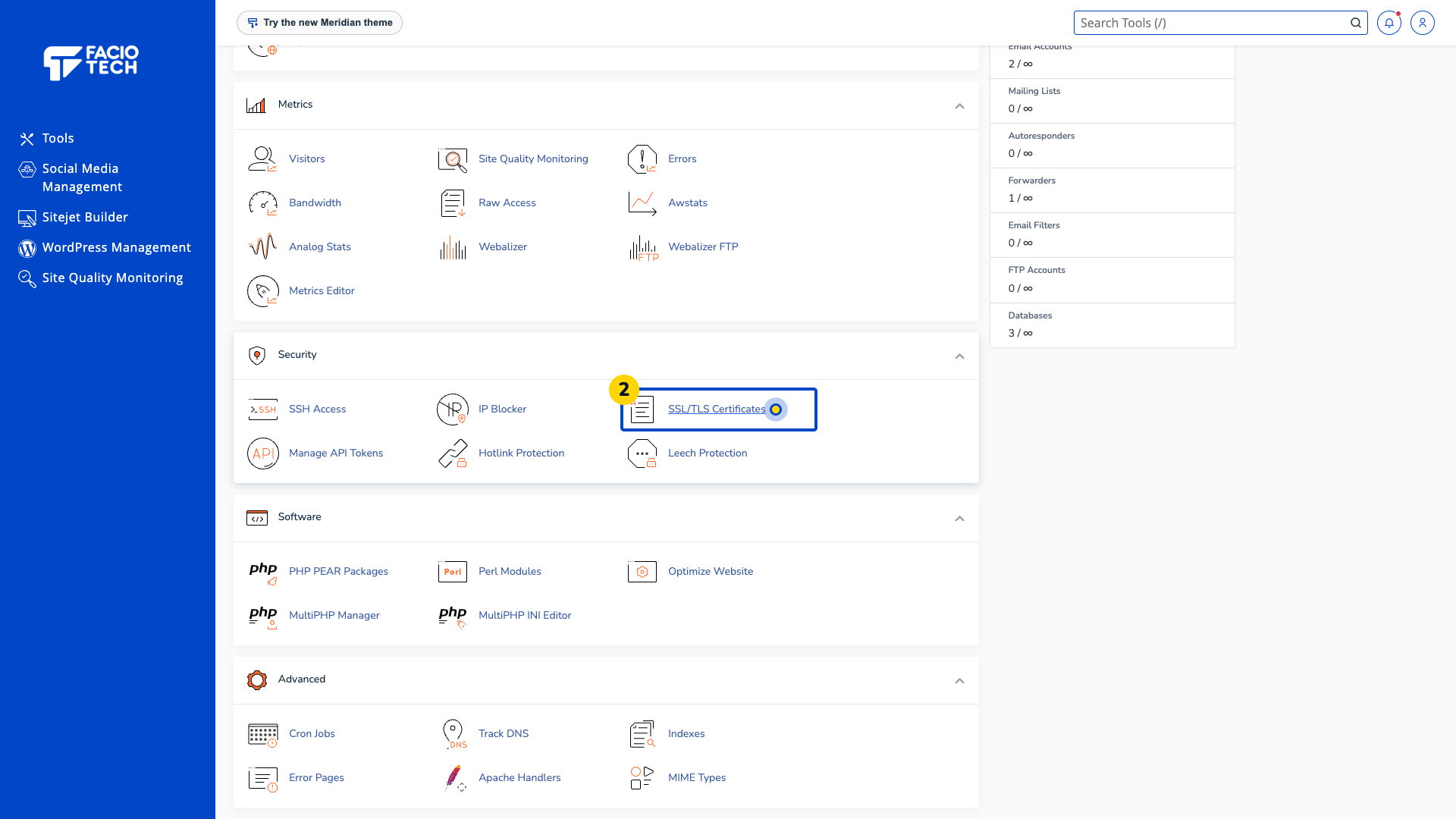
Open SSL/TLS Certificates from Tools. The tabbed certificate interface appears.
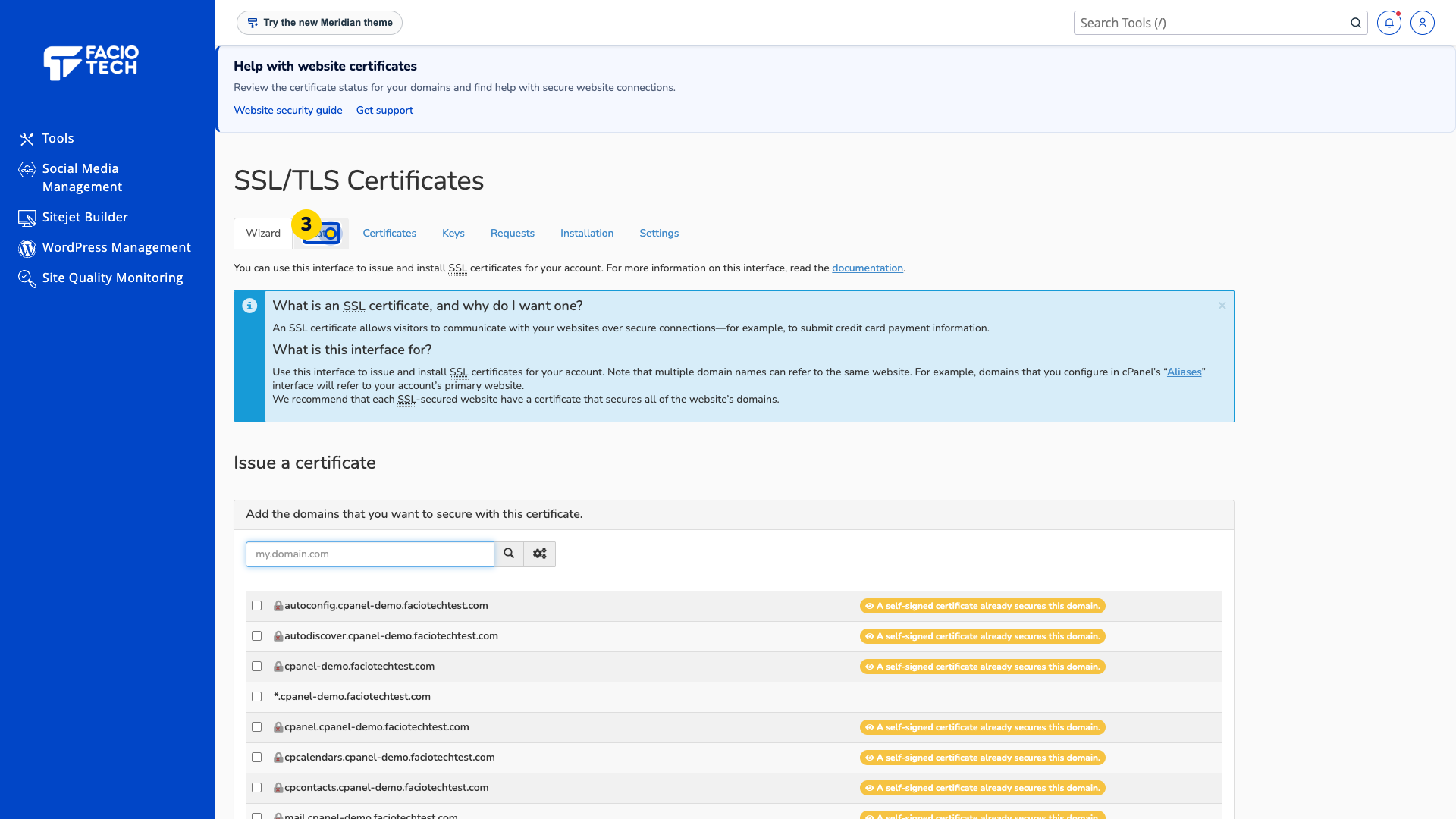
Choose Status. The domain list appears.
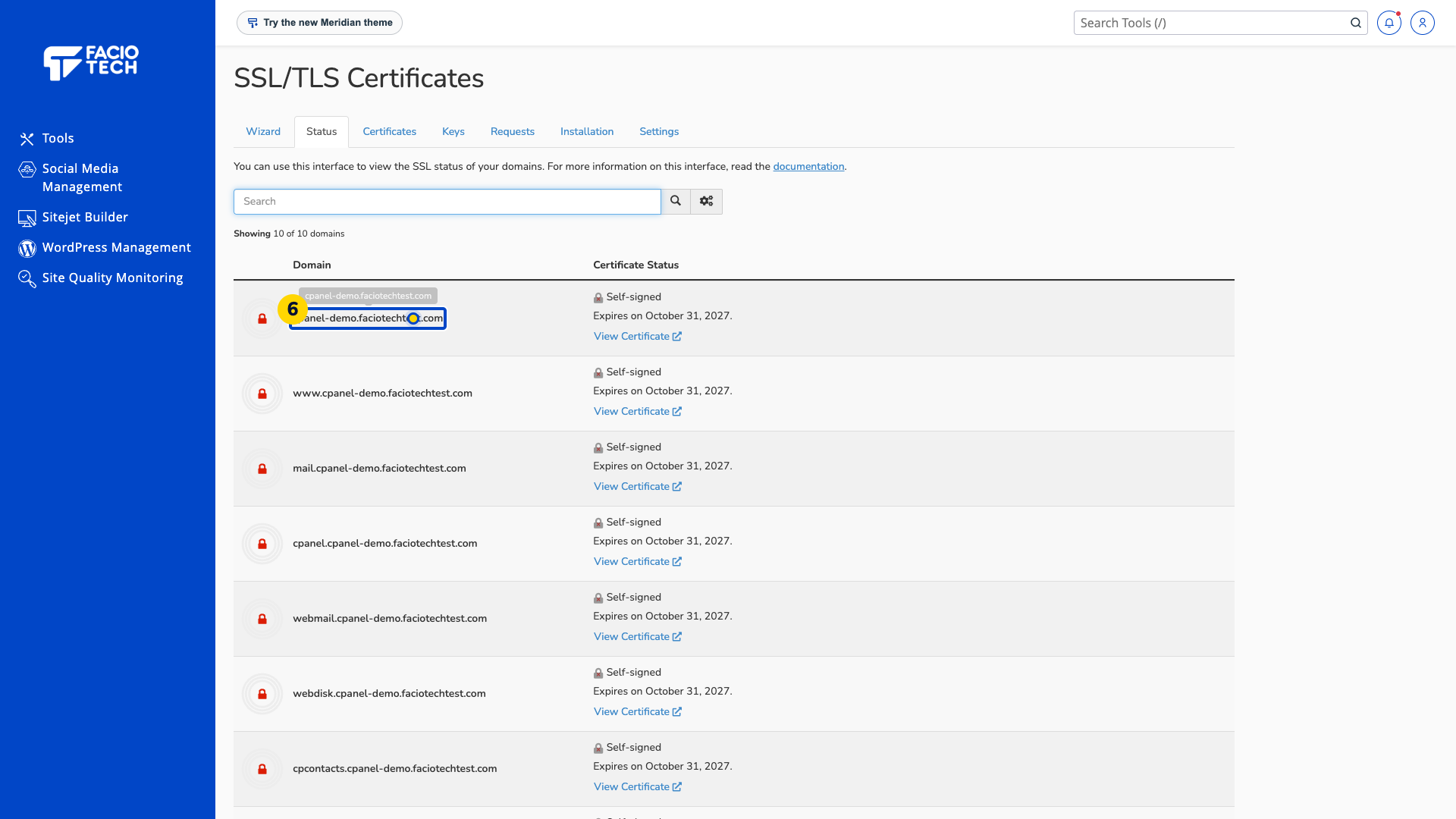
Find the row for the domain you want to check.
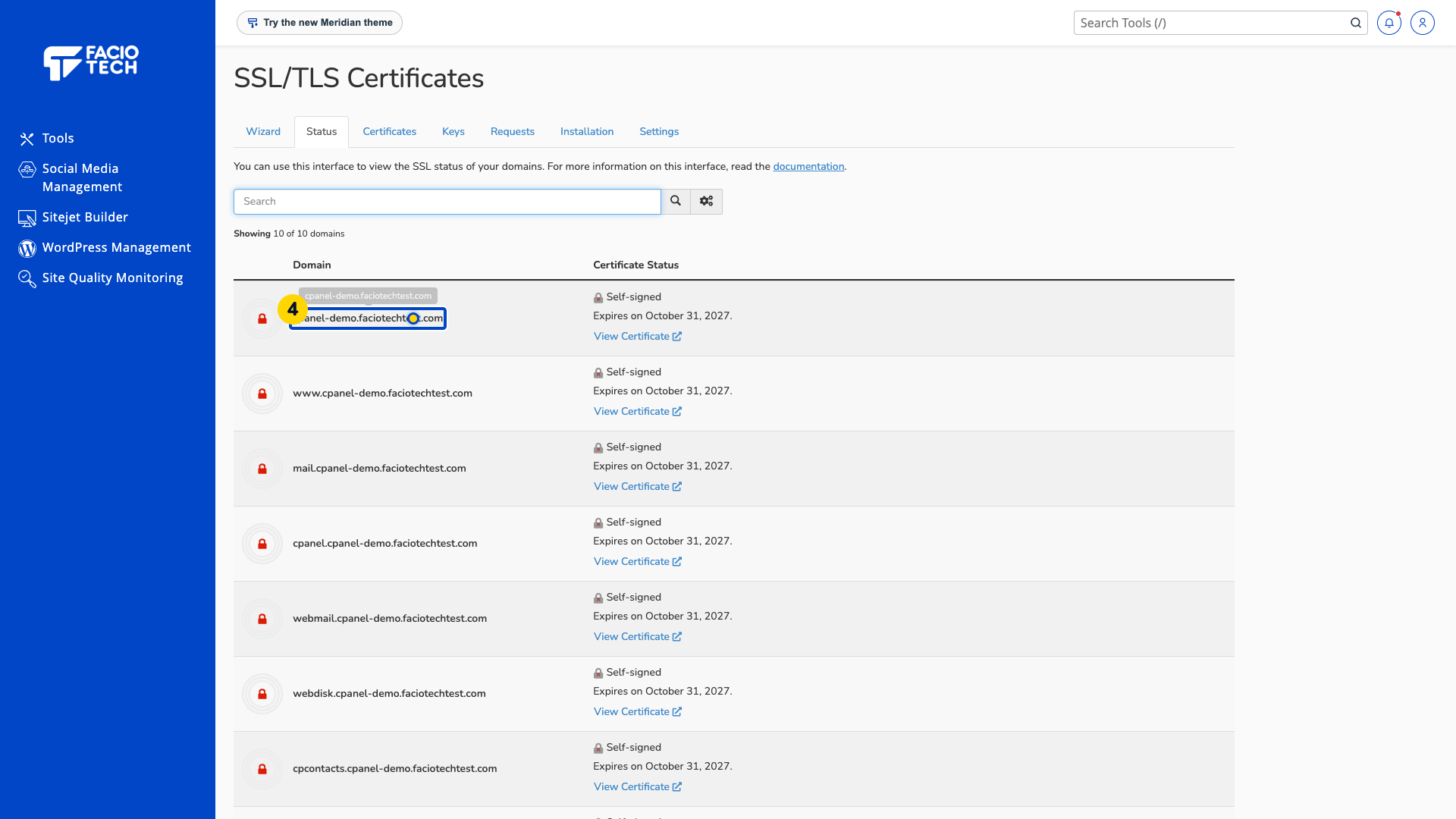
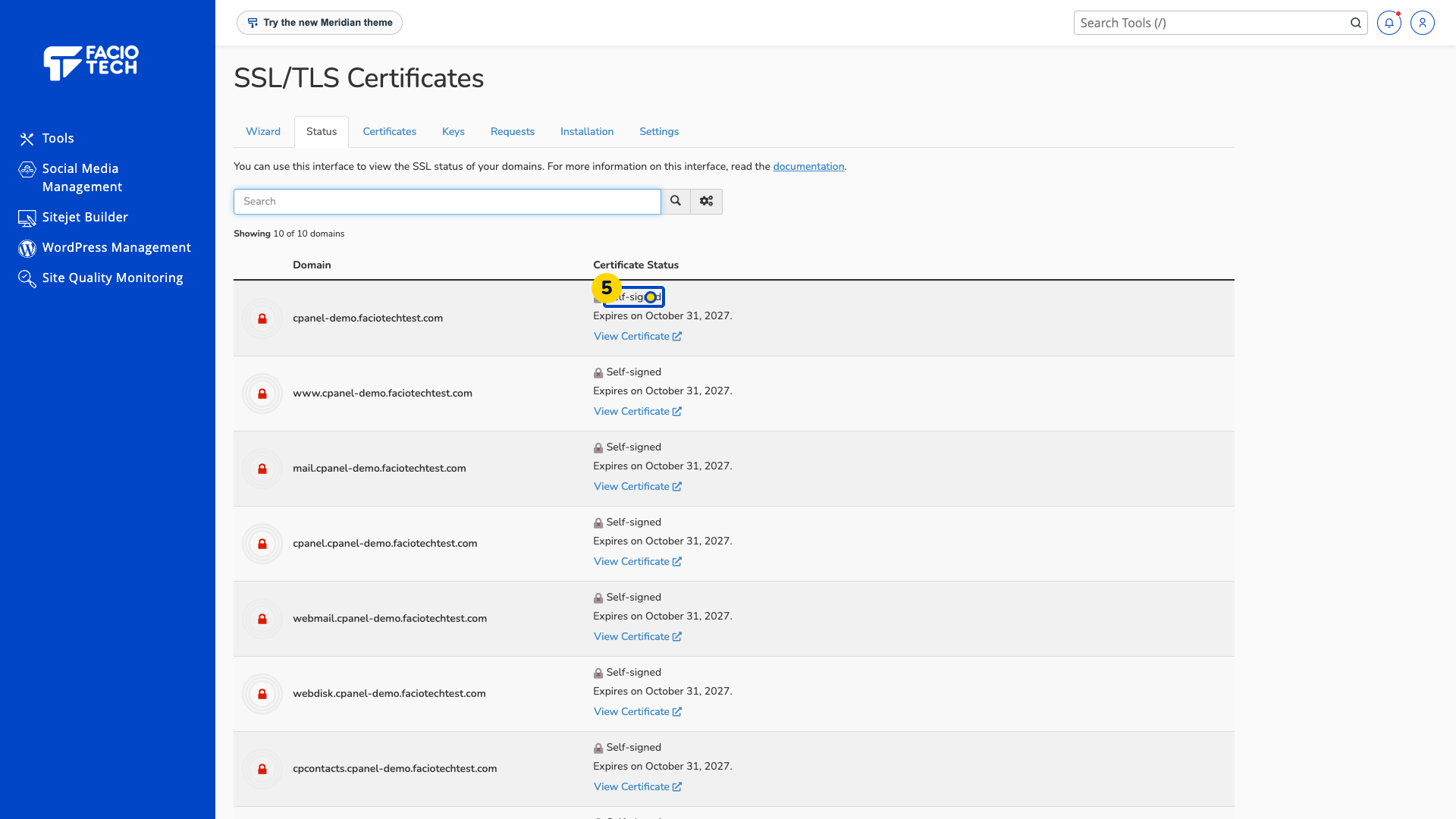
Read the certificate status and any warning shown for that domain.
Check the hostname in the same row. Make sure the result applies to the name you intend to visit.
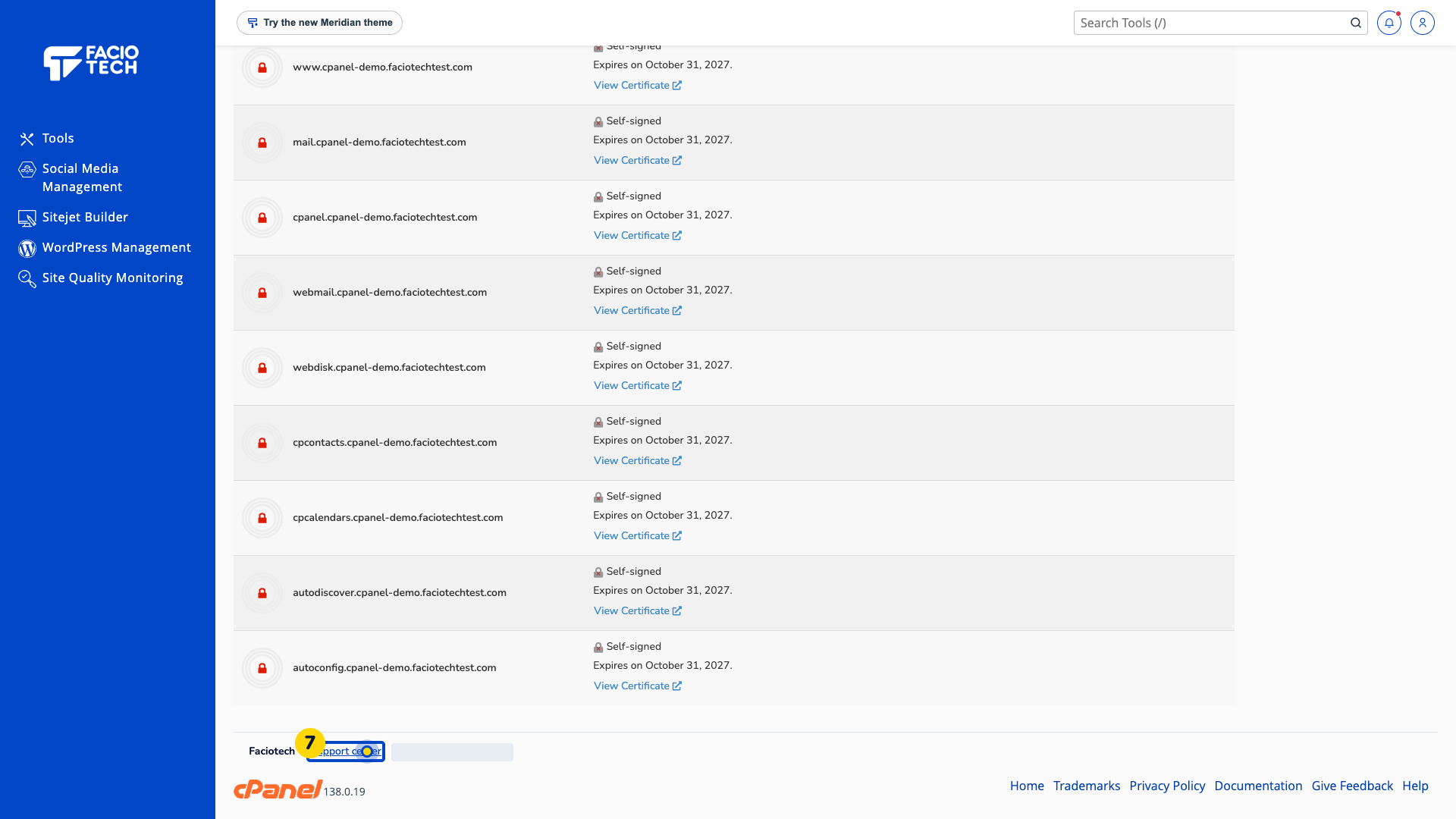
Contact Faciotech support if there is a warning or you need help. Include the domain and the warning wording.
Most browsers warn about self-signed certificates because they do not verify the site’s identity through a trusted certificate authority.
Video walkthrough
Sources
For help, contact Faciotech support.
