
Create a folder and upload a small file inside your website folder.
Log in to cPanel from your client area. If that link is unavailable, use the panel address in your welcome email. The cPanel dashboard appears after successful sign-in.
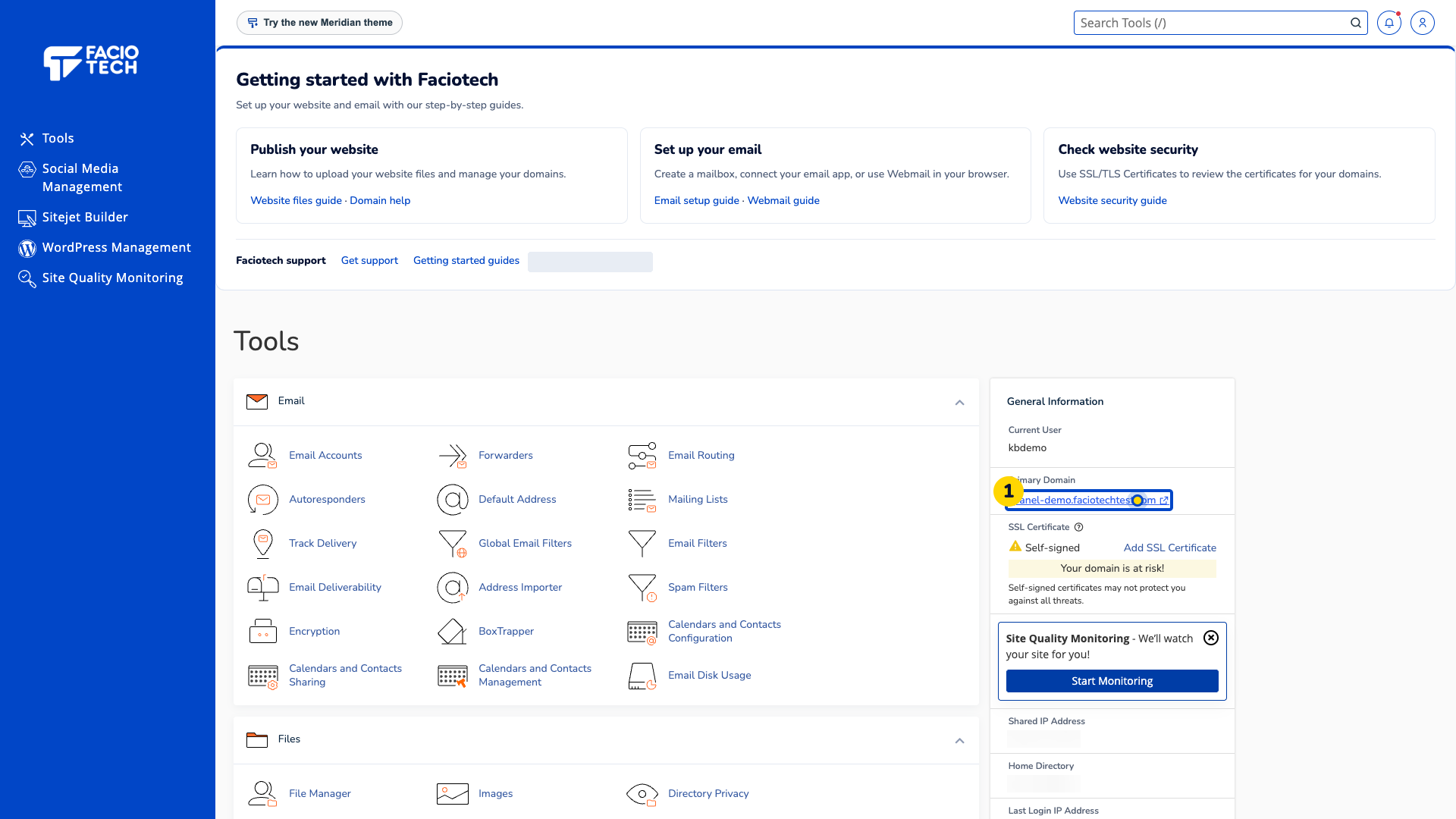
Open File Manager. It opens in another tab.
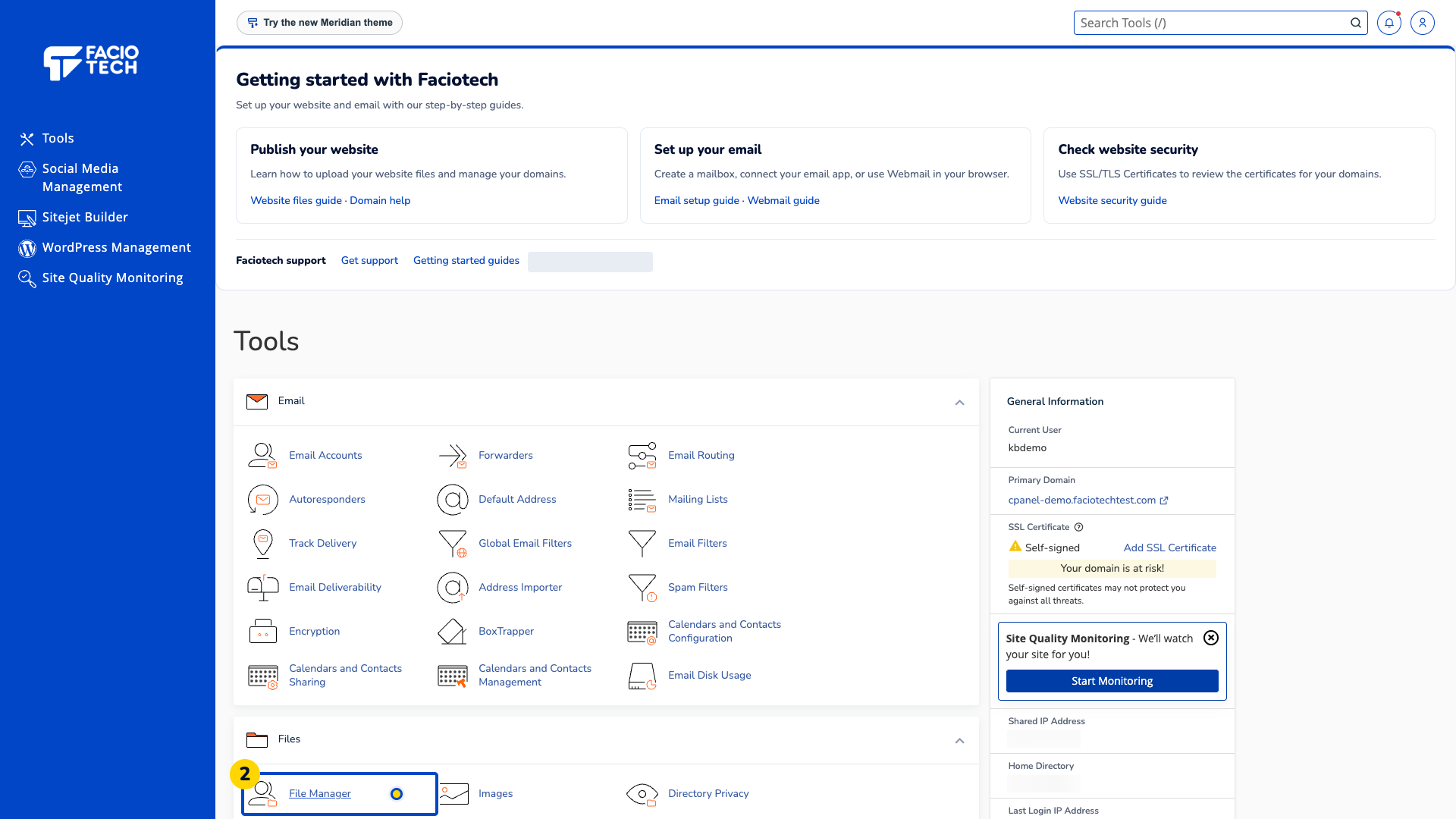
Open the website folder you intend to use. This example uses public_html; another domain may have a different website folder.
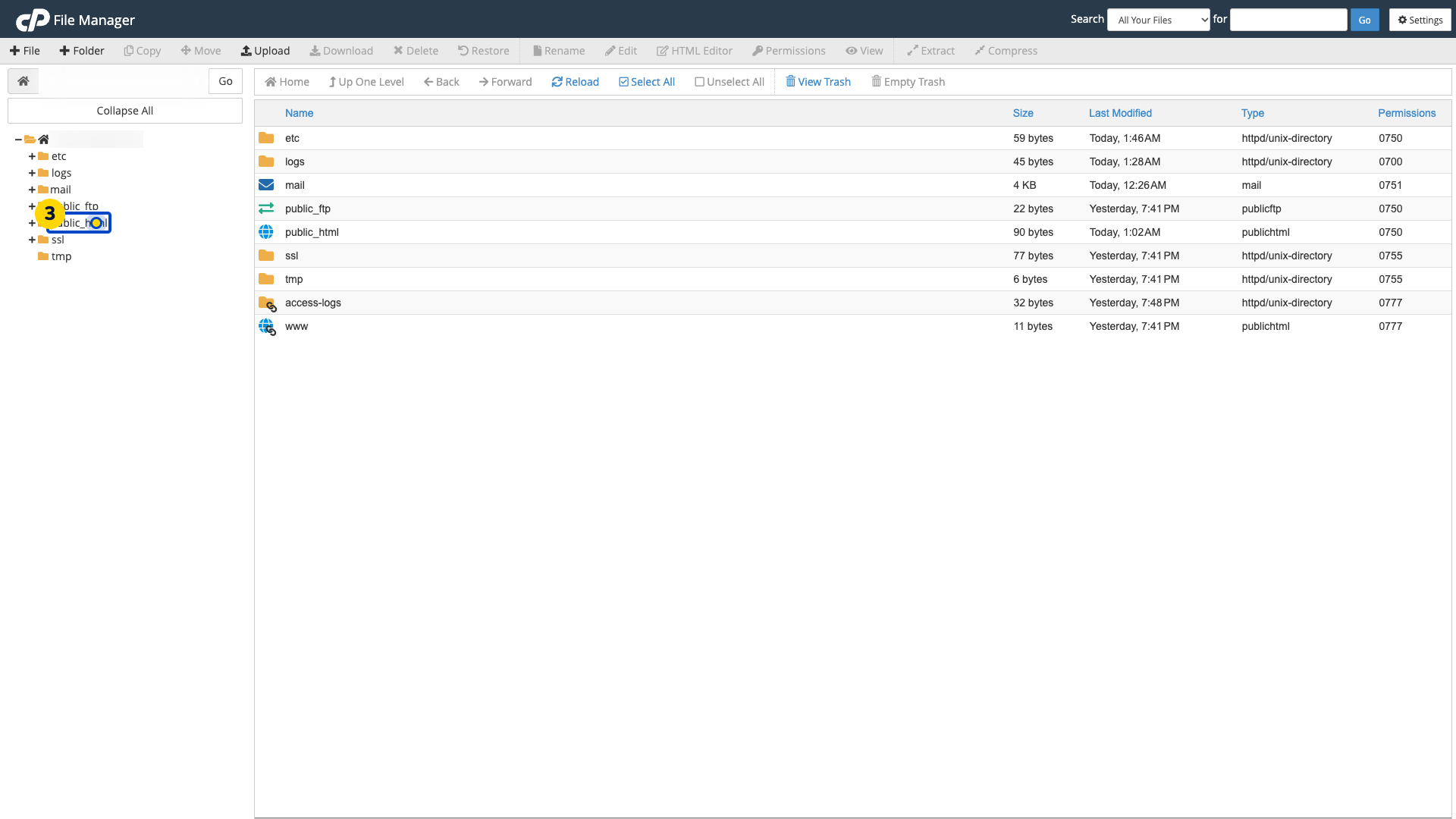
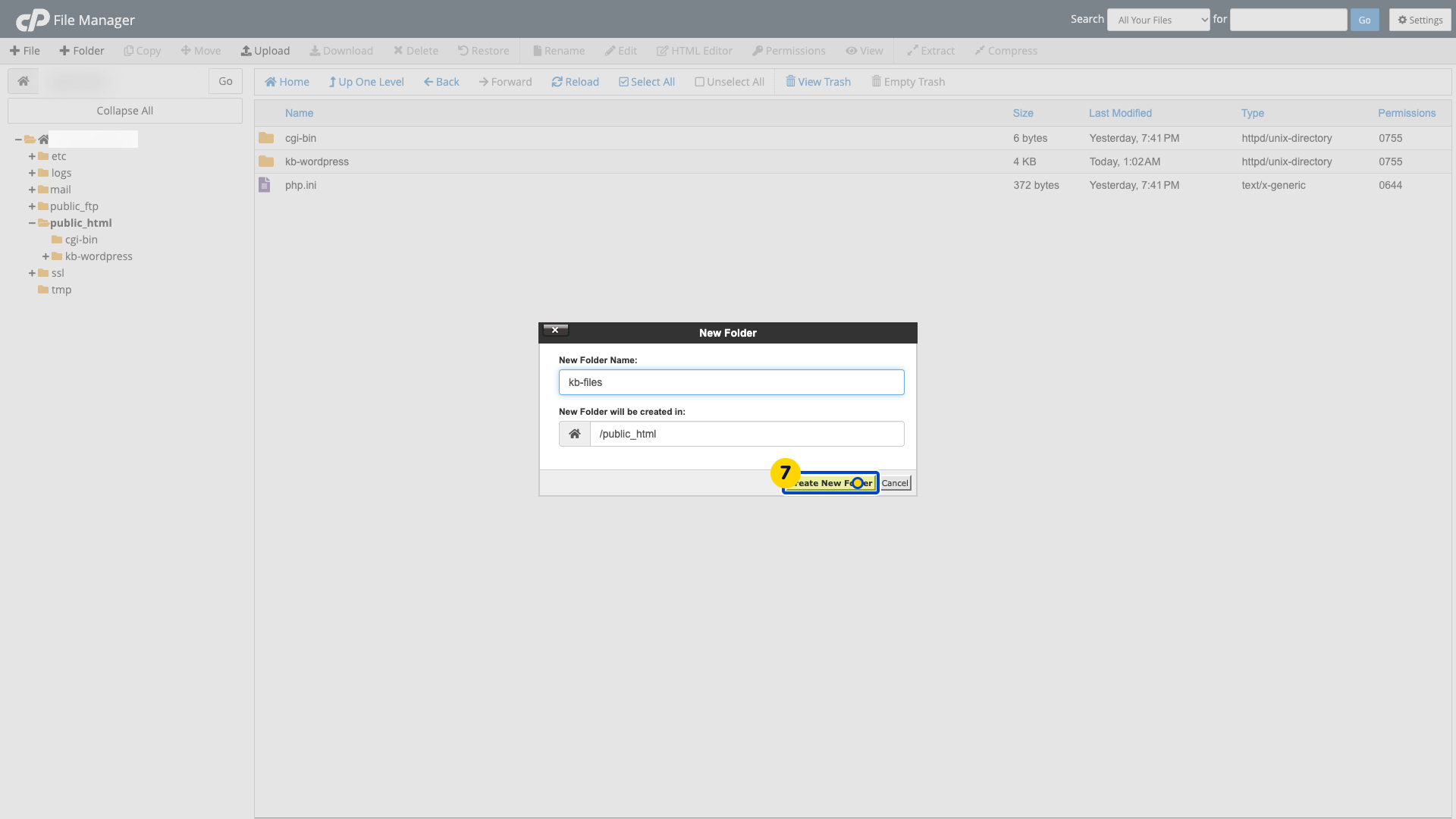
Choose Folder in the toolbar. The New Folder form appears.
Enter the new folder name. This example uses kb-files, which appears in the name field.
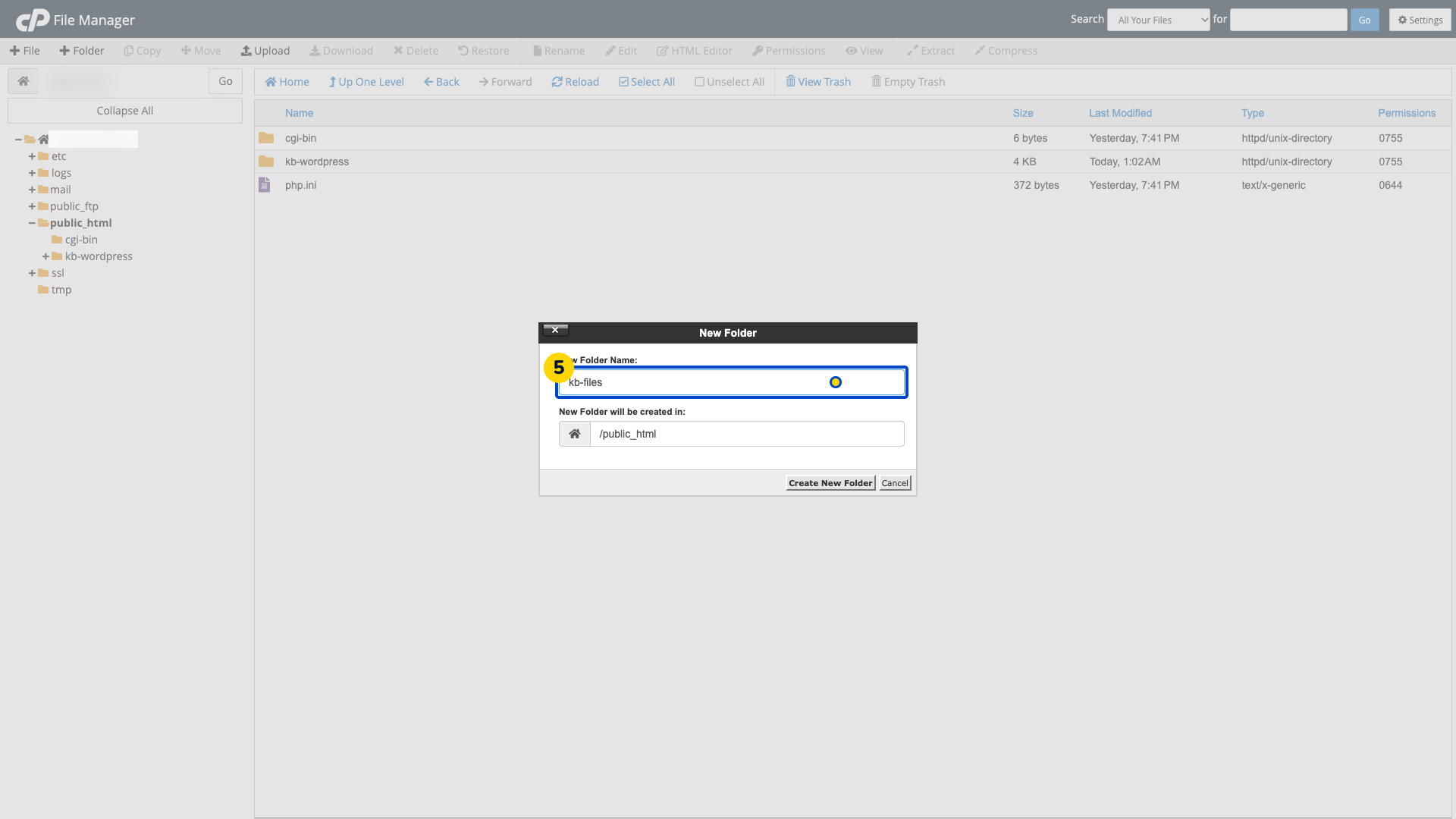
Check the location shown in the form. It should be the website folder you intend to use.
Choose Create New Folder. The new folder appears in that location.
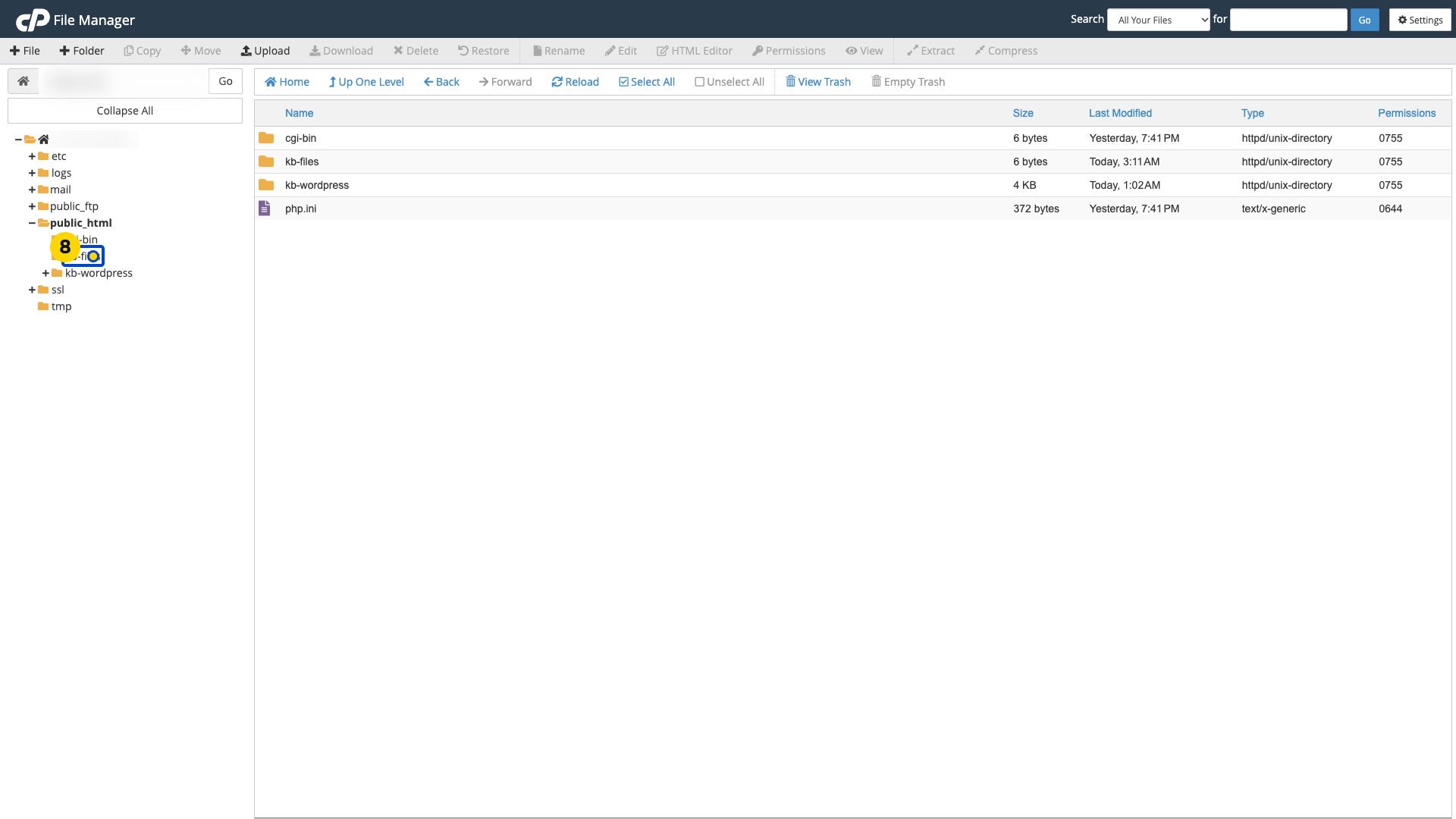
Select kb-files in the folder tree. The new folder’s file list appears.
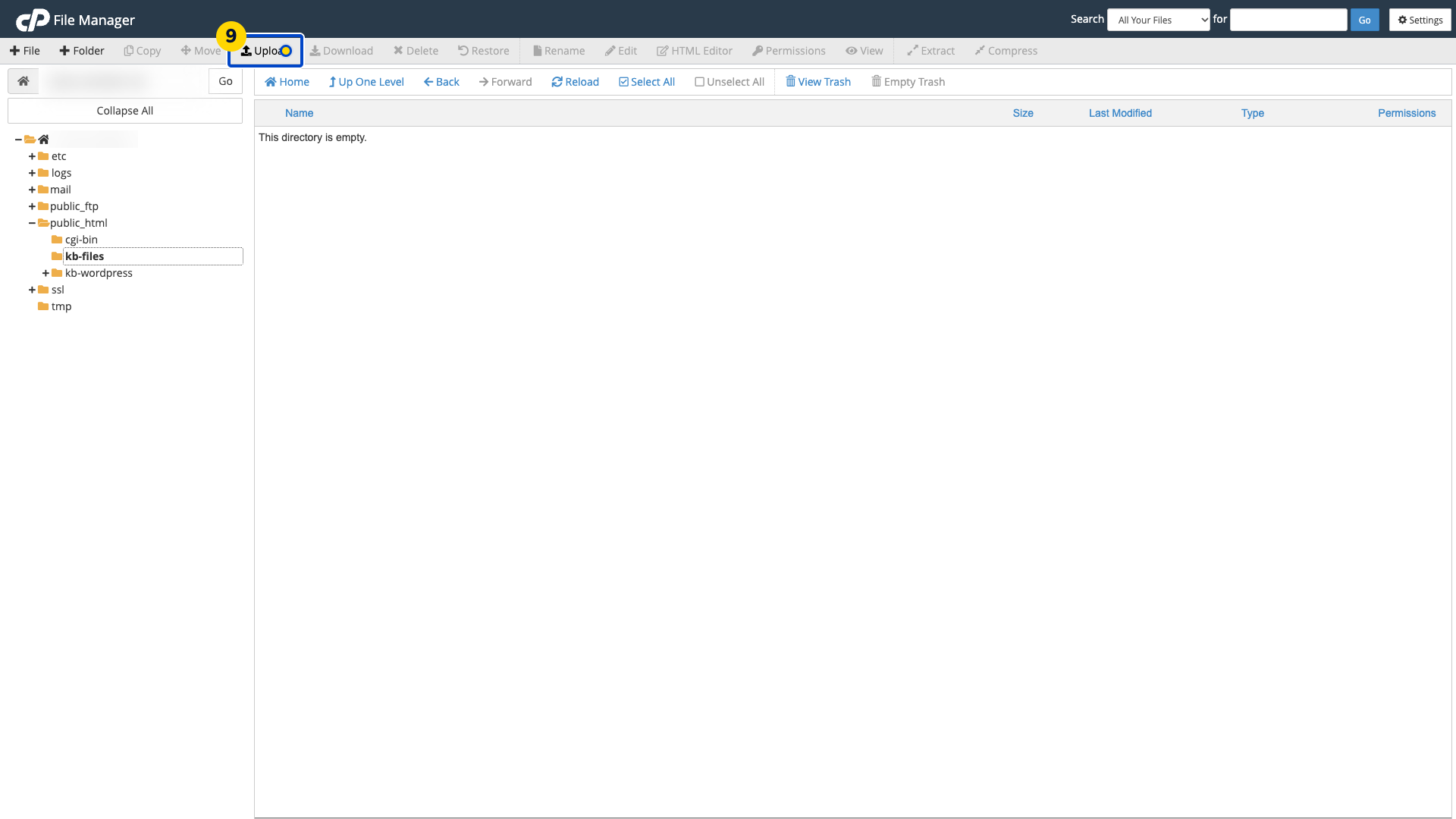
Choose Upload in the File Manager toolbar. The upload page opens.
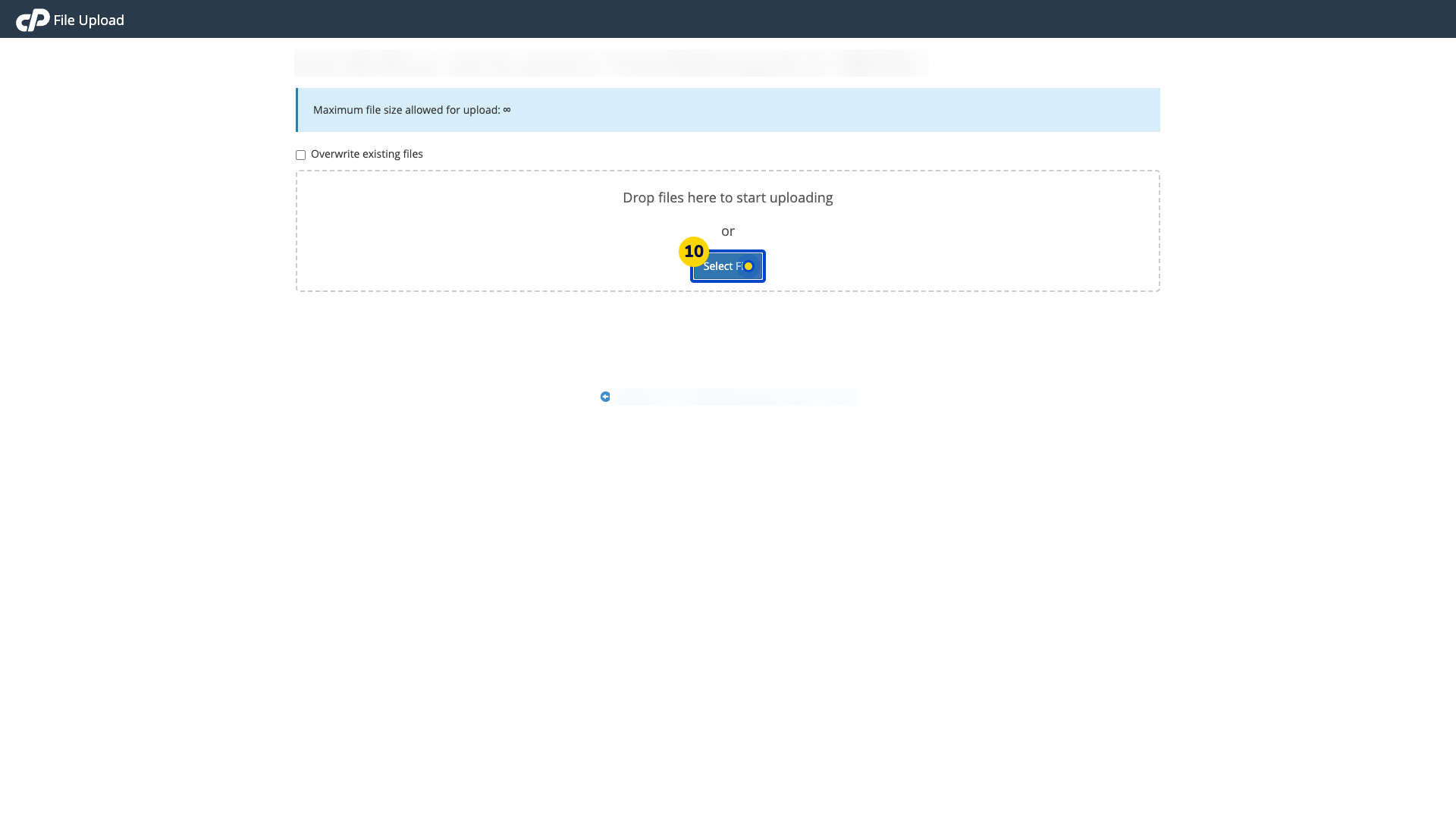
Choose Select File. Your computer’s file chooser appears.
Select the file from your computer. This example uses welcome.txt, which appears in the upload list.
Wait until the upload reaches 100% and shows the completed filename.
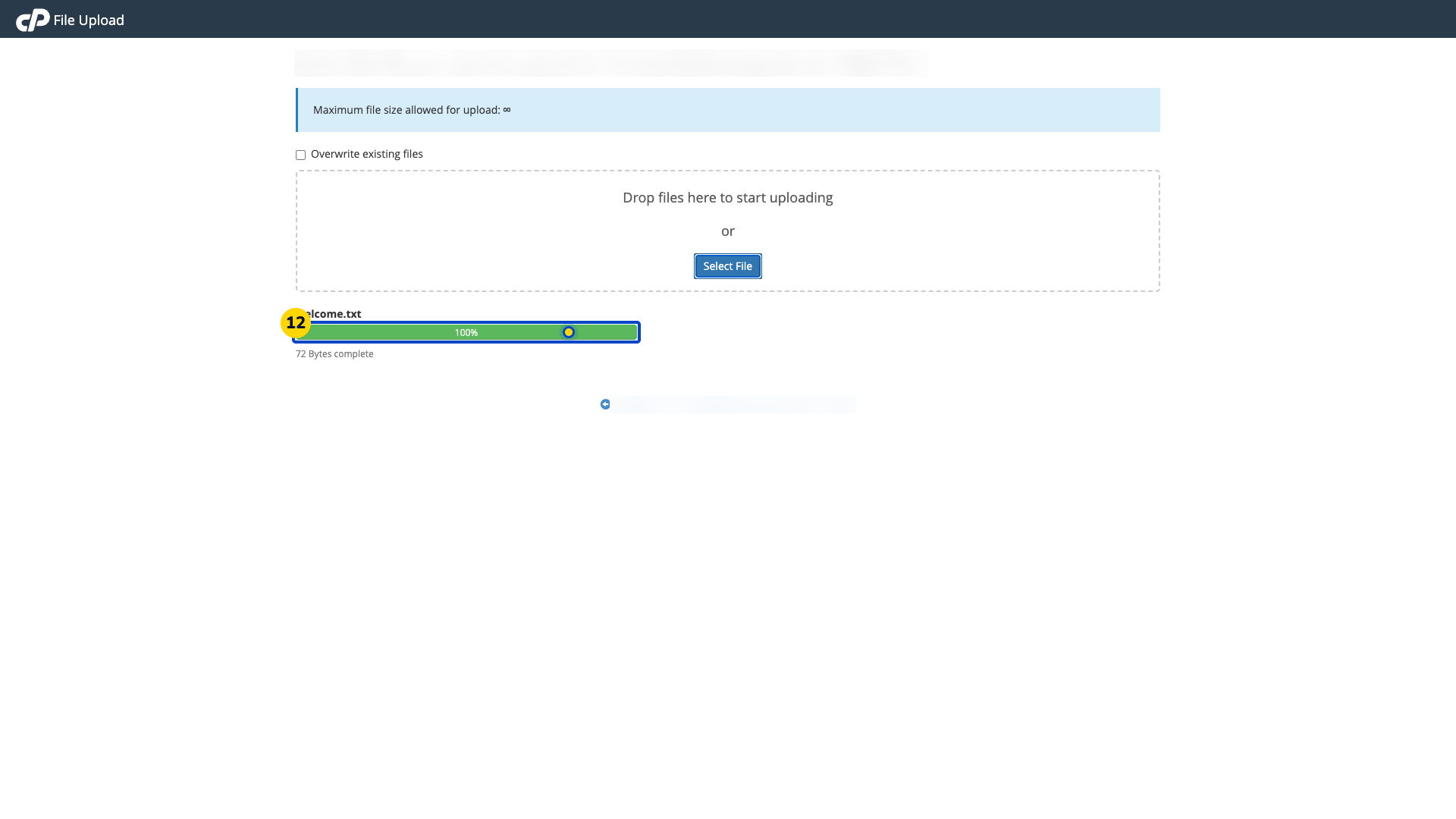
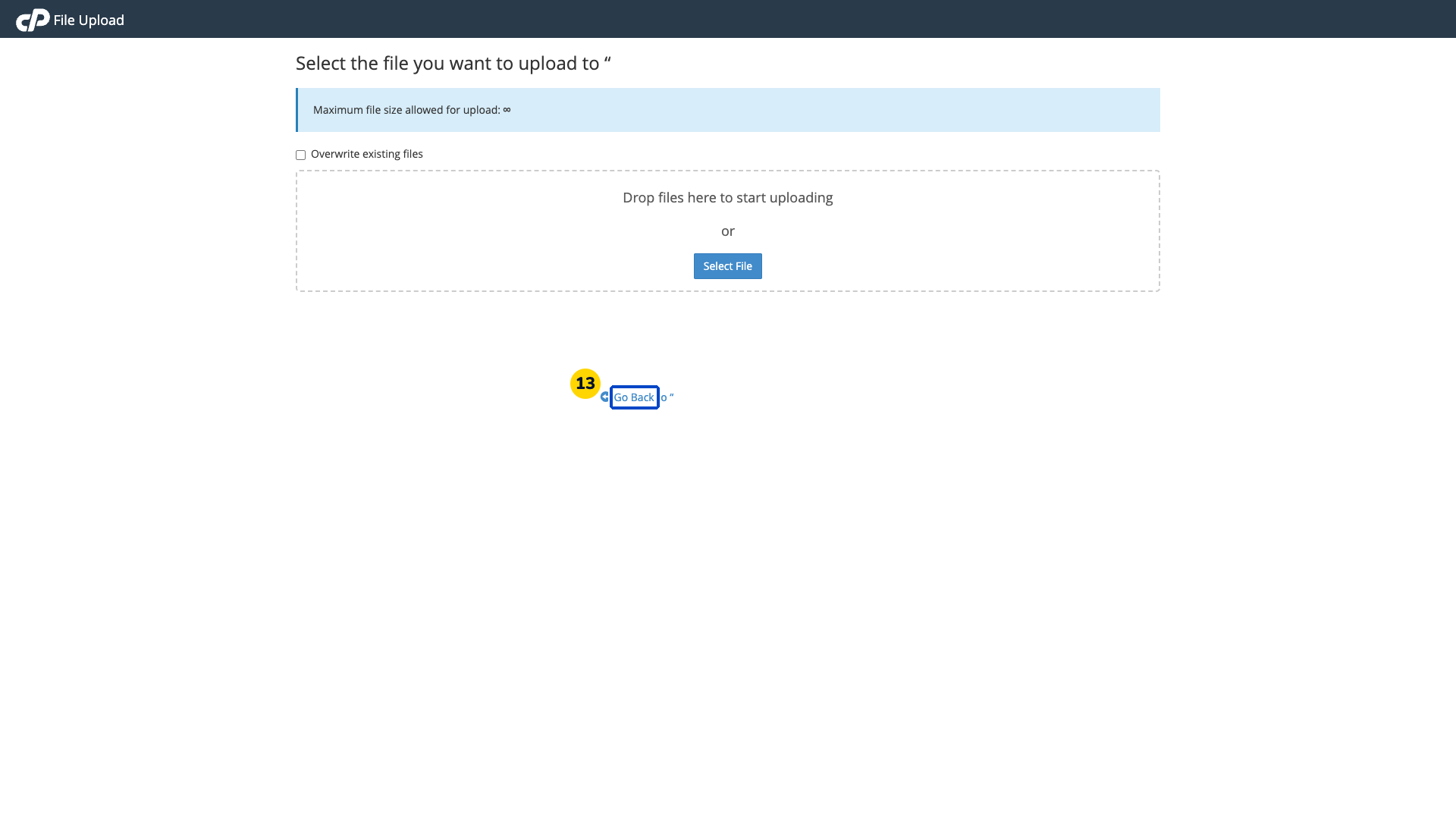
Choose Go Back below the completed upload to return to File Manager. The upload tab may close.
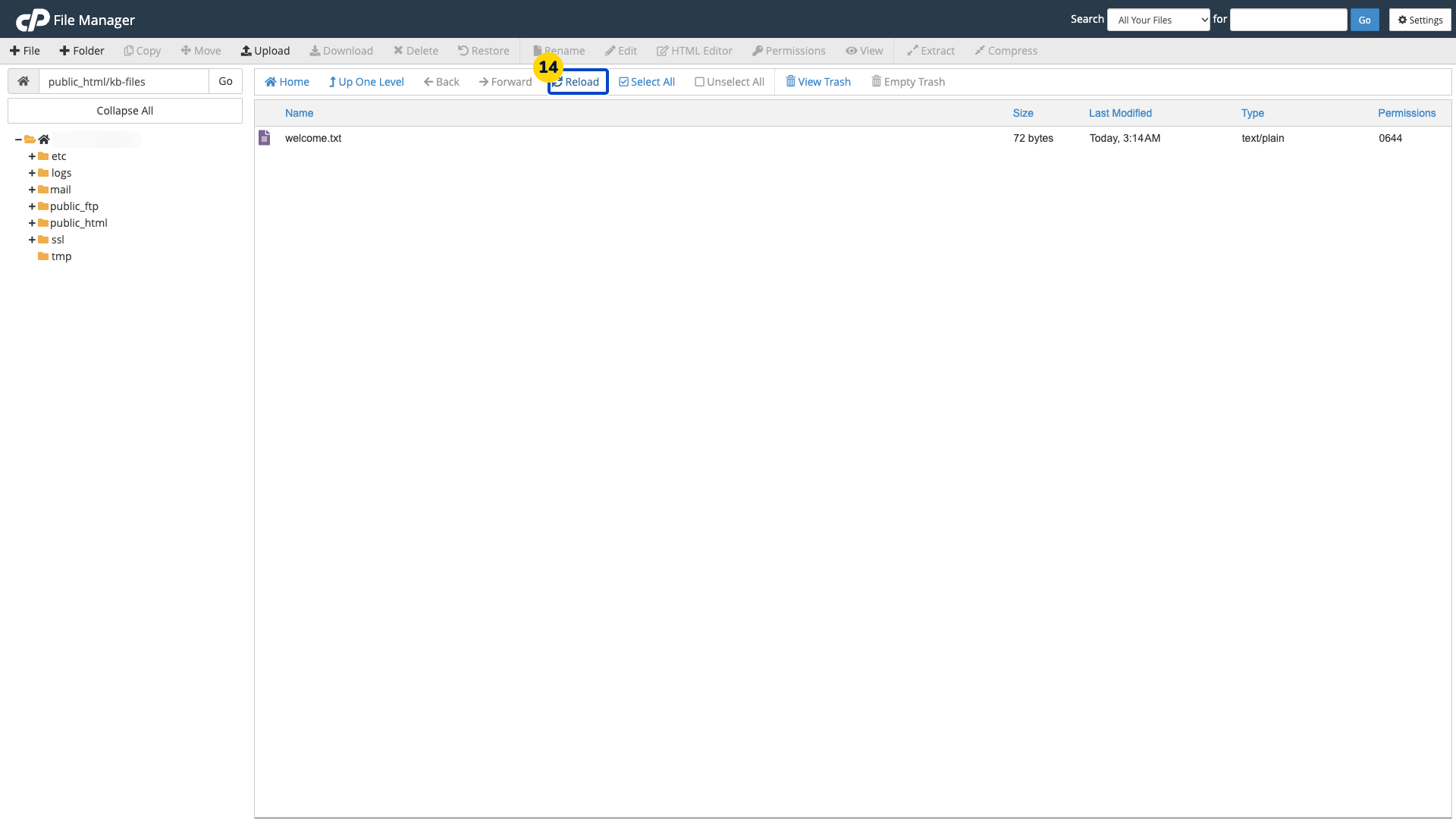
Choose Reload to refresh the file list.
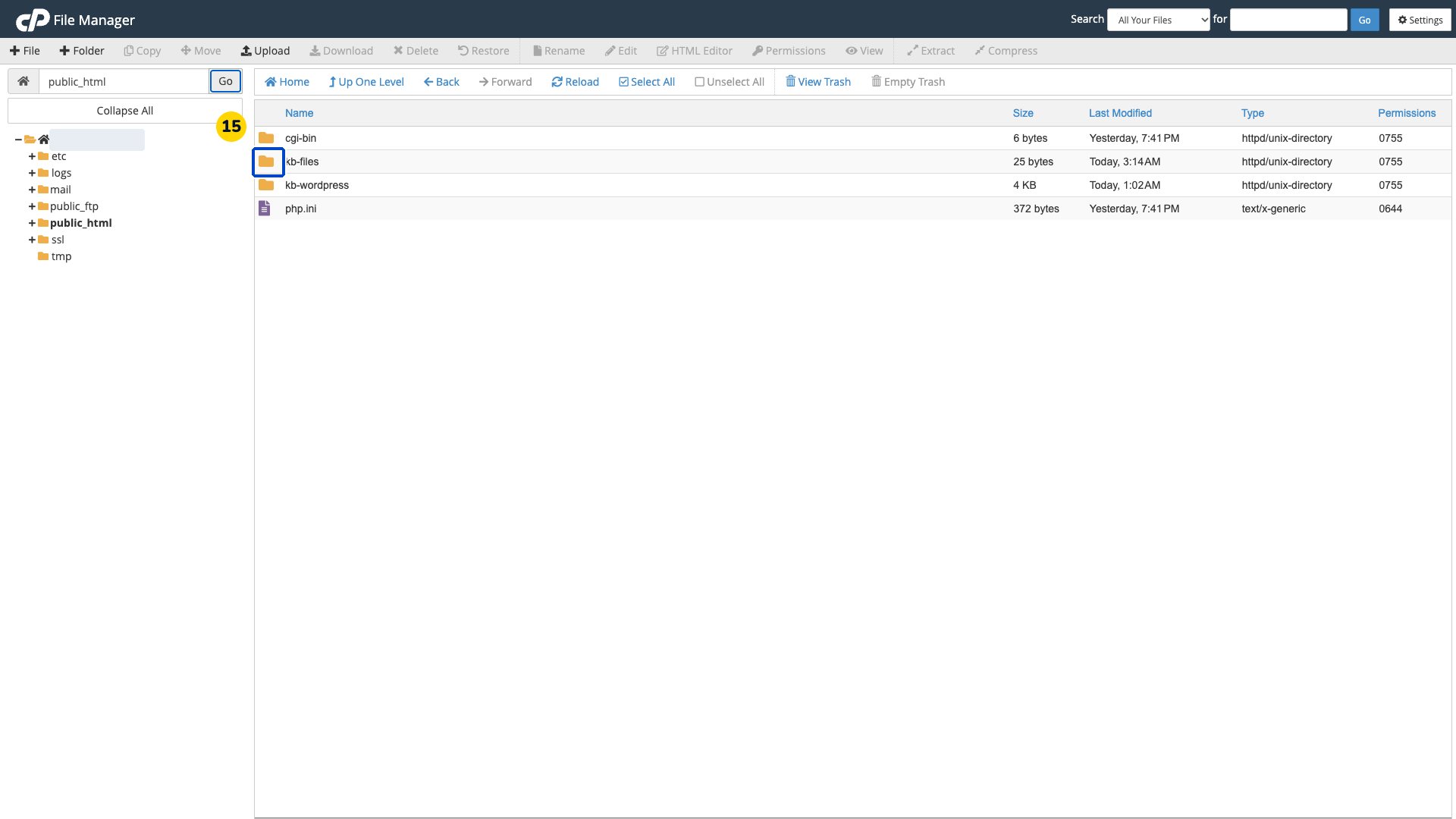
If you are viewing the parent folder, double-click the new folder’s icon. Its file list opens.
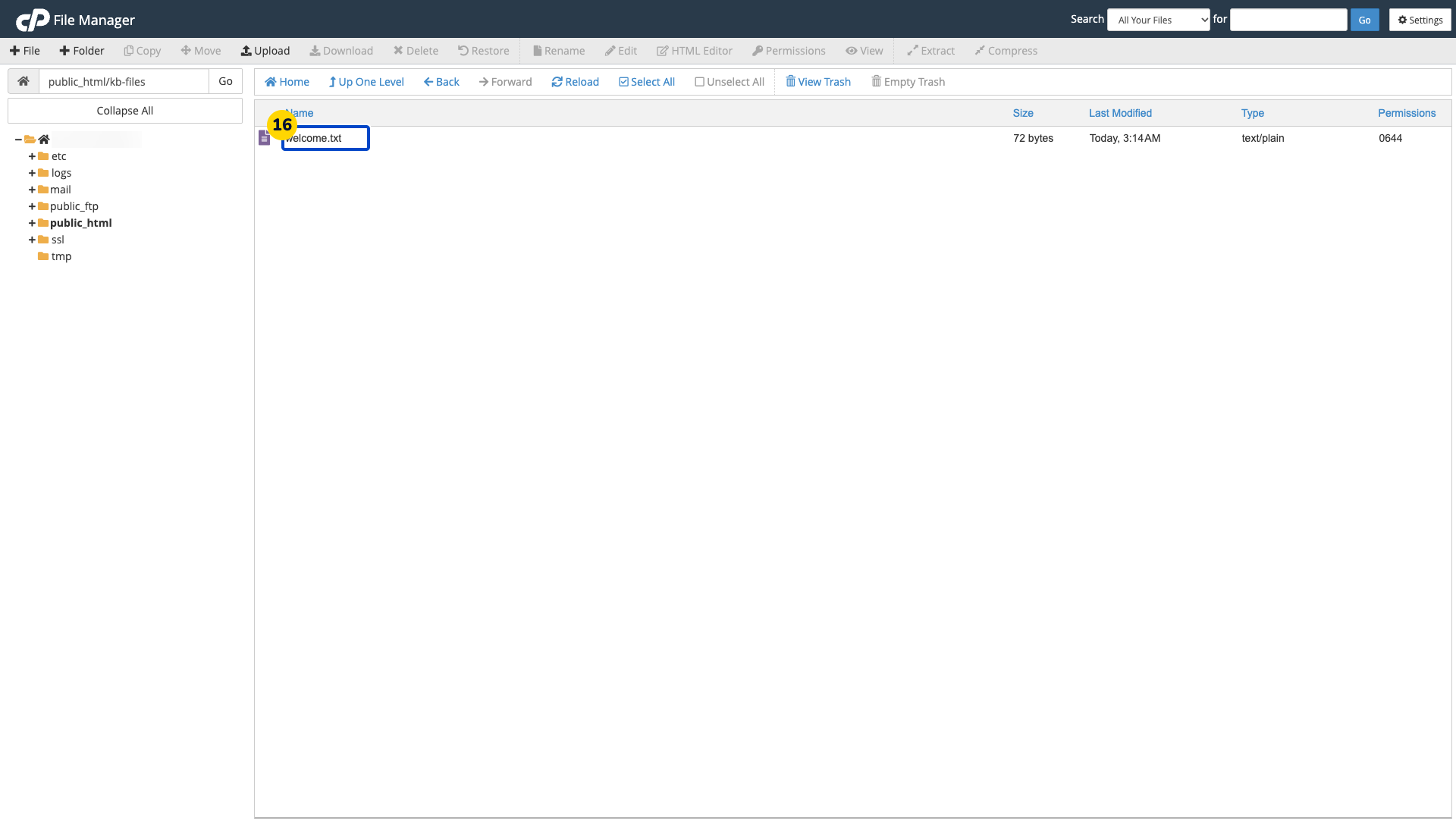
Check the uploaded file in the new folder. The list should show welcome.txt.
Use a new folder and leave Overwrite existing files unchecked for this example.
Use the folder icon to open a folder in the file list. Selecting its name can start renaming it.
Video walkthrough
Sources
For help, contact Faciotech support.
