
Give visitors a useful message when they reach a page that cannot be found.
Log in to cPanel from your client area. If unavailable, use the panel address in your welcome email. The cPanel dashboard appears after successful sign-in.
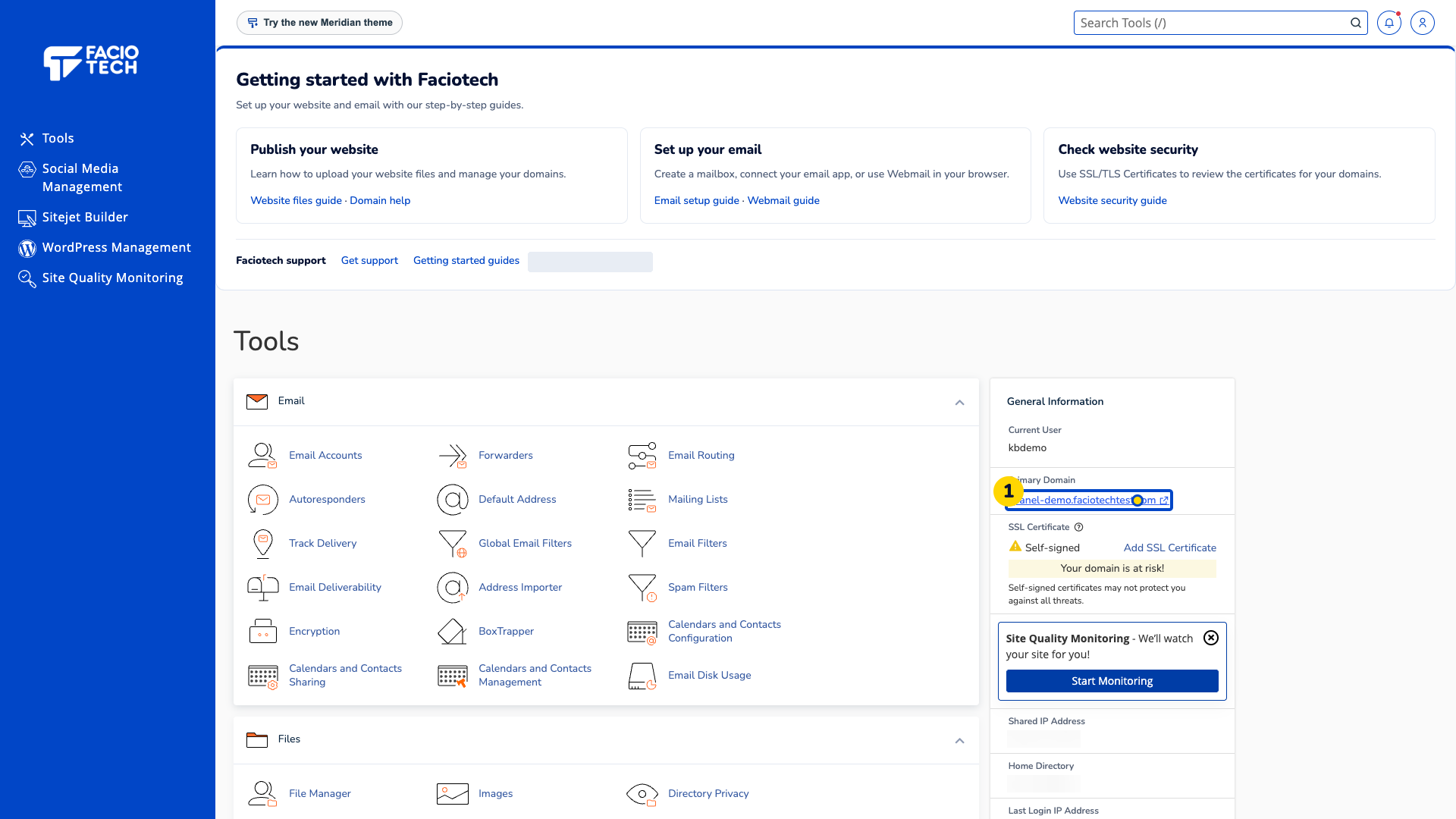
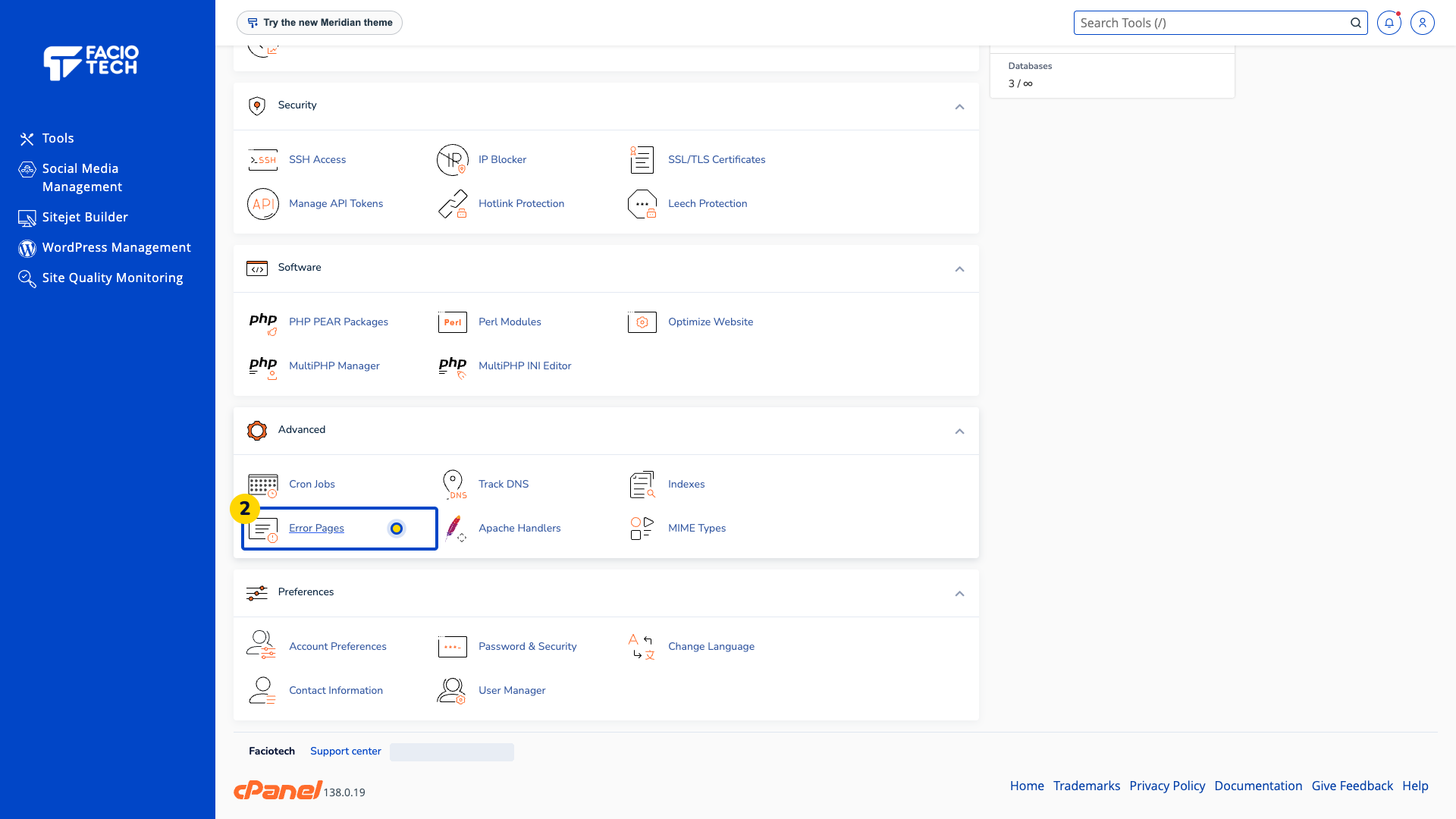
Open Error Pages.
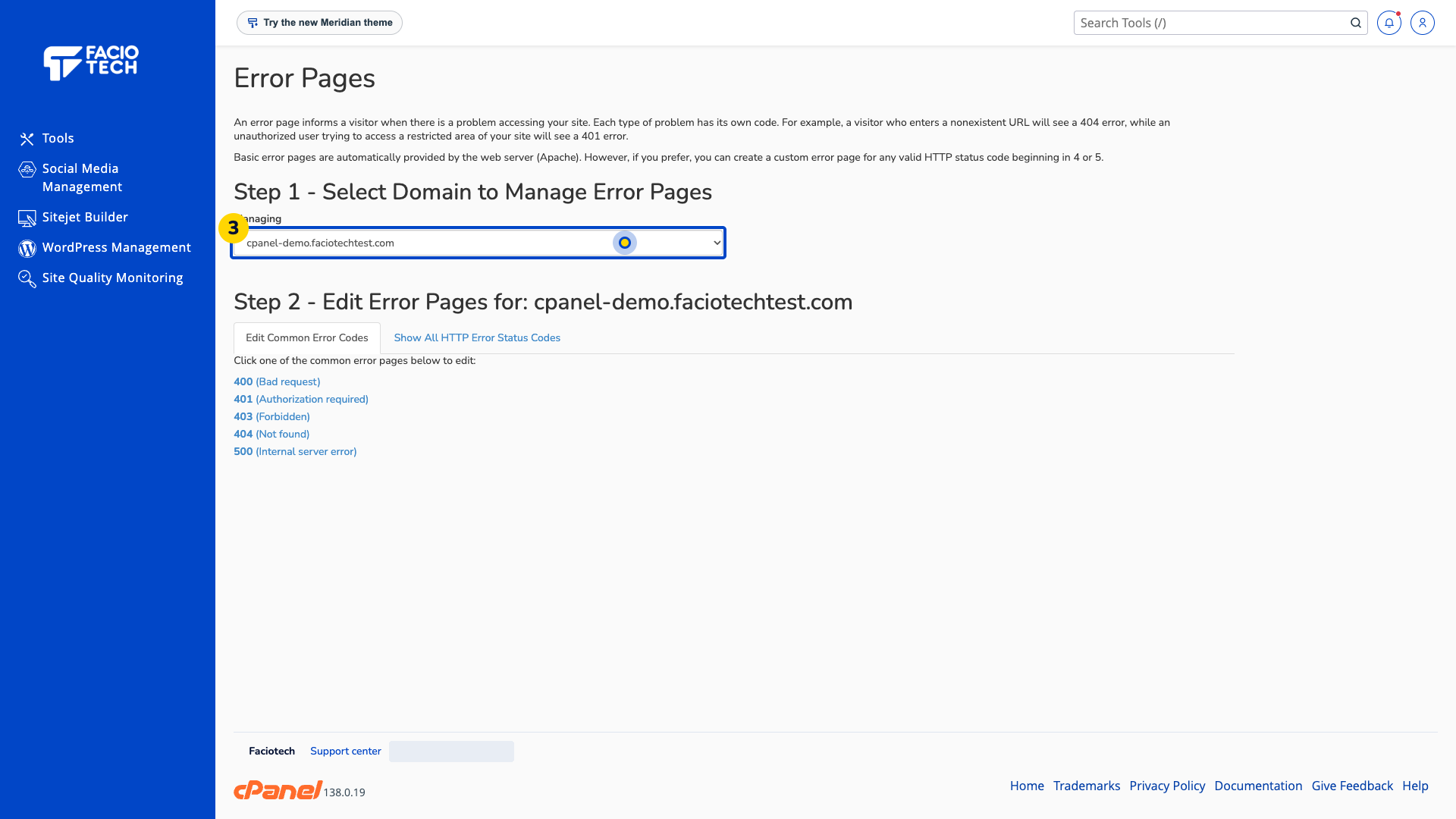
Check the domain in Managing. Select the intended website if your account has more than one.
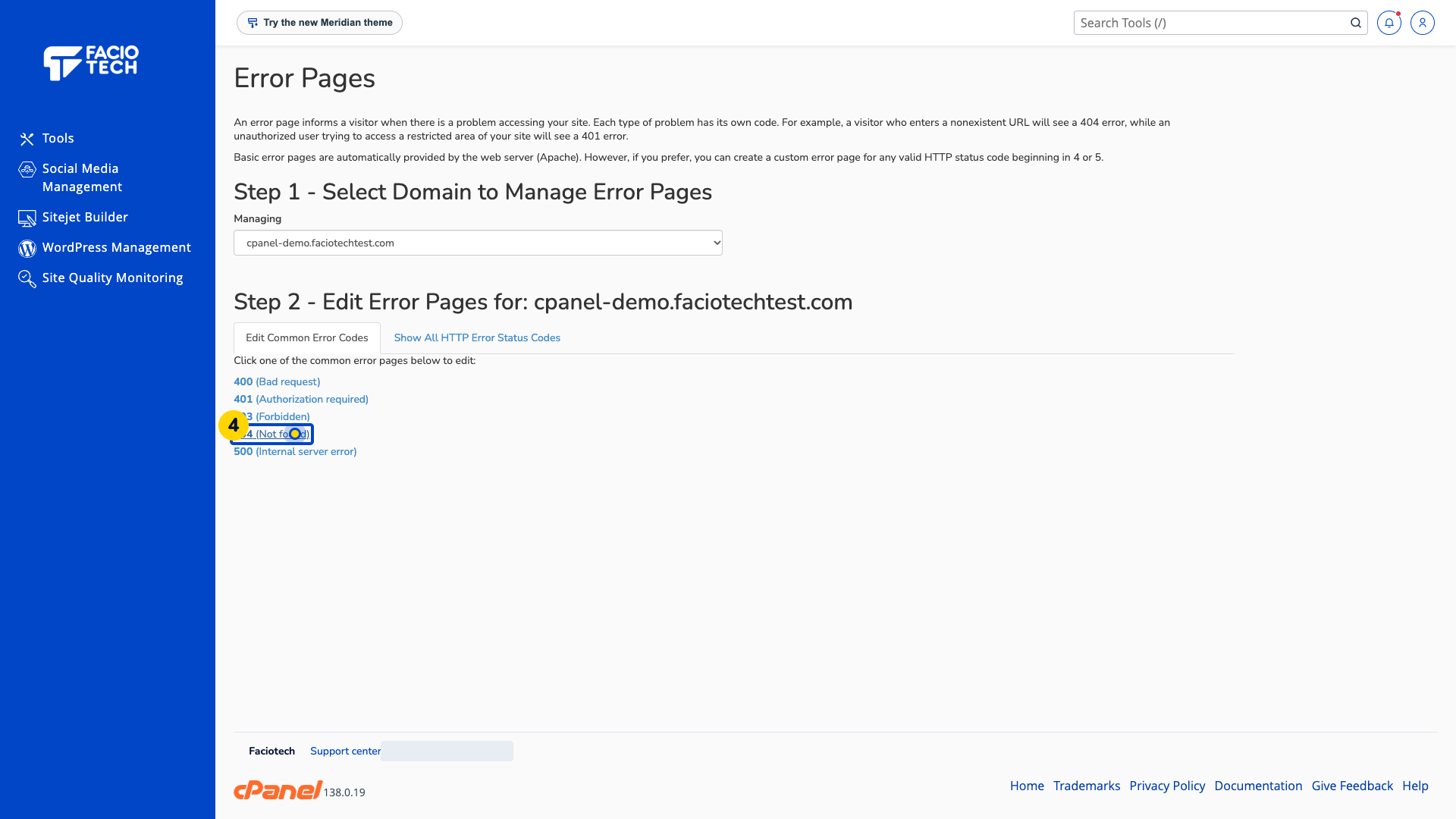
Choose 404 (Not found). Its editor opens. Use Show All HTTP Error Status Codes for other codes.
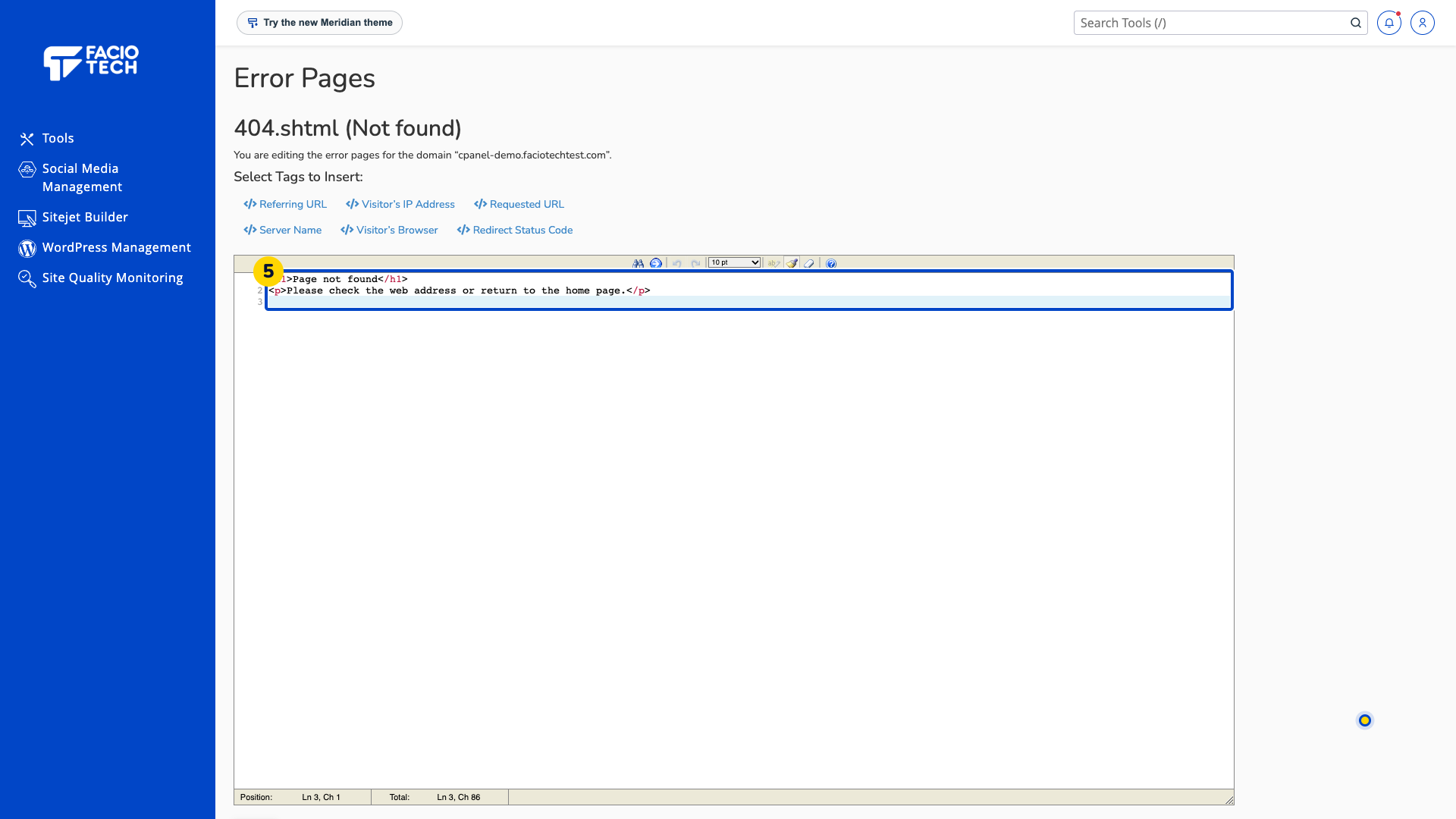
Write your message in the editor. HTML is supported. This example asks the visitor to check the address or return to the home page.
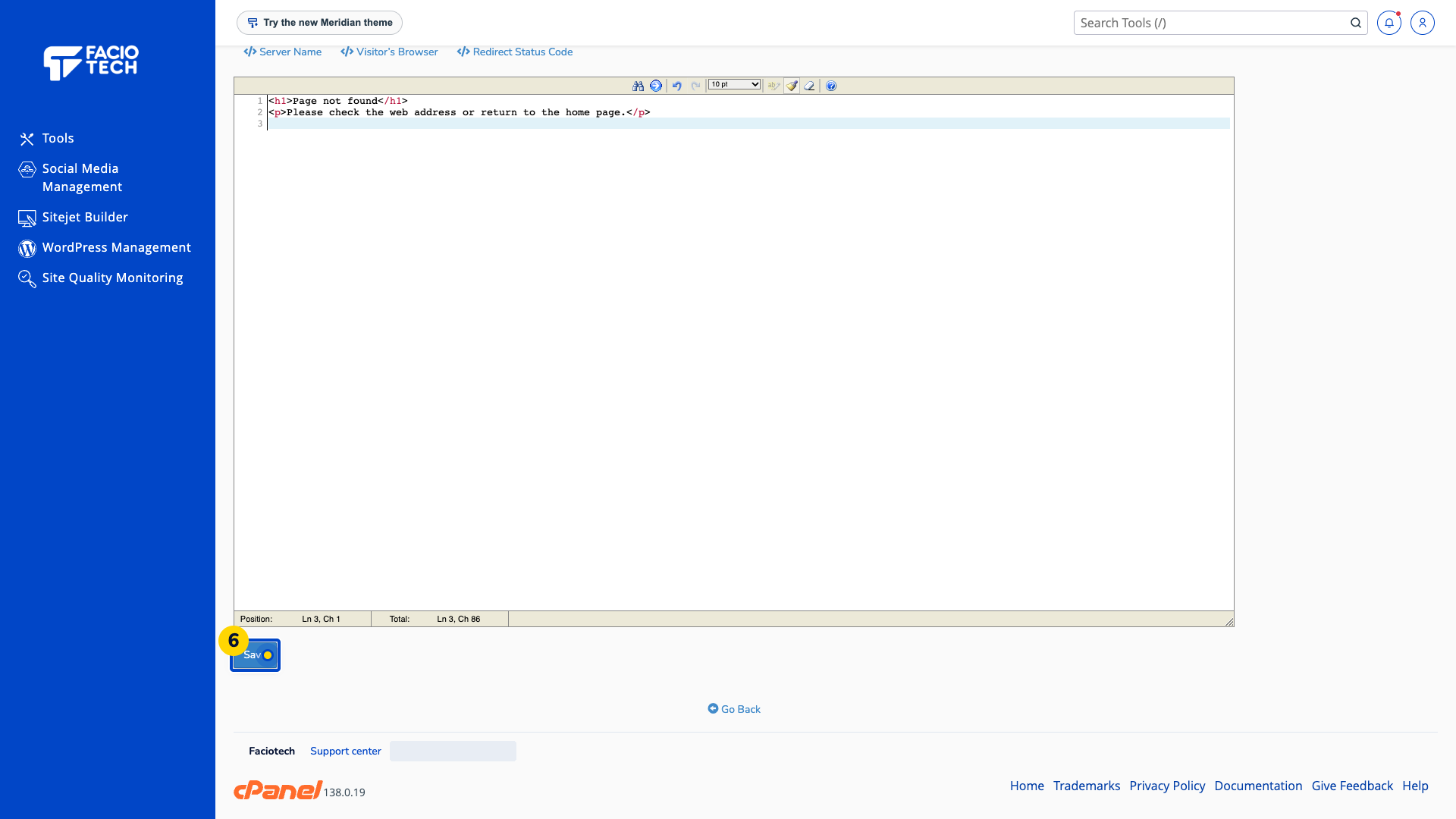
Choose Save. Wait for confirmation that 404.shtml was saved.
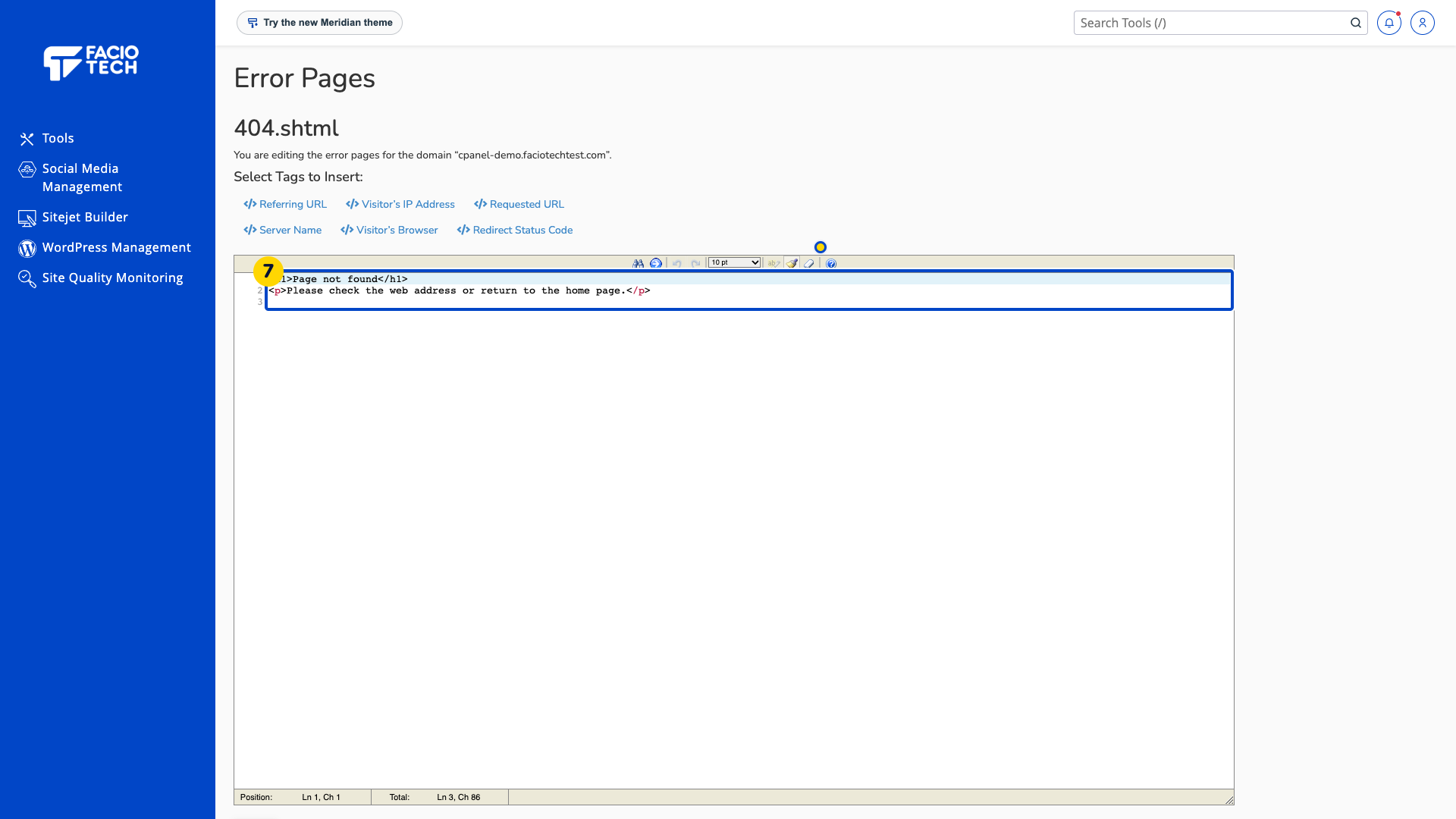
Choose Go Back to editing file. The editor should show the message you saved.
Open a missing page on your website. The visitor-facing 404 page should show your saved message.
Keep private account and server details out of an error page.
Video walkthrough
Sources
For help, contact Faciotech support.
