
Forward incoming mail from one address to another mailbox. Check the destination before adding the forwarder.
Log in to cPanel from your client area. If that link is unavailable, use the panel address in your welcome email. The cPanel dashboard appears after successful sign-in.
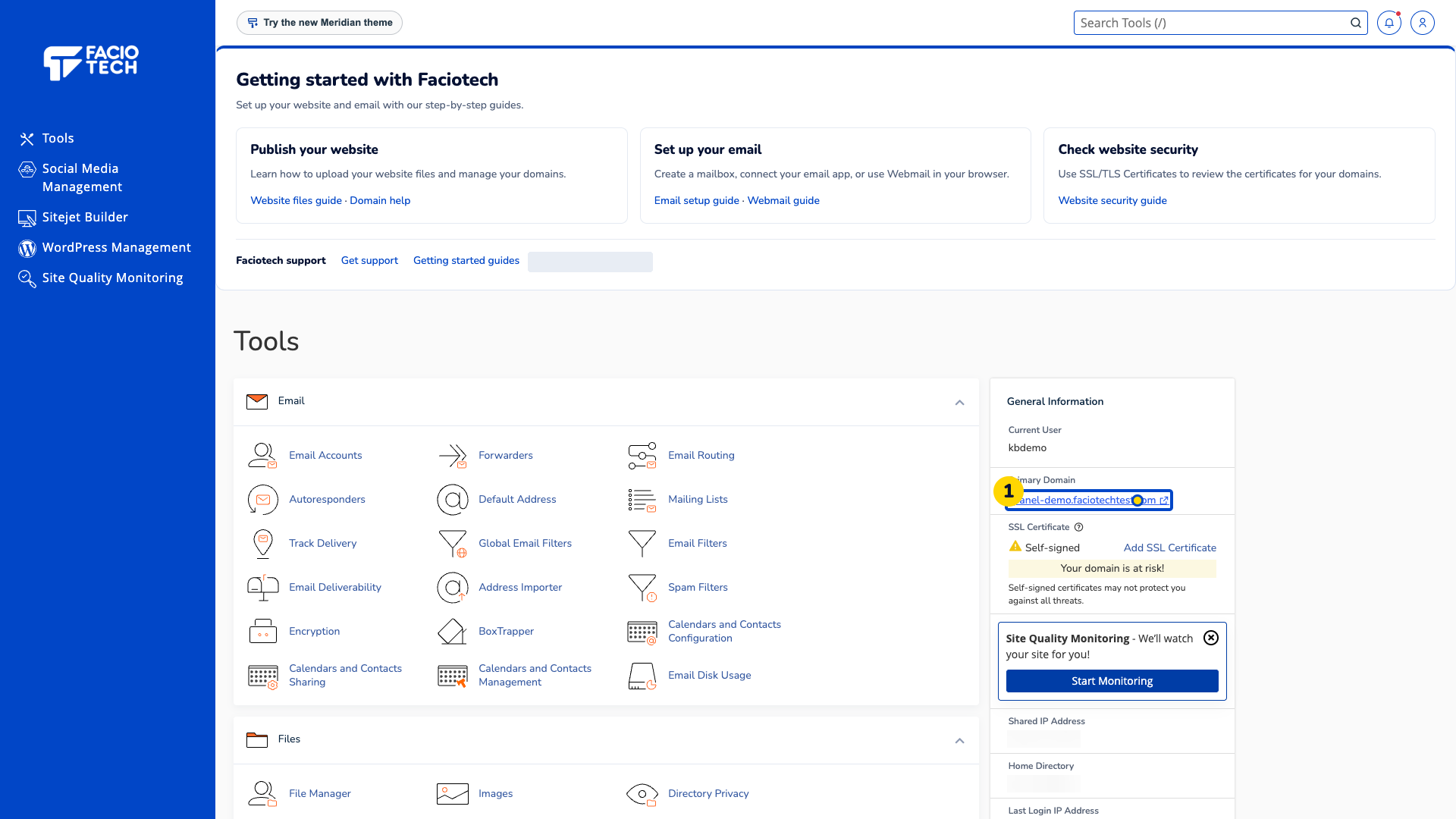
Open Forwarders from Tools. The forwarding rules page appears.
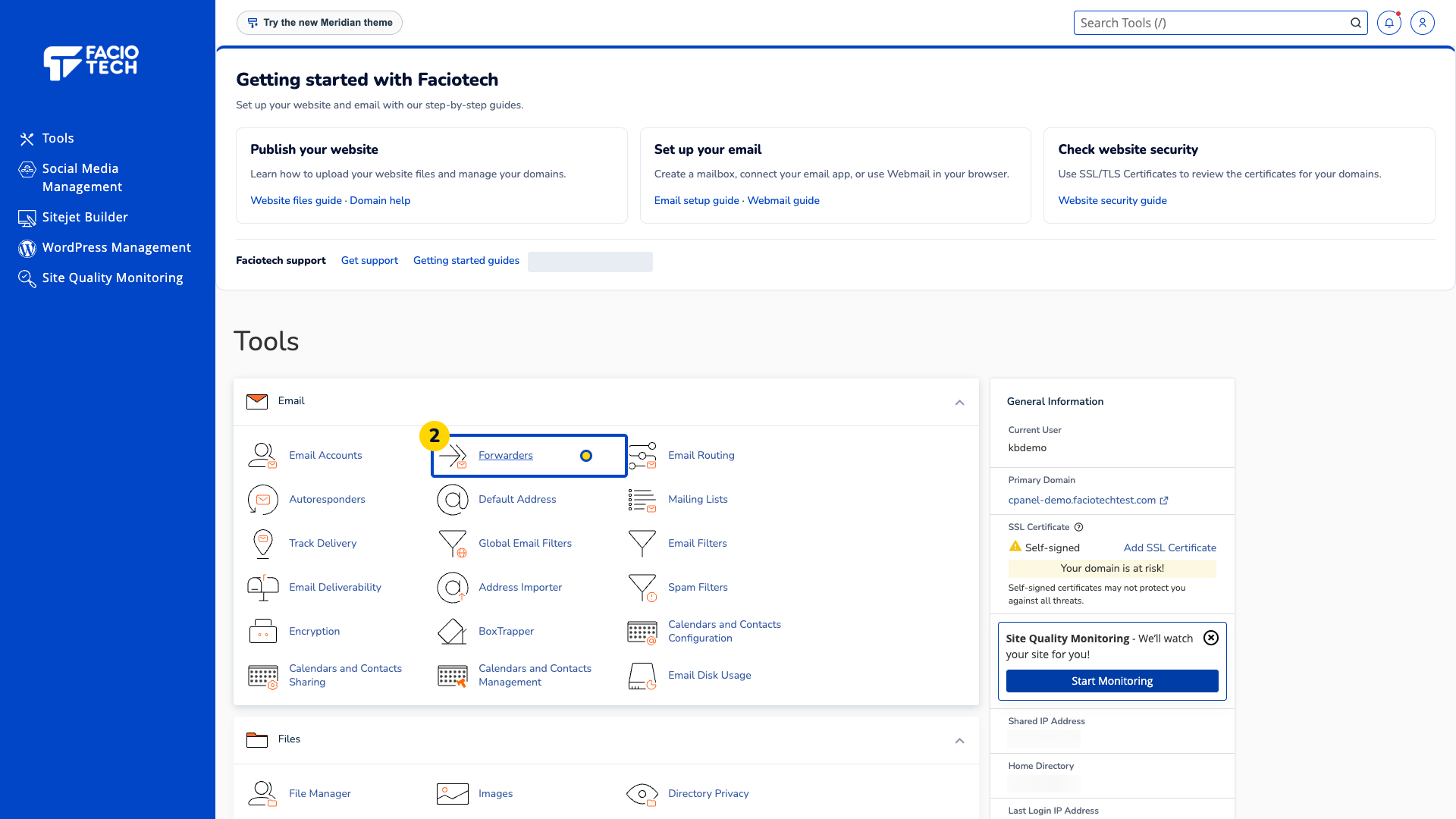
Choose Add Forwarder. The forwarding form appears.
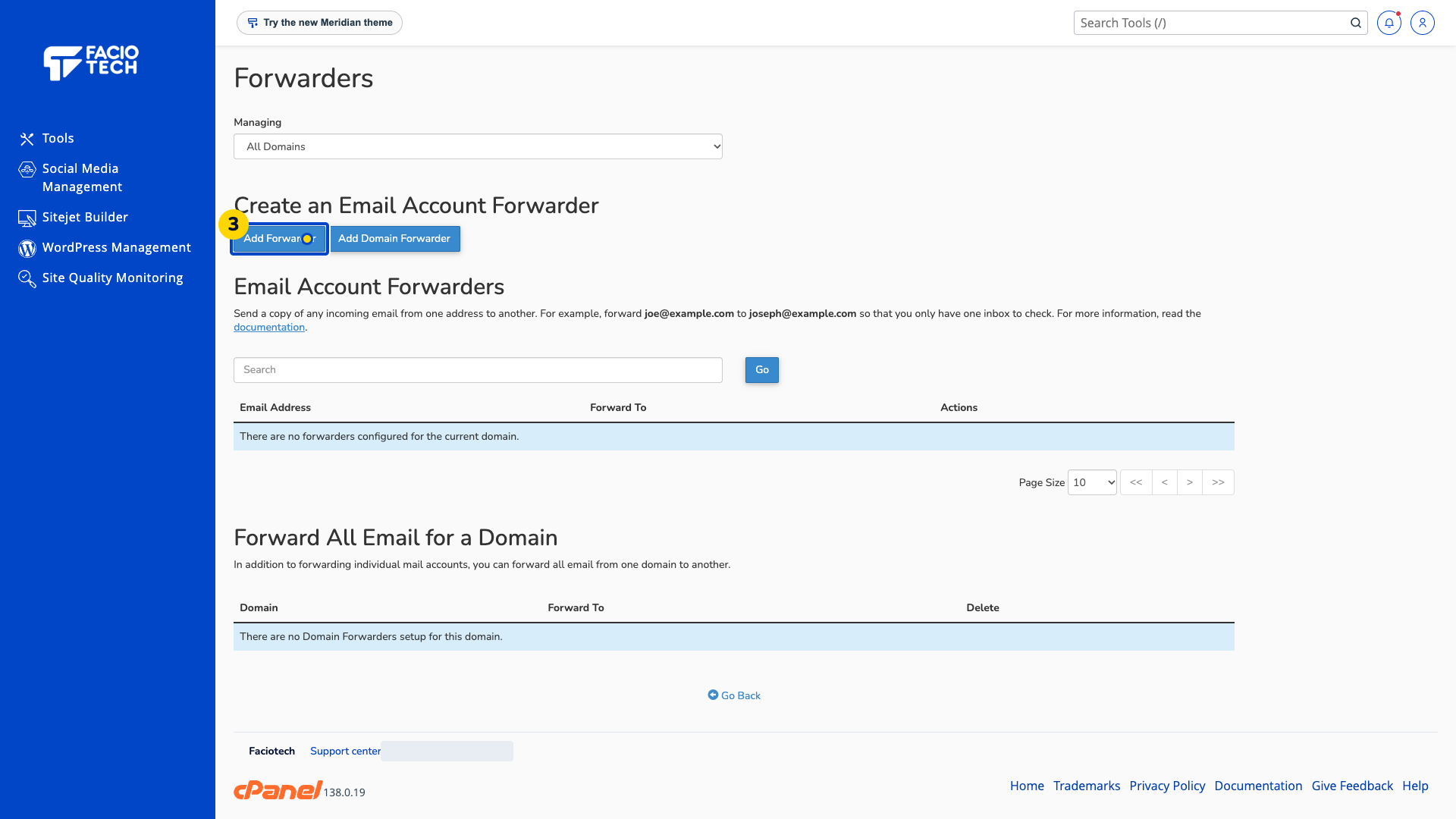
Enter the Address to Forward. This example uses forward-demo; the local part appears in that field.
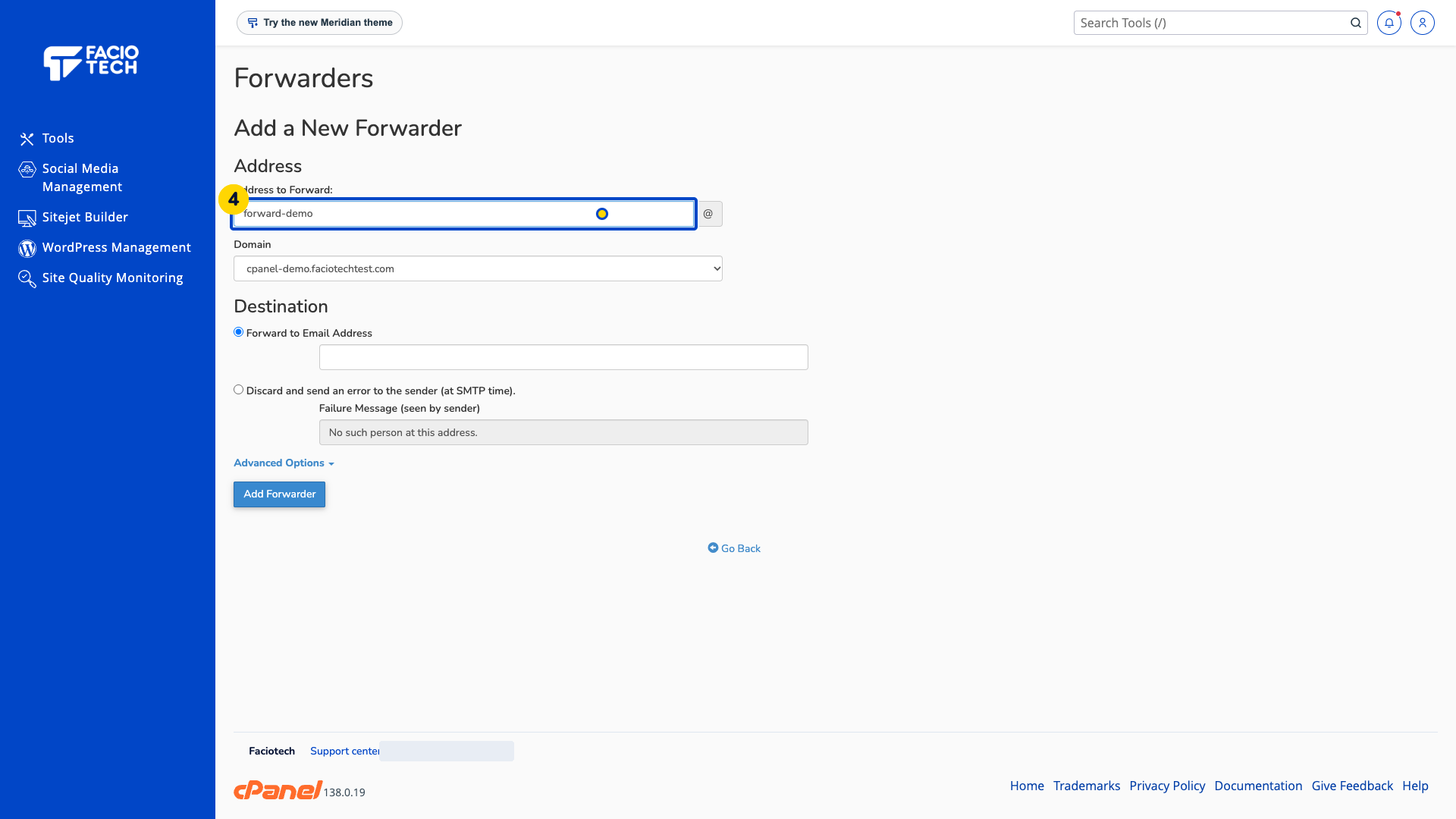
Select the intended Domain. The selected domain completes the forwarding address.
Choose Forward to Email Address. Its destination address field is selected.
Enter the complete destination mailbox address. The field shows the mailbox that should receive forwarded messages.
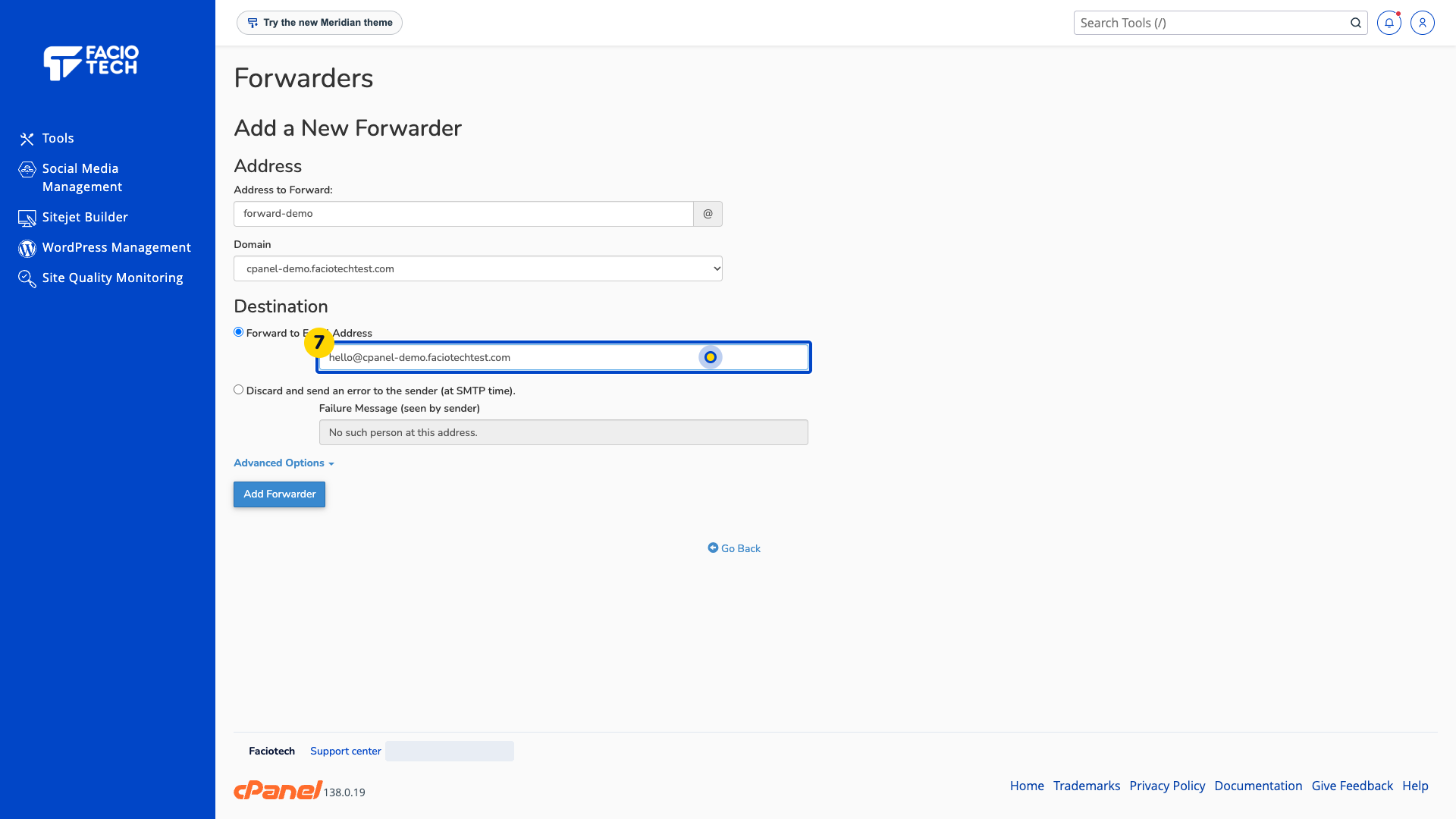
Review the source and destination addresses. Both should match the forwarding rule you intend to create.
Choose Add Forwarder. Wait for the created confirmation.
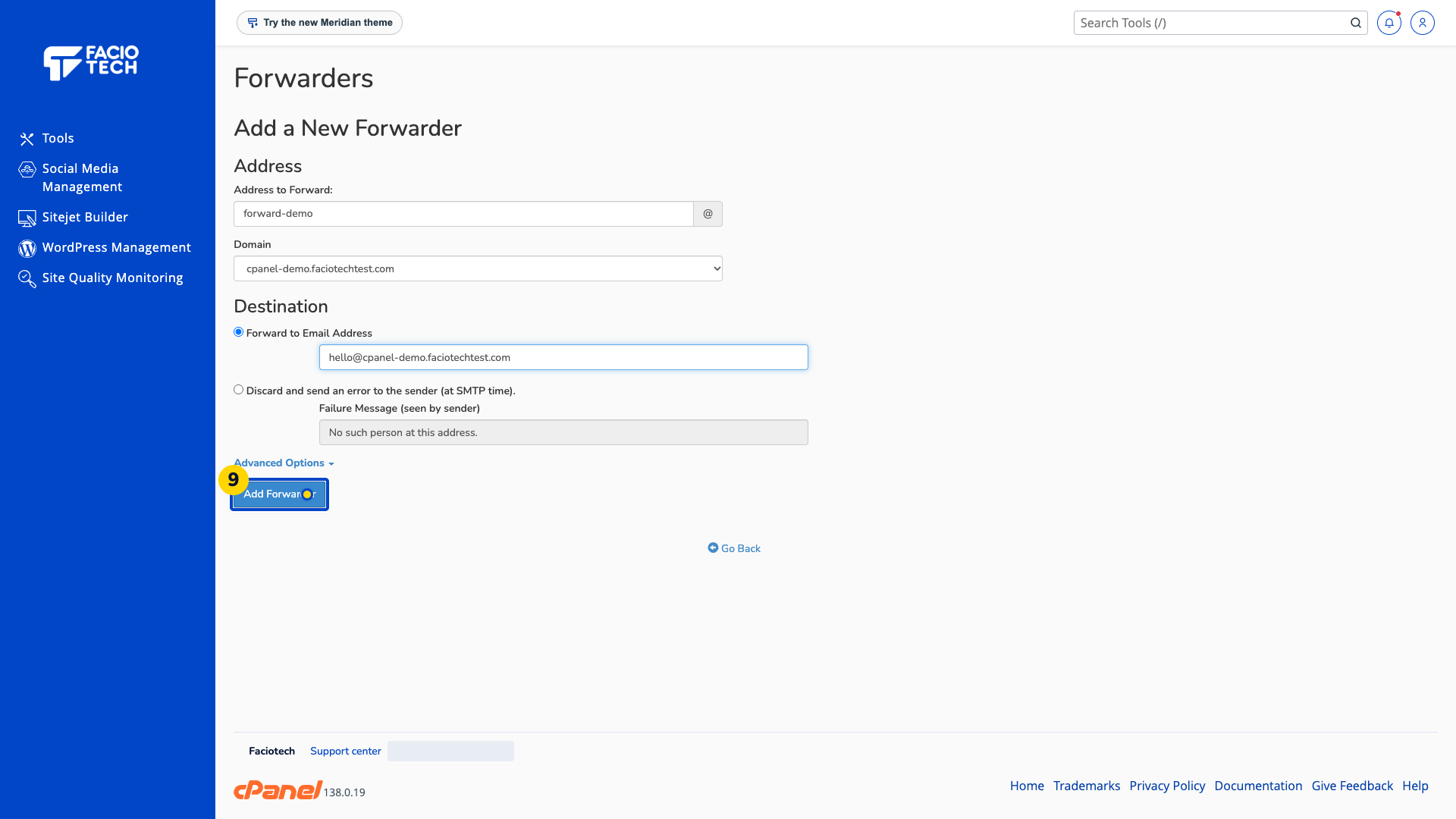
Return to Forwarders. The rule should show the intended source address and destination.
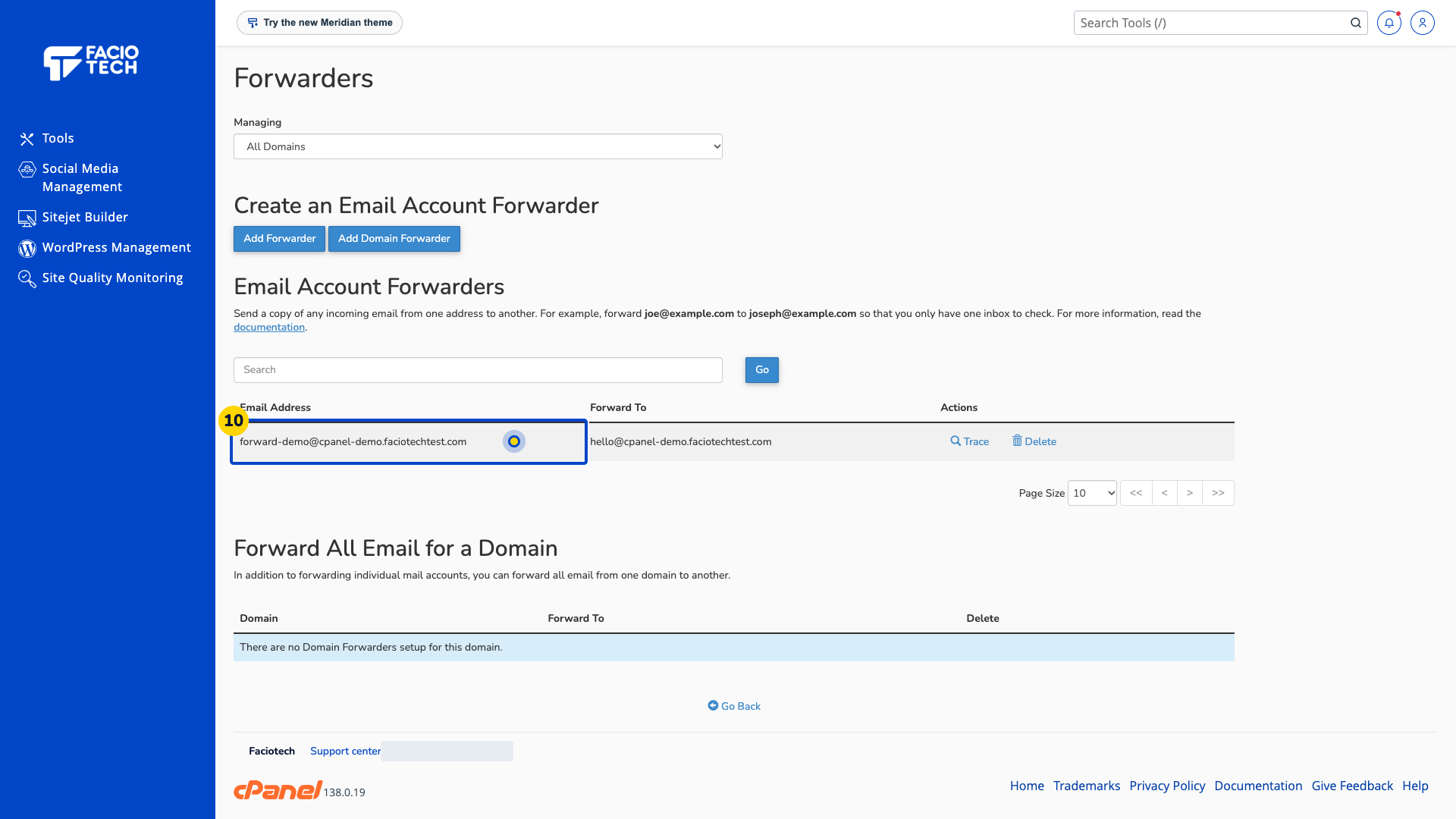
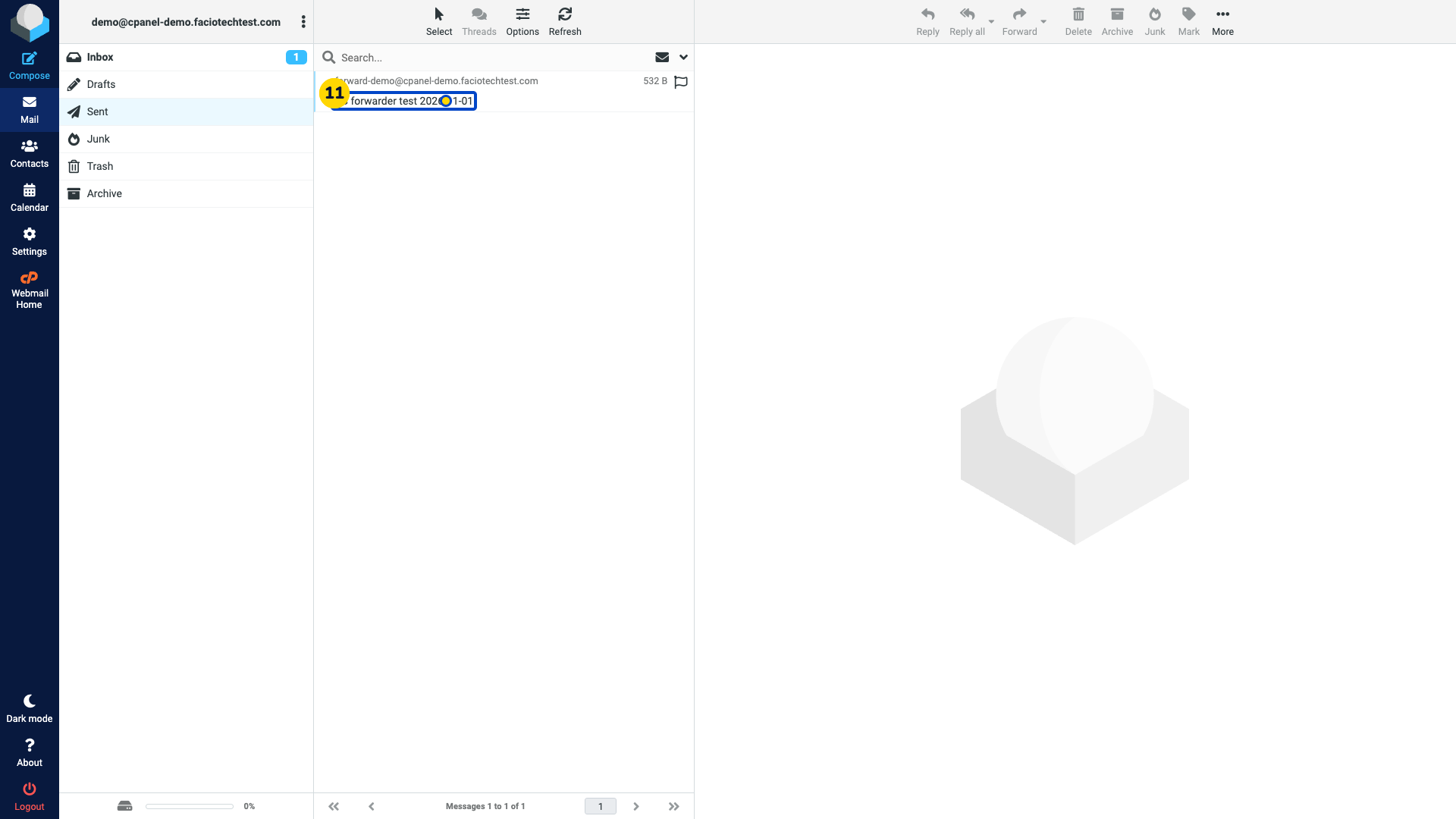
Send a test to the forwarding address from a mailbox you control. Keep the subject so you can identify that exact message.
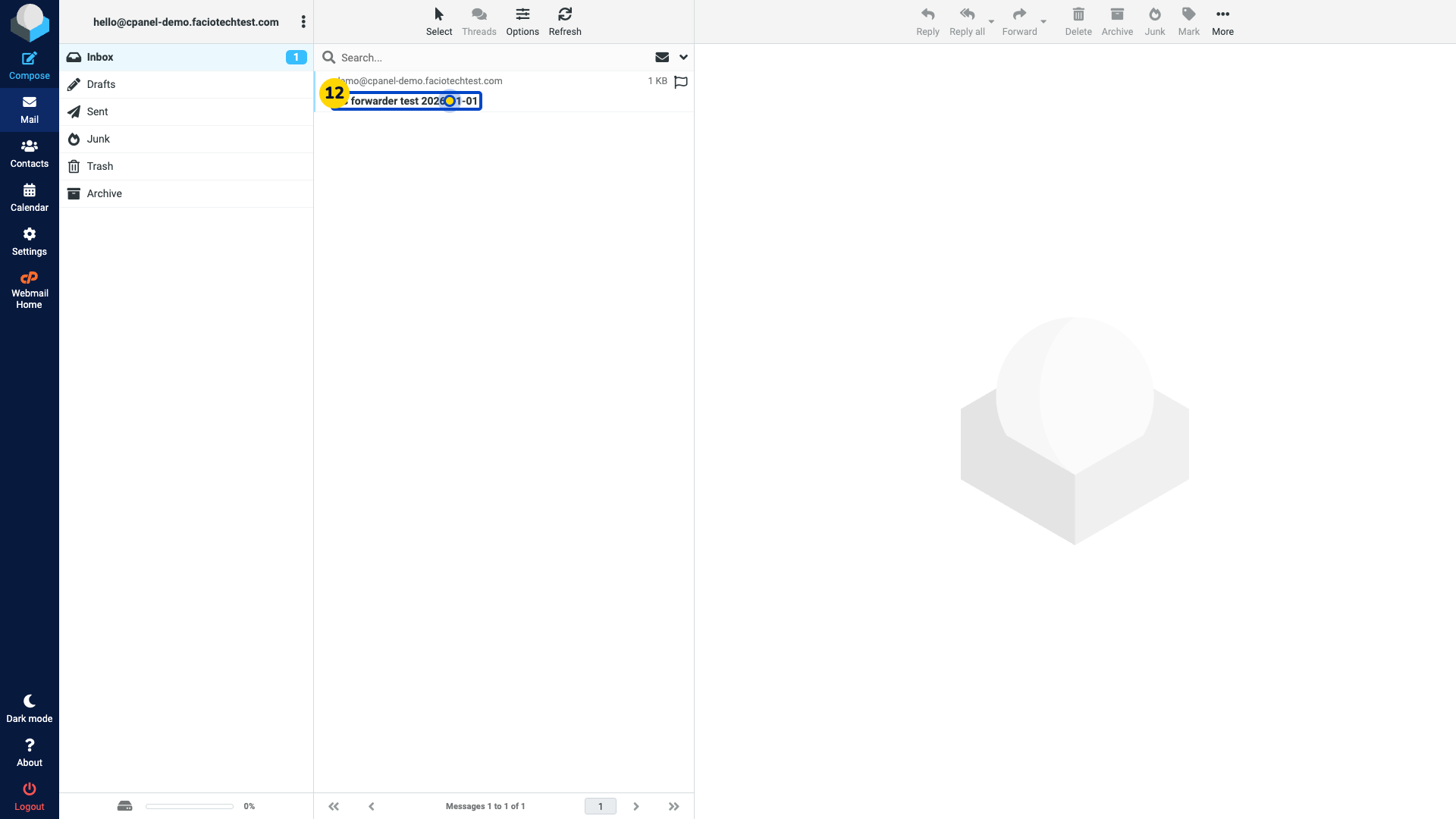
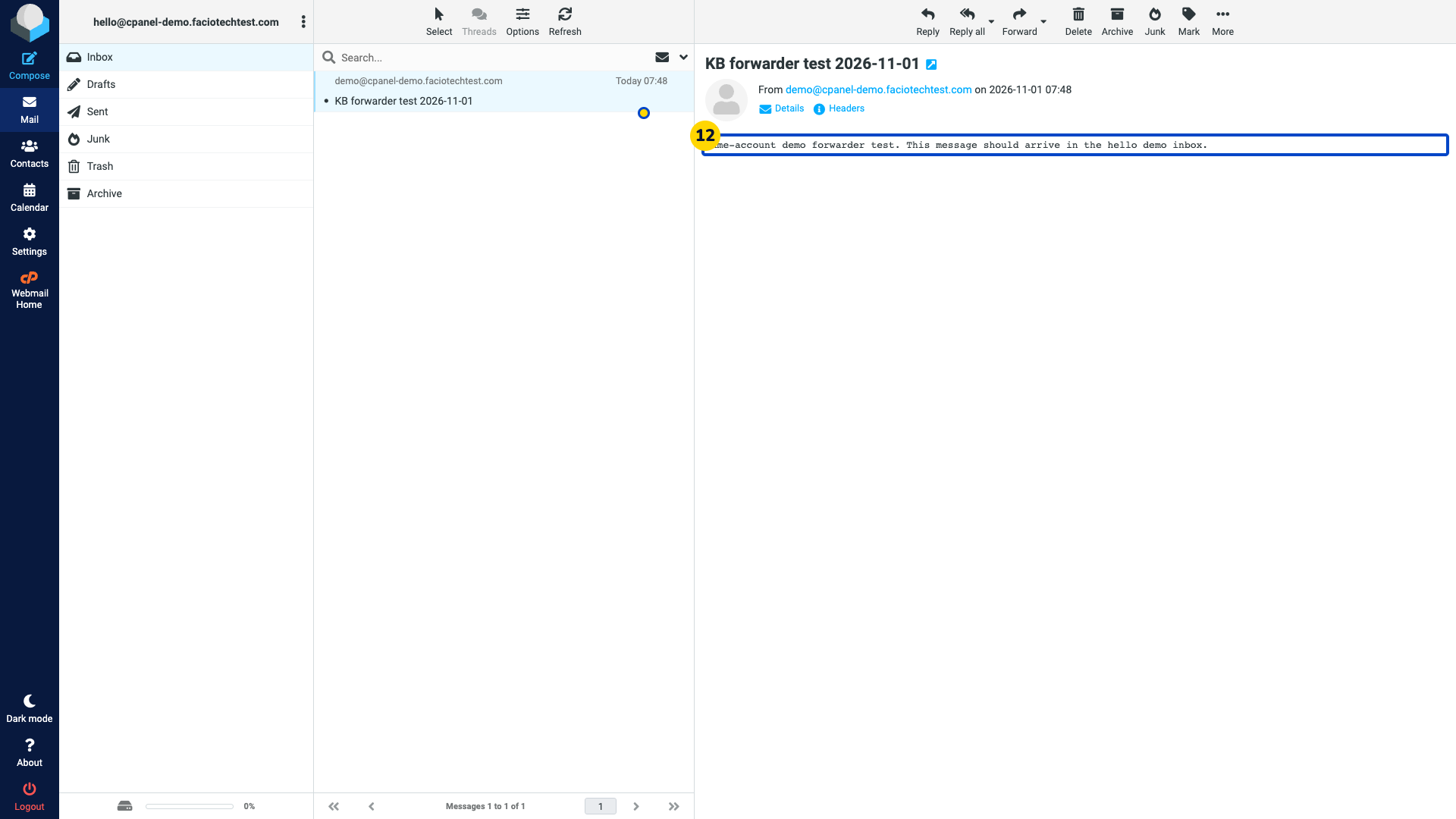
Check the destination Inbox. The same test message should appear there.
Forward only to a mailbox you control or have permission to use. A mistyped destination can send private messages to someone else.
Video walkthrough
Sources
For help, contact Faciotech support.
