
Check a mailbox filter with a harmless test message before relying on it.
Log in to cPanel from your client area. If unavailable, use the panel address in your welcome email. The cPanel dashboard appears after successful sign-in.
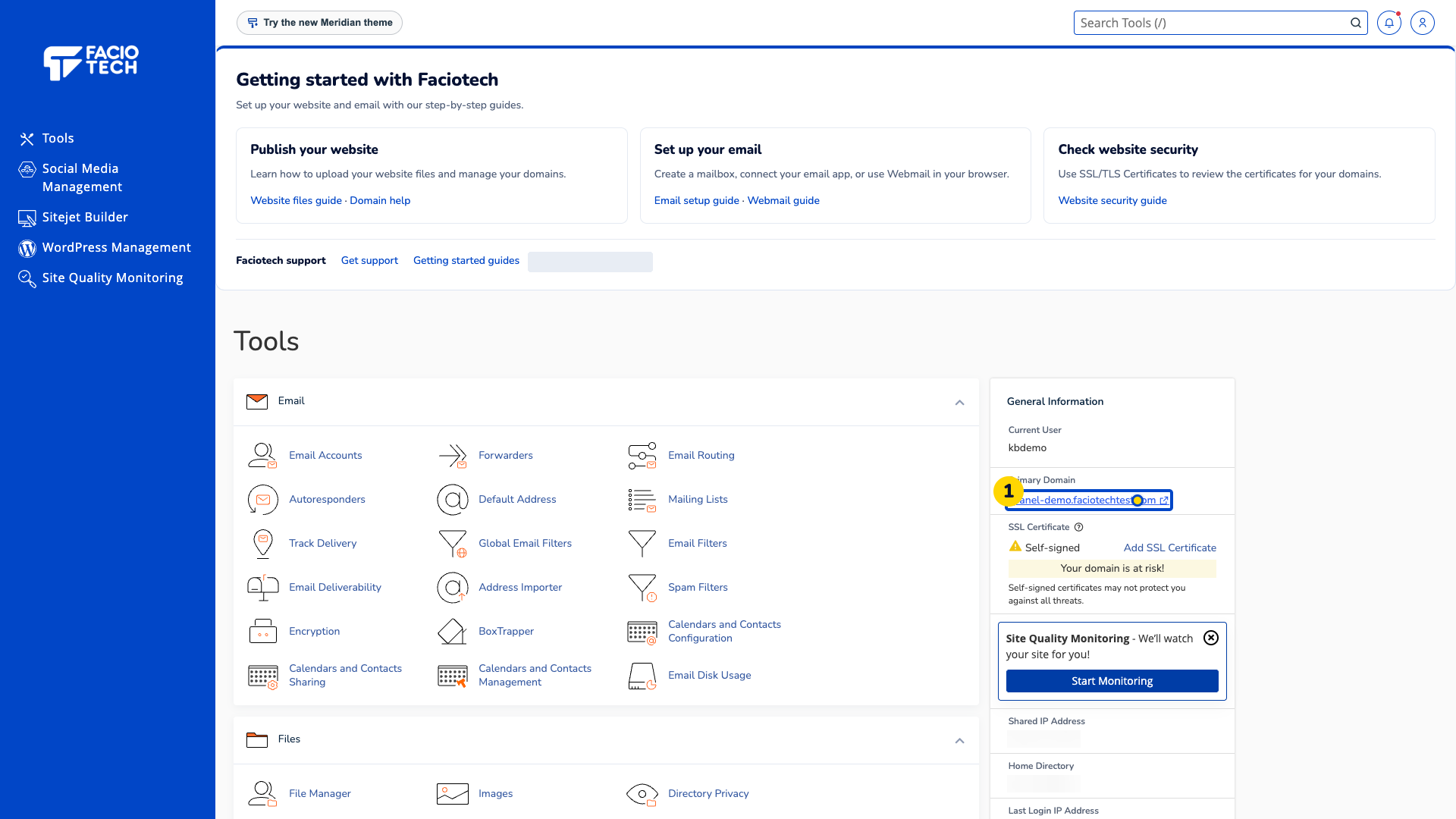
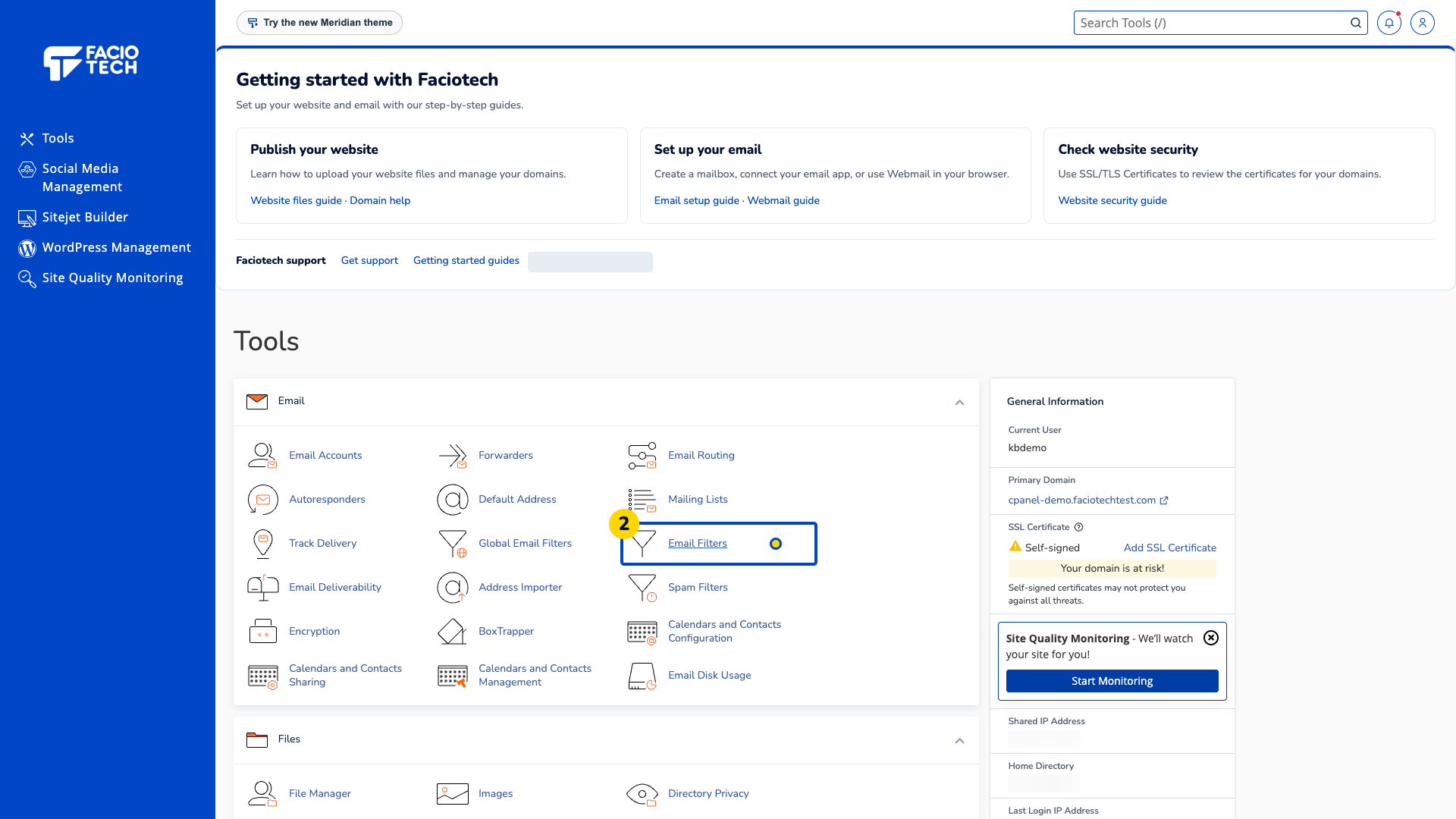
Open Email Filters. The mailbox list and its filter-management actions appear.
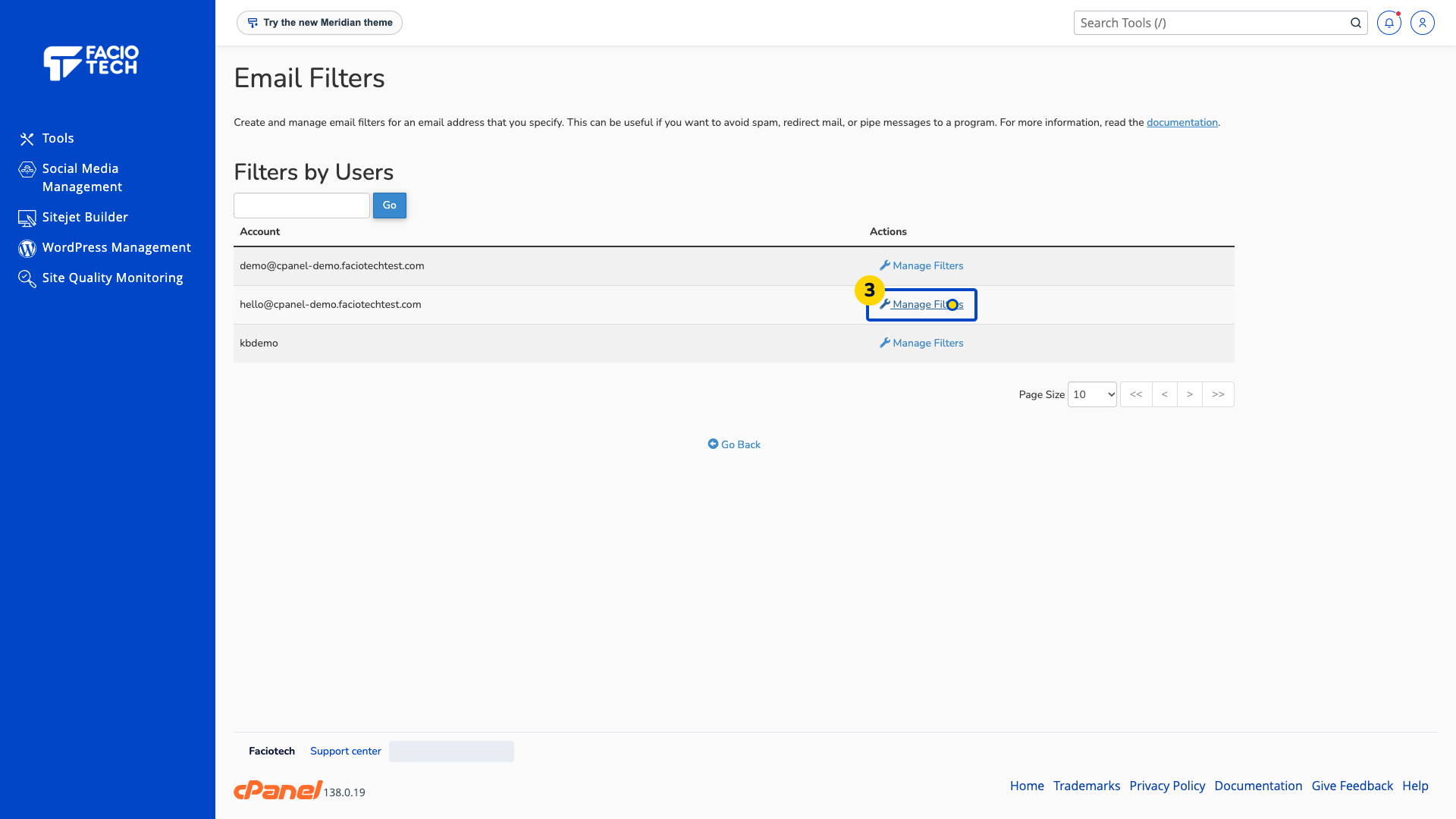
Choose Manage Filters beside the intended mailbox. Its filters list appears.
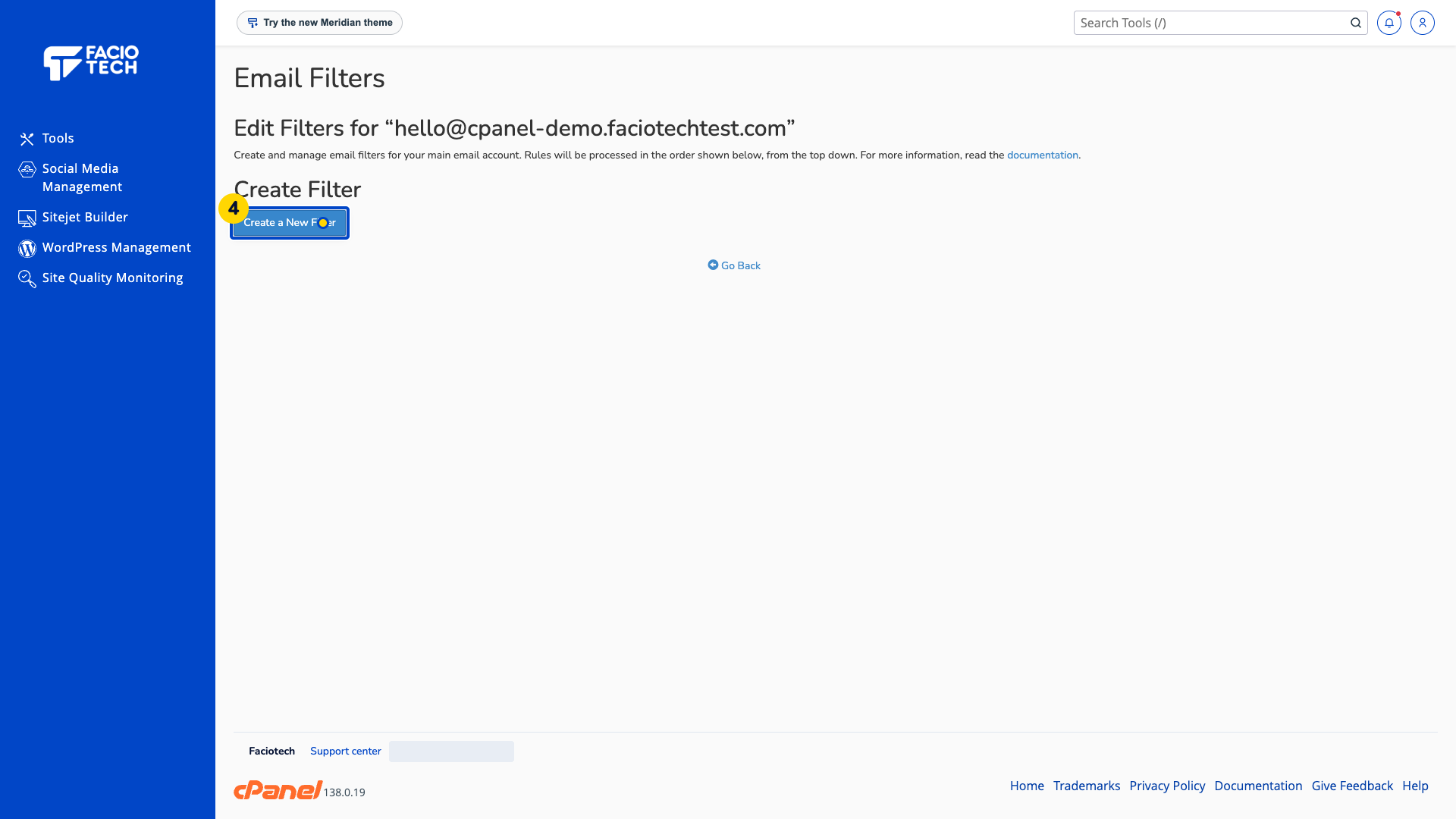
Choose Create a New Filter. The filter form appears.
Enter a unique Filter Name. This example uses KB subject demo, which appears in the name field.
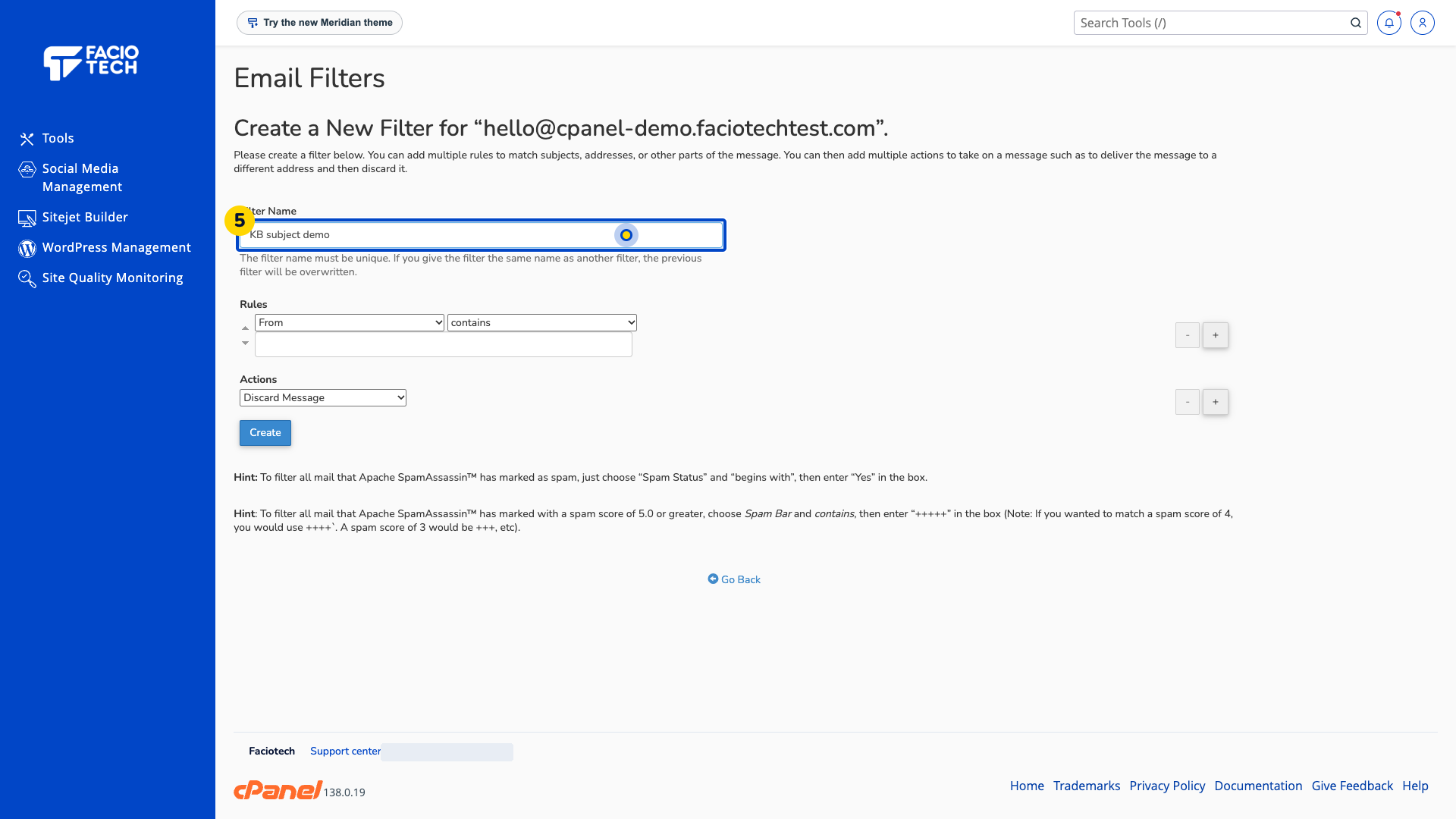
Choose Subject in the first Rules selector. The rule now checks the message subject.
Choose contains in the condition selector. The rule now looks for matching text within that subject.
Enter KB filter demo in the rule text field. That text appears as the condition to match.
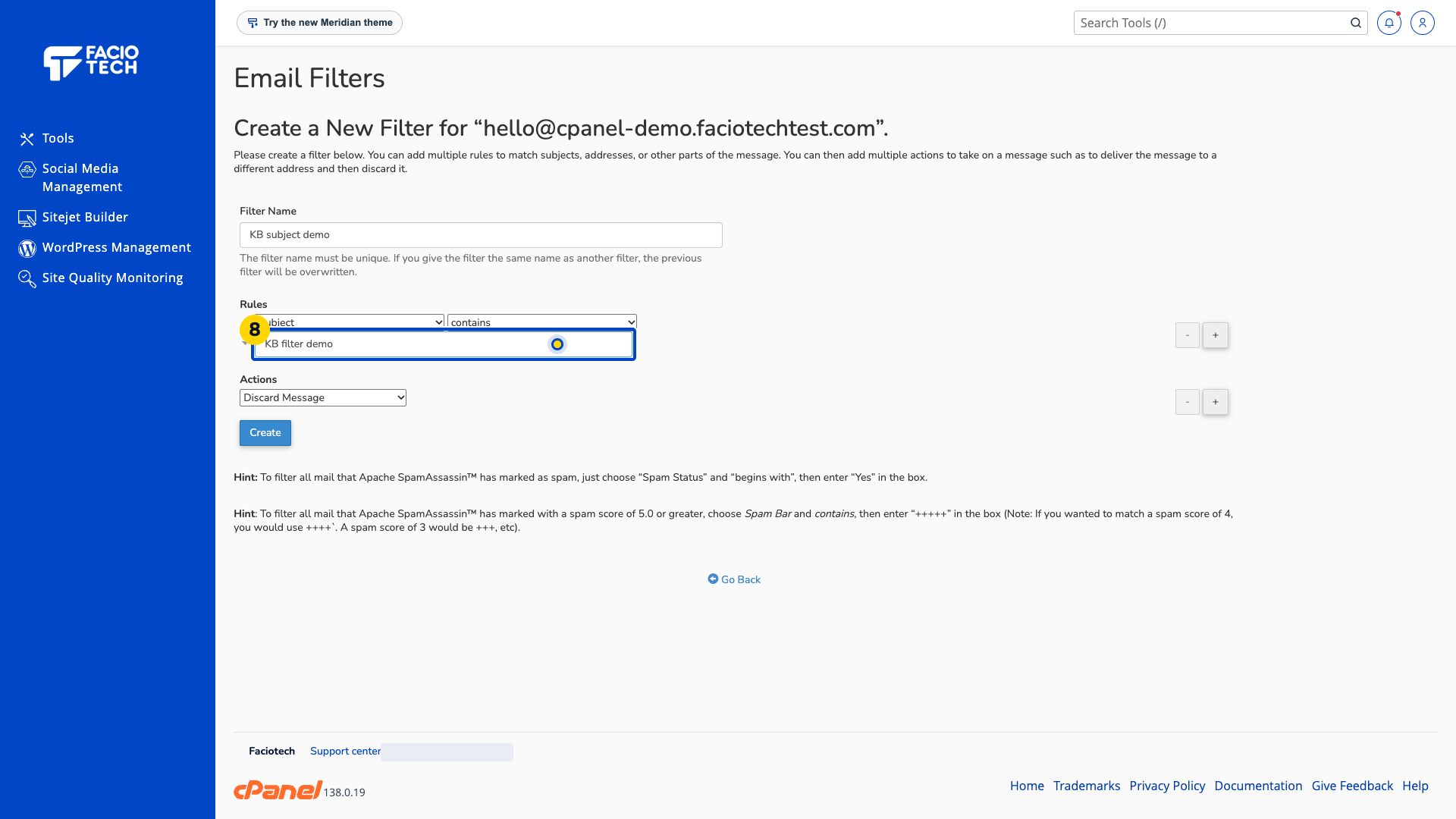
Choose Discard Message under Actions. The filter form shows that action for matching messages.
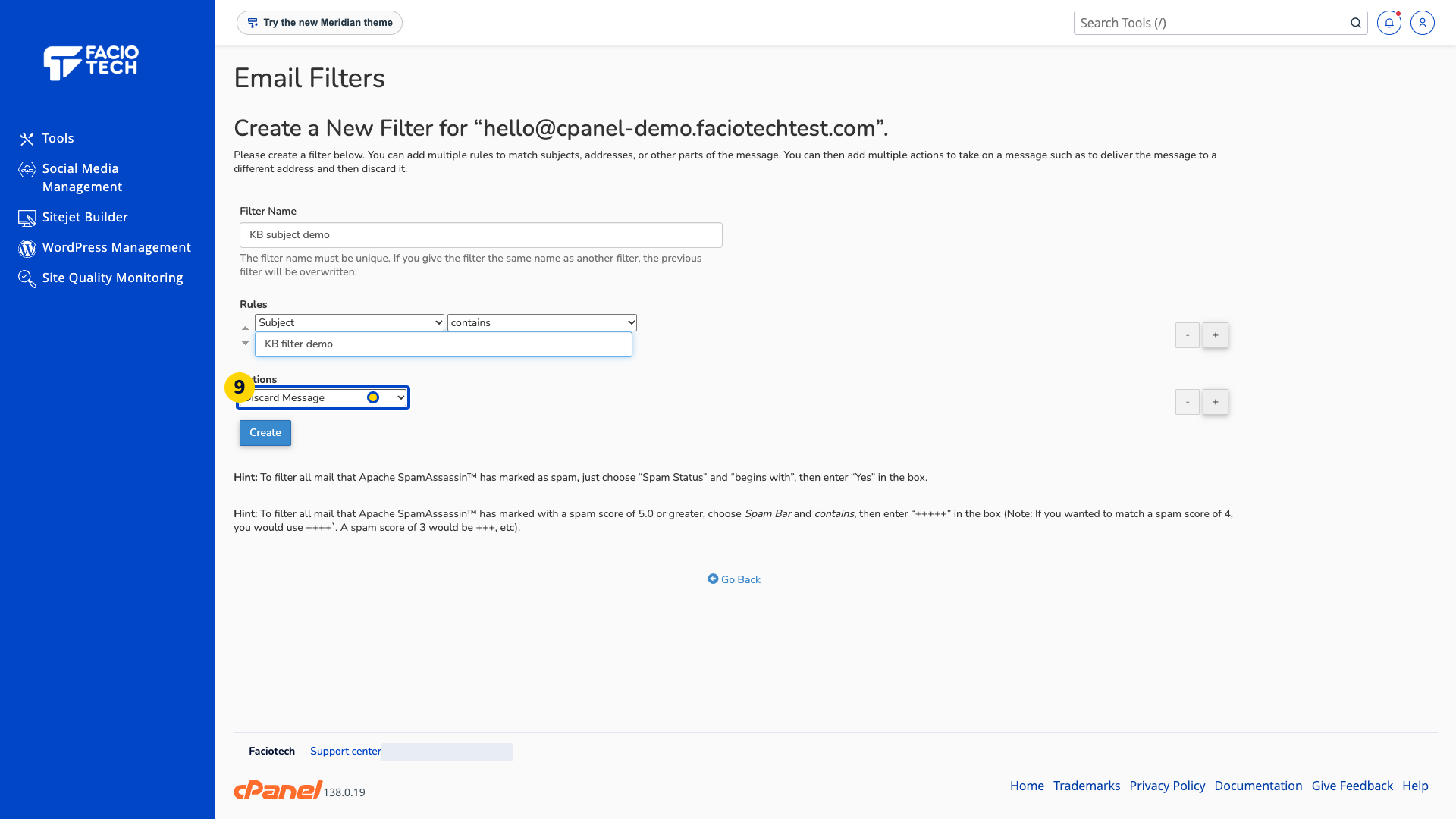
Choose Create. The saved filter appears in the filters list.
Enter a fake message in Filter Test, with From, To and Subject headers, a blank line and test text. Use Subject: KB filter demo; the complete test message is visible in the box.
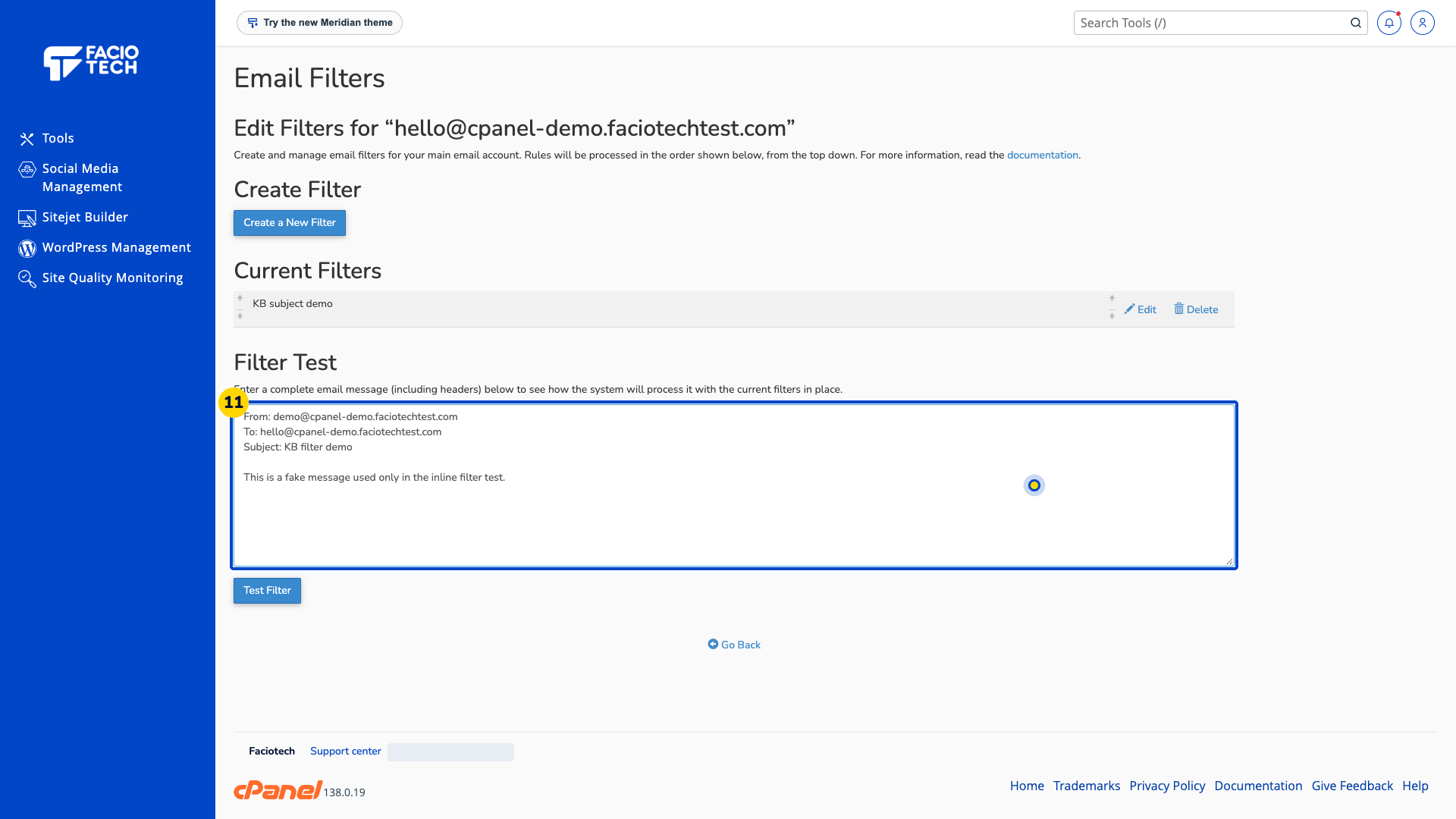
Choose Test Filter. Filter Trace Results appears for that test message.
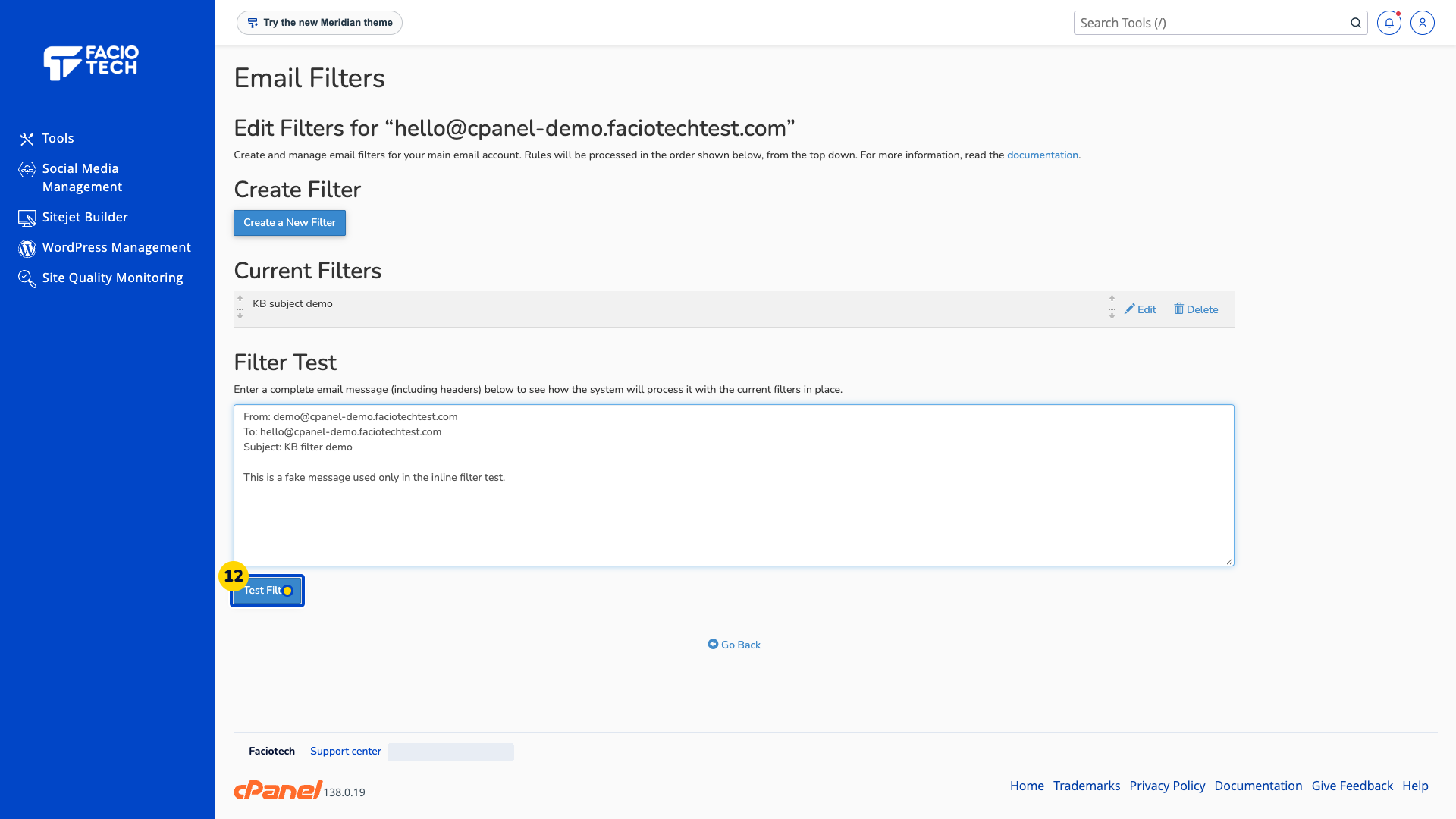
Read Filter Trace Results. The condition should be true and the chosen discard action should apply.
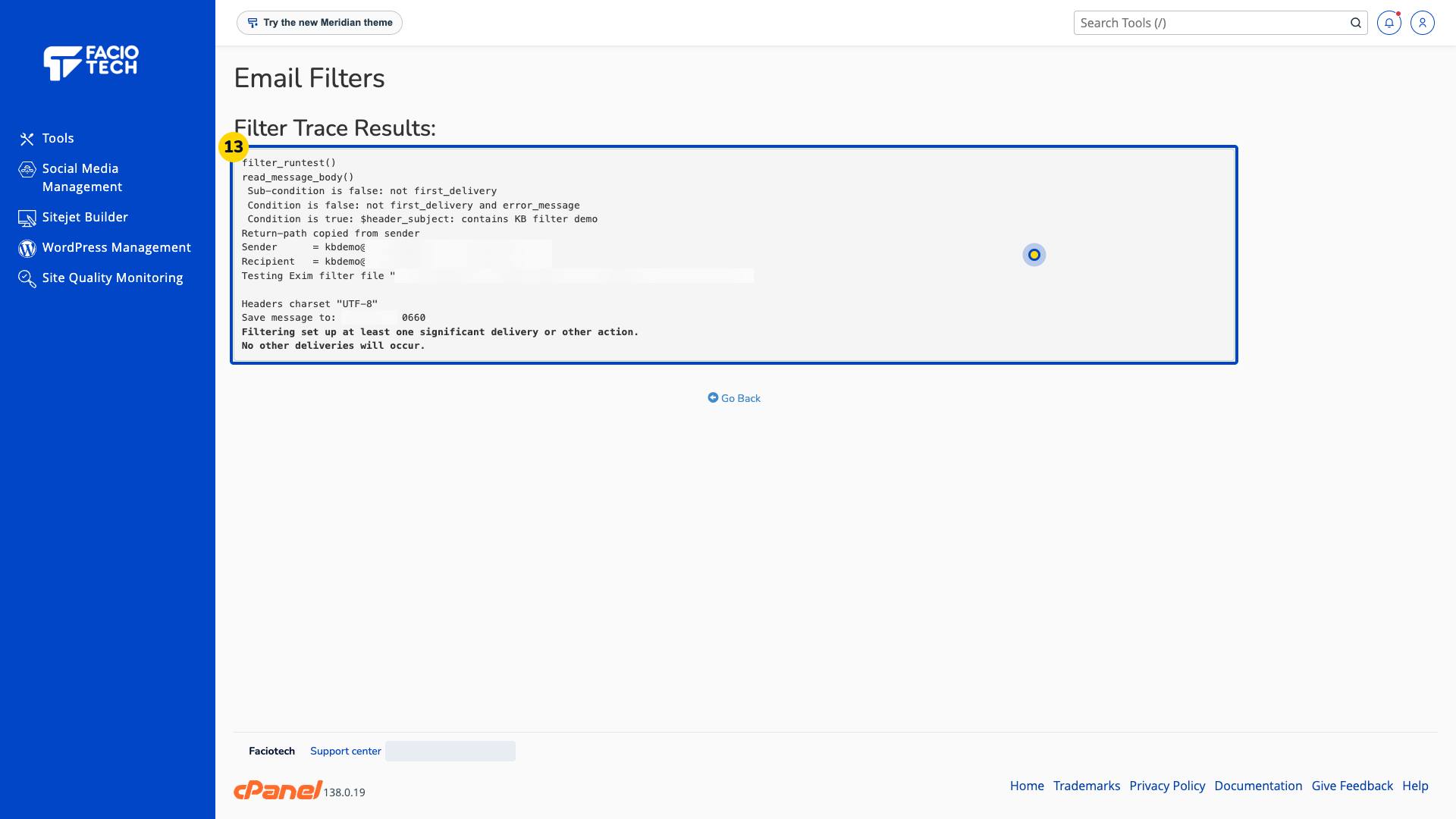
Replace the test subject with a different subject. The test box now contains a message that does not match KB filter demo.
Choose Test Filter again. This example then reports normal delivery because its subject does not match.
Discard Message removes matching mail. Check carefully for unwanted matches.
This test evaluates a message without sending it. Global Email Filters applies more broadly than a mailbox filter.
Video walkthrough
Sources
For help, contact Faciotech support.
