
Preview a theme, install it, then check your website after activation.
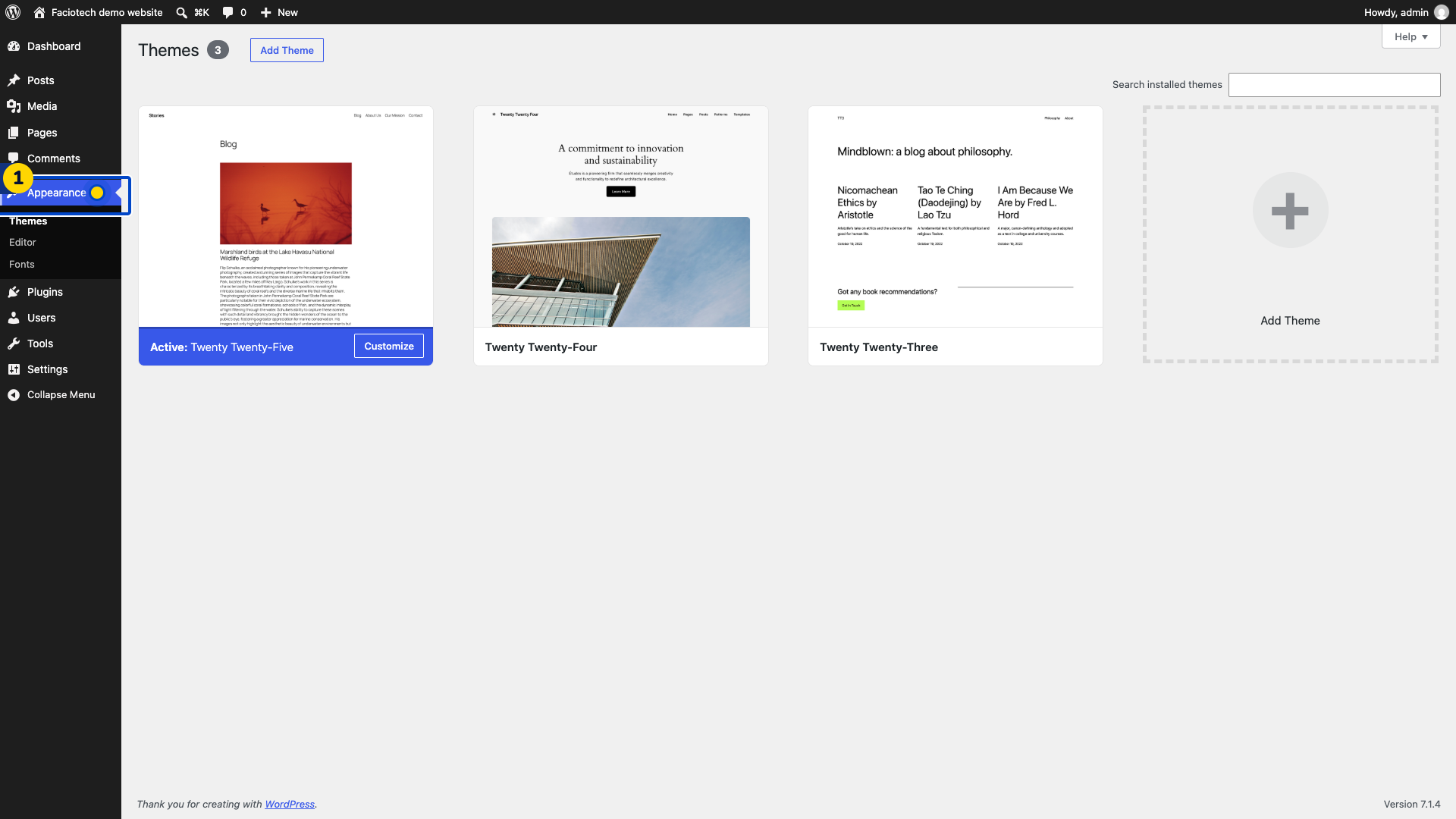
Open Appearance and choose Themes in your WordPress dashboard.
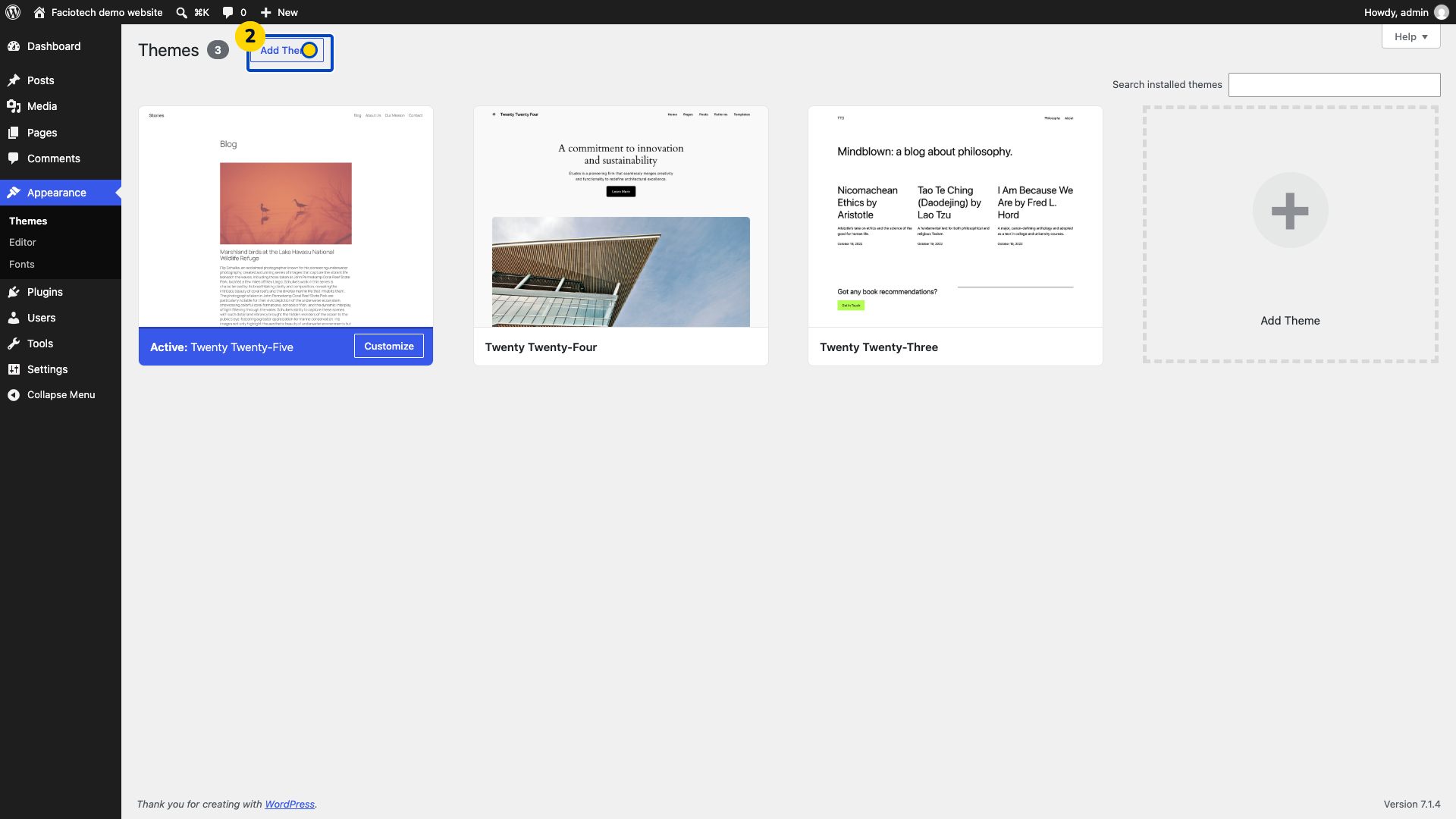
Choose Add Theme. The theme directory opens with a search field.
Enter the theme name in the search field. Matching themes appear in the directory.
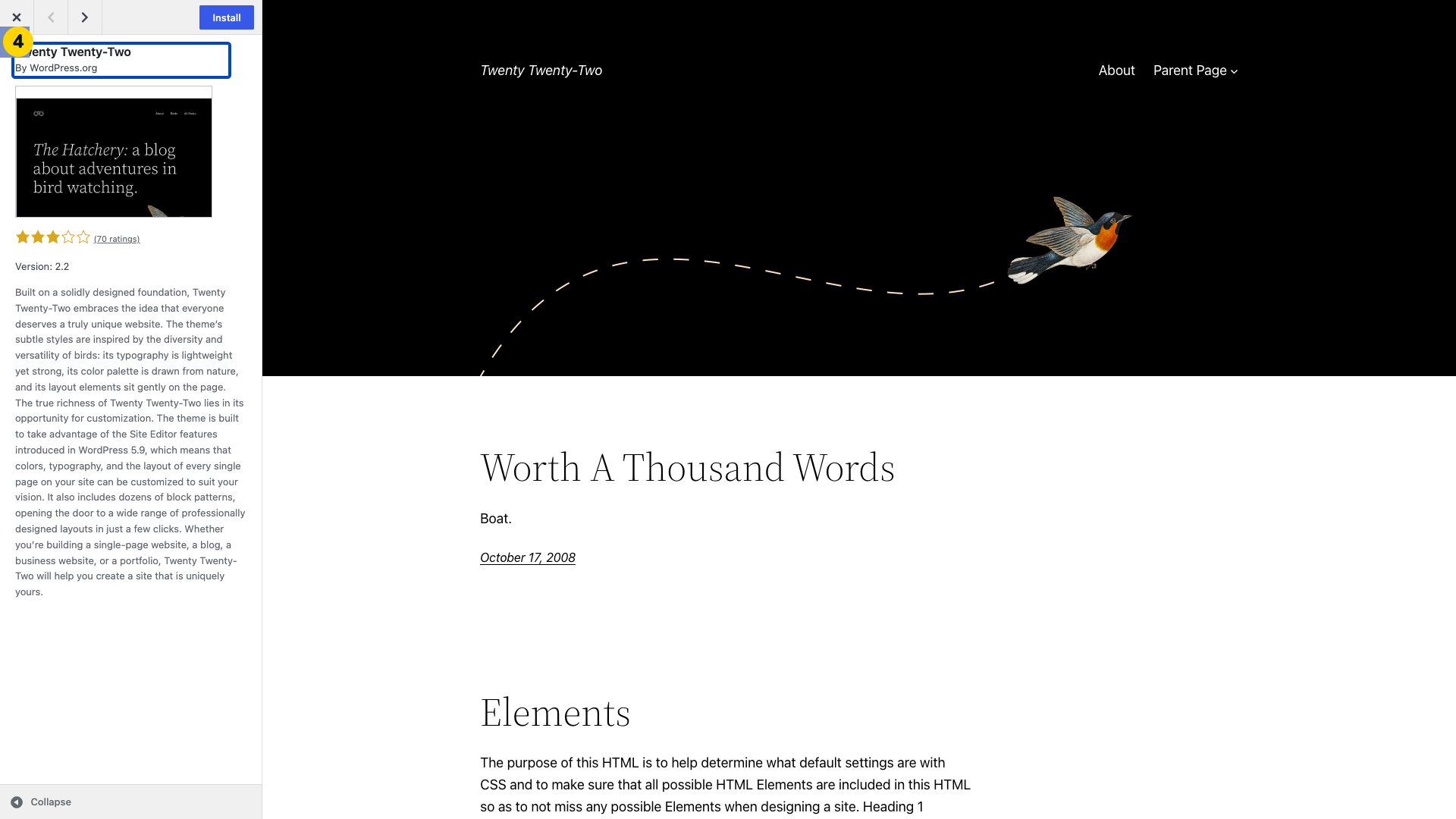
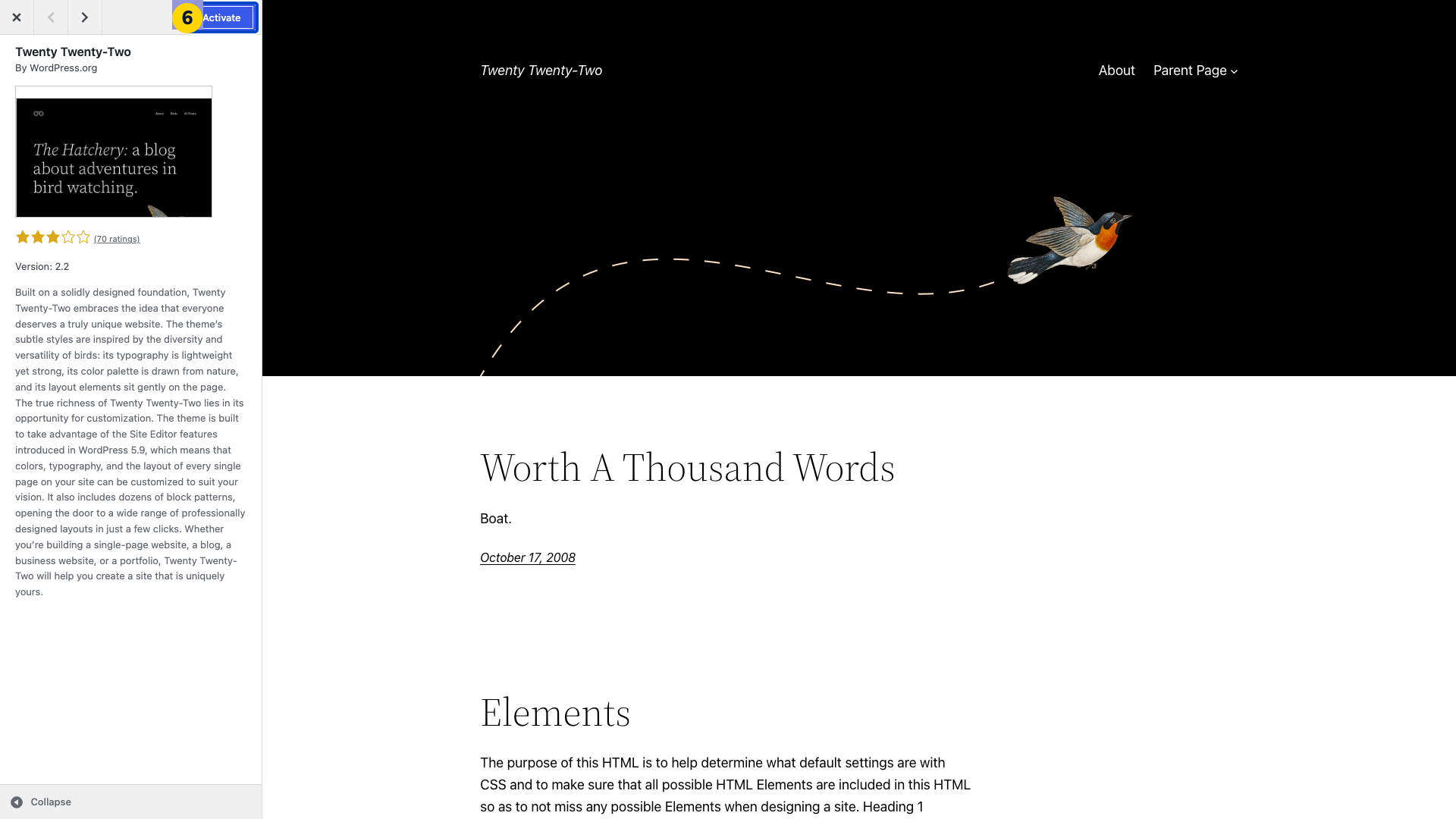
Choose Preview for the matching theme. Check the theme name and publisher. This example uses the free Twenty Twenty-Two theme by WordPress.org.
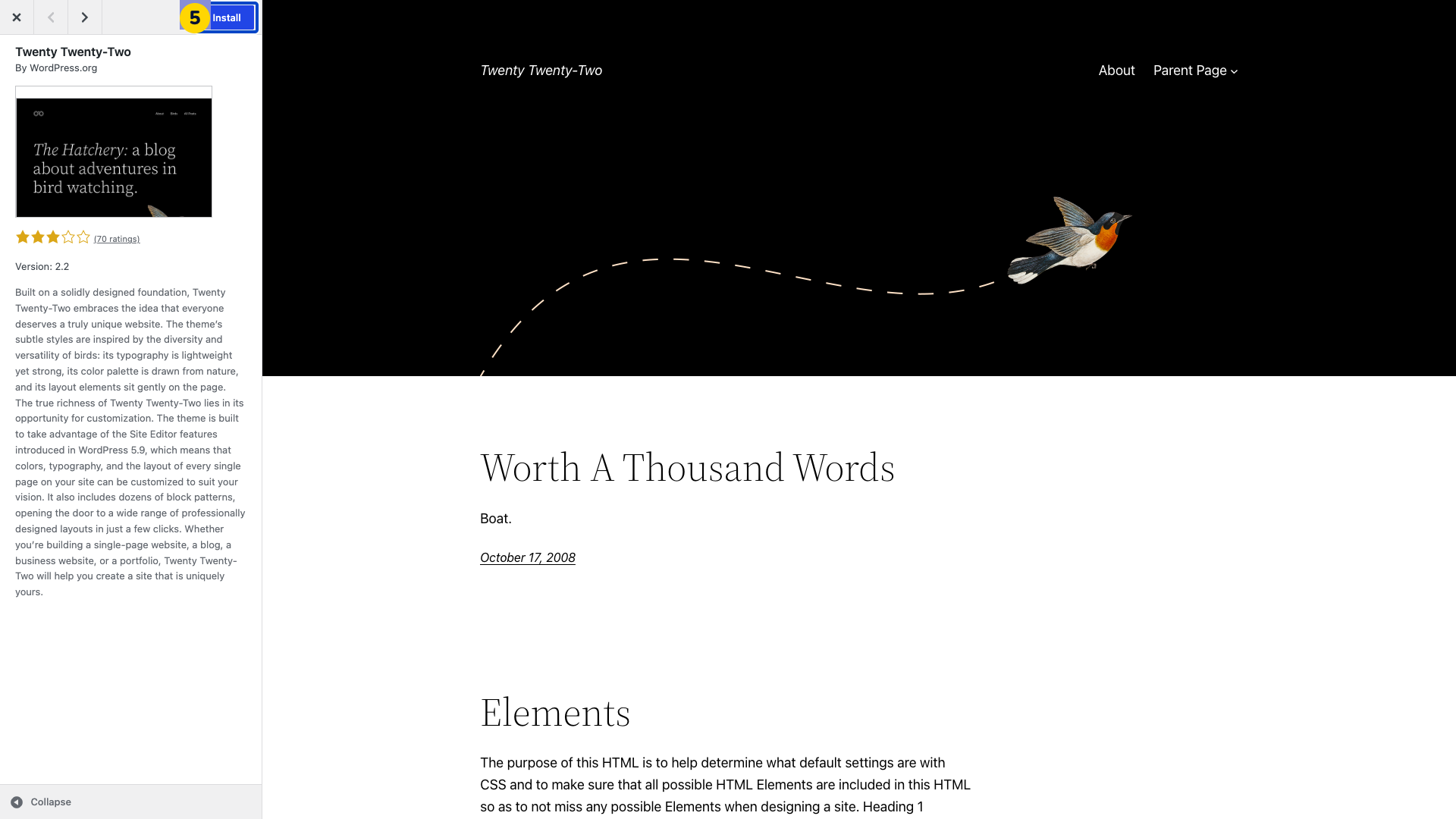
Choose Install in the preview. Wait until installation finishes and Activate appears.
Choose Activate. WordPress switches the site to the new theme.
Open your website. Check its pages, navigation and content with the new theme.
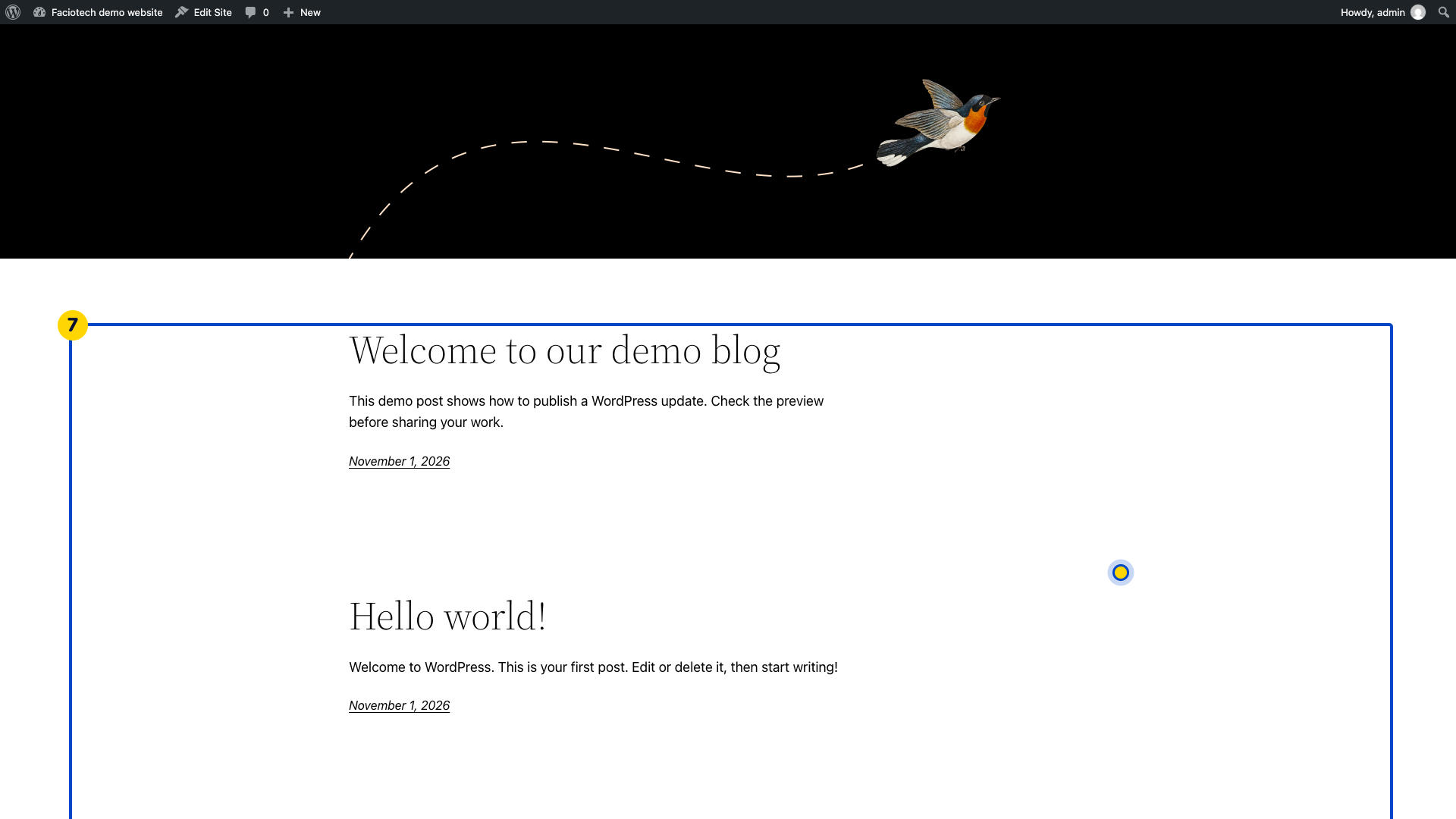
The directory preview uses sample content. Your website will show your own content after activation.
Video walkthrough
Sources
For help, contact Faciotech support.
