
Install a plugin from the WordPress directory and check its saved activation status.
Open Plugins in your WordPress dashboard.
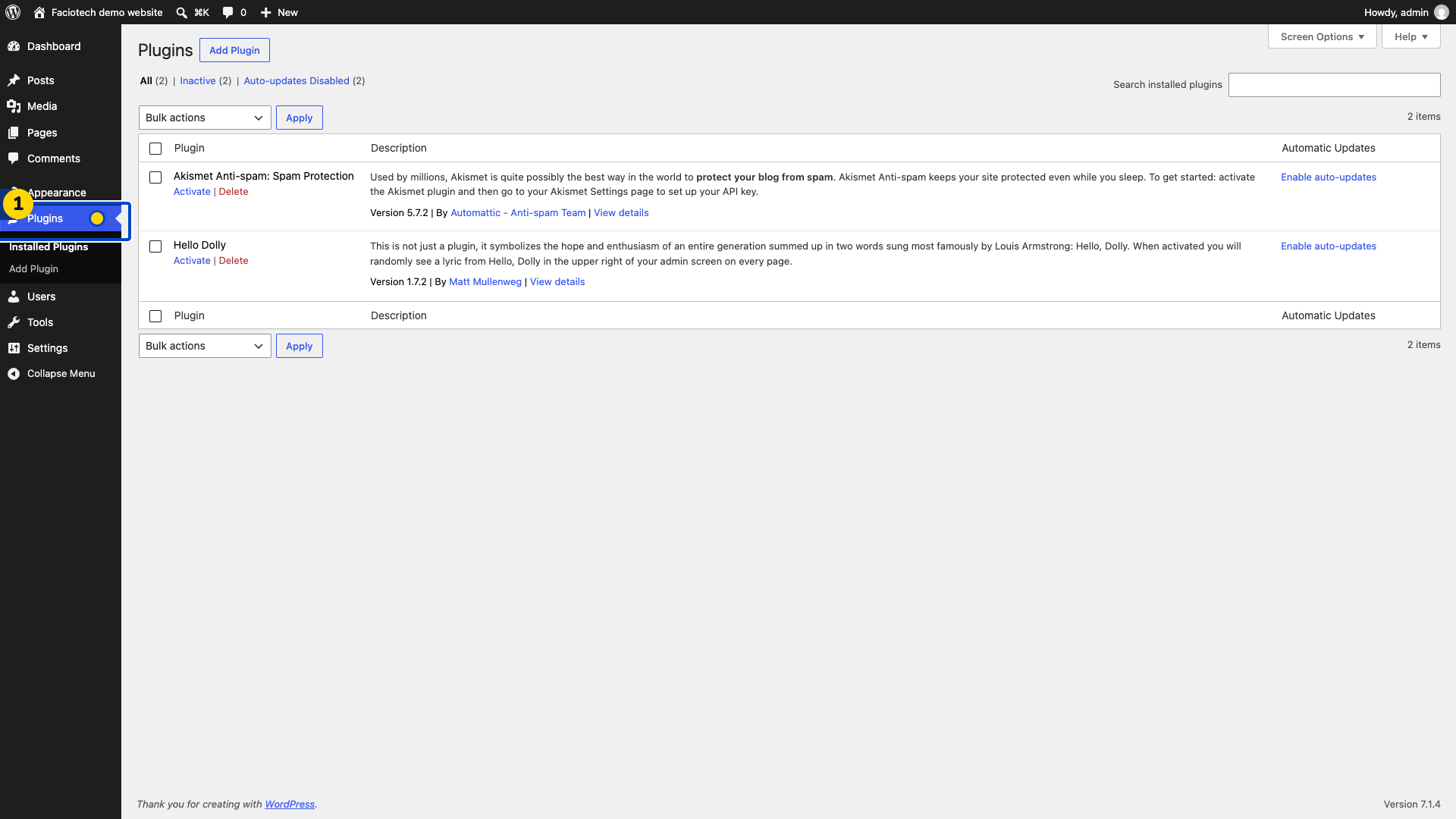
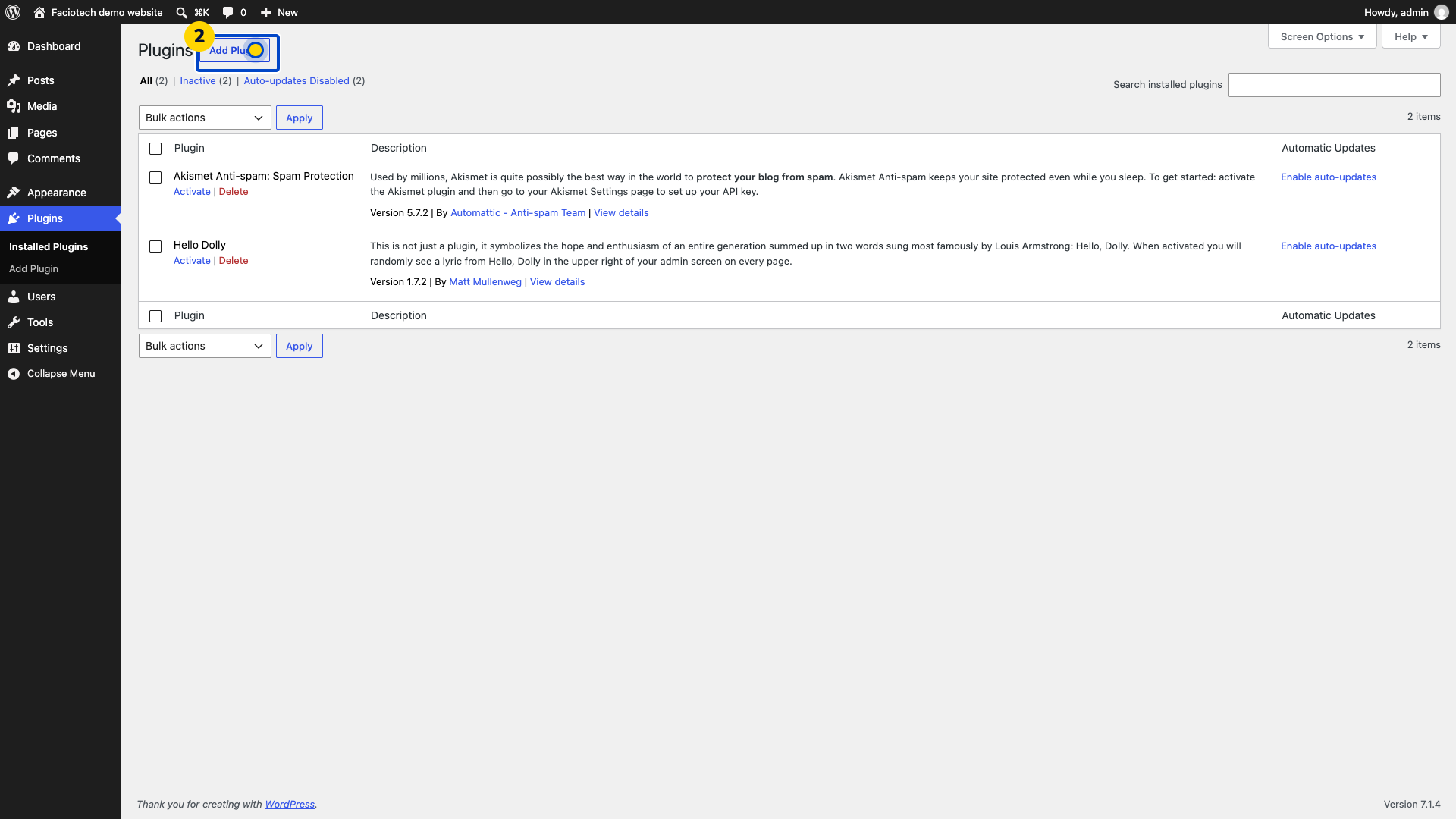
Choose Add Plugin. The directory search opens.
Search for the plugin you need and press Enter. Match its full name. This example uses Yoast Duplicate Post.
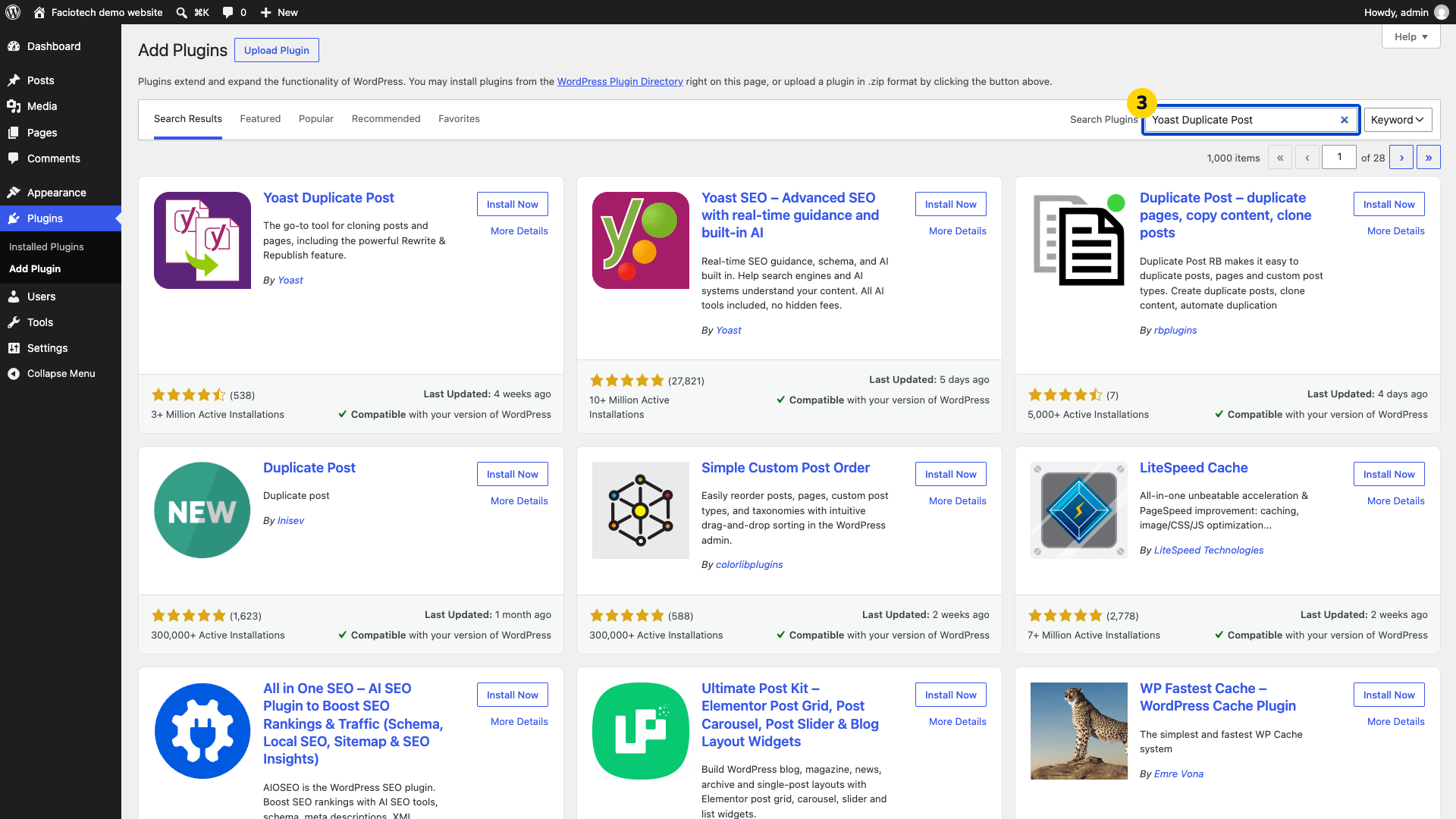
Open More Details for the matching plugin. The plugin details dialog appears.
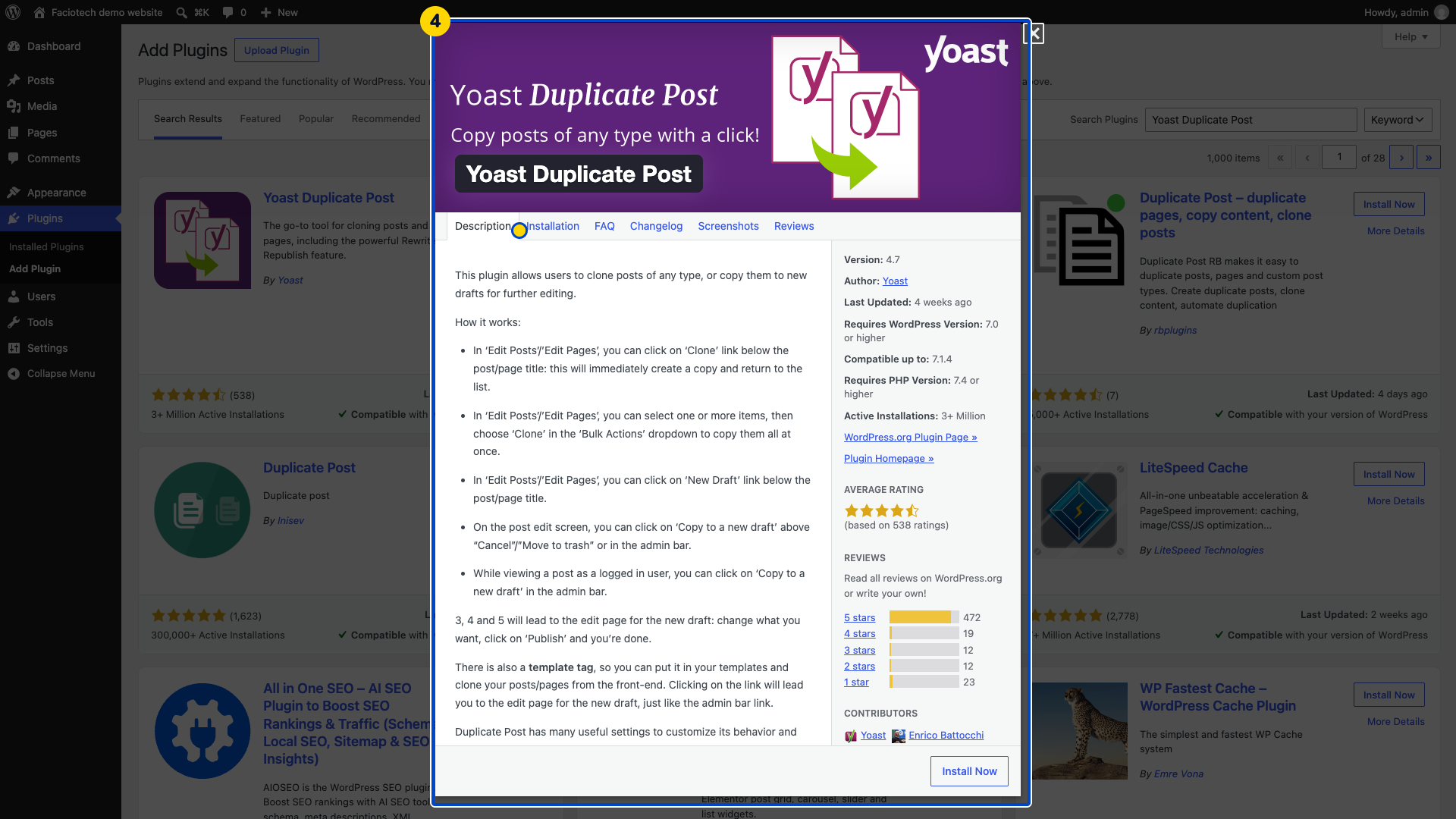
Check the publisher, WordPress compatibility and PHP requirements in that dialog. They should suit the site you intend to use.
Close the details dialog. The plugin search results appear again.
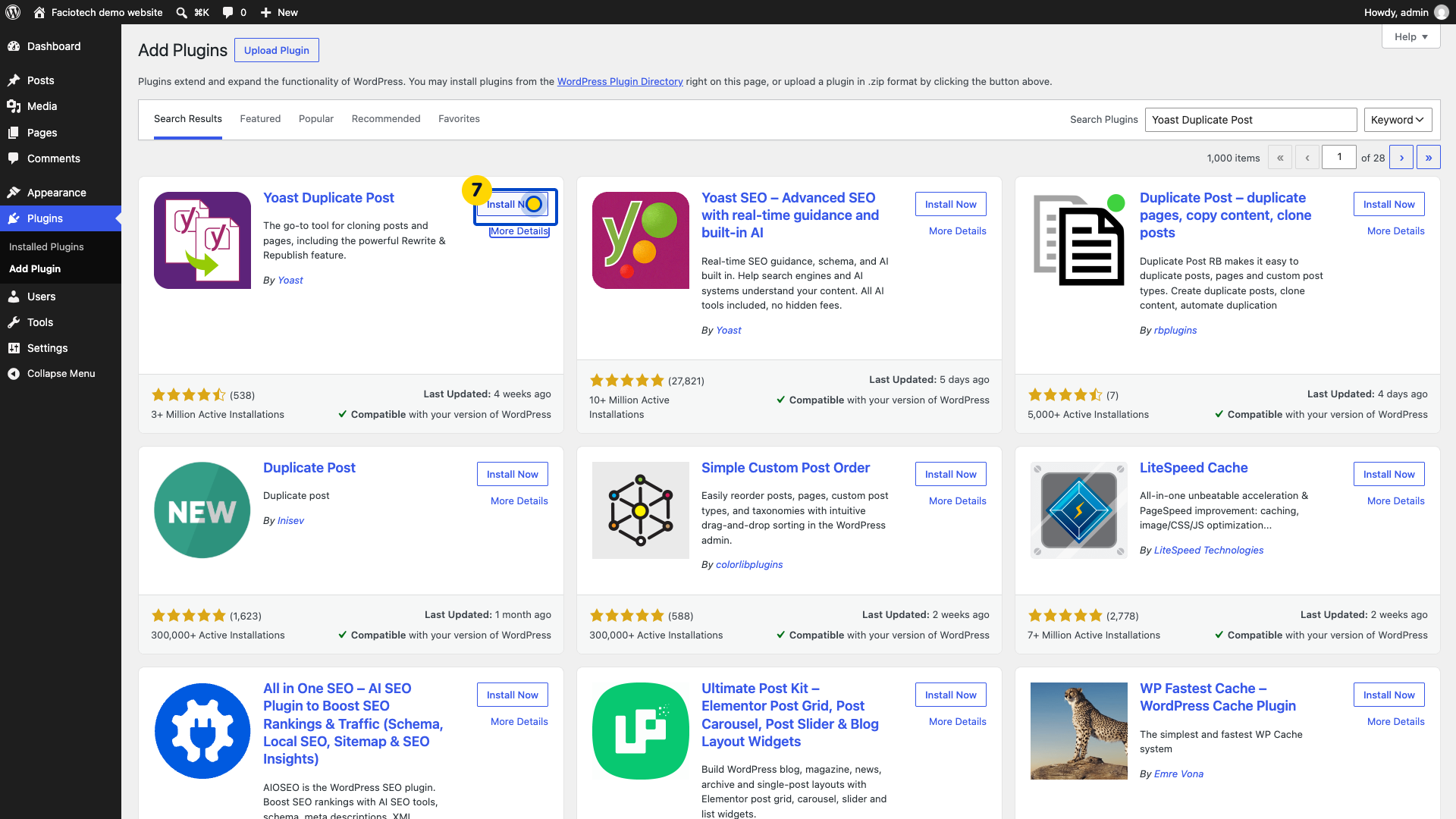
Choose Install Now for the matching plugin. Wait for Activate to appear.
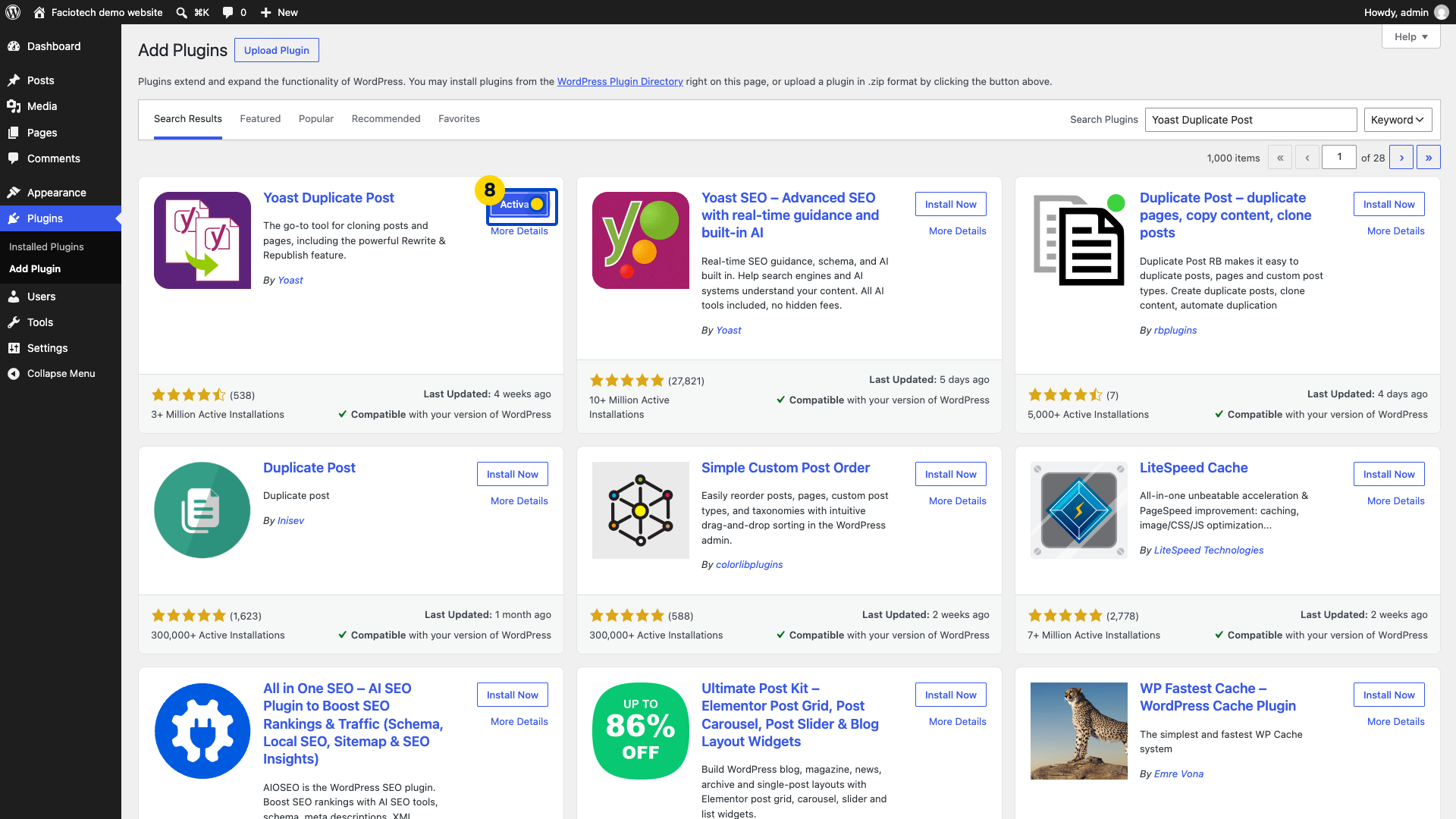
Choose Activate. WordPress enables the plugin.
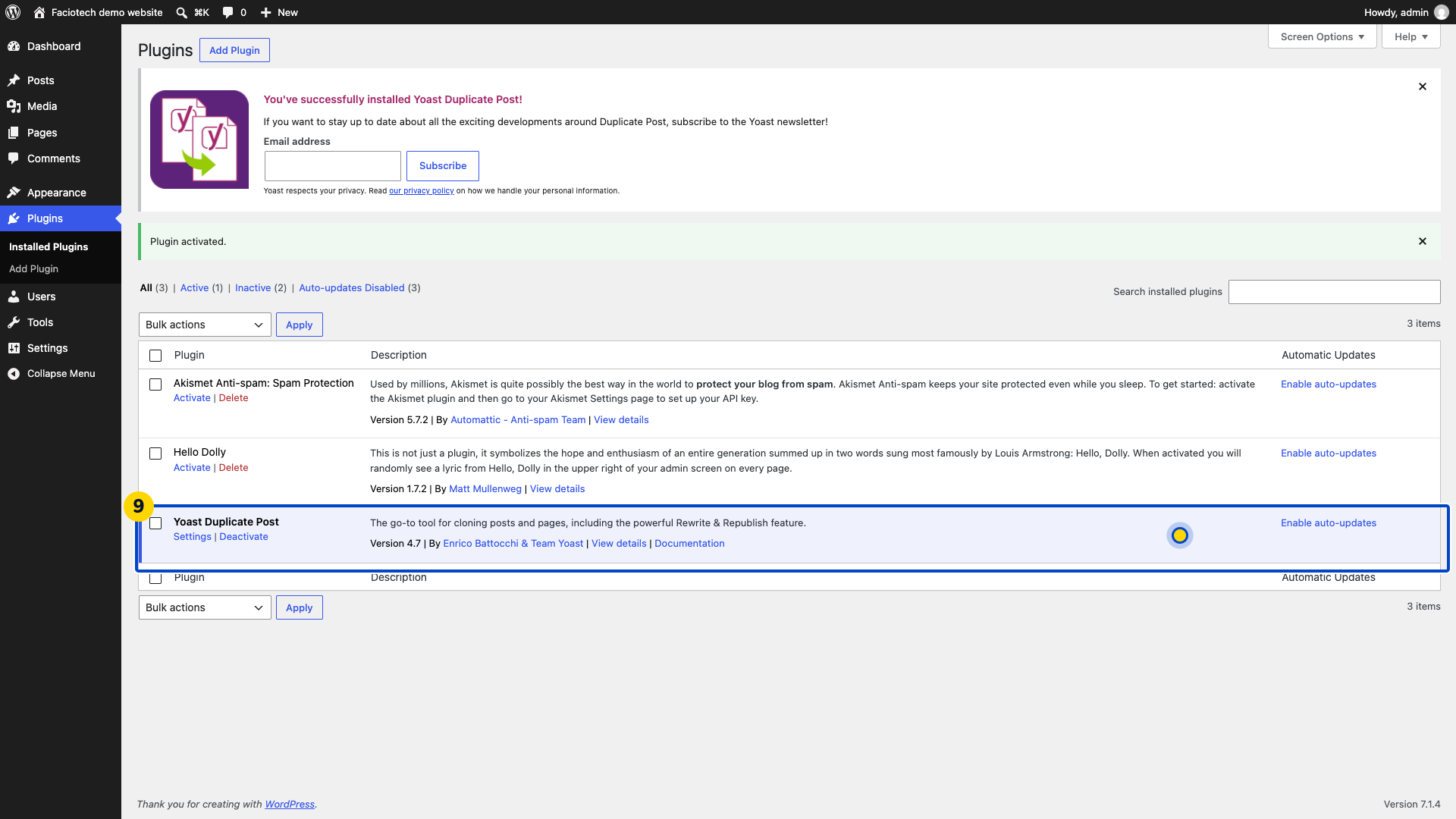
Return to Installed Plugins. Check that the plugin is active; an active plugin has a Deactivate action.
Install only plugins you need and understand. A plugin may have separate settings after activation.
Video walkthrough
Sources
For help, contact Faciotech support.
