
Create a database, give it a separate user and choose that user’s access.
Log in to cPanel from your client area. If that link is unavailable, use the panel address in your welcome email. The cPanel dashboard appears after successful sign-in.
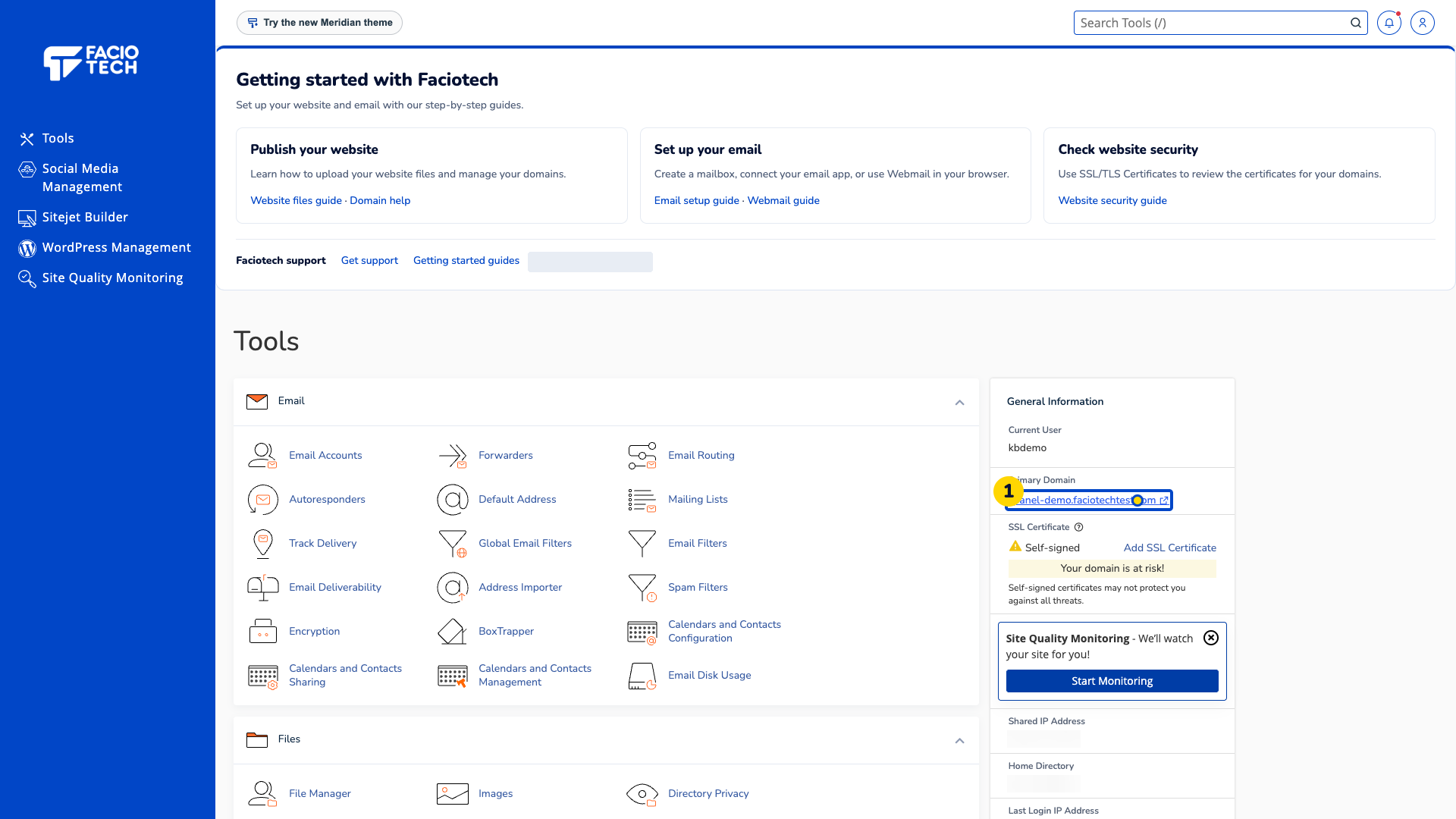
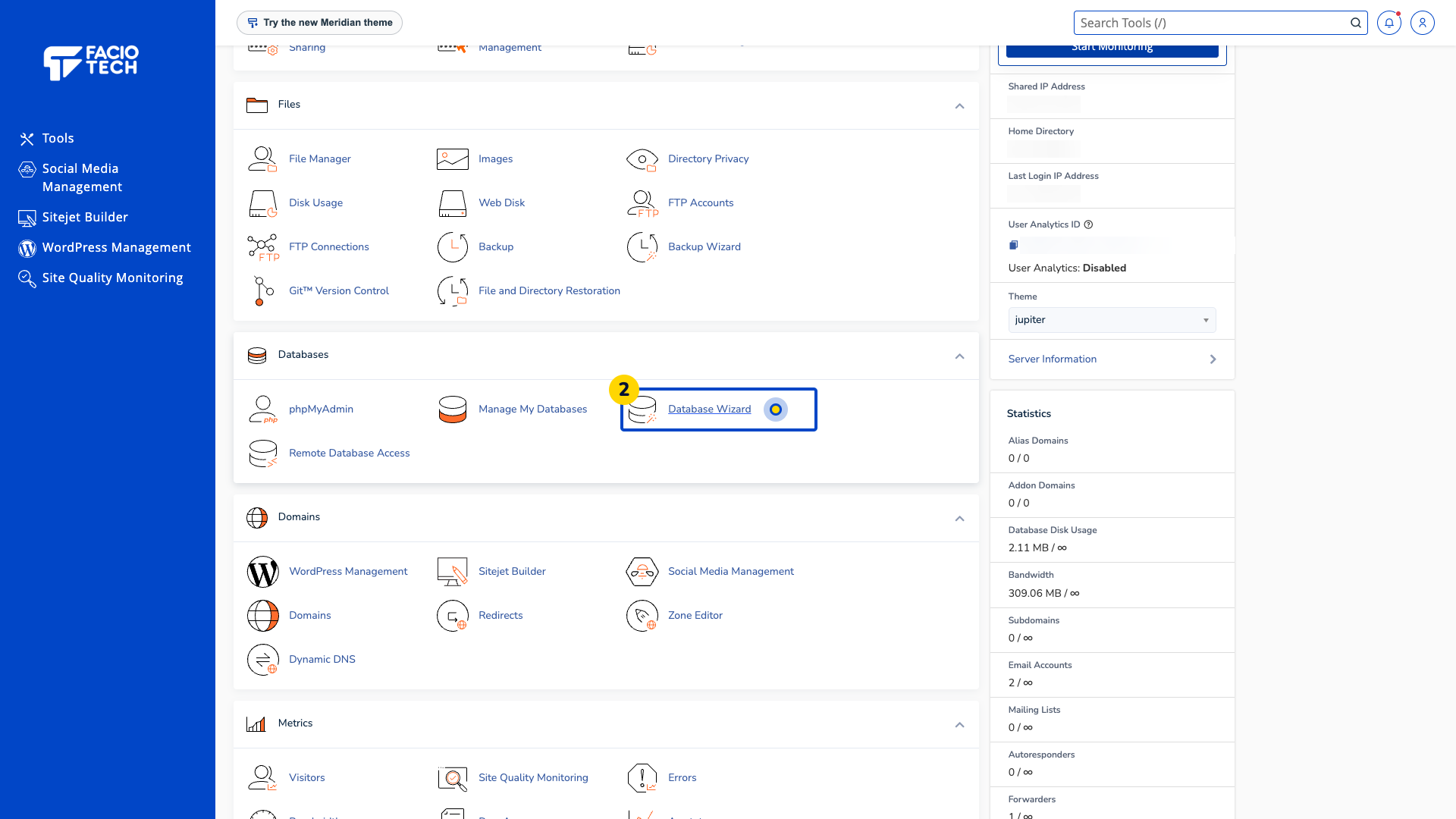
Open Database Wizard from Tools. The first database setup step appears.
Enter a name for the new database. The full database name includes the account prefix shown beside the field.
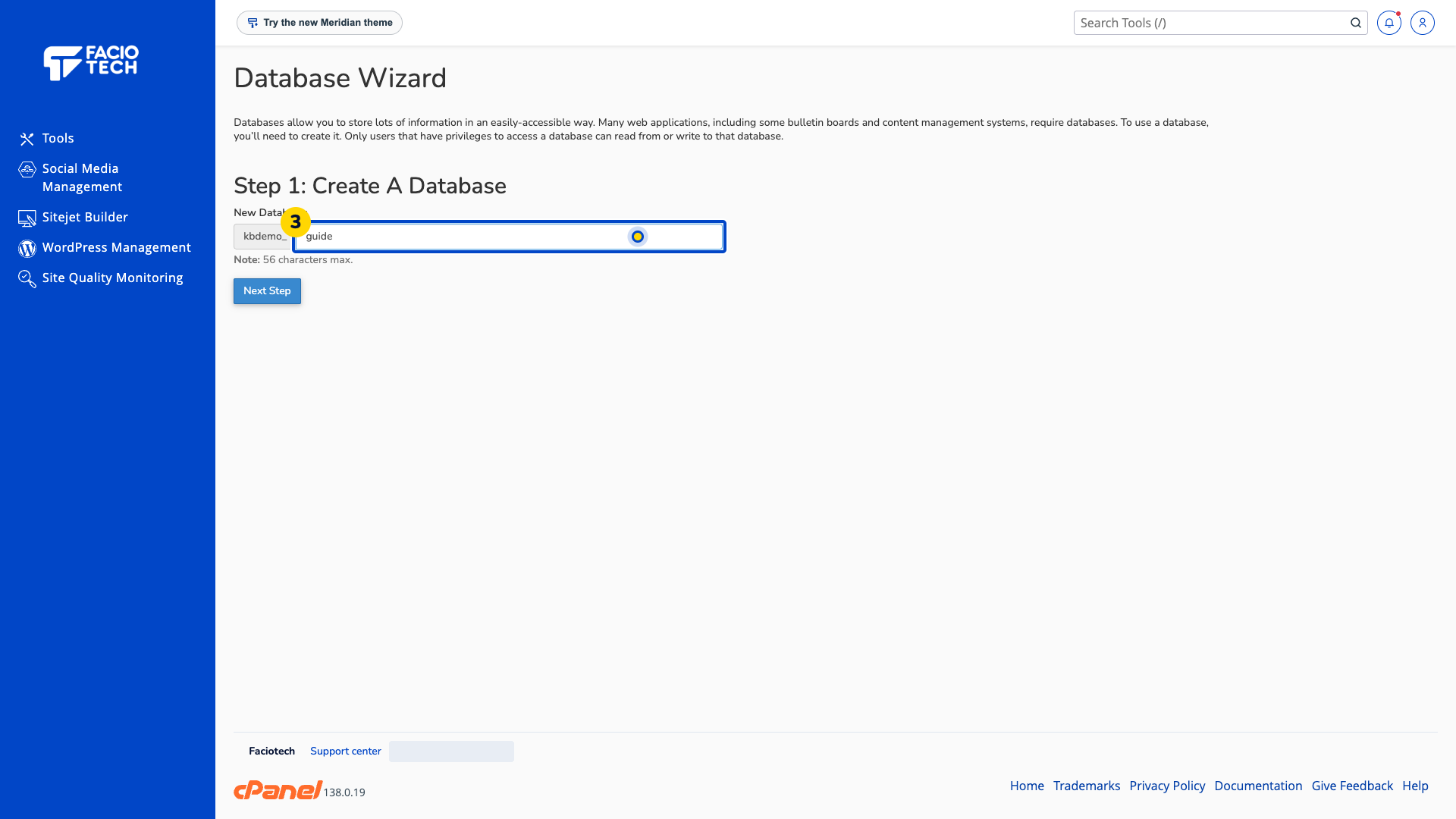
Choose Next Step. The database-user creation form appears.
Enter a separate database username. The full username includes the account prefix shown on the form.
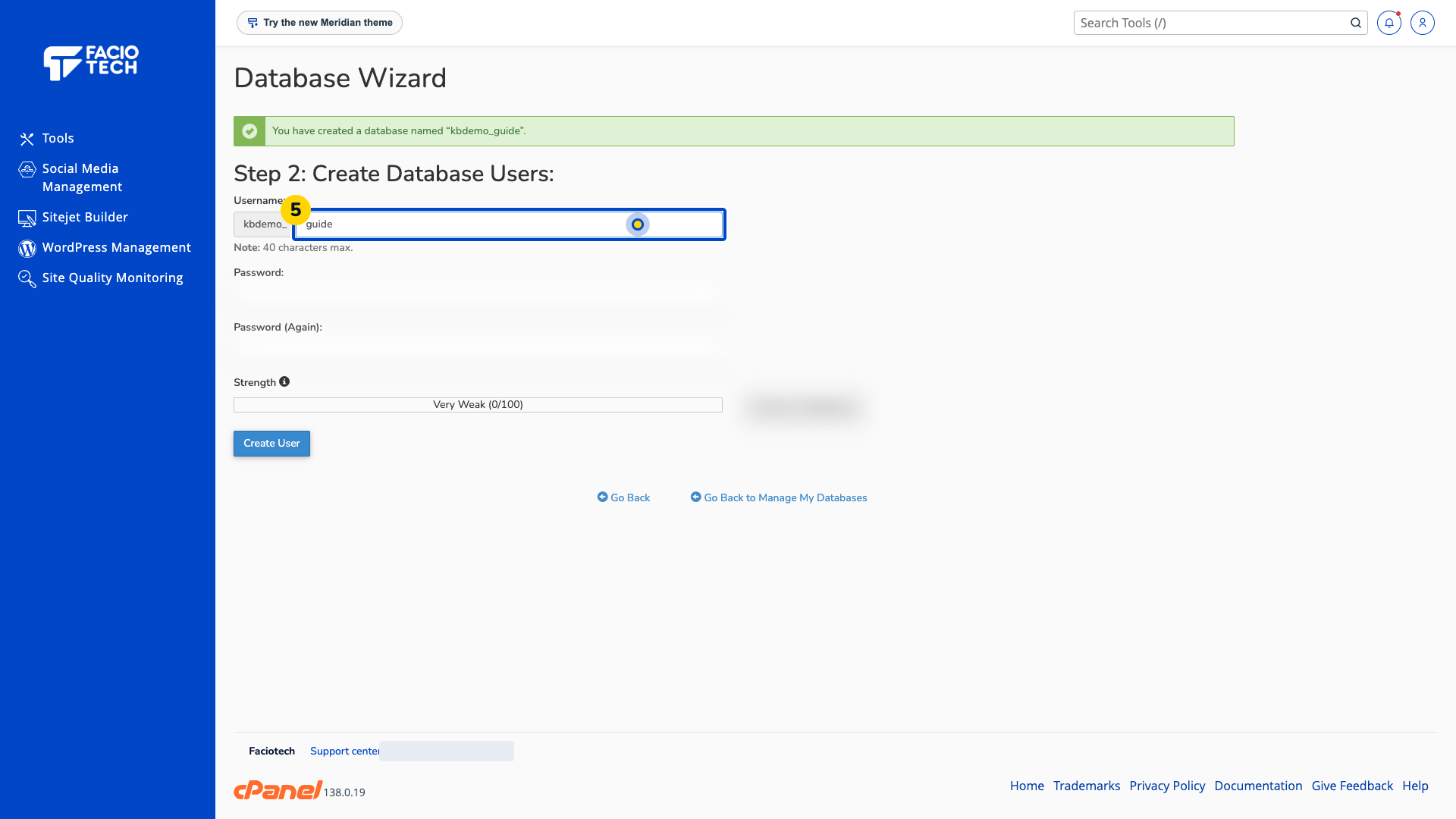
Enter a strong password for this database user. Keep its value private.
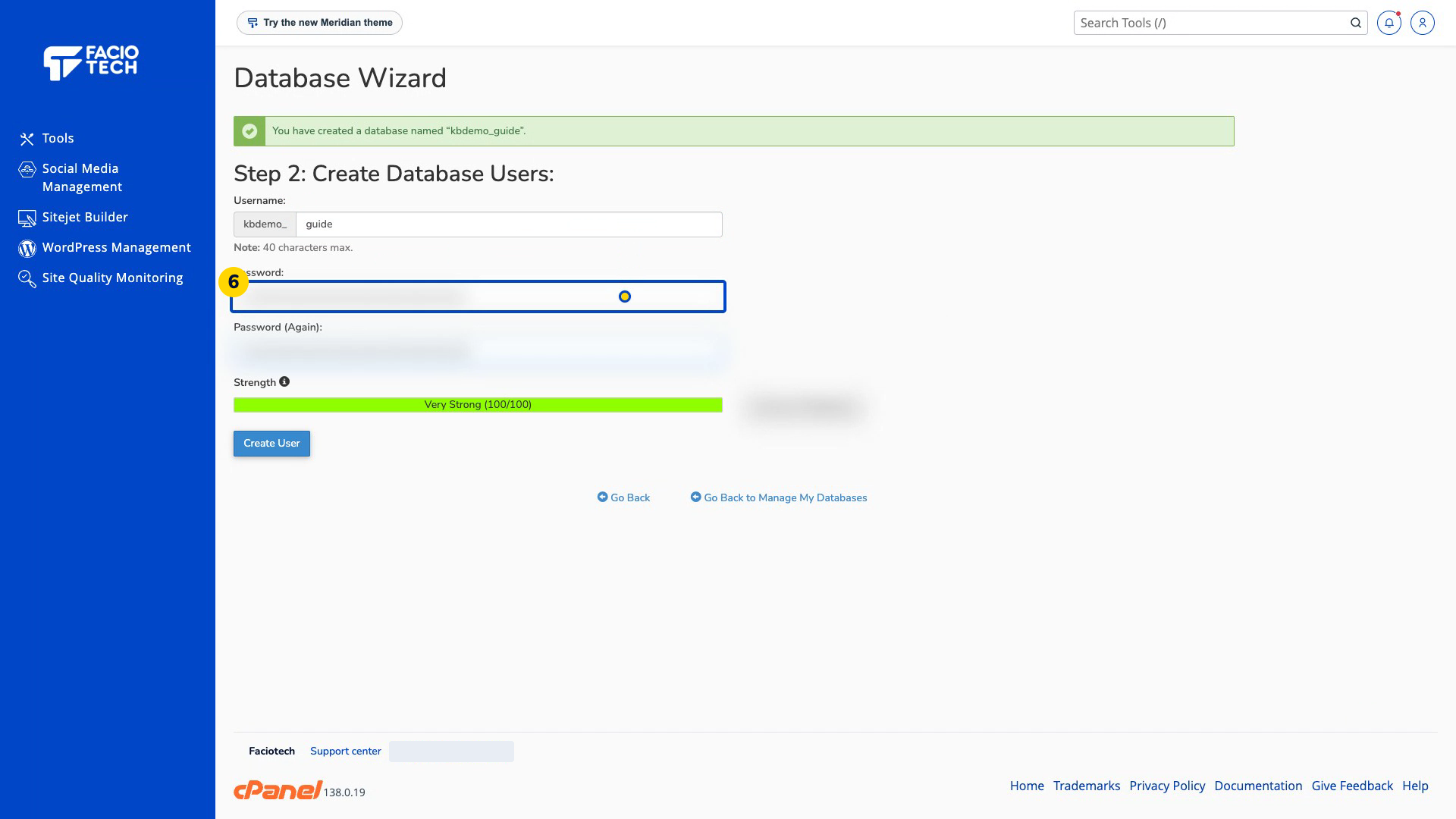
Repeat the password in the confirmation field. Both password fields should contain the same private value.
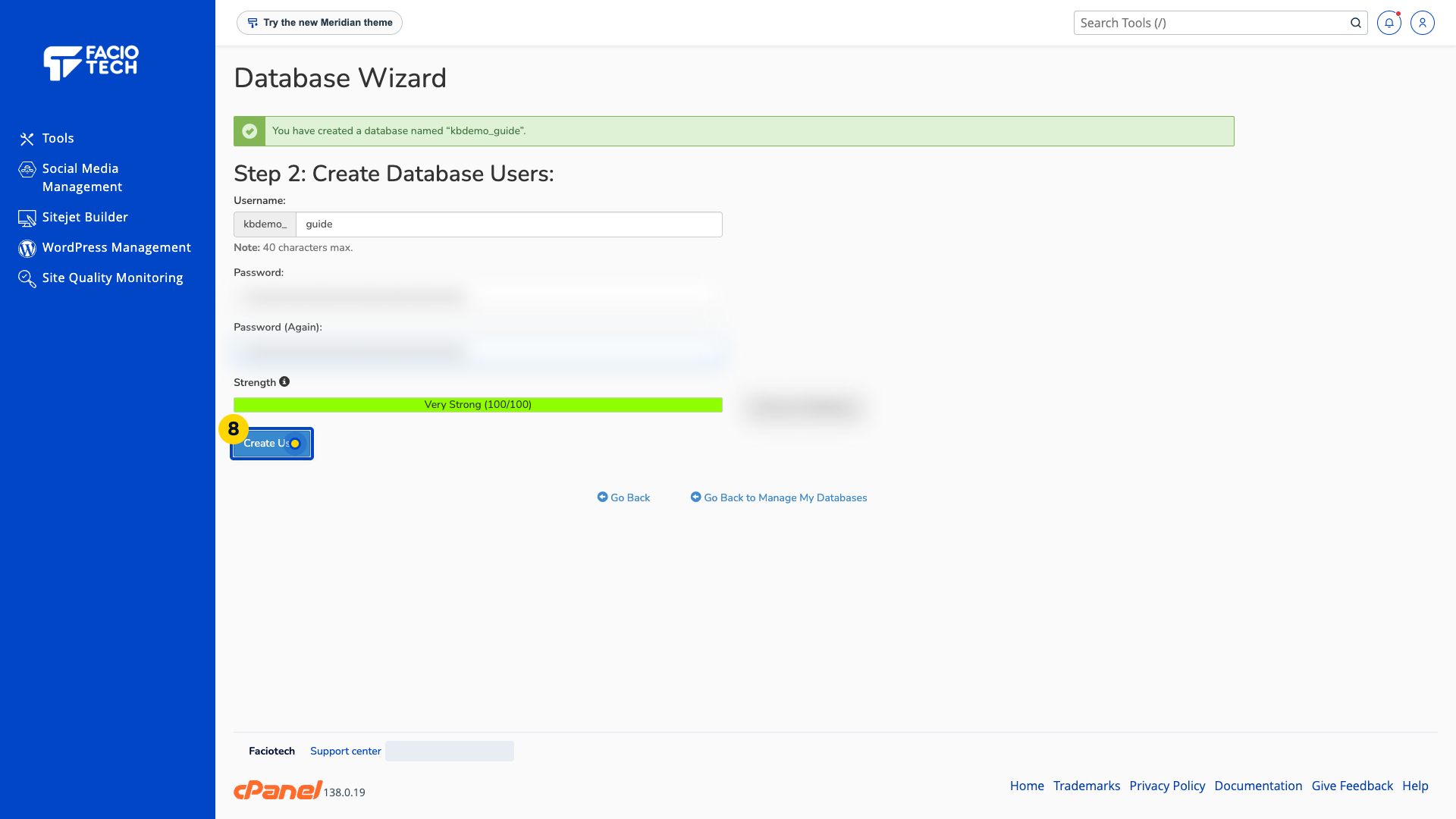
Choose Create User. The permissions step appears.
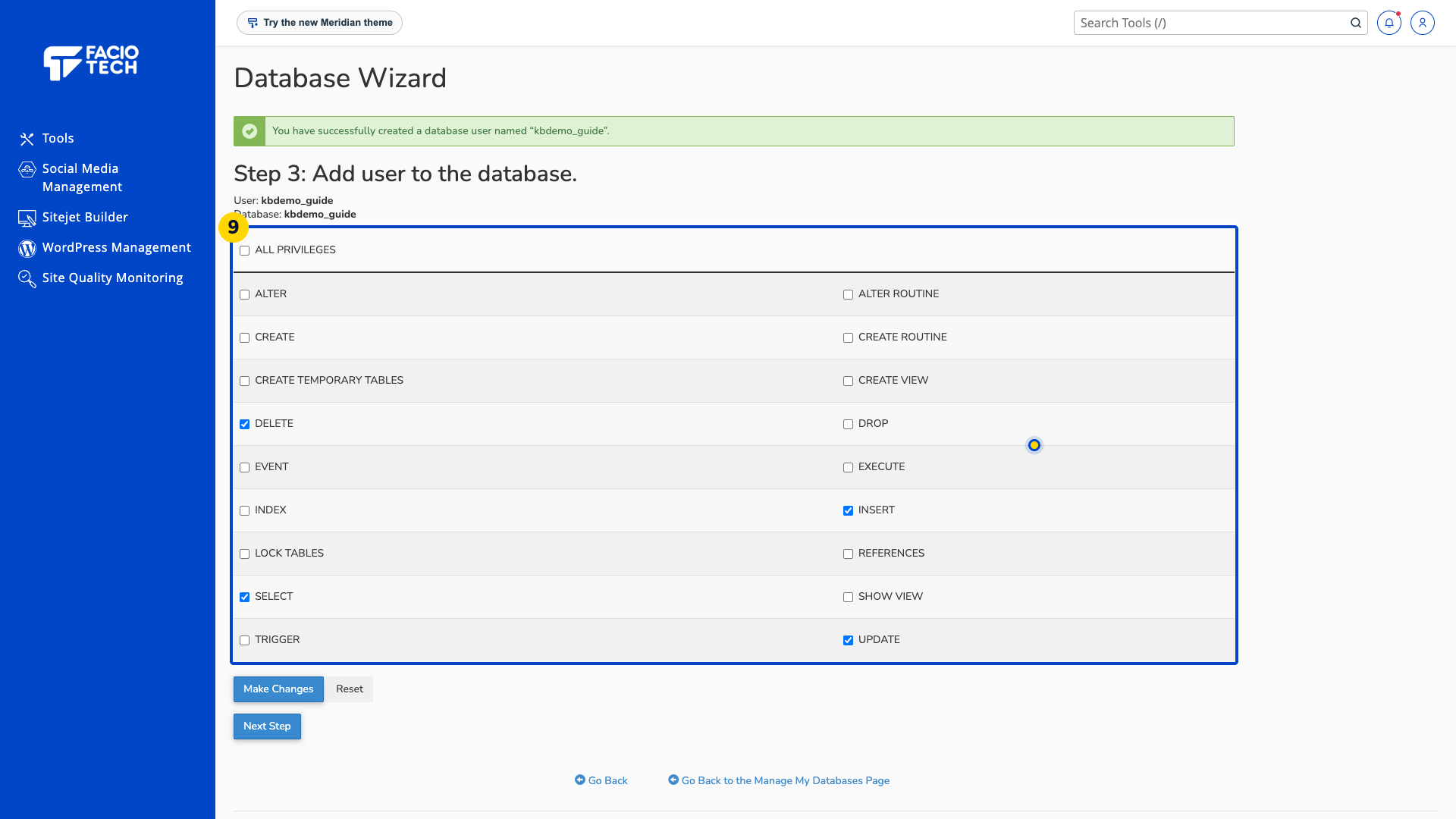
Select the permissions that your application requires. This demo selects SELECT, INSERT, UPDATE and DELETE; another application may require different permissions.
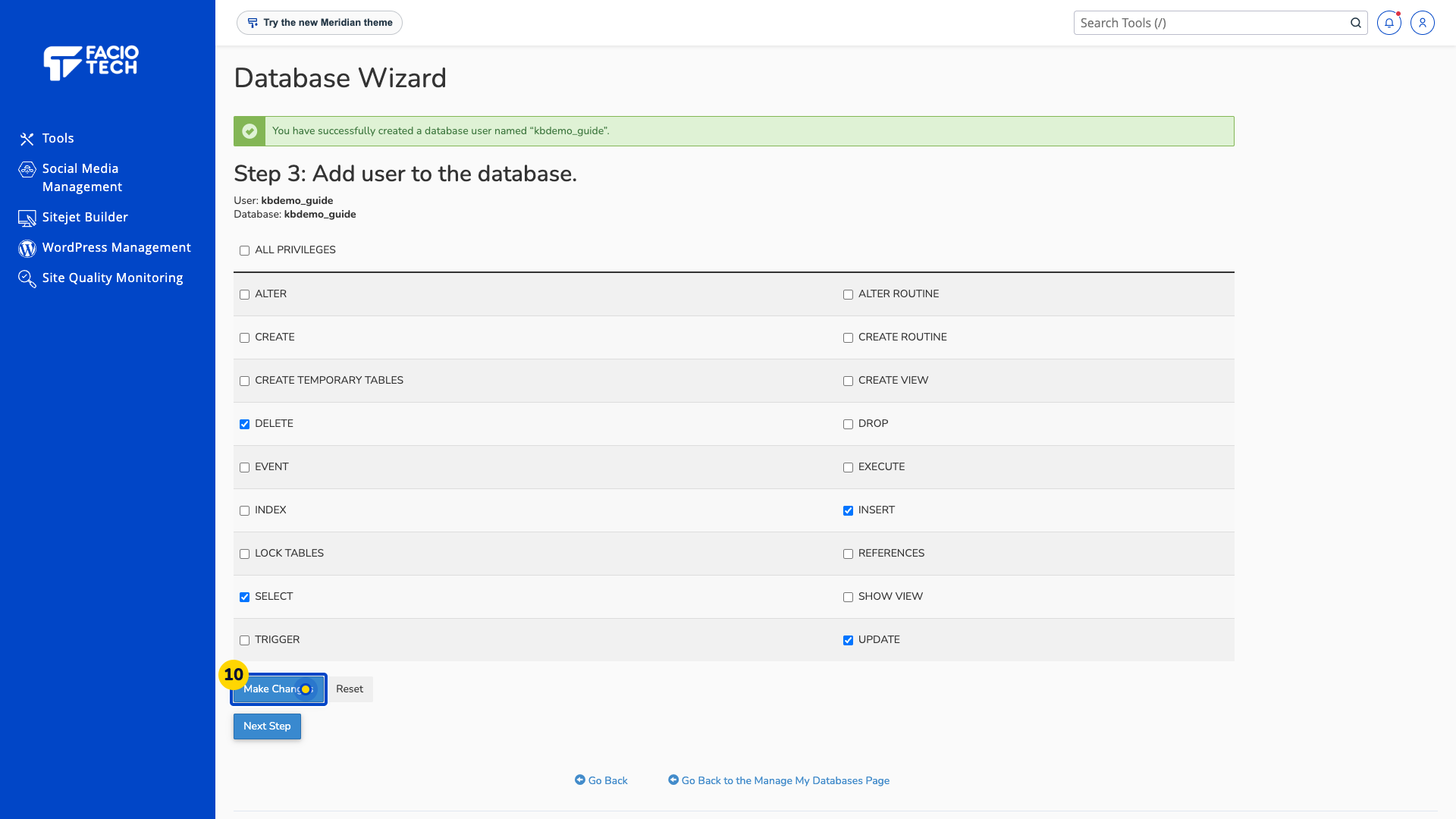
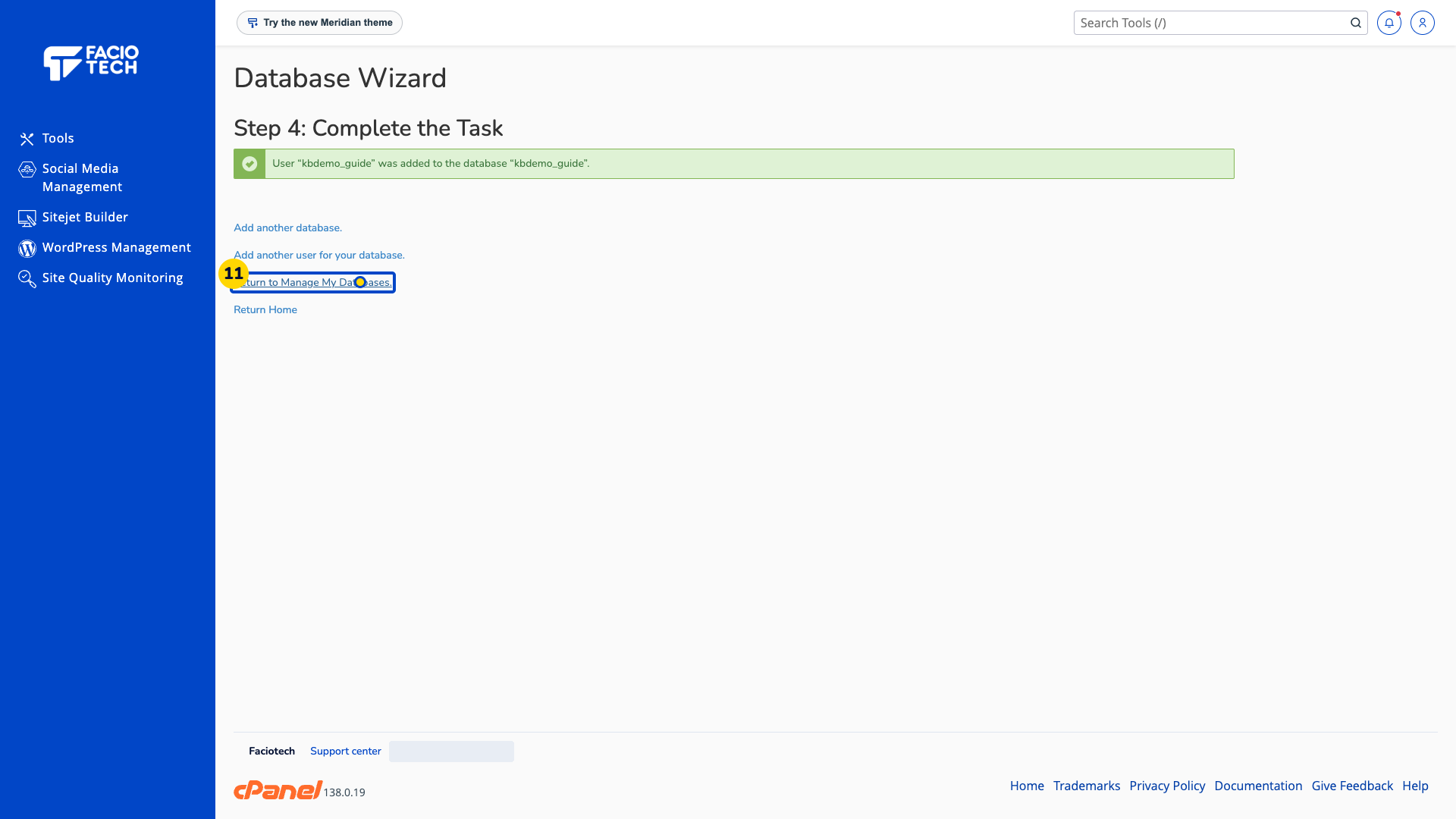
Choose Make Changes. Wait for the wizard’s completion message.
Choose Return to Manage My Databases. The database management page opens.
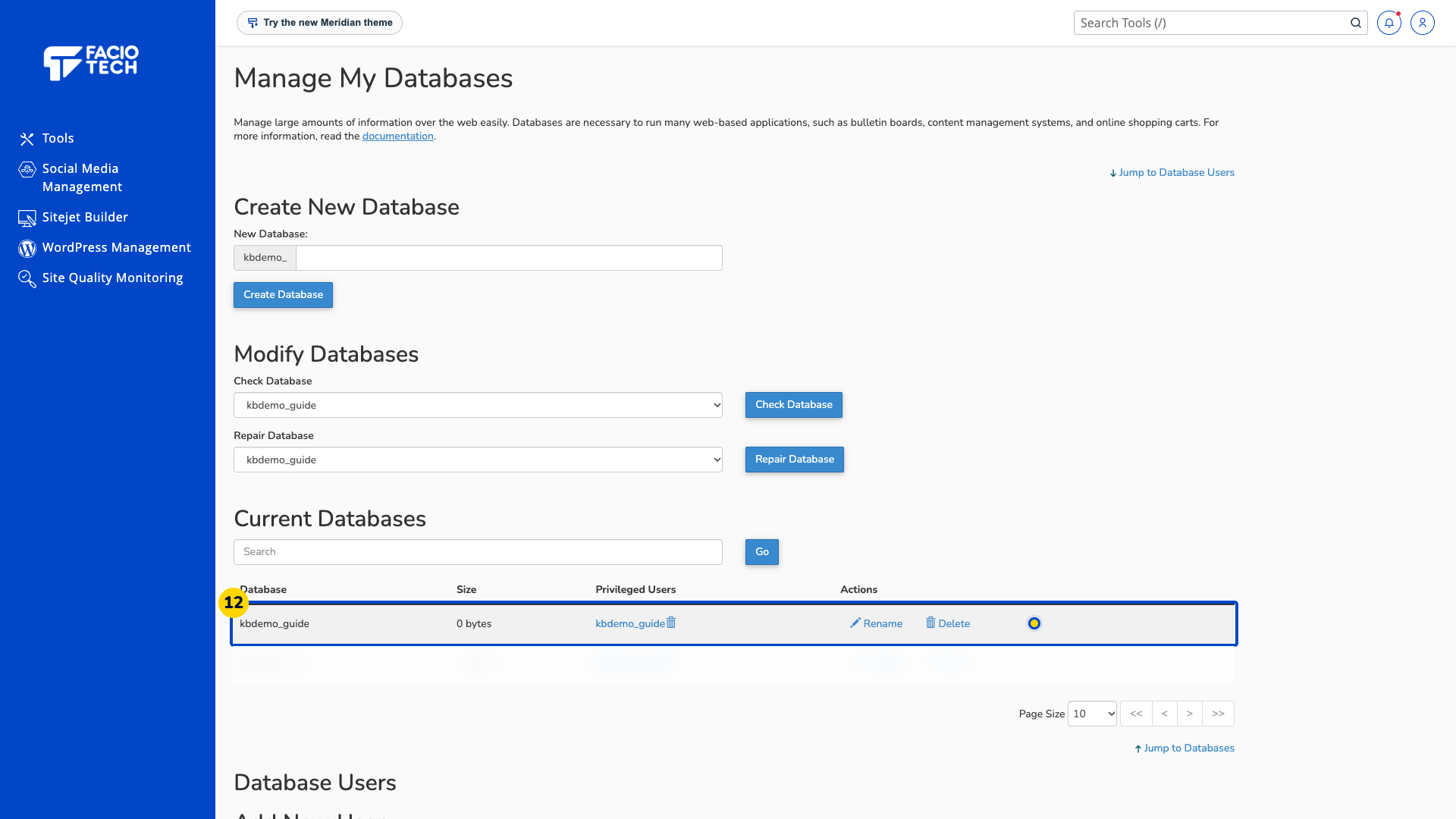
Find the new database under Current Databases and check that the intended user appears in Privileged Users.
Keep the database name, database username and database password with the application that needs them. These are separate from your cPanel sign-in details.
Video walkthrough
Sources
For help, contact Faciotech support.
