
Import a checked database backup into a new empty database.
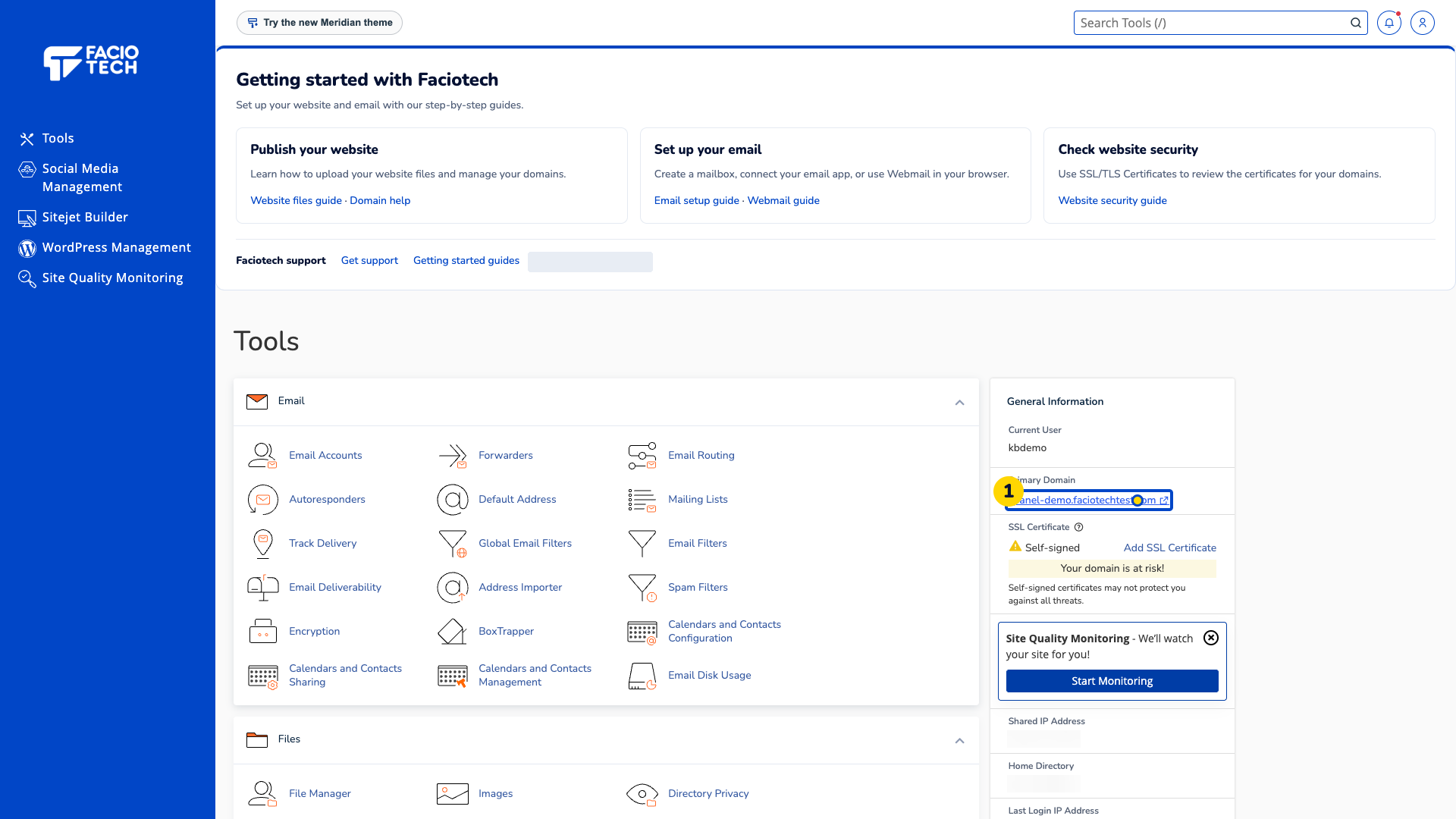
Log in to cPanel from your client area. If that link is unavailable, use the panel address in your welcome email. The cPanel dashboard appears after successful sign-in.
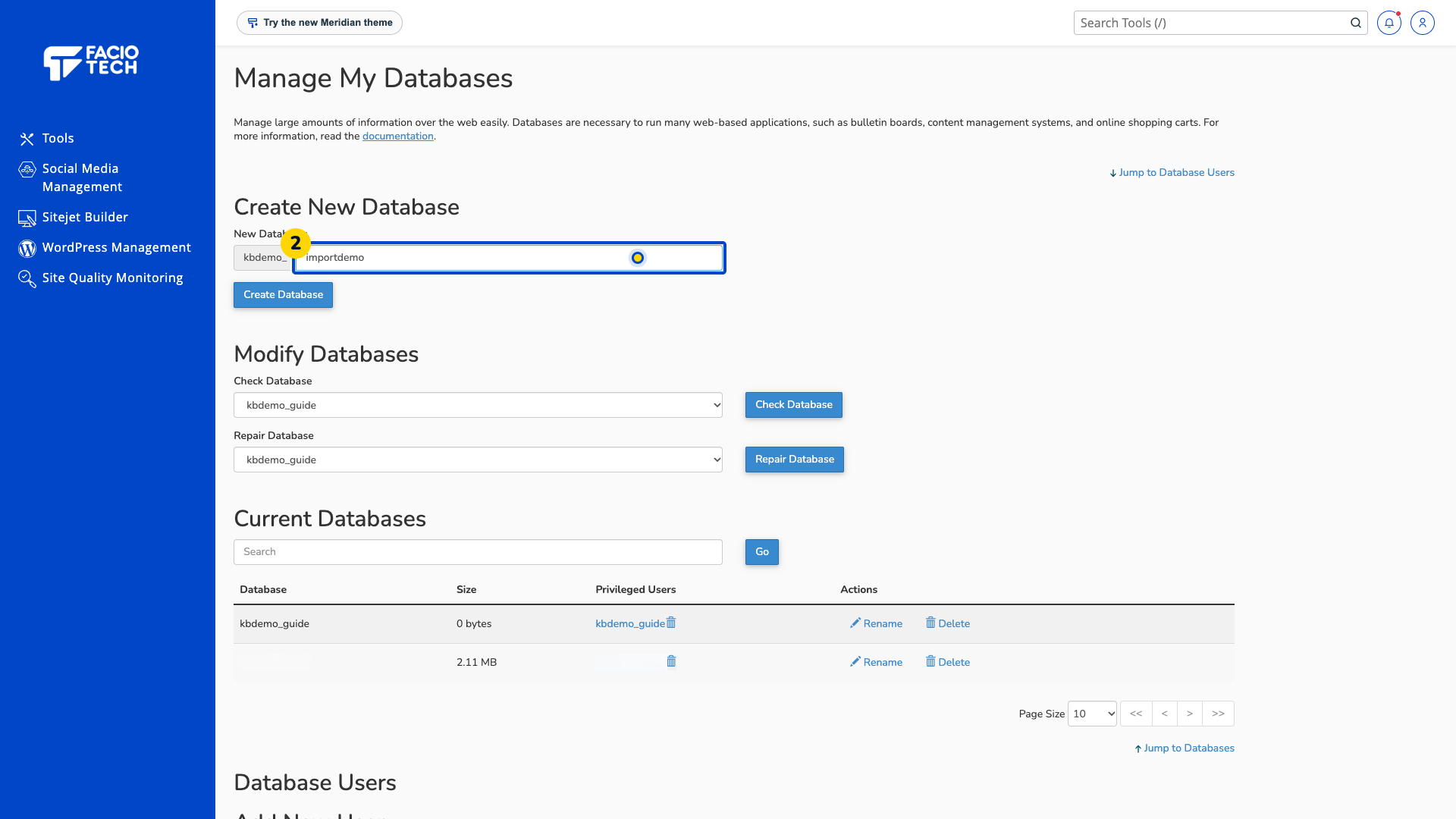
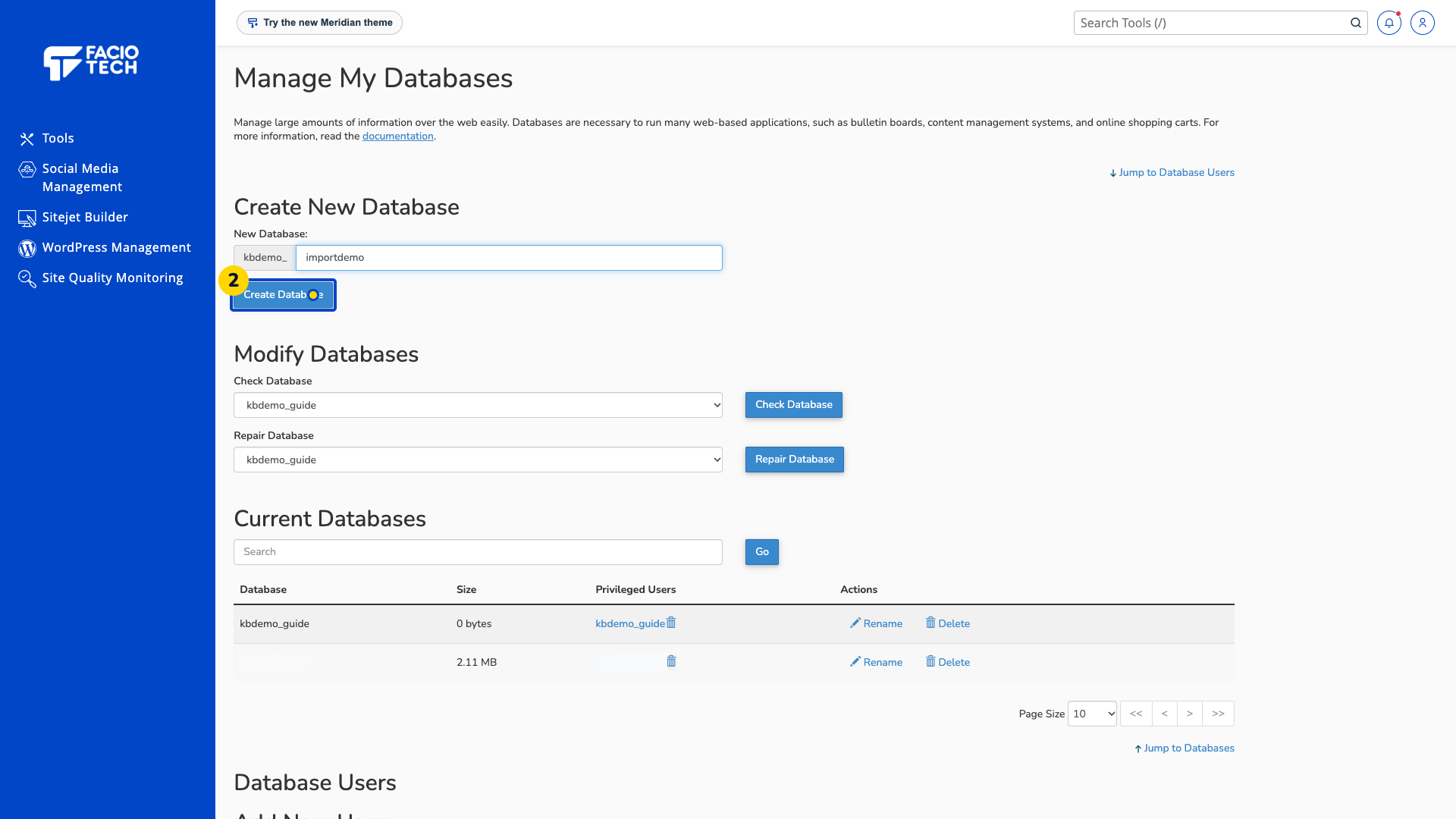
Create a new empty database in cPanel with a separate name. This example uses importdemo. Keep the full prefixed database name.
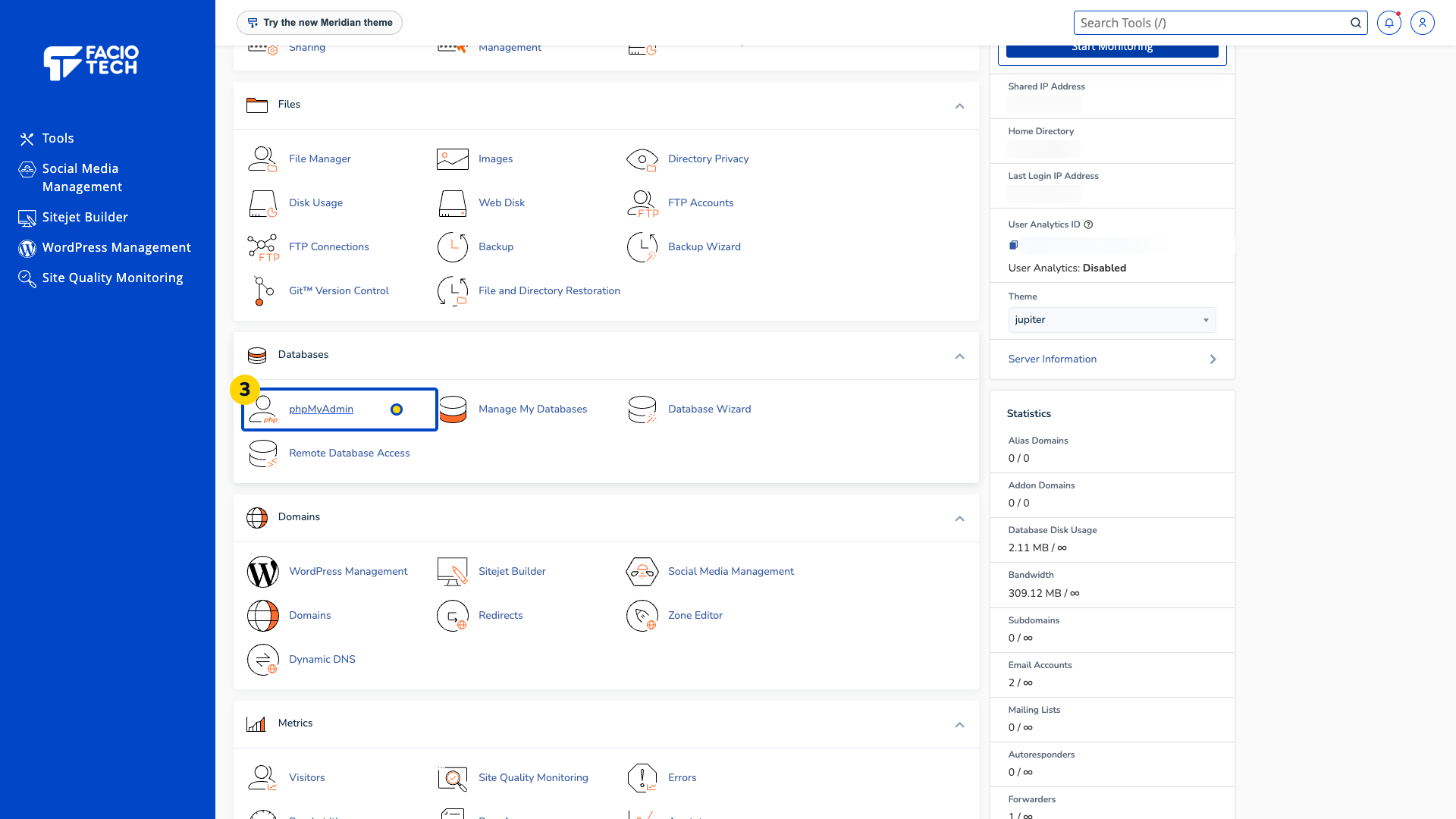
Open phpMyAdmin from Tools. phpMyAdmin opens with the database list on the left; select your new empty database in the next step.
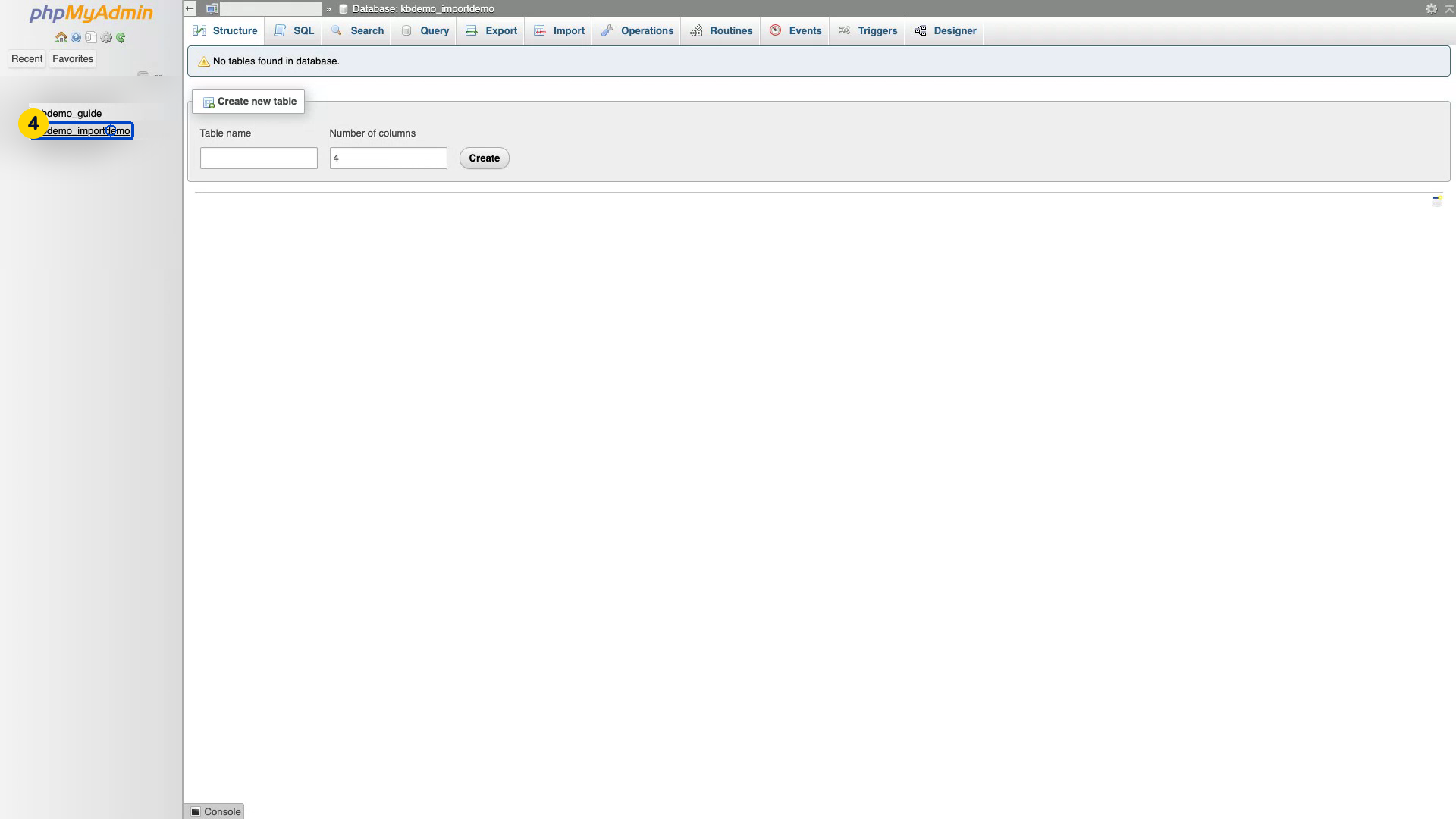
Select the new empty database. Check the database name and confirm that no tables are listed.
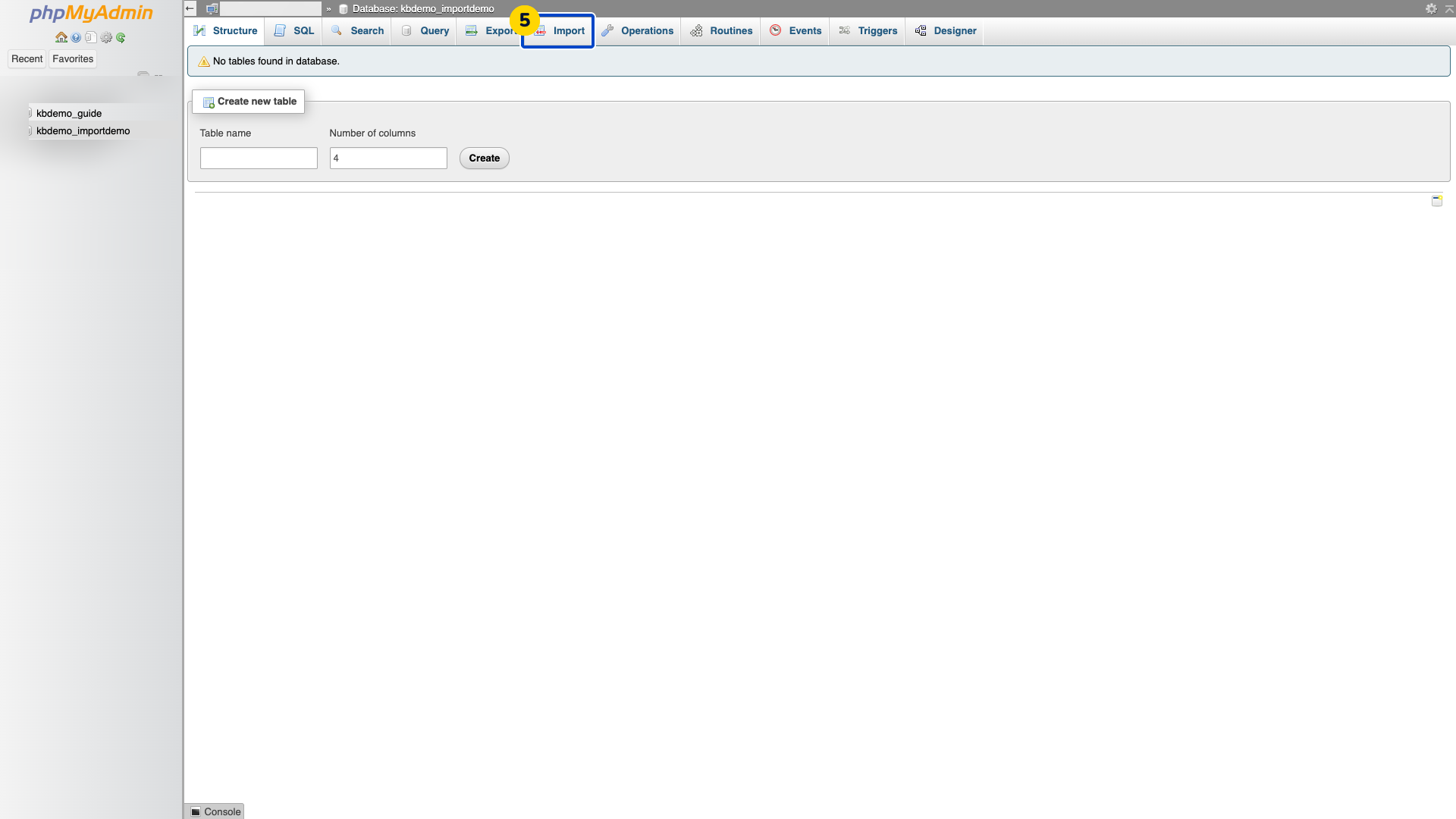
Choose Import in the selected database’s navigation. The import form appears.
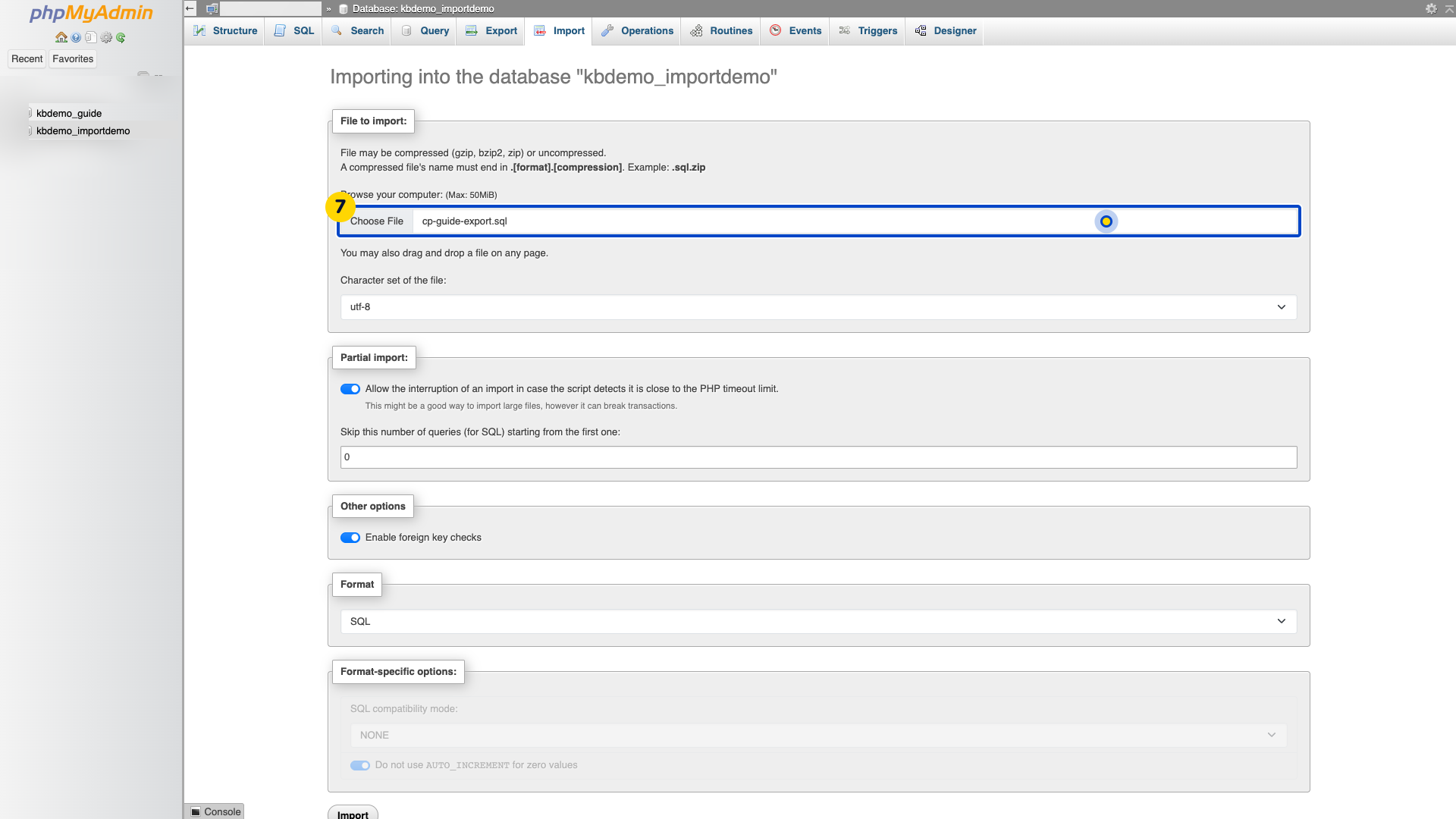
Open the file picker under File to import. Your computer’s file chooser appears.
Select the checked backup file from your computer. Its filename appears in the import form.
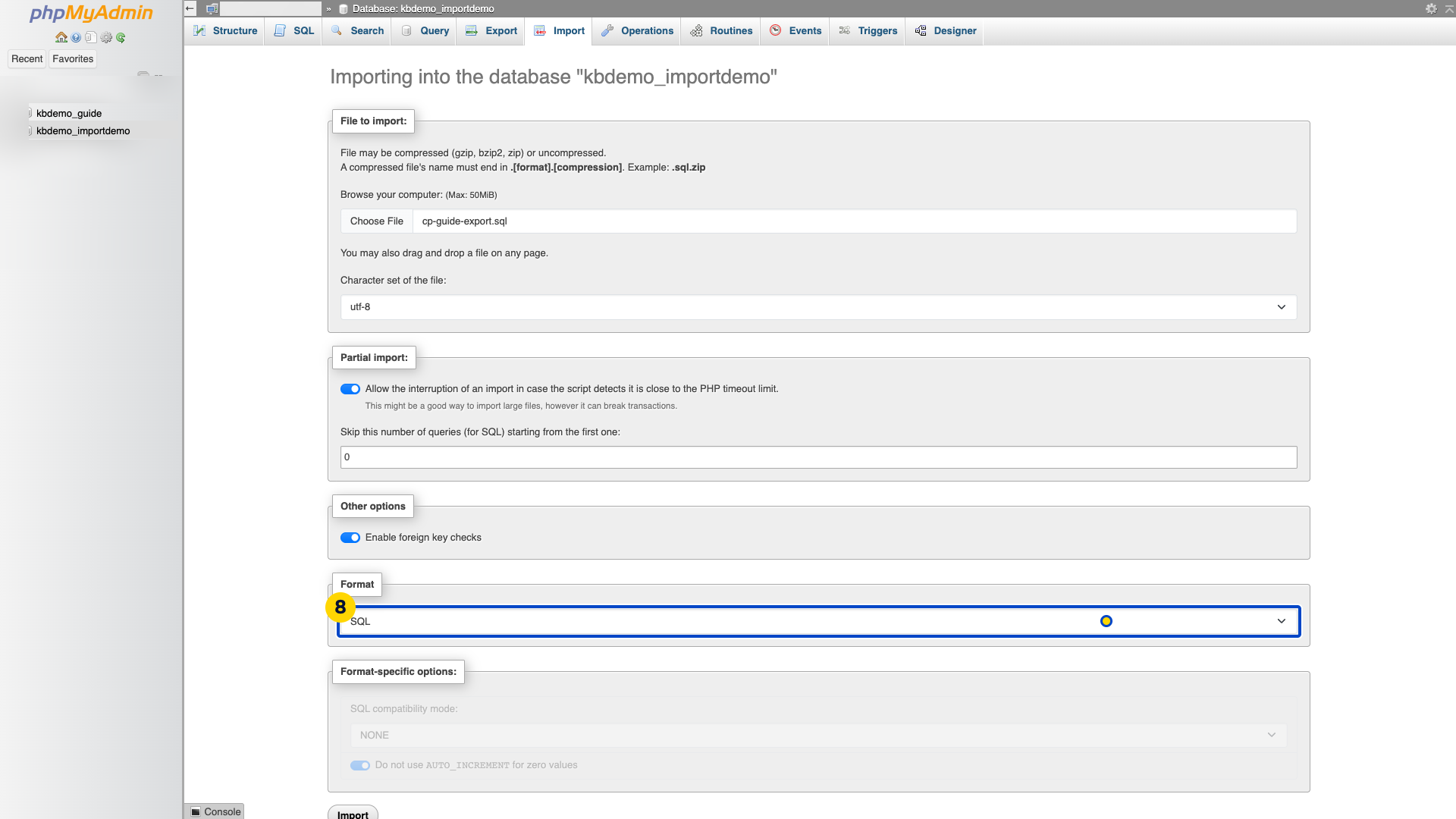
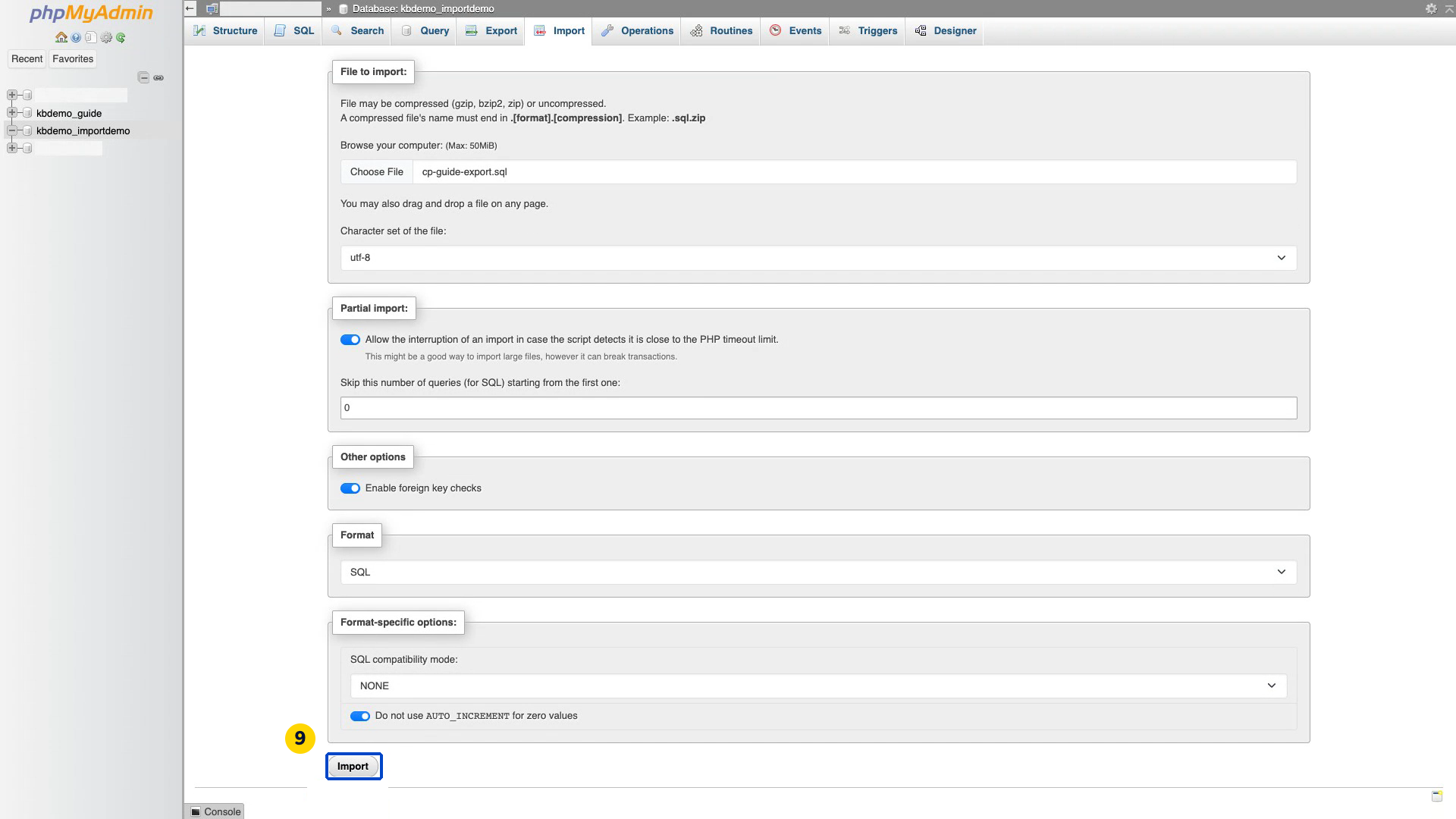
Review the file format and import options. This example imports the checked SQL export without changing its data.
Choose Import once. Wait for phpMyAdmin to report the result.
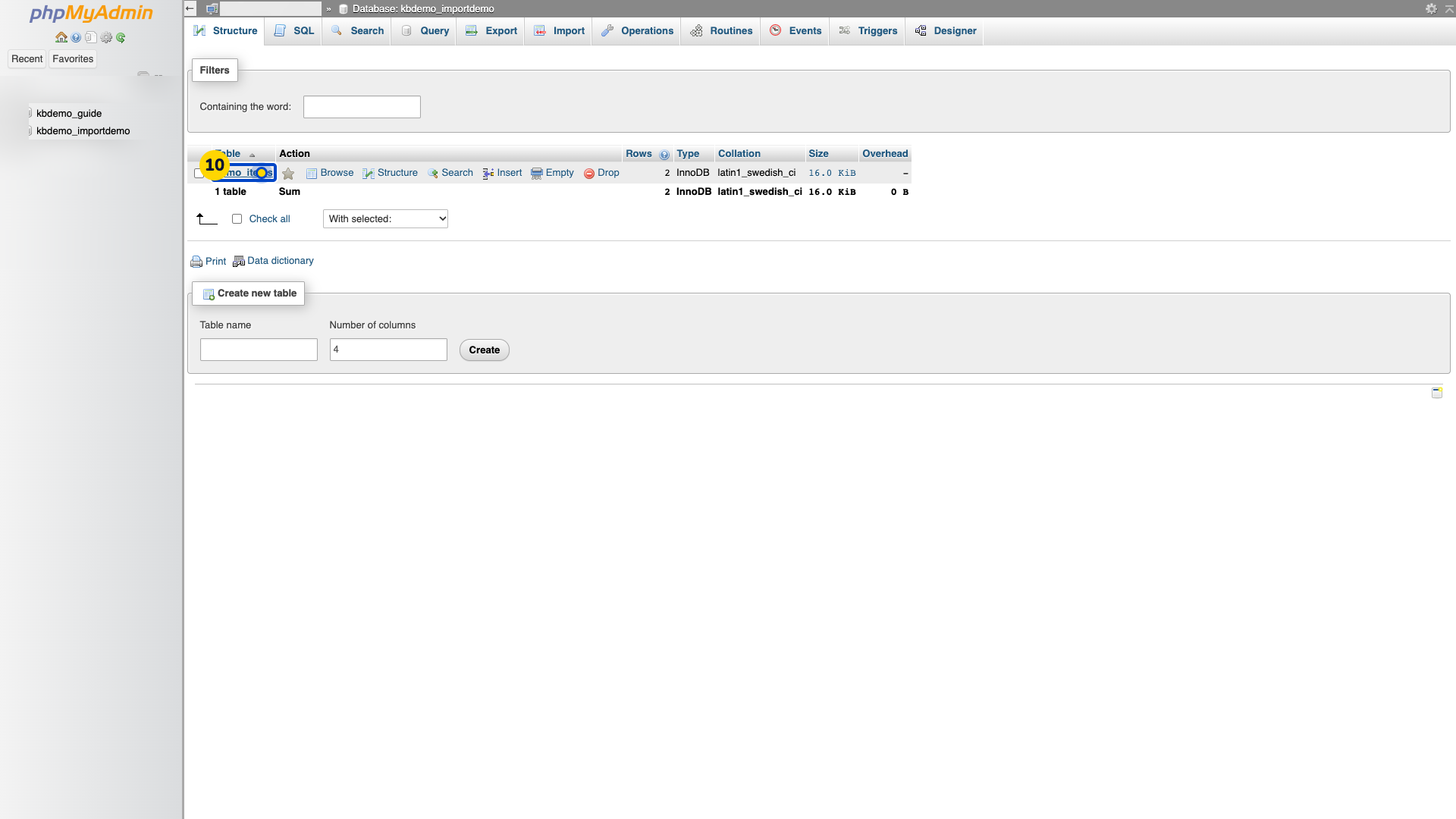
After a successful import, open Structure and check that the expected tables appear.
Import into a new empty database. A backup can contain instructions that replace existing data.
Your application may also need the new database connection details after the import.
Video walkthrough
Sources
For help, contact Faciotech support.
