
Find the WordPress installations that WP Toolkit shows for your hosting account.
Log in to cPanel from your client area. If that link is unavailable, use the panel address in your welcome email. The cPanel dashboard opens.
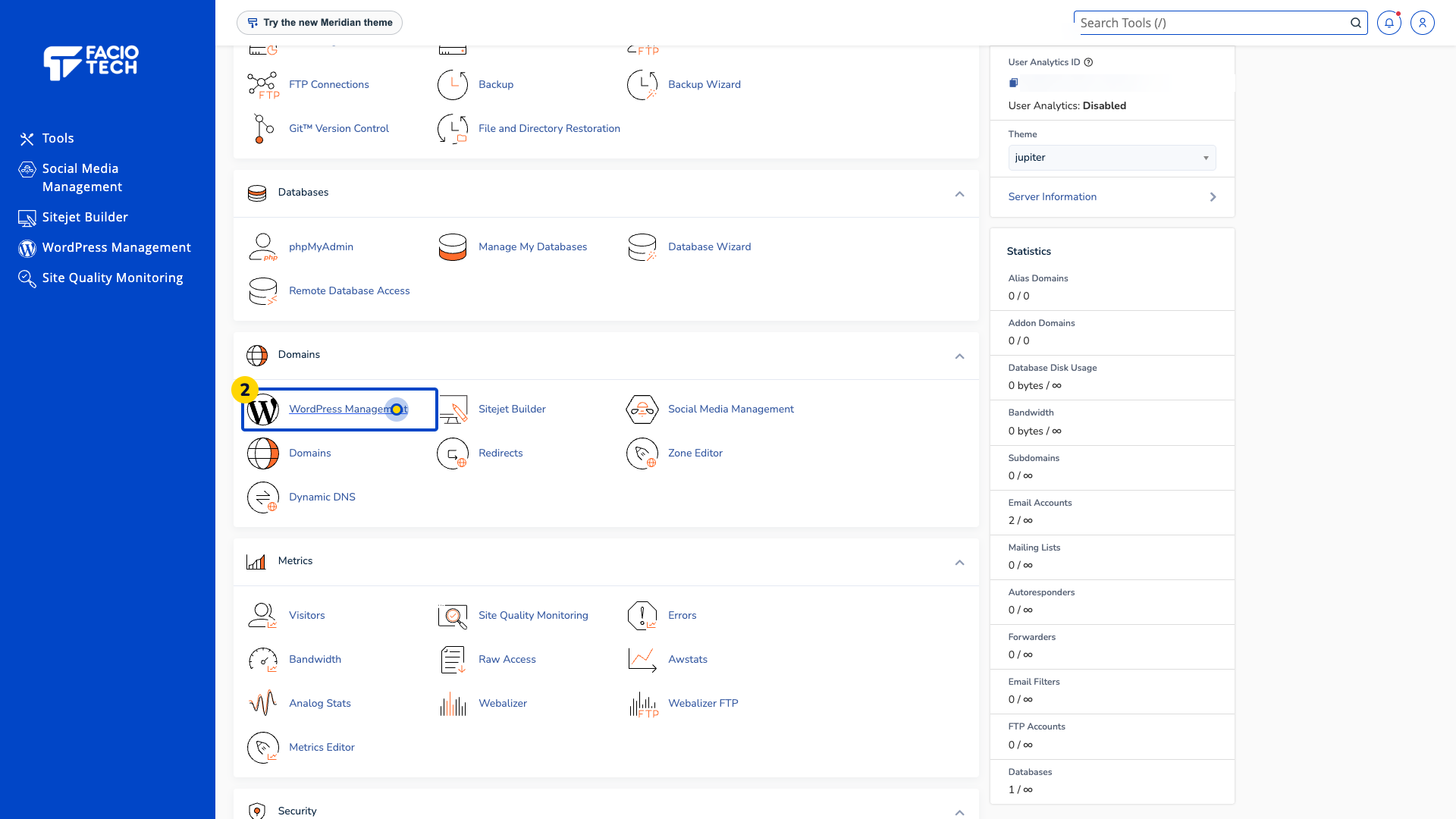
Open WordPress Management from the cPanel menu. The WP Toolkit interface appears.
Find your website in Installations. Match the website address before choosing an action.
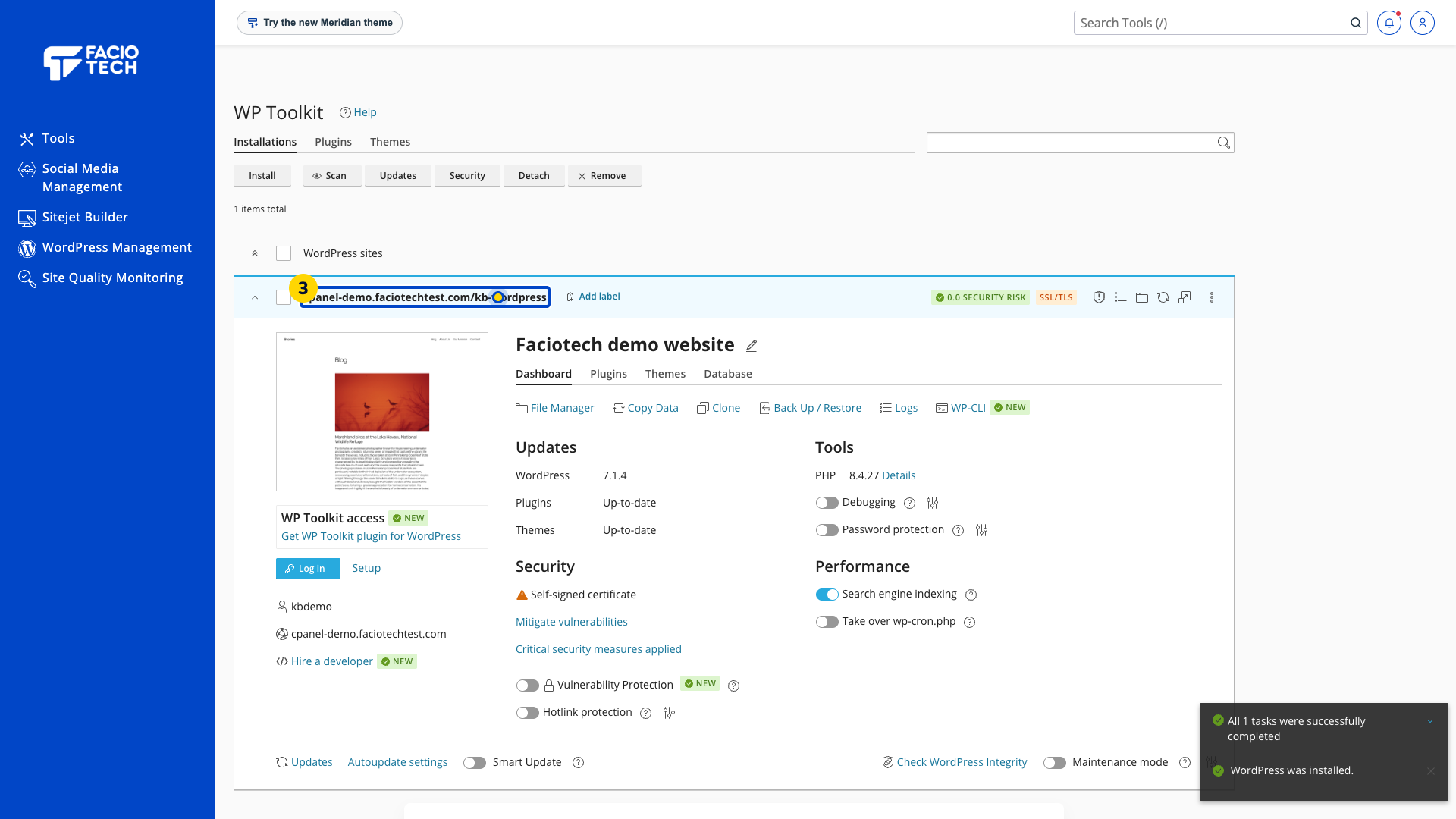
Read the WordPress version, update and security information for that website.
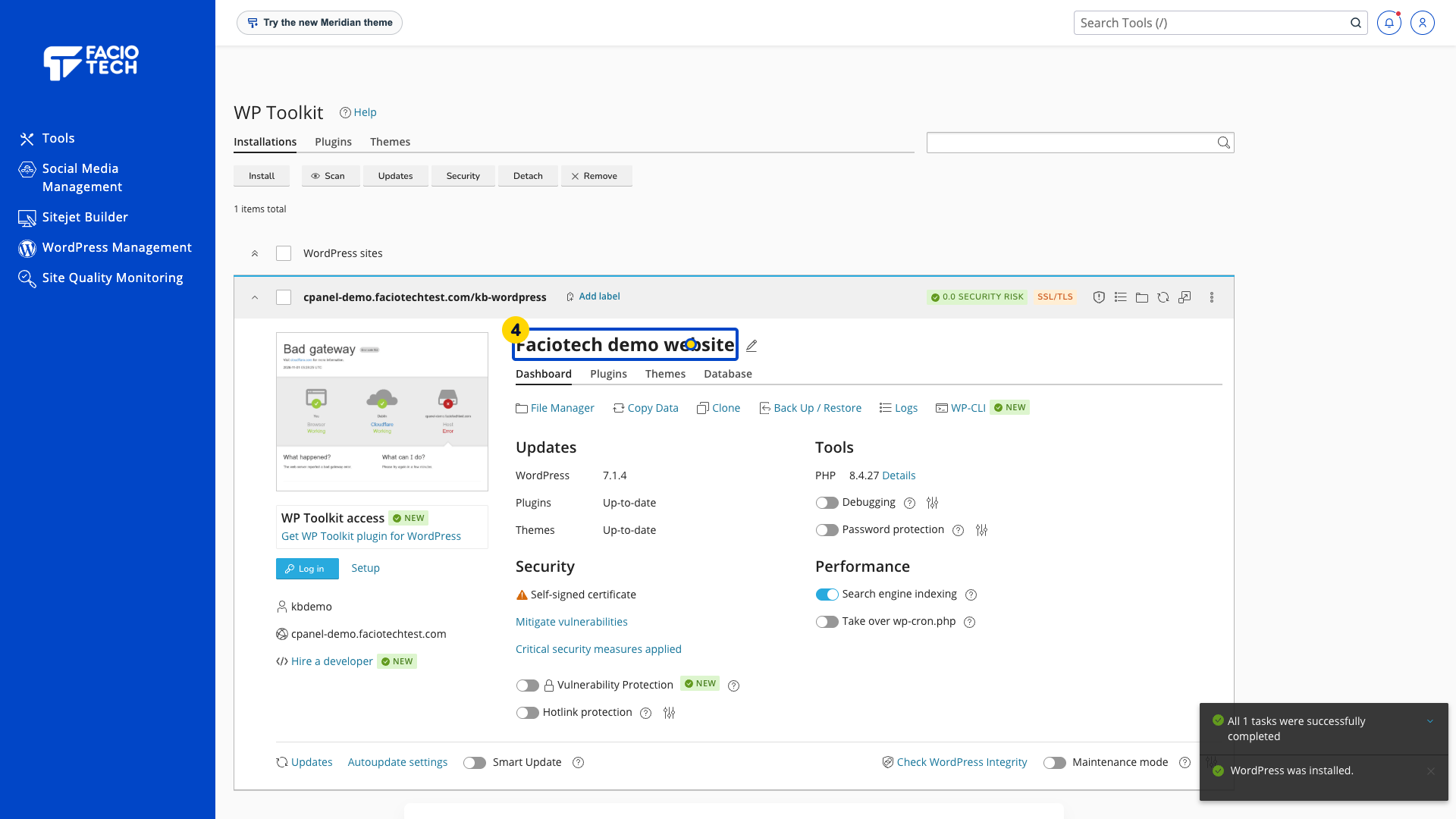
Check the website address before using any installation, update, backup or removal control.
Sources
For help, contact Faciotech support.
