
Install WordPress in a separate empty folder using WP Toolkit in cPanel. Keep a recovery copy of any website files you need to retain.
Log in to cPanel from your client area. If that link is unavailable, use the panel address in your welcome email. The cPanel dashboard appears after successful sign-in.
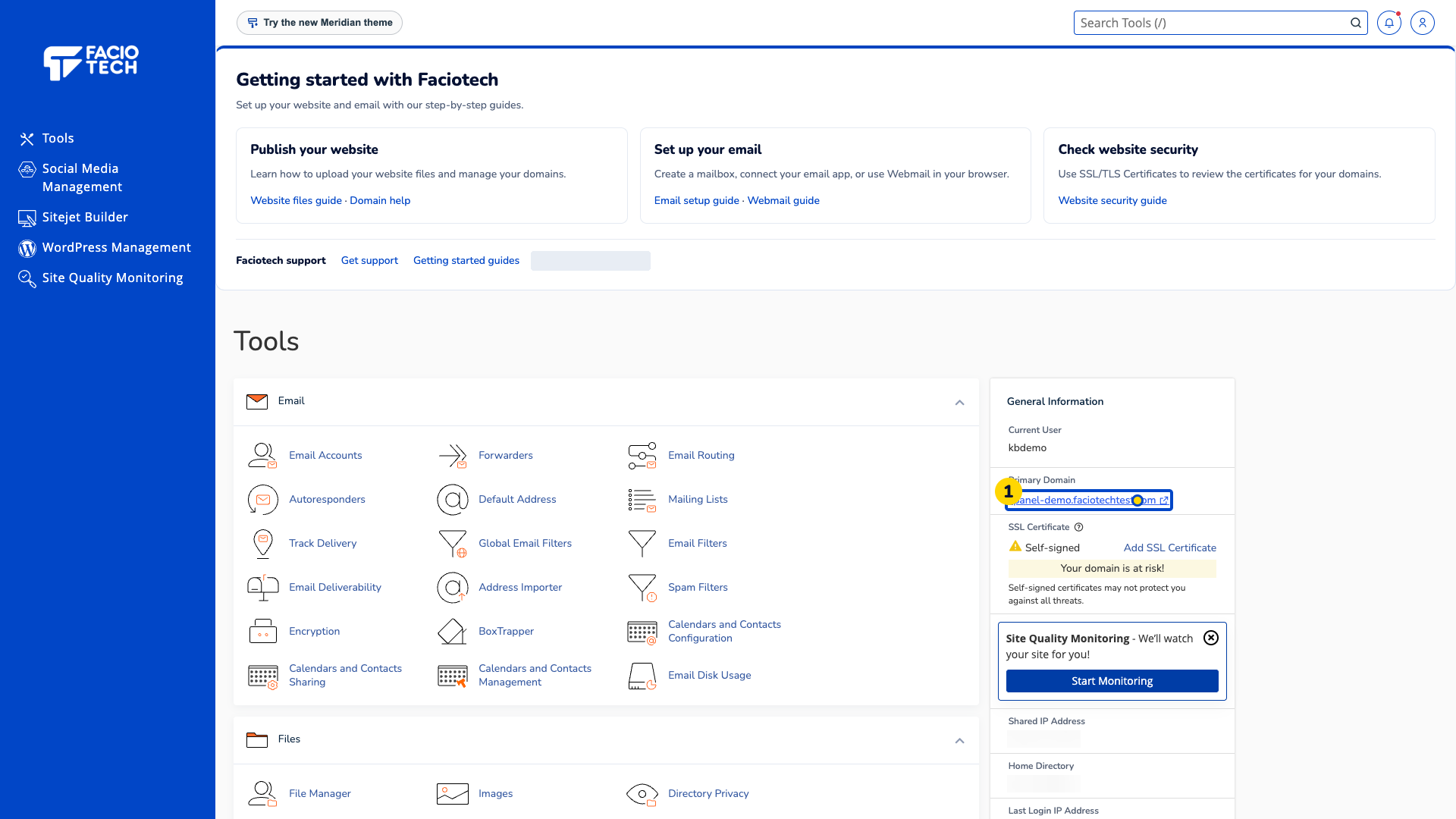
Open WordPress Management from the cPanel menu. WP Toolkit appears.
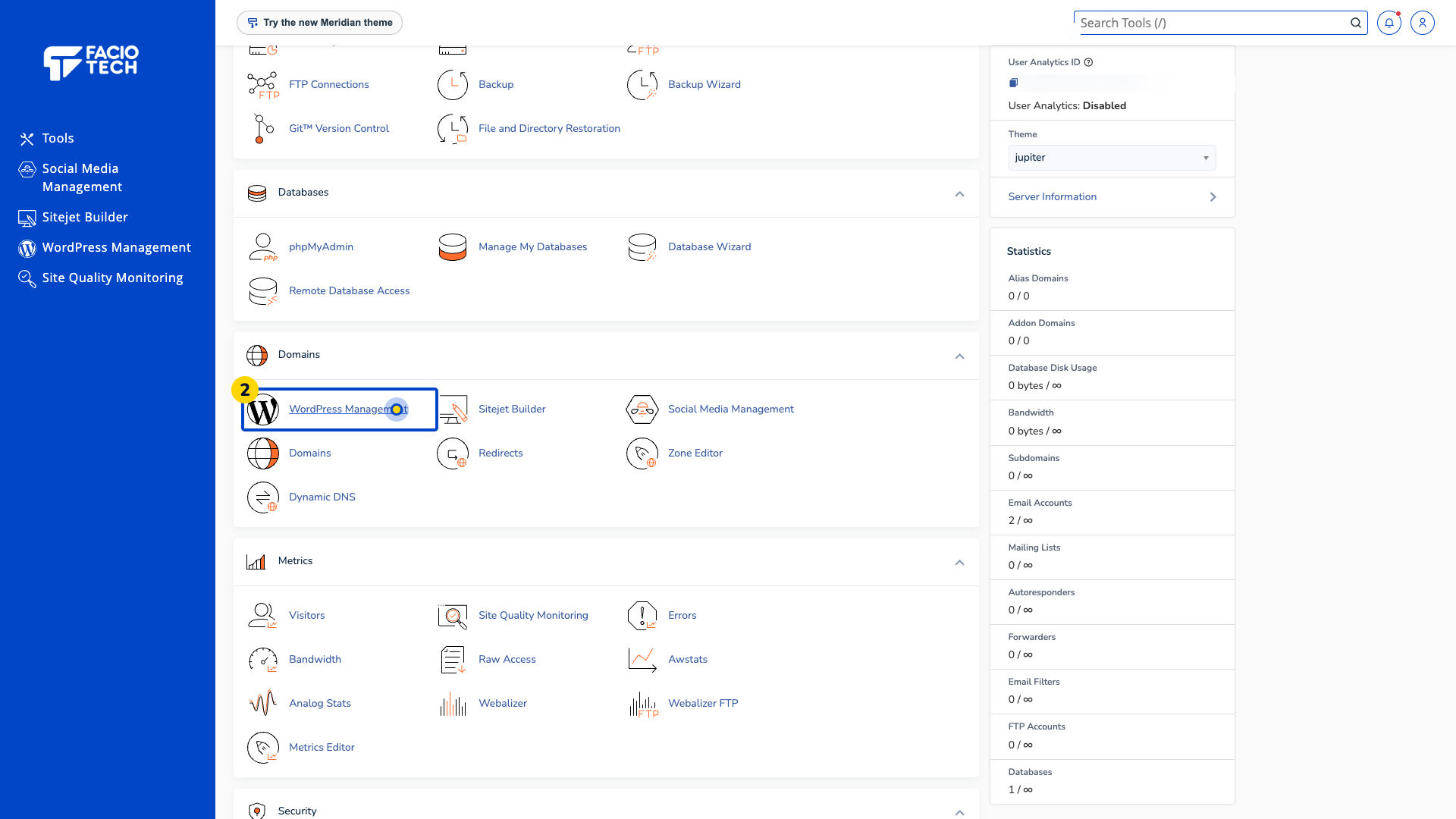
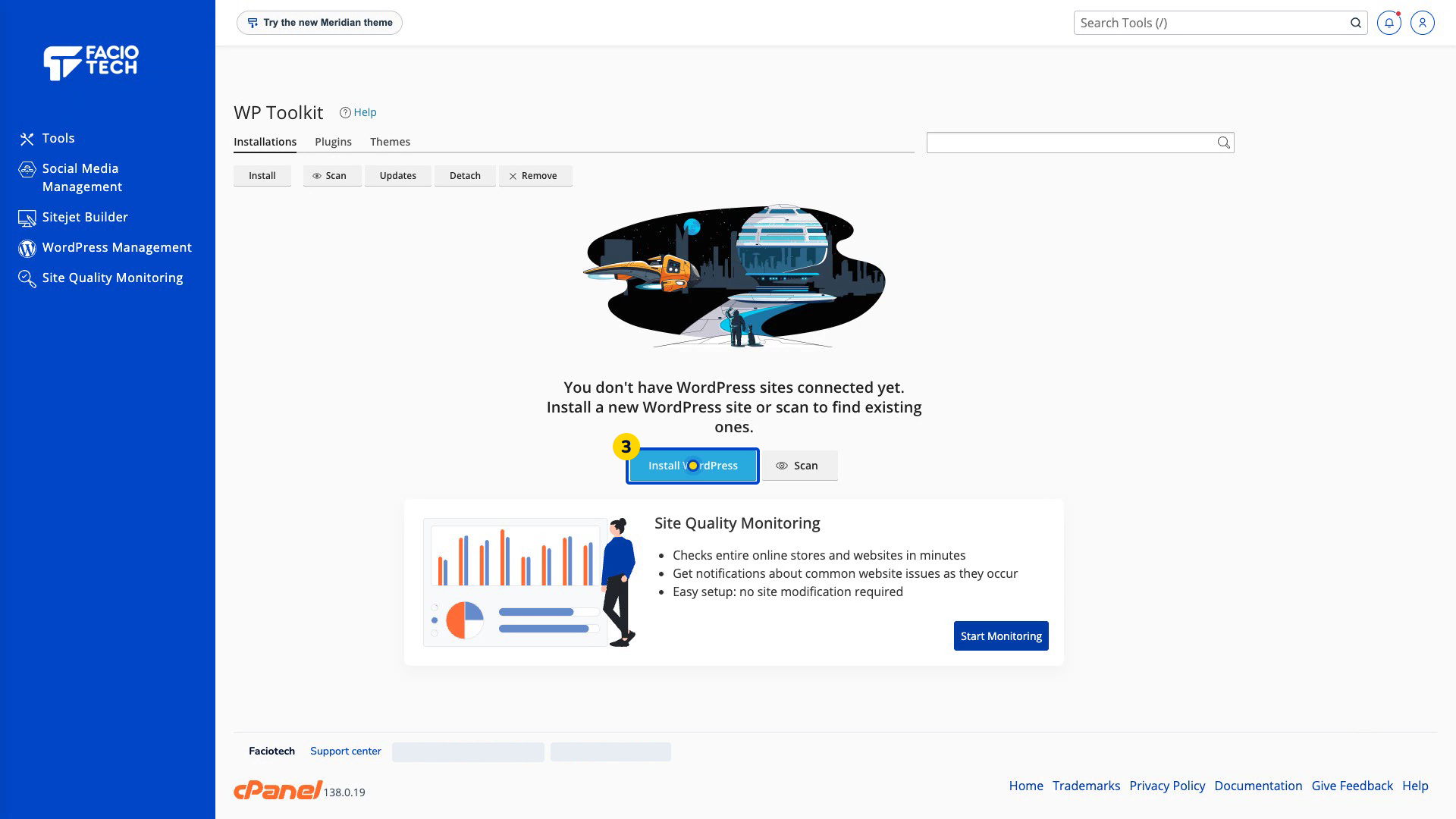
Choose Install or Install WordPress. The installation form appears.
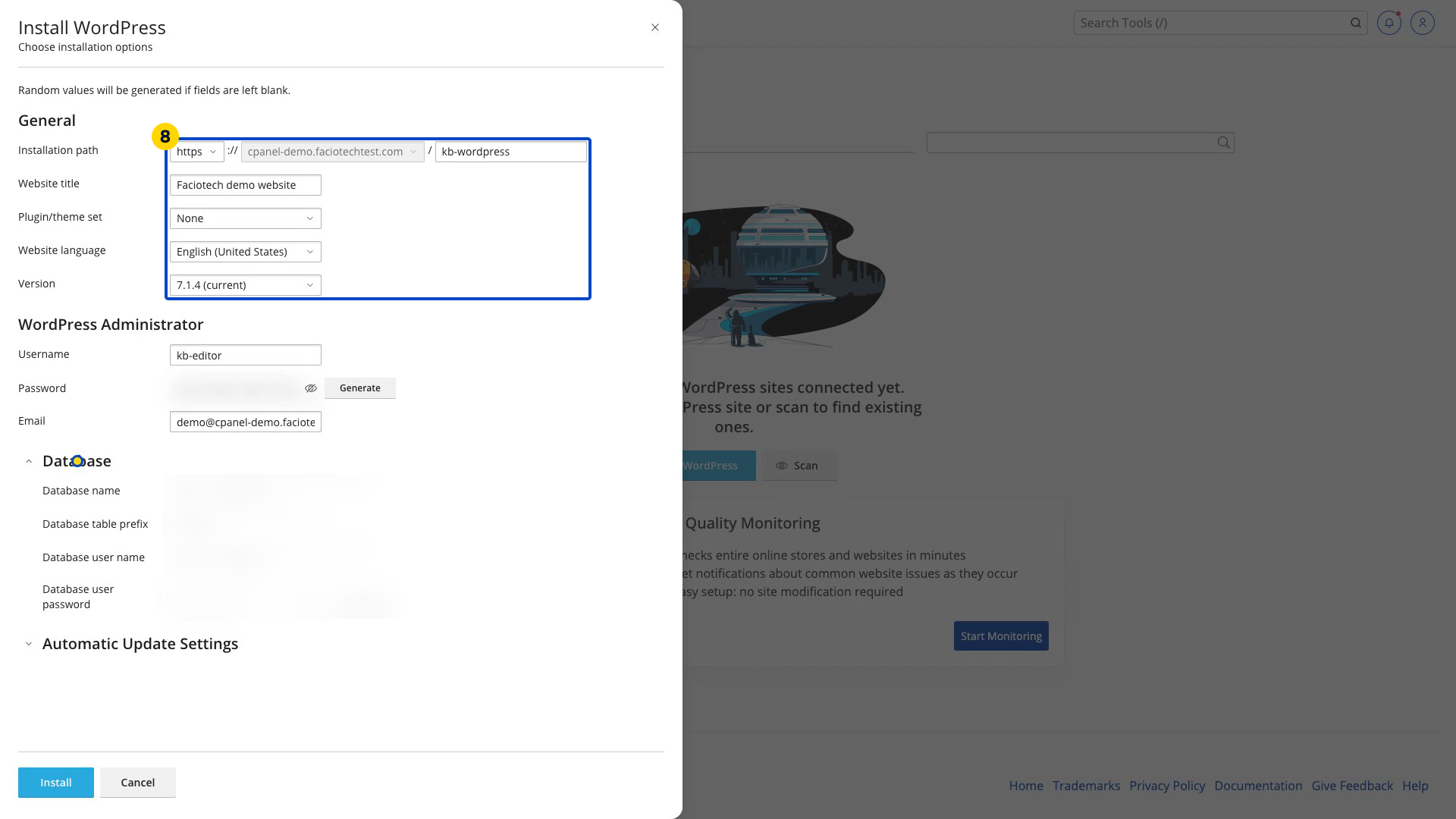
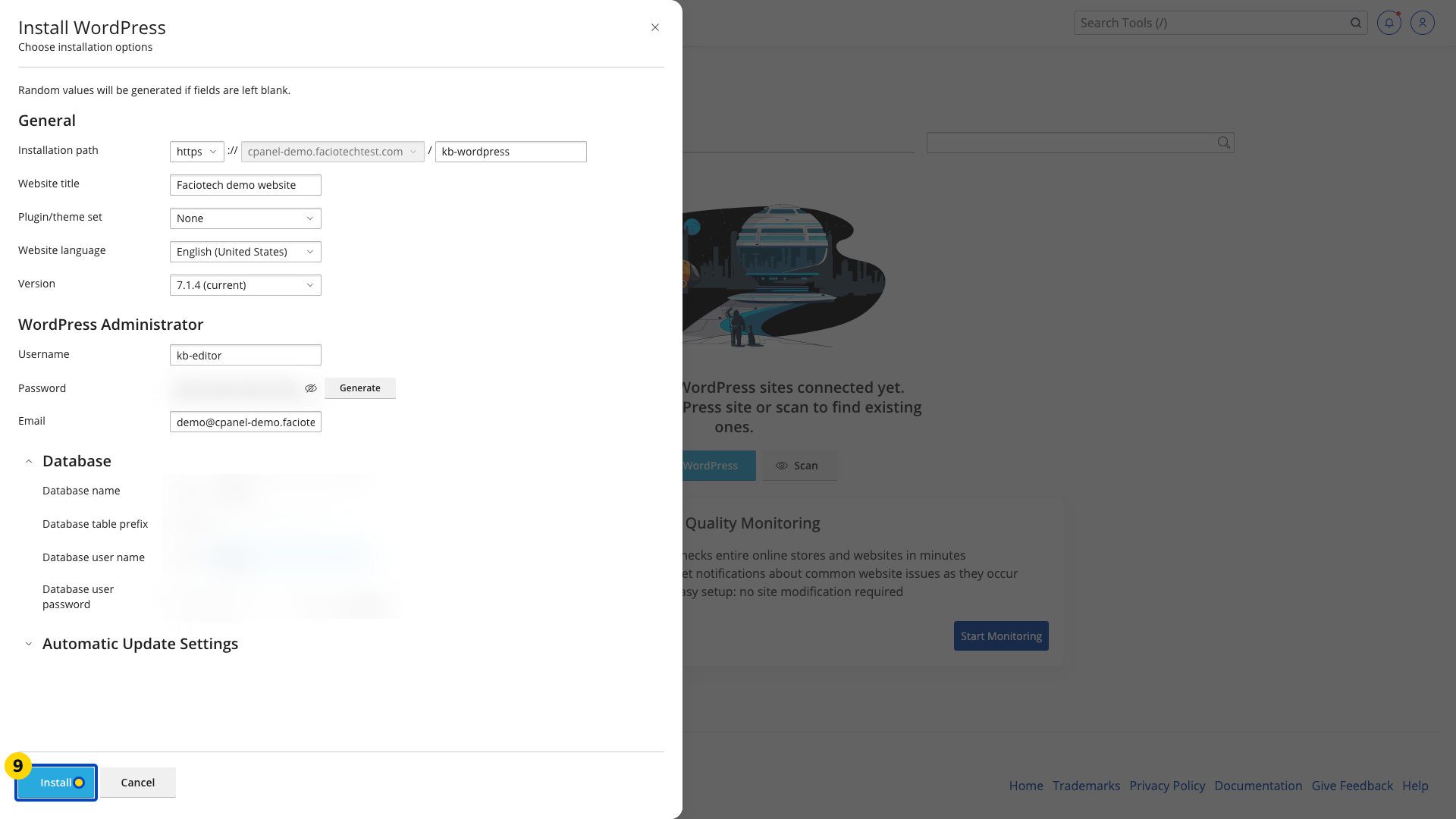
Set Installation path to the intended domain and a new empty folder. This example uses kb-wordpress.
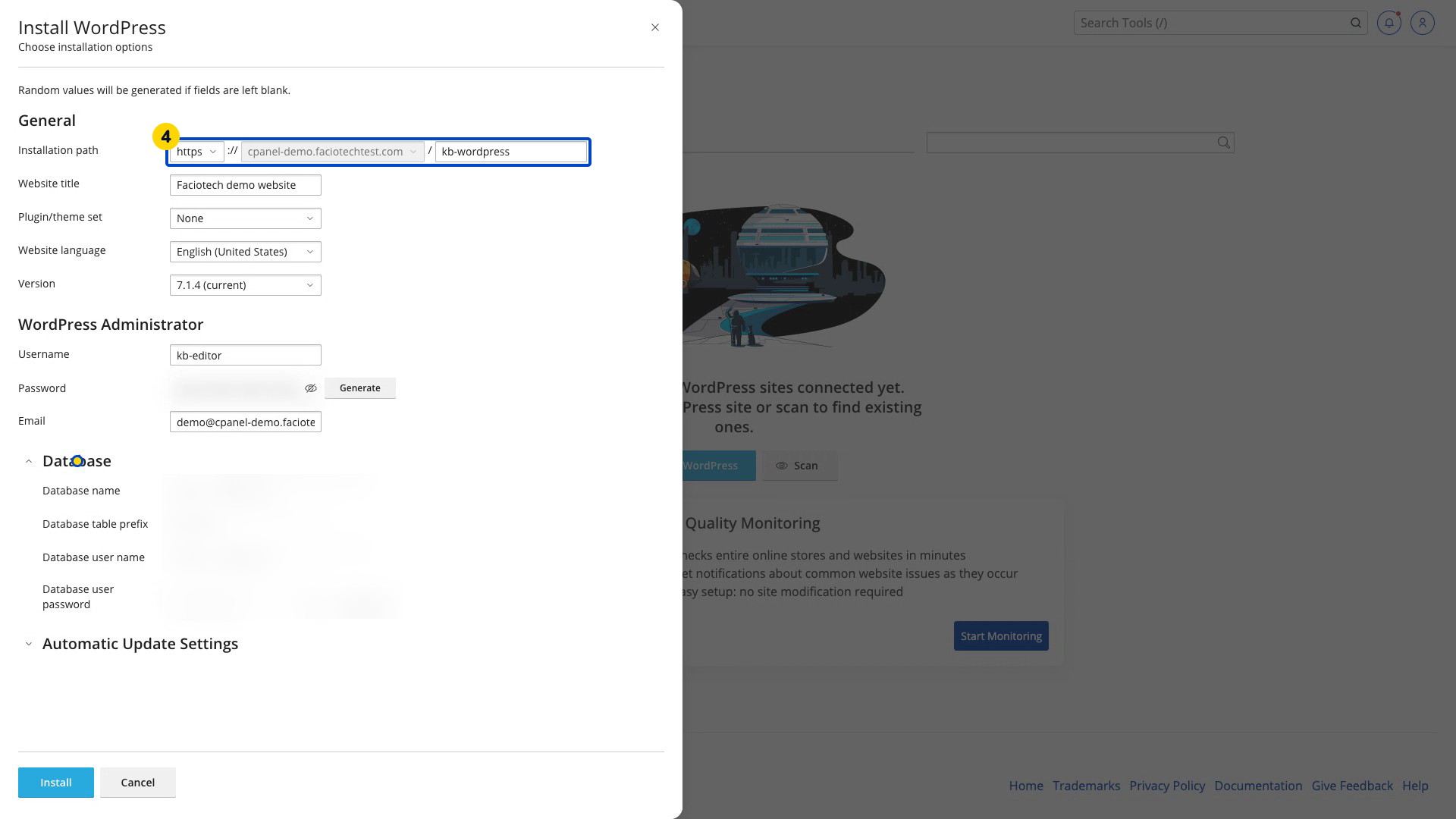
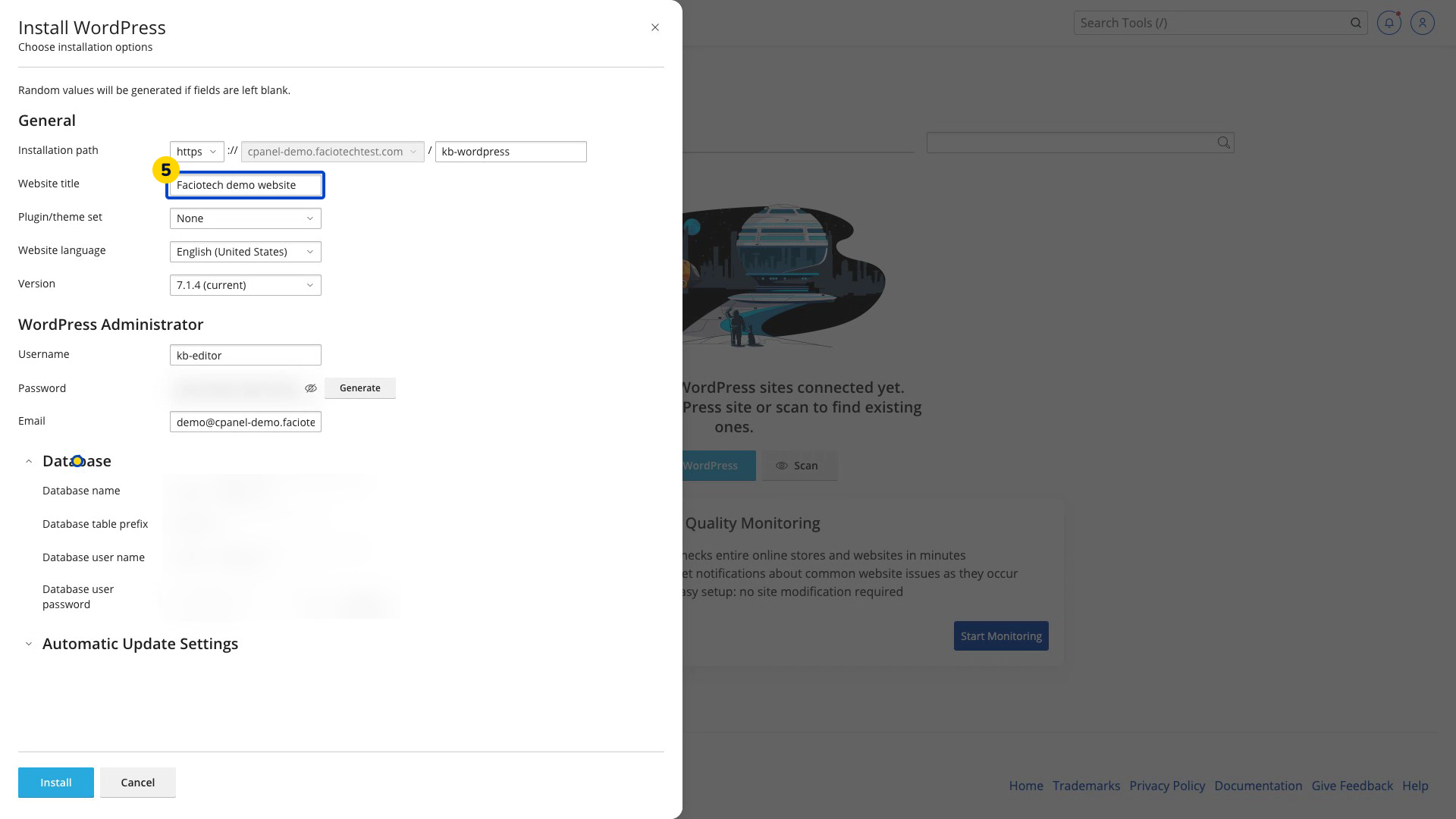
Enter the Website title for the new site.
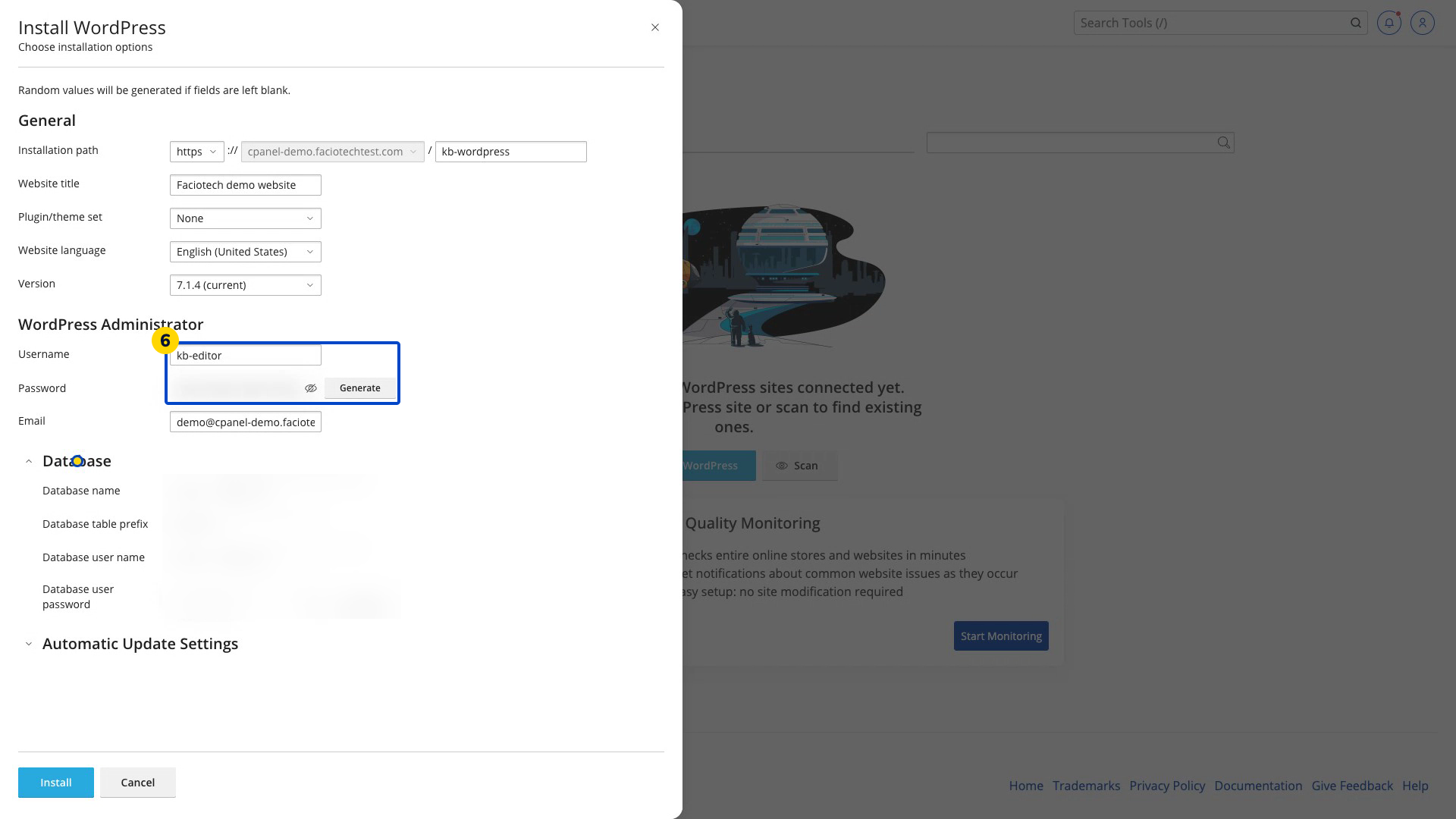
Set the WordPress Administrator sign-in details. Use a separate administrator username and a strong, unique password that you keep private.
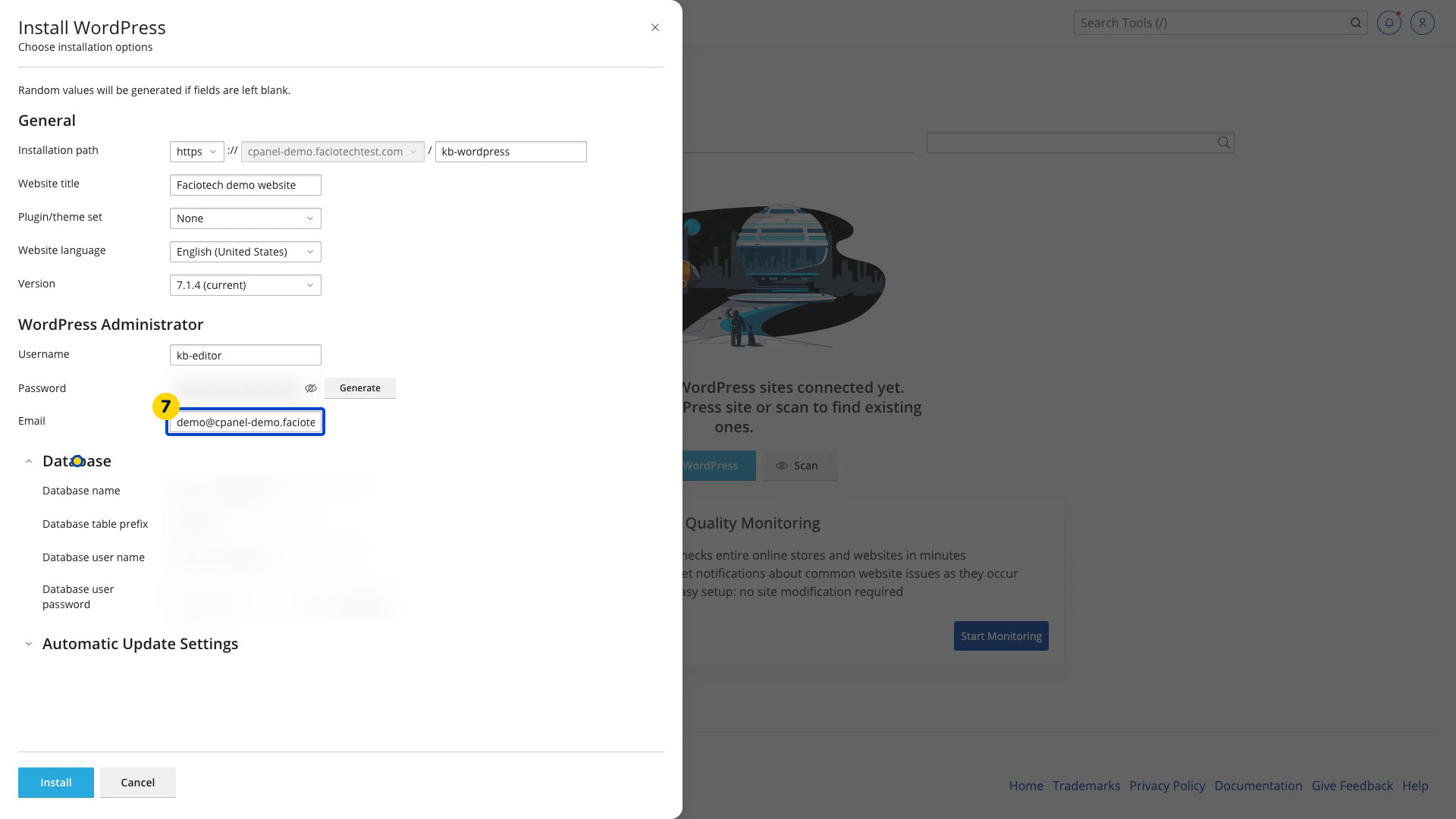
Enter an administrator Email address you control.
Review the installation path and optional choices. This example uses None for the plugin/theme set.
Select Install once. Wait for the installation-complete result.
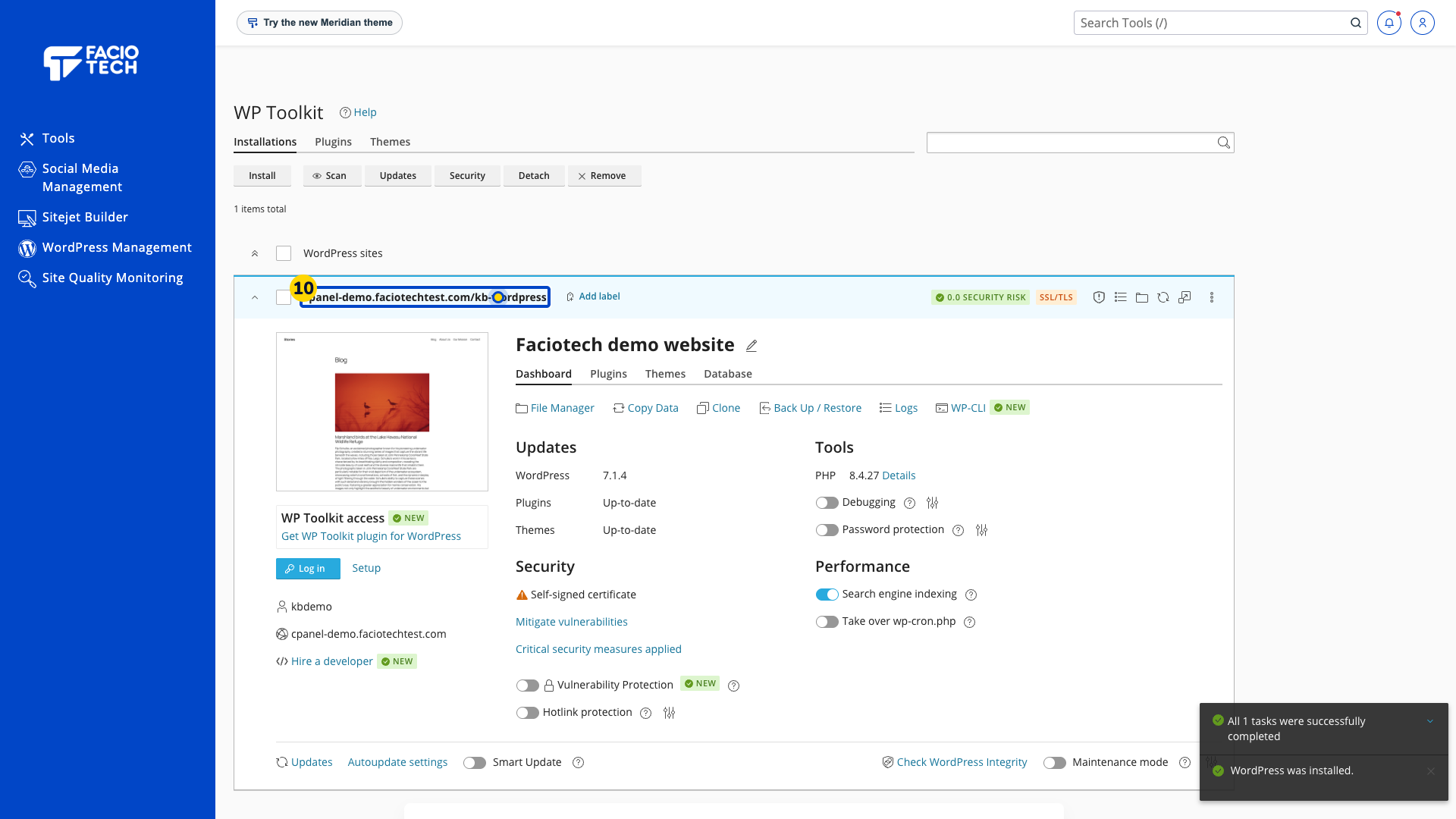
Find the saved installation in Installations. Check that its address matches the domain and folder you chose.
If WordPress Management is missing from your account, ask support about the available installation method.
Video walkthrough
Sources
For help, contact Faciotech support.
