
Restore one database from a partial backup saved earlier. This walkthrough uses a small demo database containing two fake records.
Log in to cPanel from your client area. If unavailable, use the panel address in your welcome email. The cPanel dashboard appears after successful sign-in.
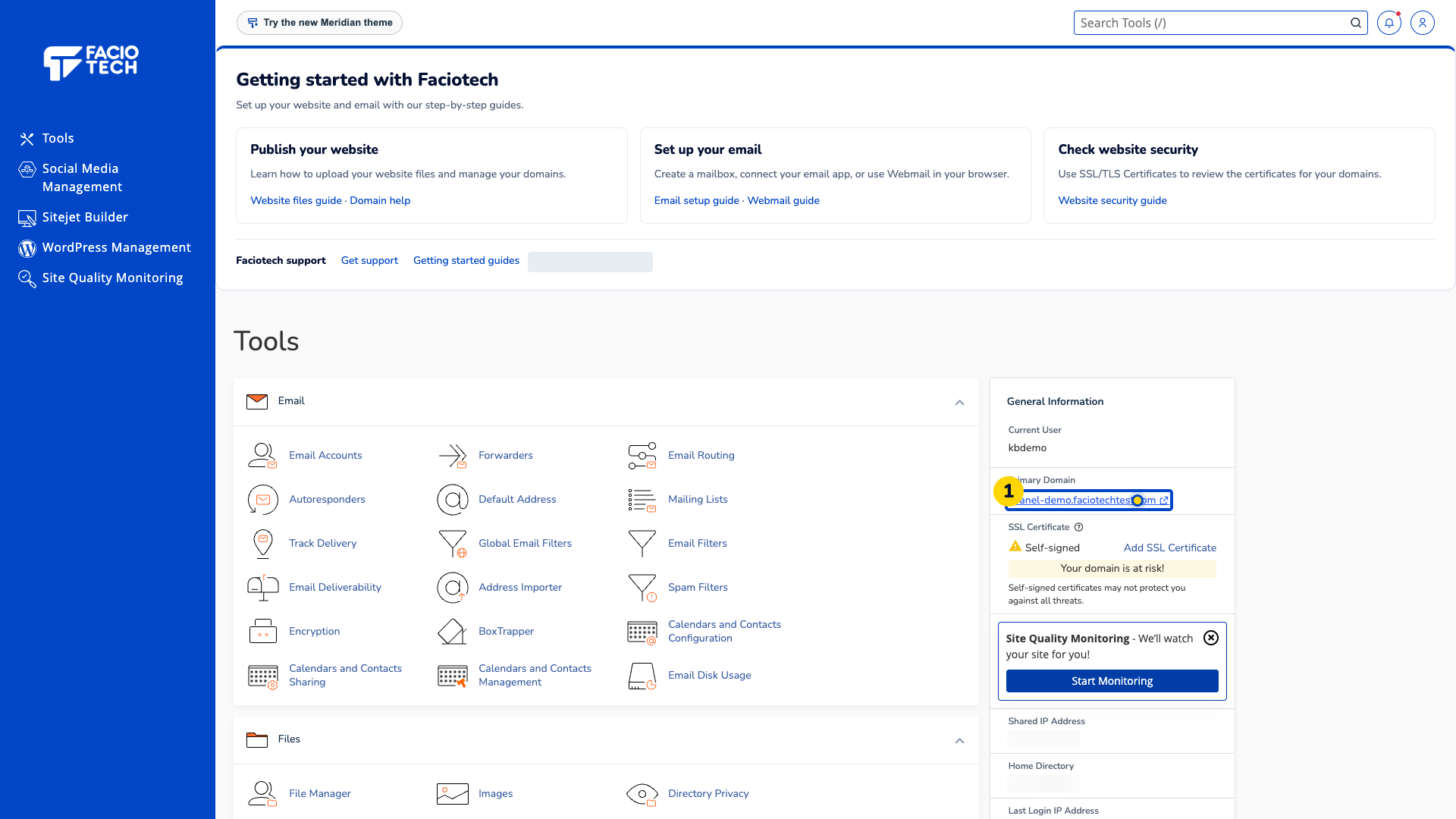
Open Backup Wizard. The Back Up or Restore opening screen appears.
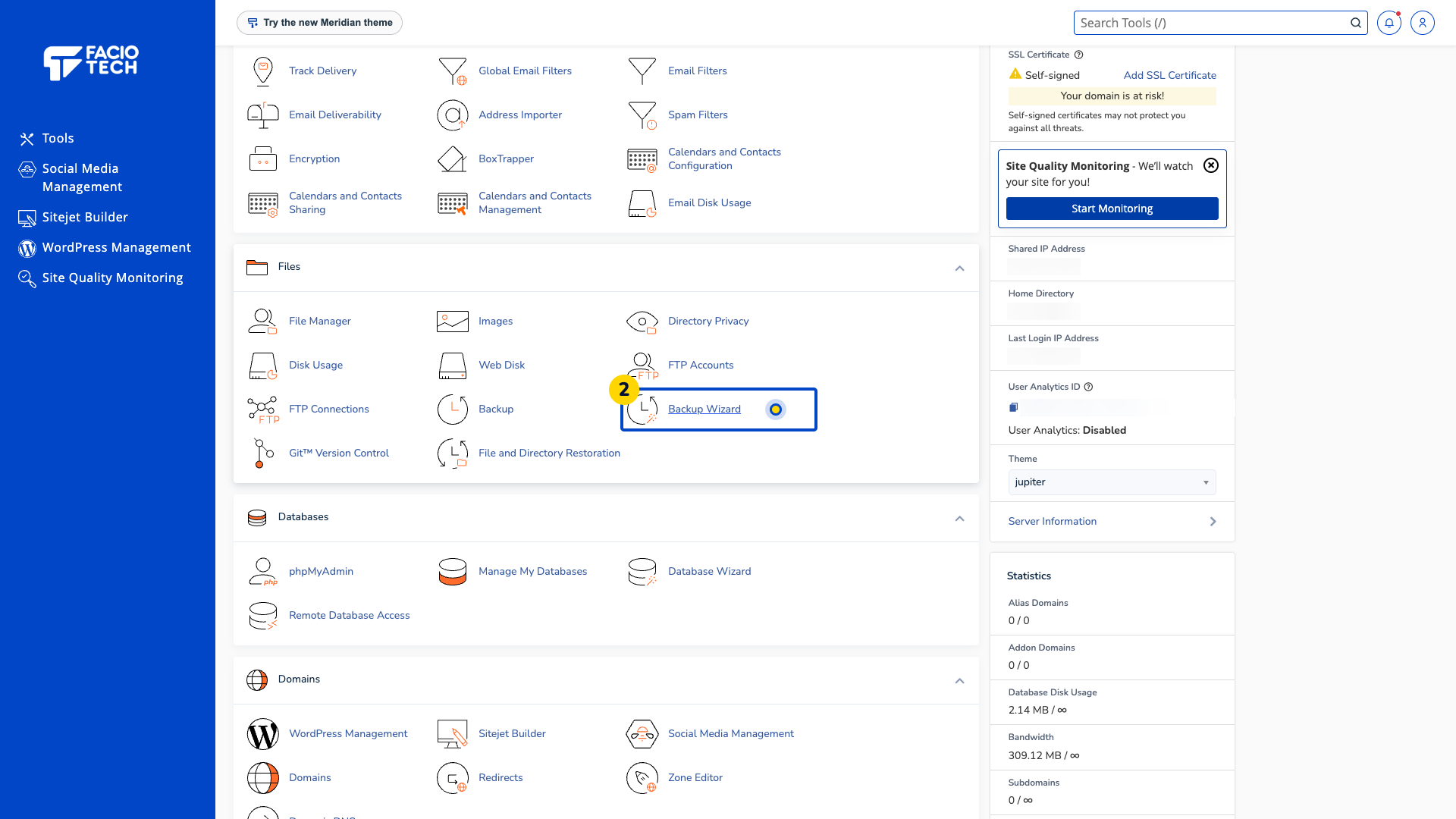
Choose Restore. The Select Restore Type screen appears.
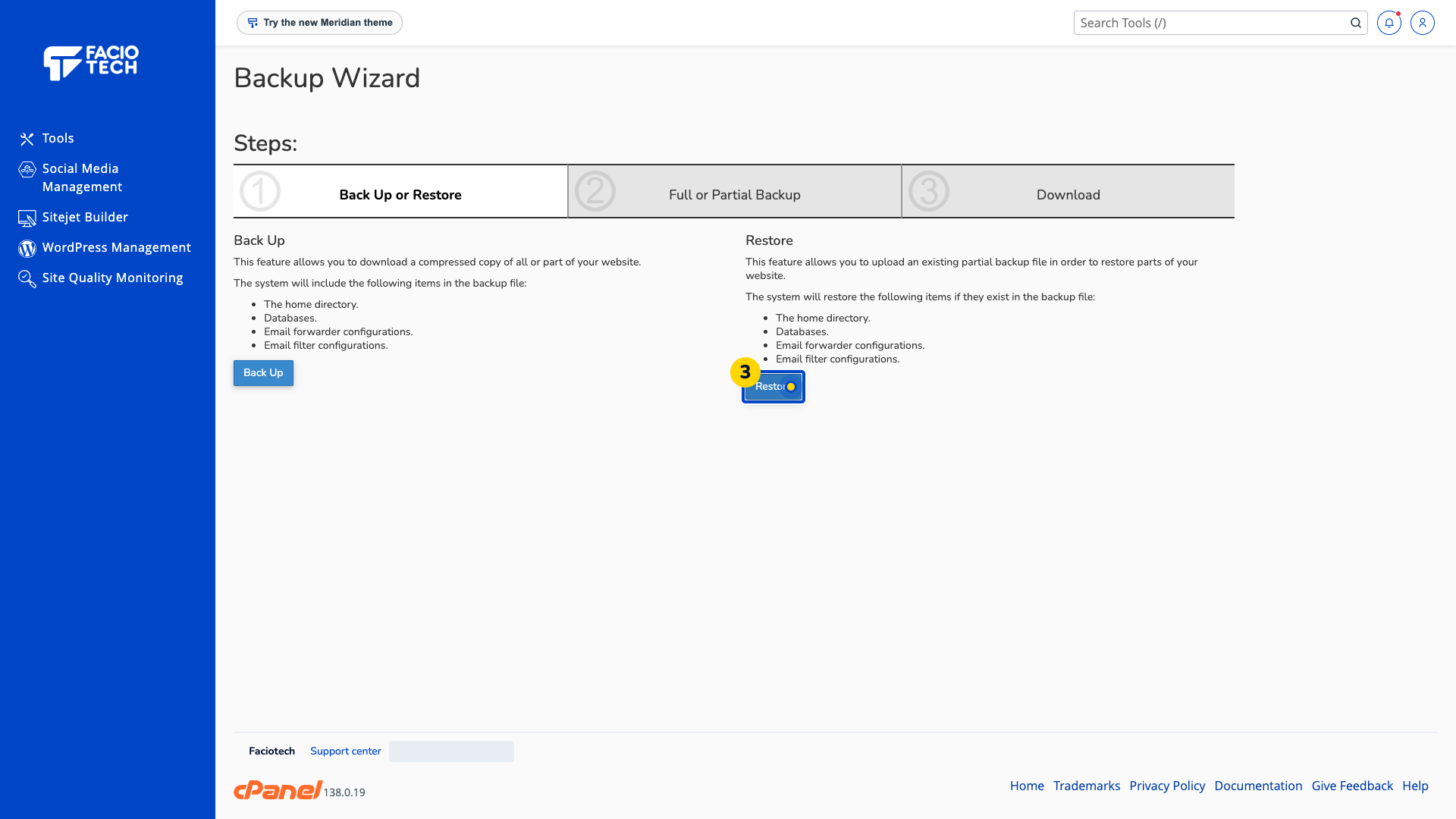
Select the partial backup type. For this database example, choose Databases.
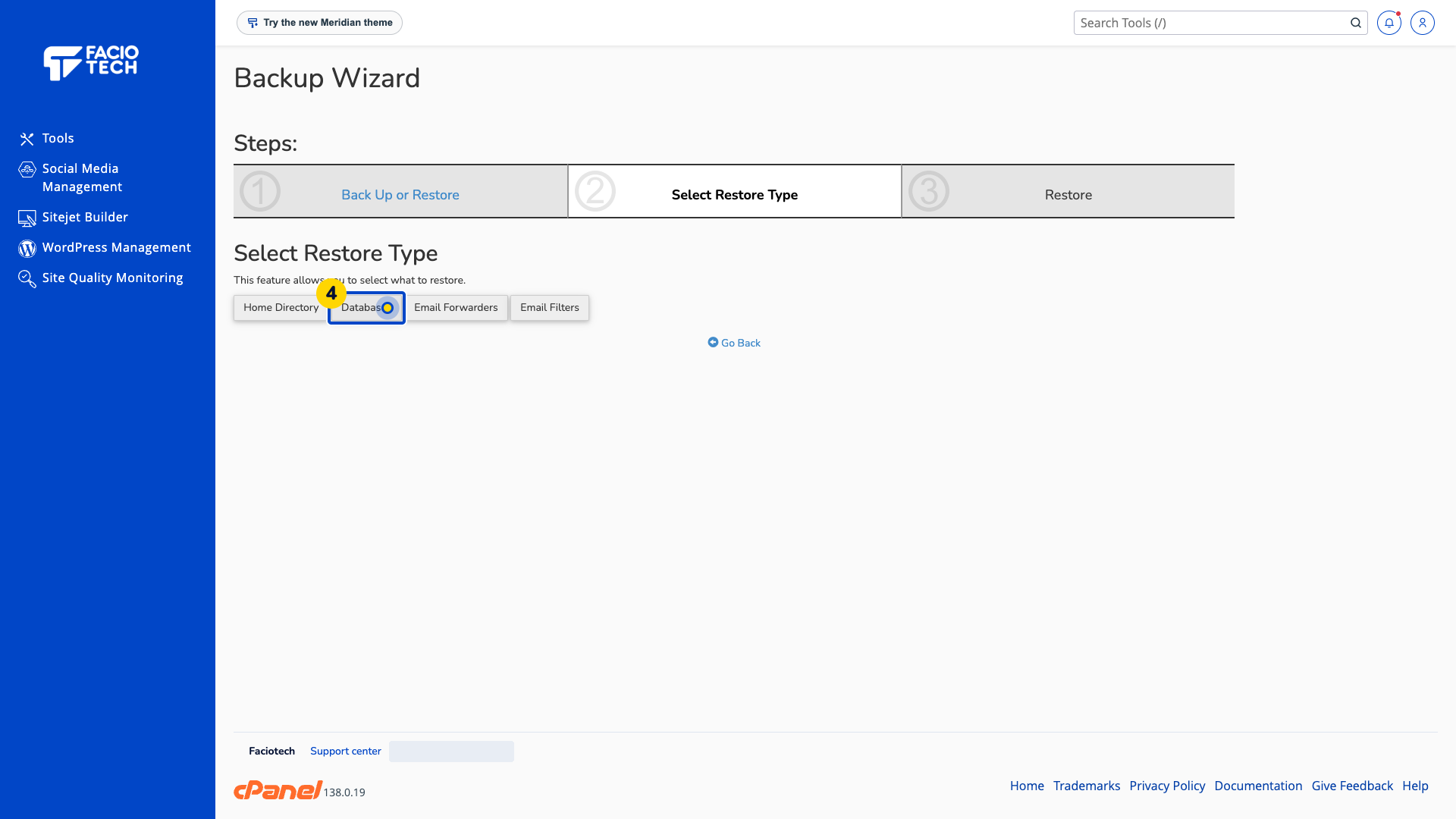
Choose the database backup file from your computer. Use the partial backup for the intended database.
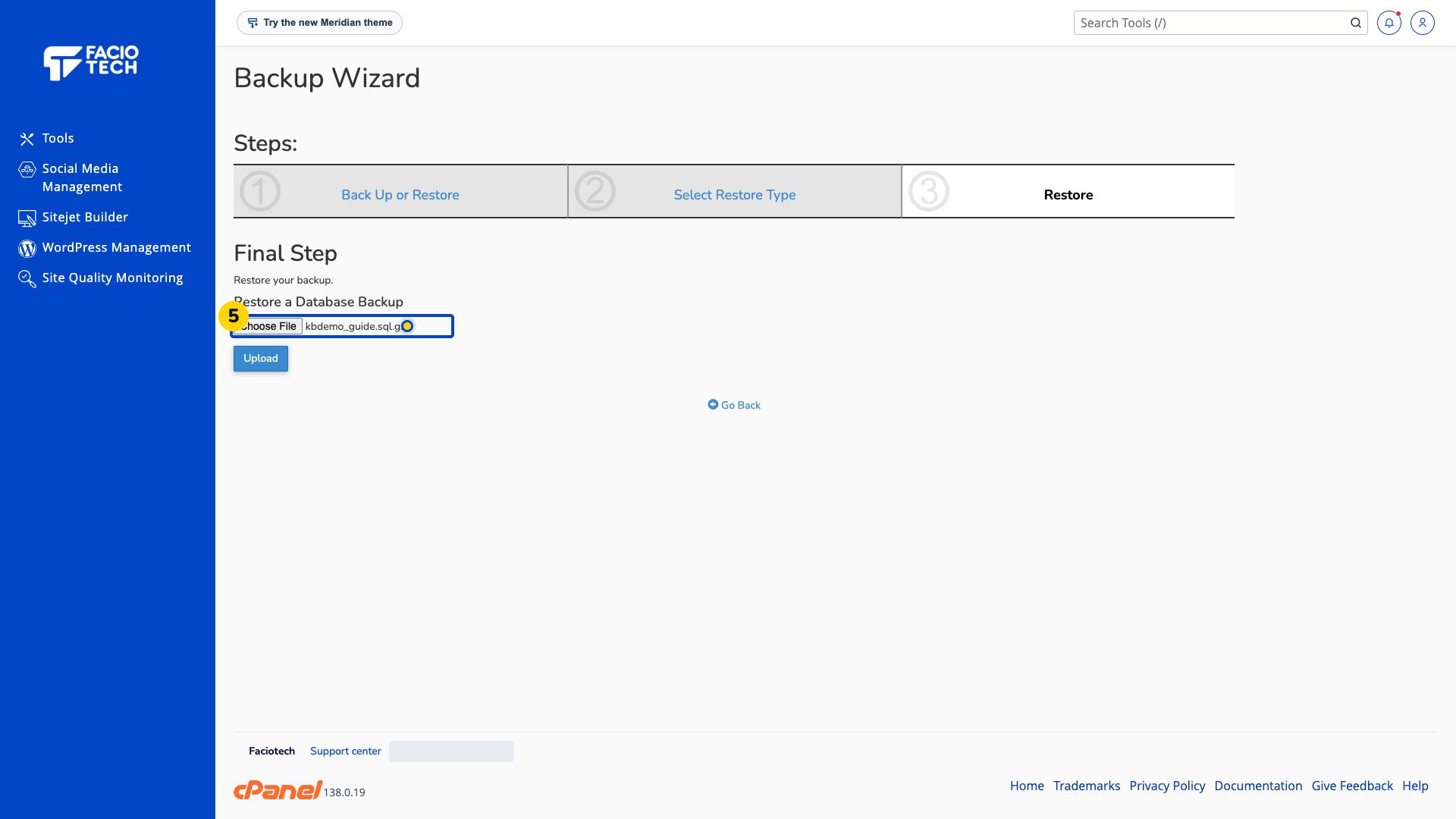
Check the filename and intended database before continuing. Restoring can replace data added after that backup.
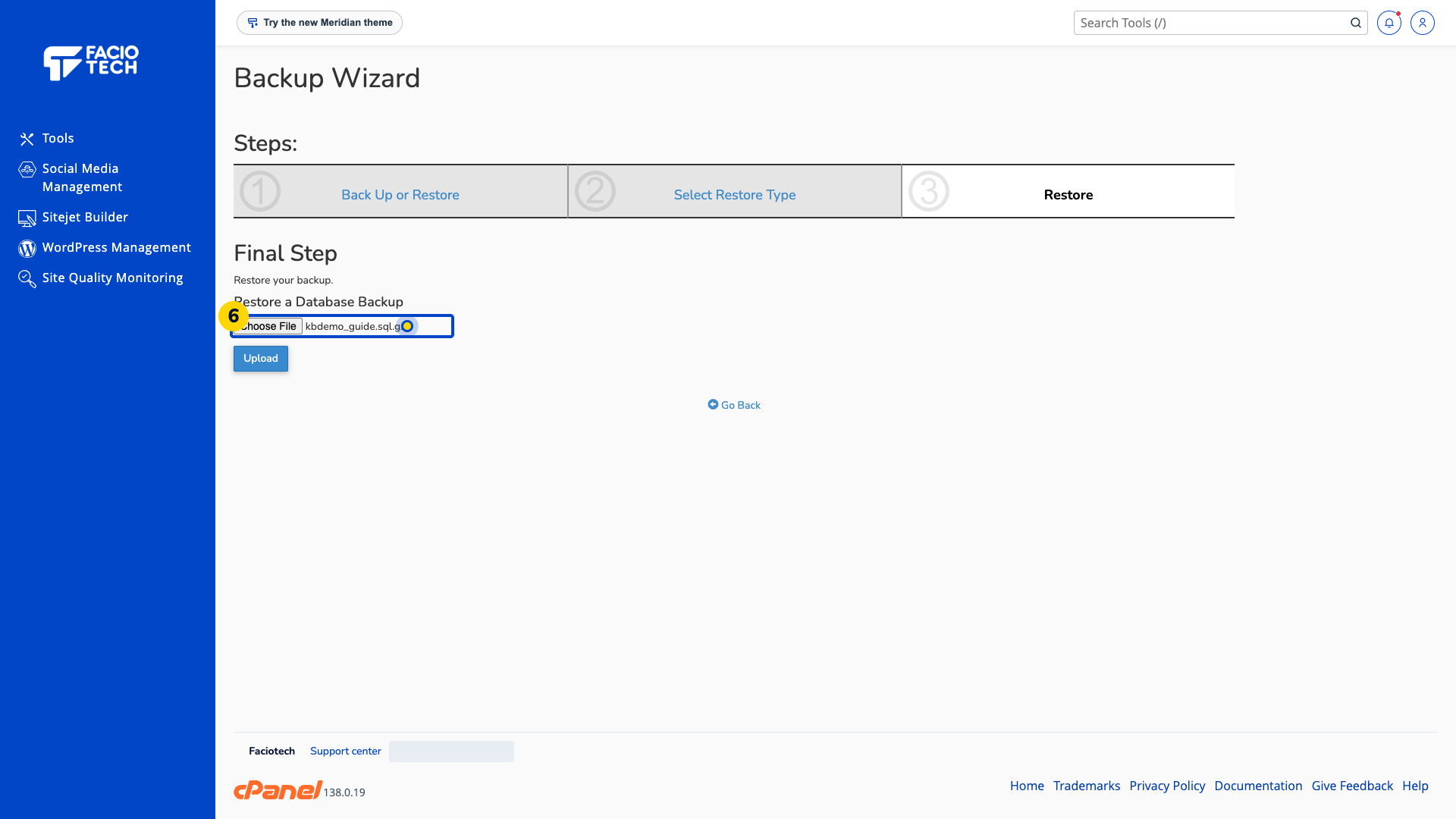
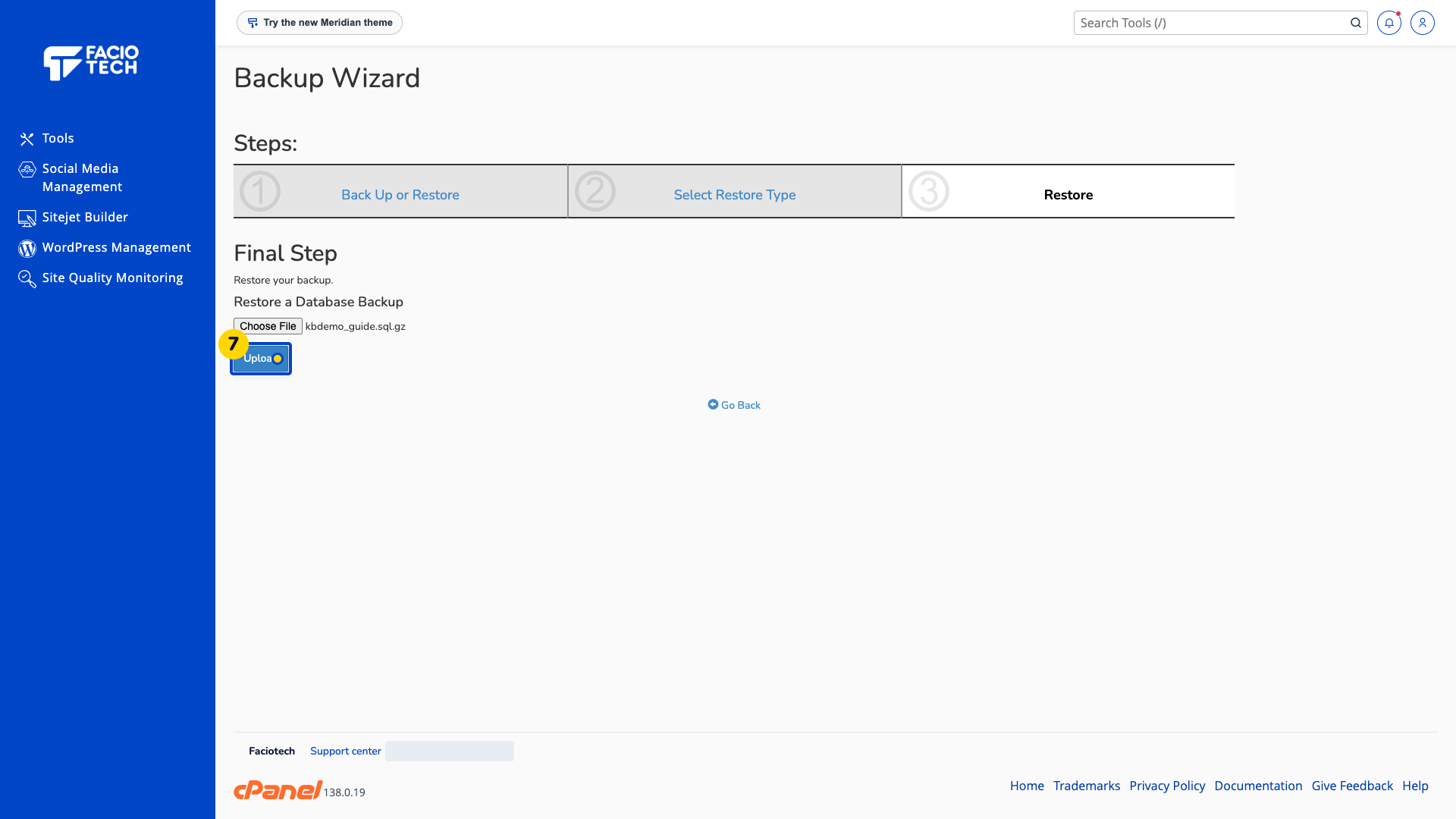
Choose Upload once. Wait for the Success message confirming that the database was restored from the selected backup.
After the restore success result, open phpMyAdmin. The database list appears.
Select the restored database. Its table list appears under that database name.
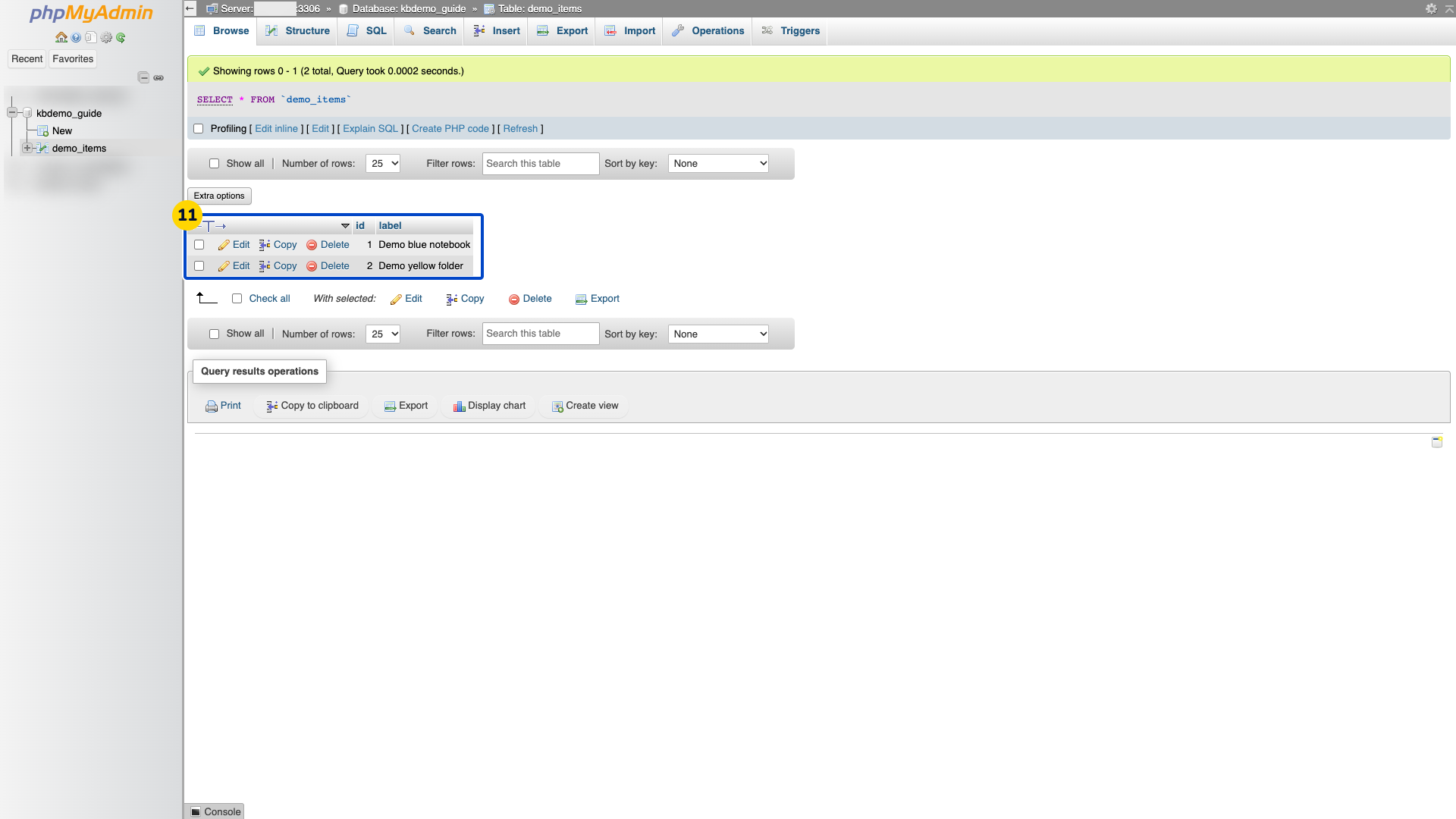
Choose Browse beside the demo table. Its restored records appear.
Check the restored records against the backup. This demo shows both original fake records.
Keep a current backup before restoring. Ask Faciotech support if you are unsure which database or backup file to use.
This procedure uses a partial database backup. It does not restore an entire hosting account.
Video walkthrough
Sources
For help, contact Faciotech support.
