
Download one part of your website with Backup Wizard. This example saves a database backup.
Log in to cPanel from your client area. If unavailable, use the panel address in your welcome email. The cPanel dashboard appears after successful sign-in.
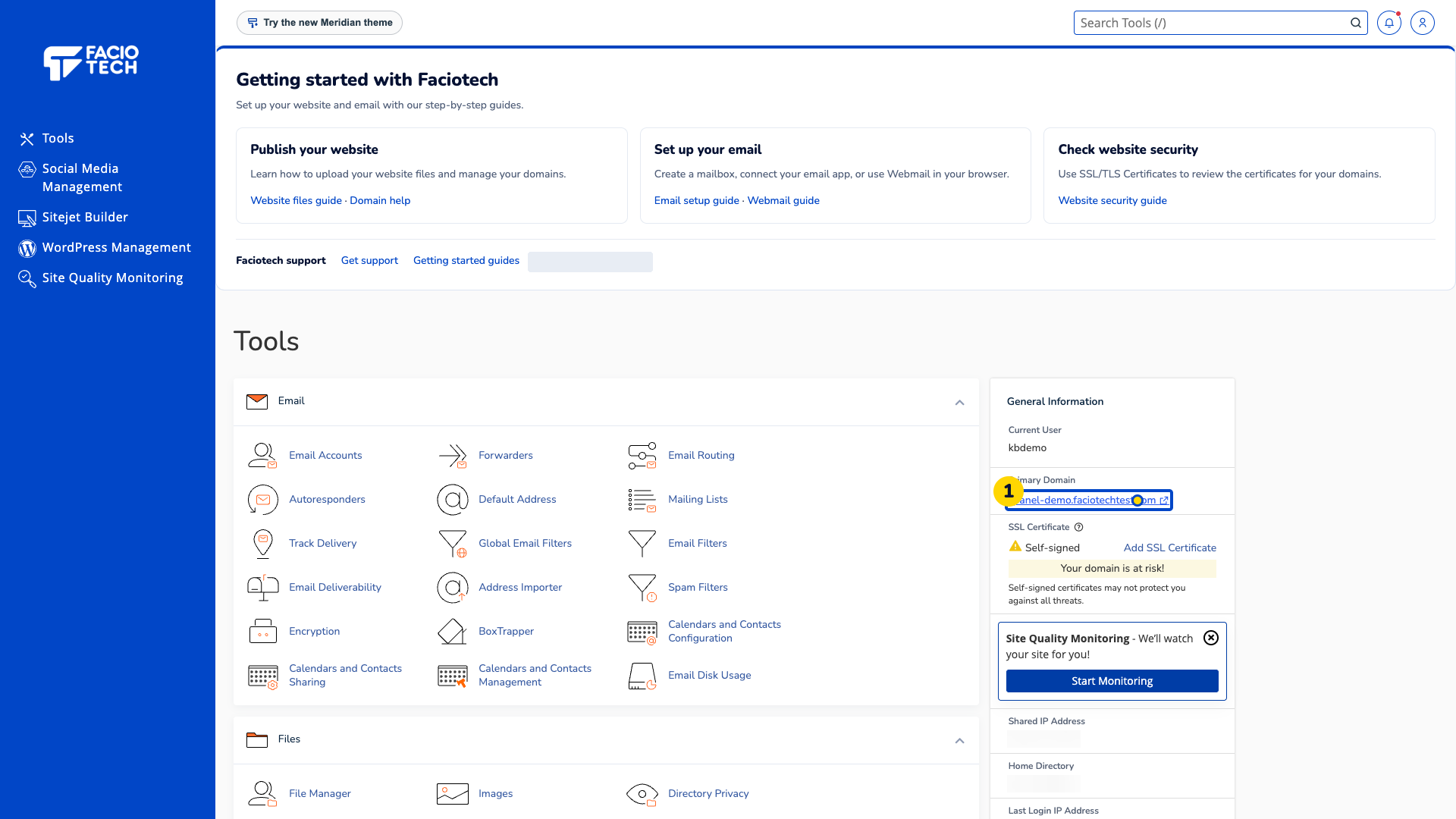
Open Backup Wizard. The wizard’s opening screen offers Back Up and Restore.
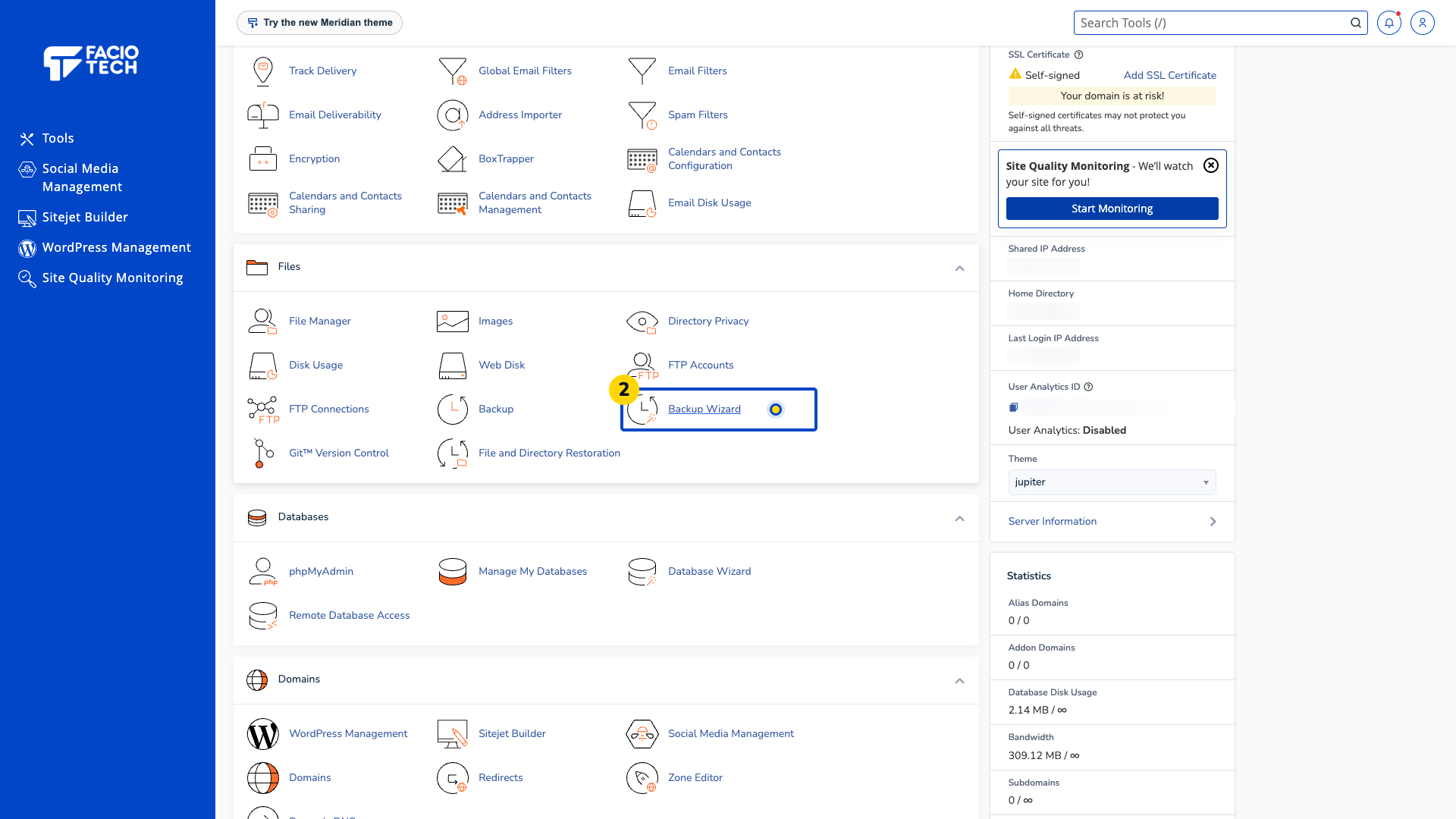
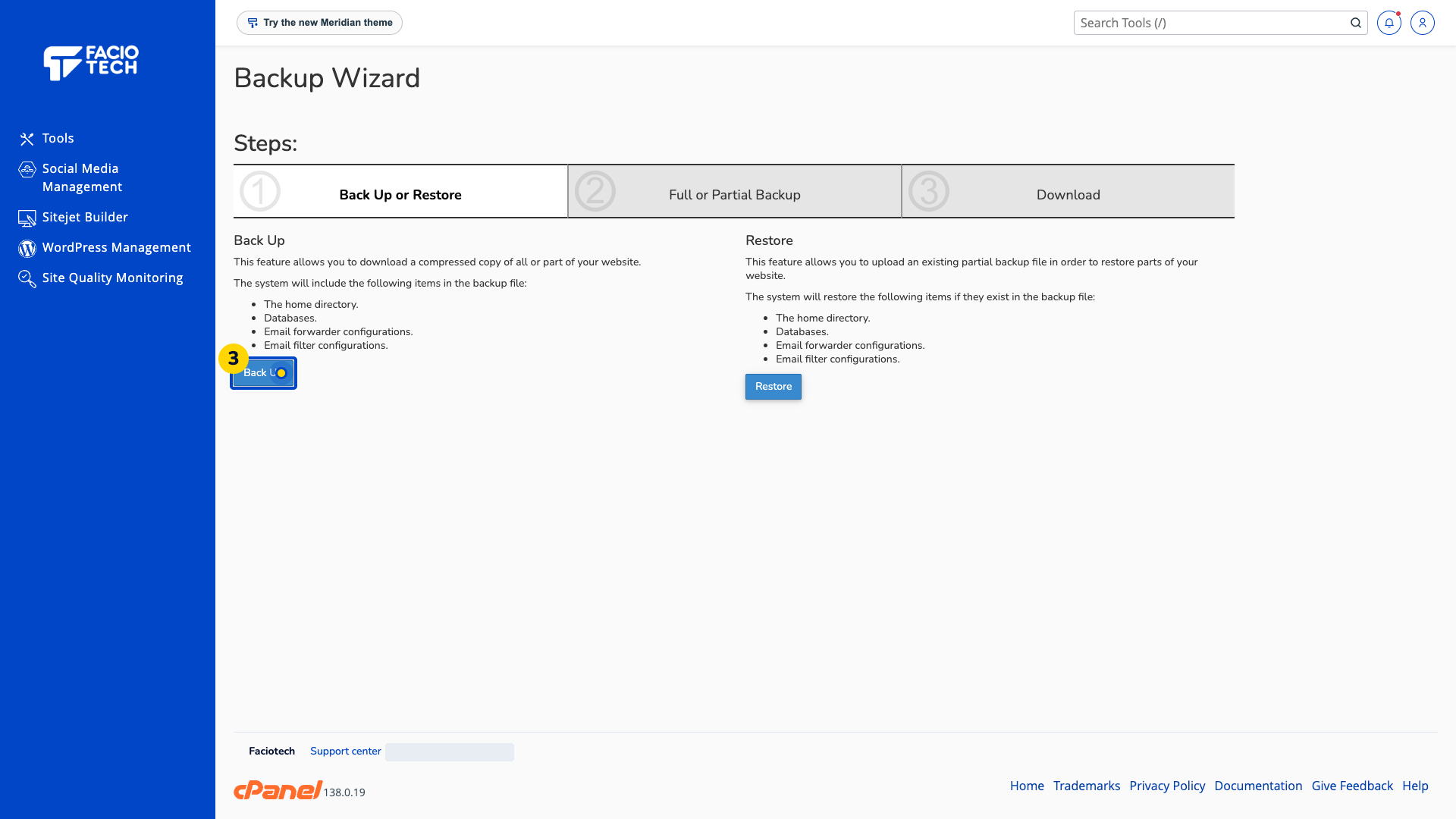
Choose Back Up. The Select Partial Backup screen appears.
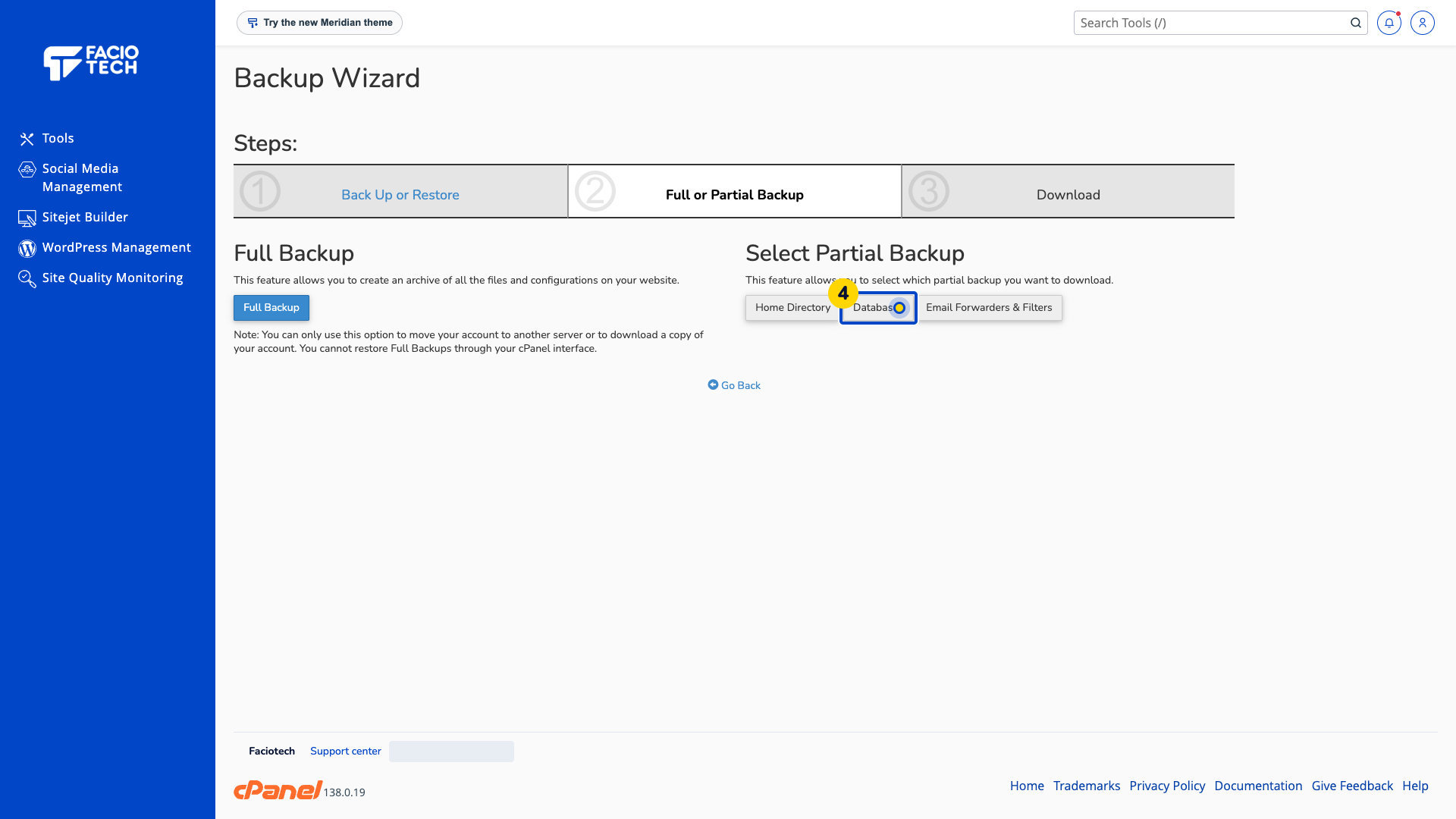
Under Select Partial Backup, choose Databases. The database download list appears.
Choose the intended database name. This example downloads only the guide demo database.
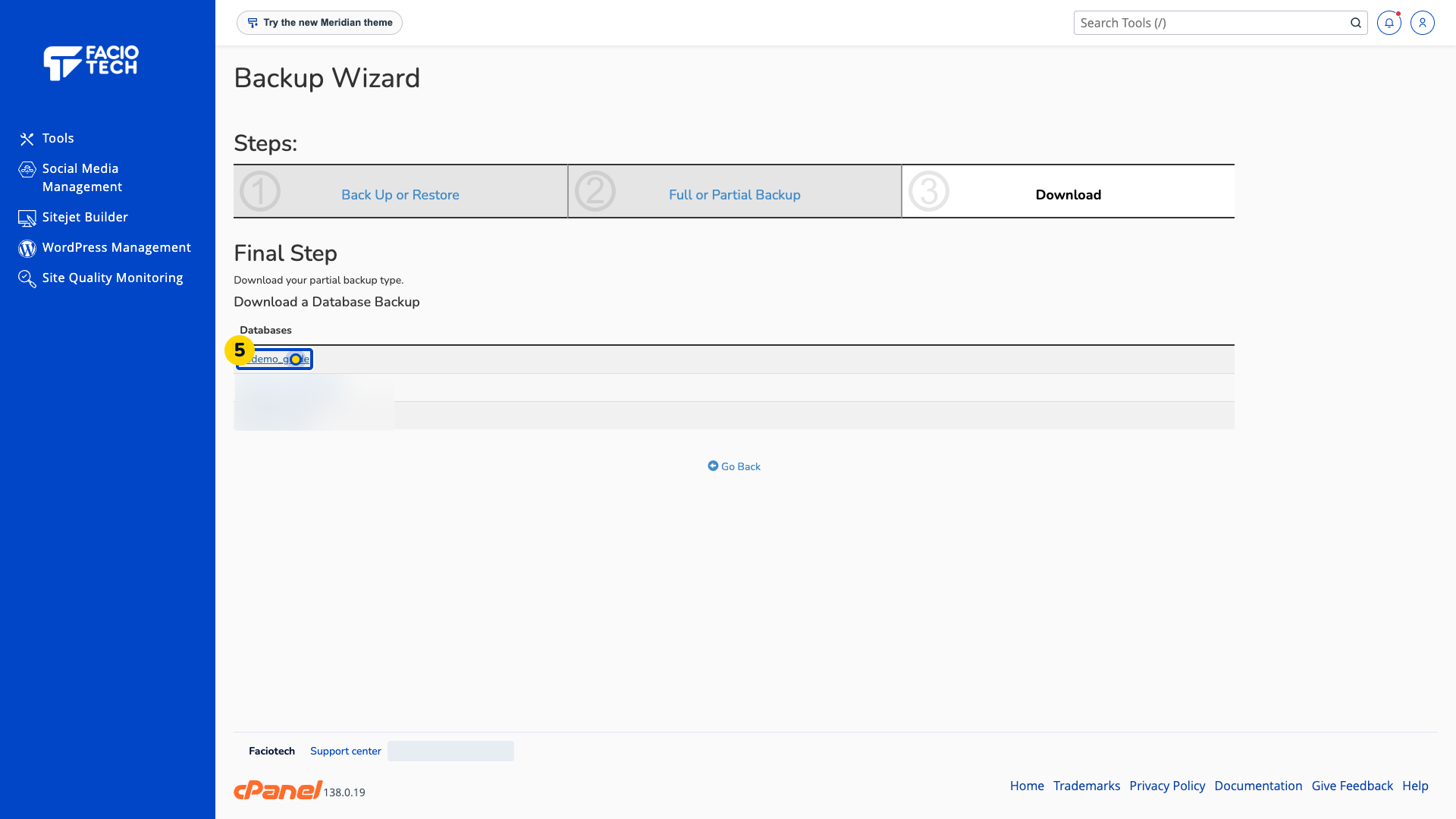
Save the file somewhere private. The example produces a compressed SQL file ending in .sql.gz.
Wait for the browser download to finish. Check the saved filename and confirm that its size is not zero.
Keep the database backup with the related website files when the site needs both. Record when you made the backup.
A database backup contains database data; it does not include your separate website files.
Full backups are different. Contact support for a full-account restore; cPanel clients cannot automatically restore a full backup here.
Video walkthrough
Sources
For help, contact Faciotech support.
