
Use the cPanel search box to find a tool without changing account settings.
Log in to cPanel from your client area. If that link is unavailable, use the panel address in your welcome email. The cPanel dashboard appears after successful sign-in.
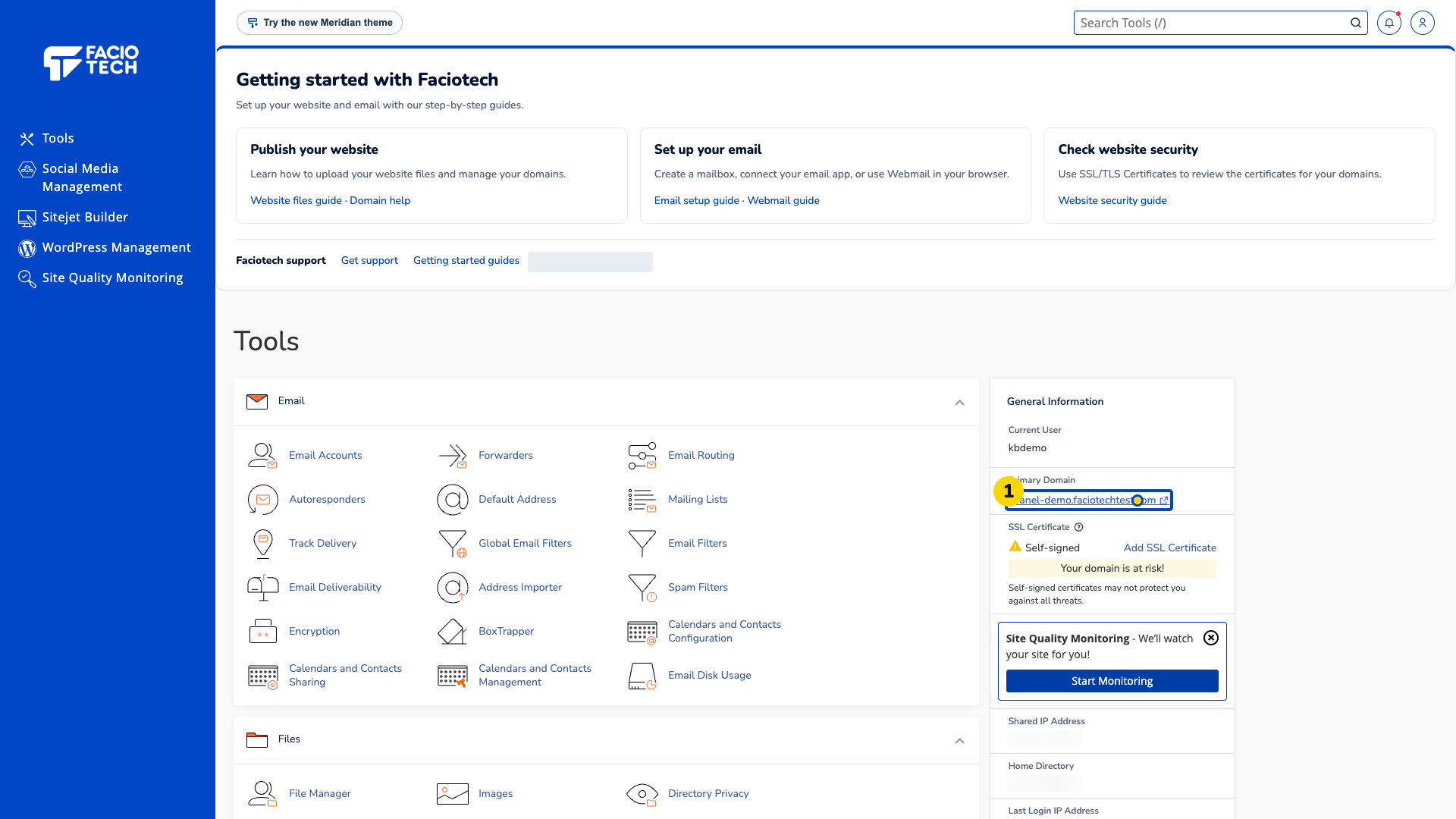
Choose Search Tools at the top of the screen. The search field is ready for a tool name.
Enter Email Accounts in Search Tools. Matching tools appear below the search field.
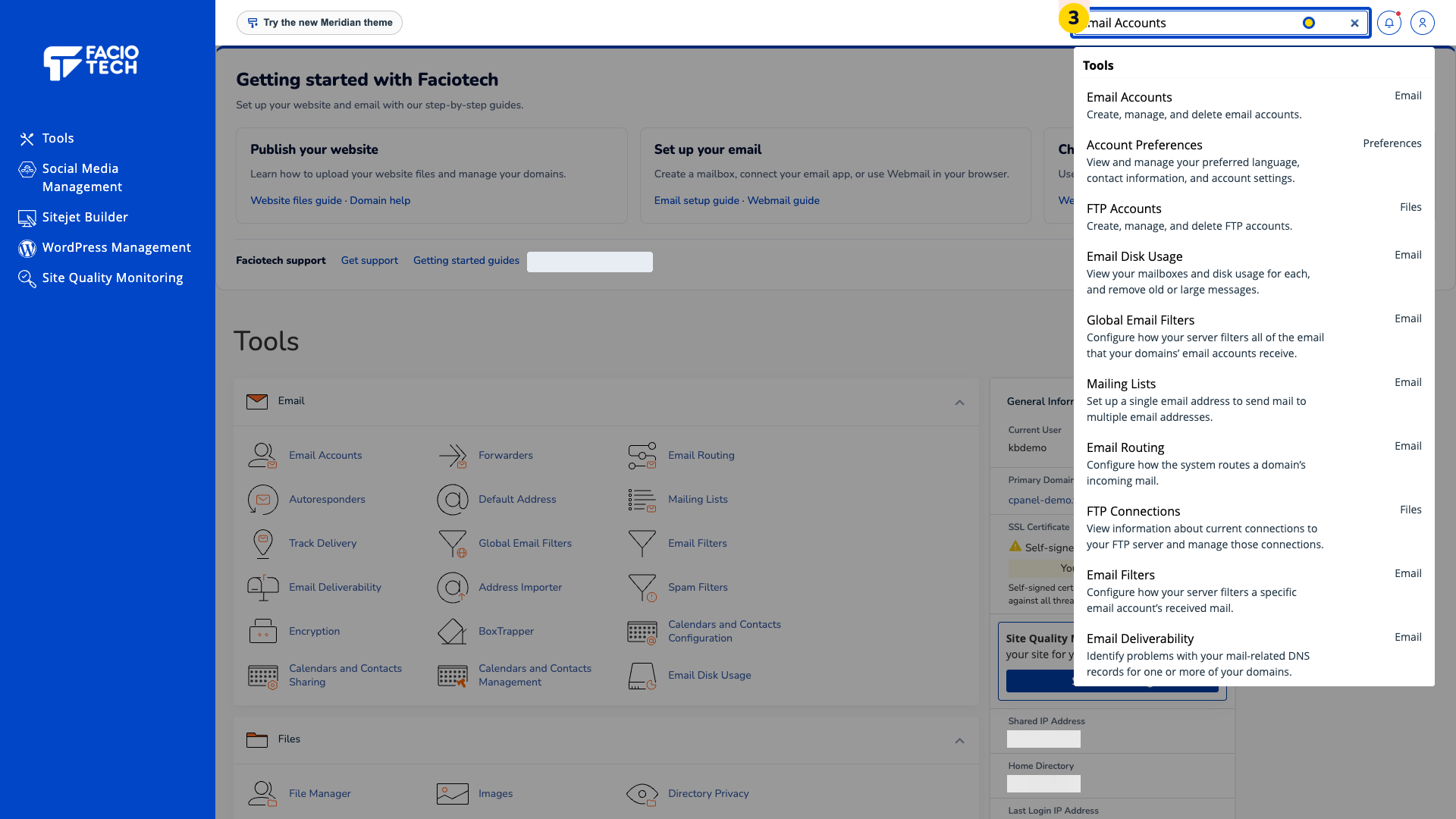
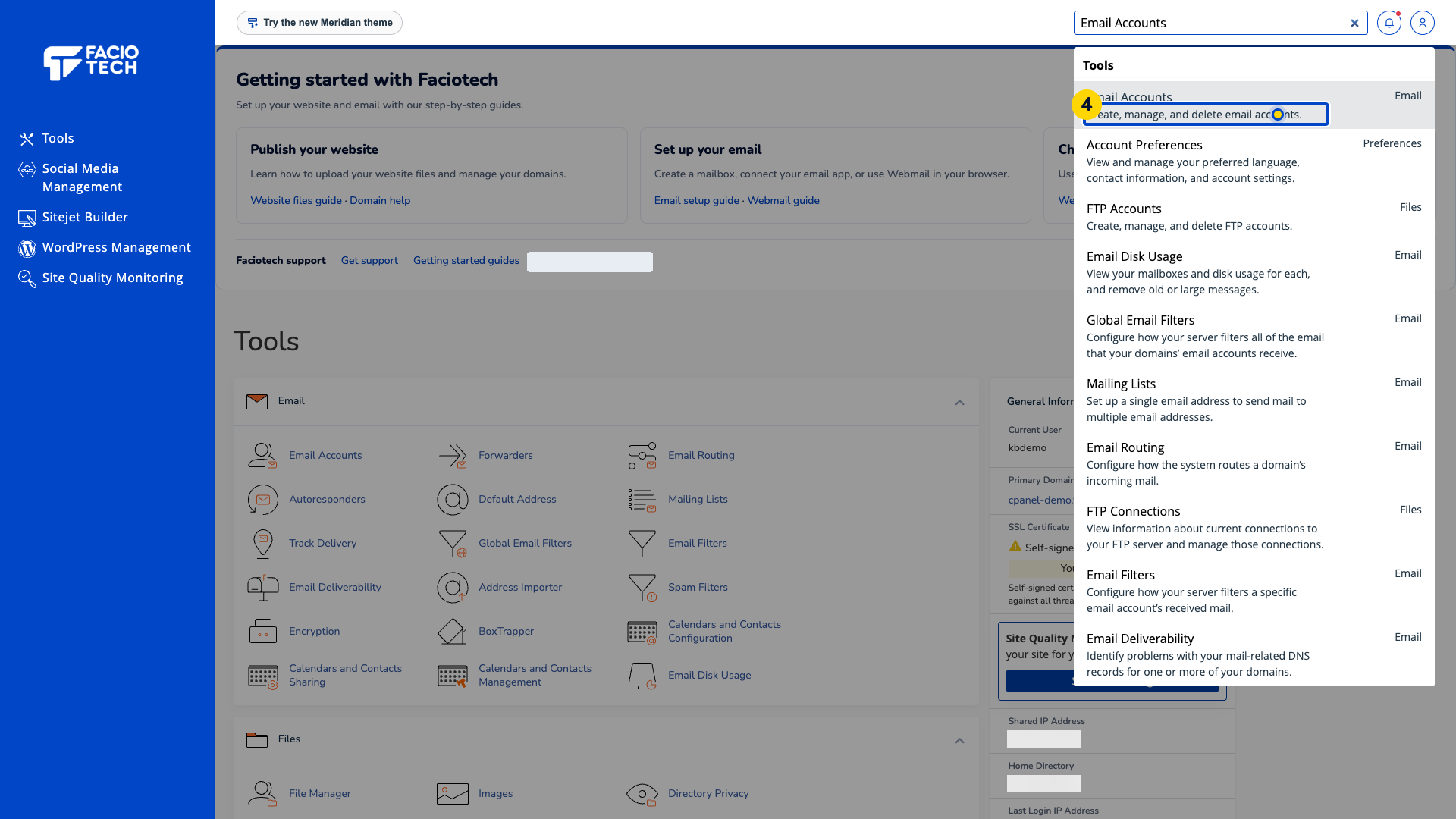
Open the matching Email Accounts result. Your mailbox list appears.
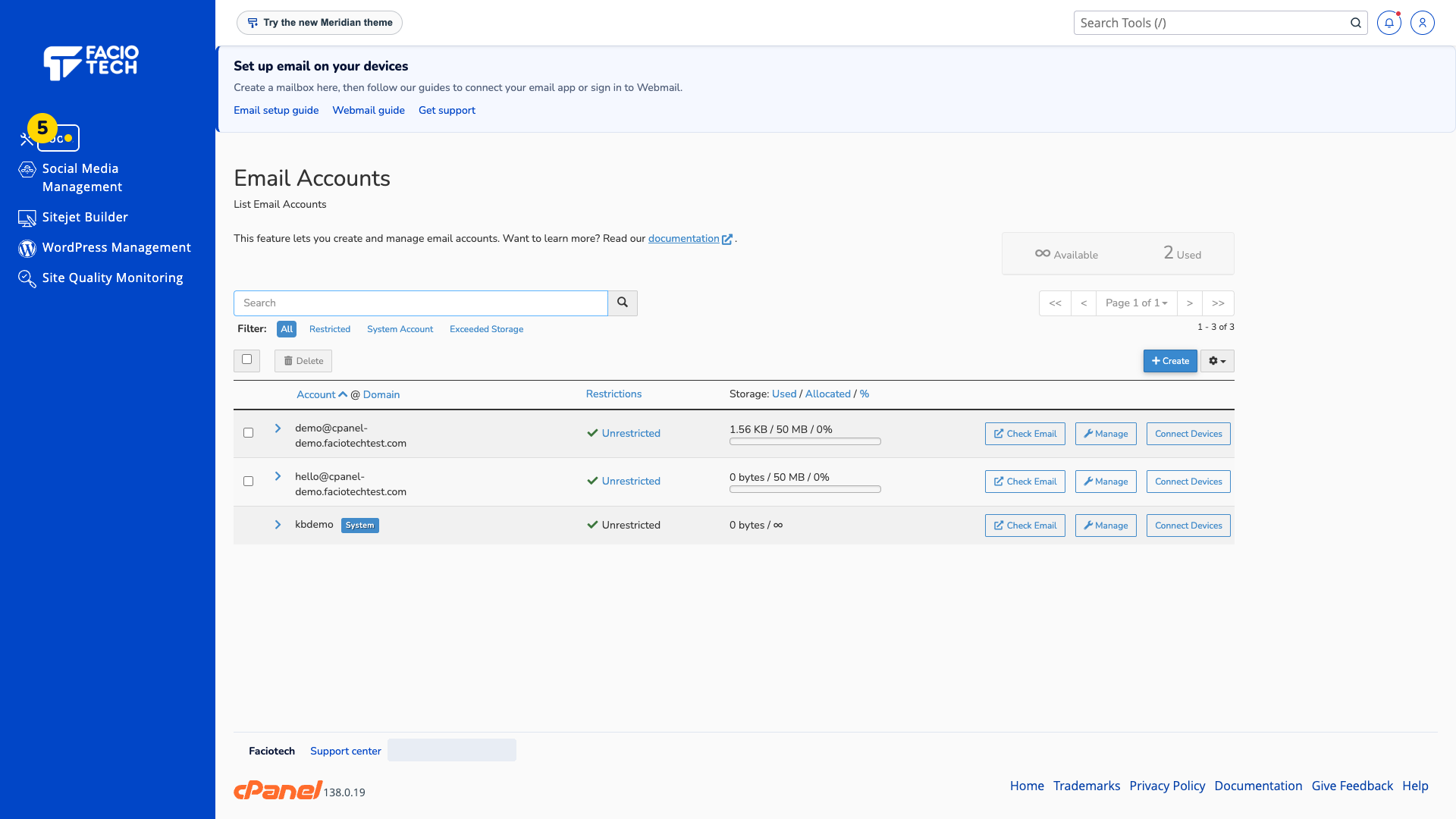
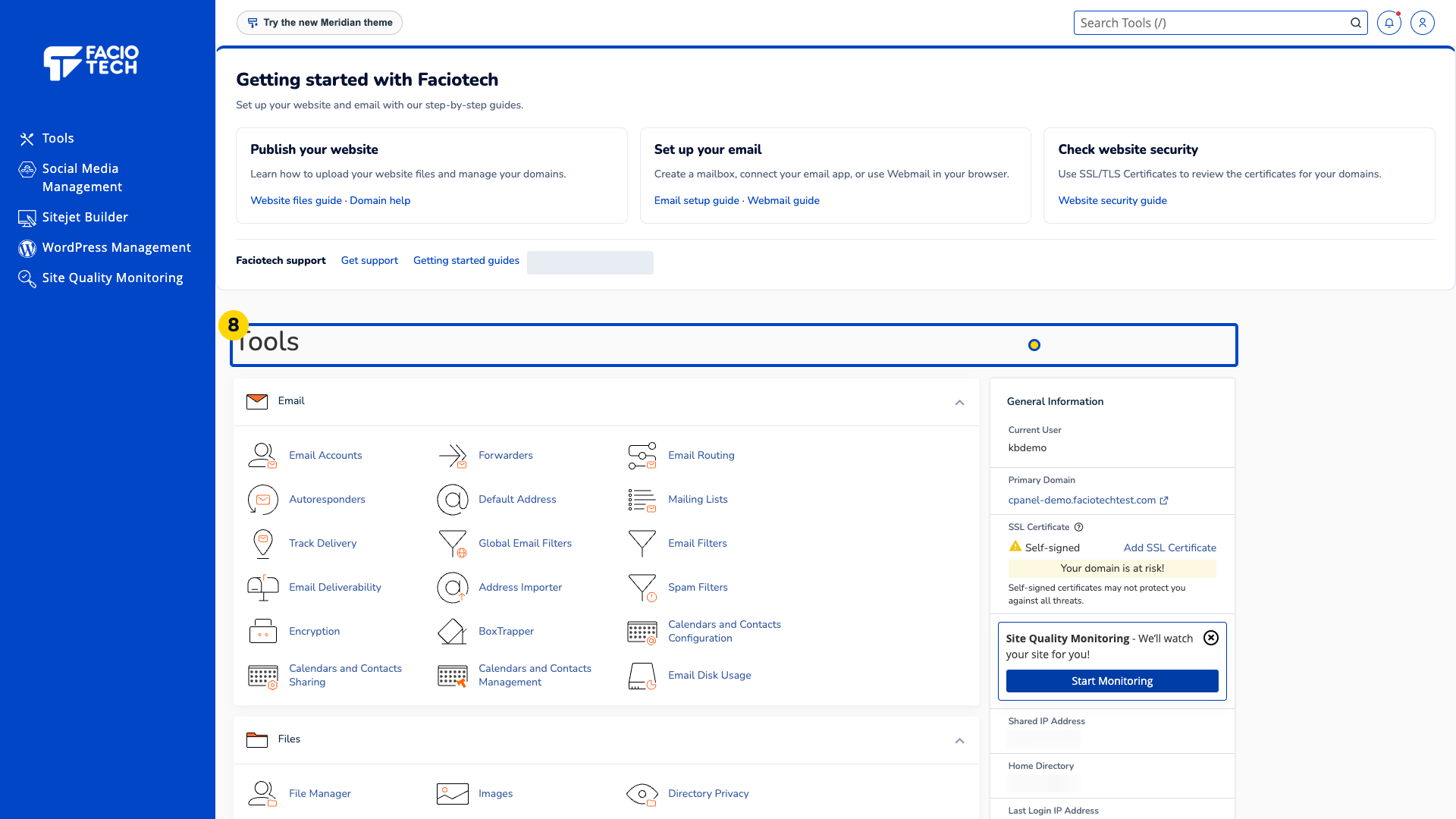
Choose Tools in the left menu. The cPanel dashboard appears.
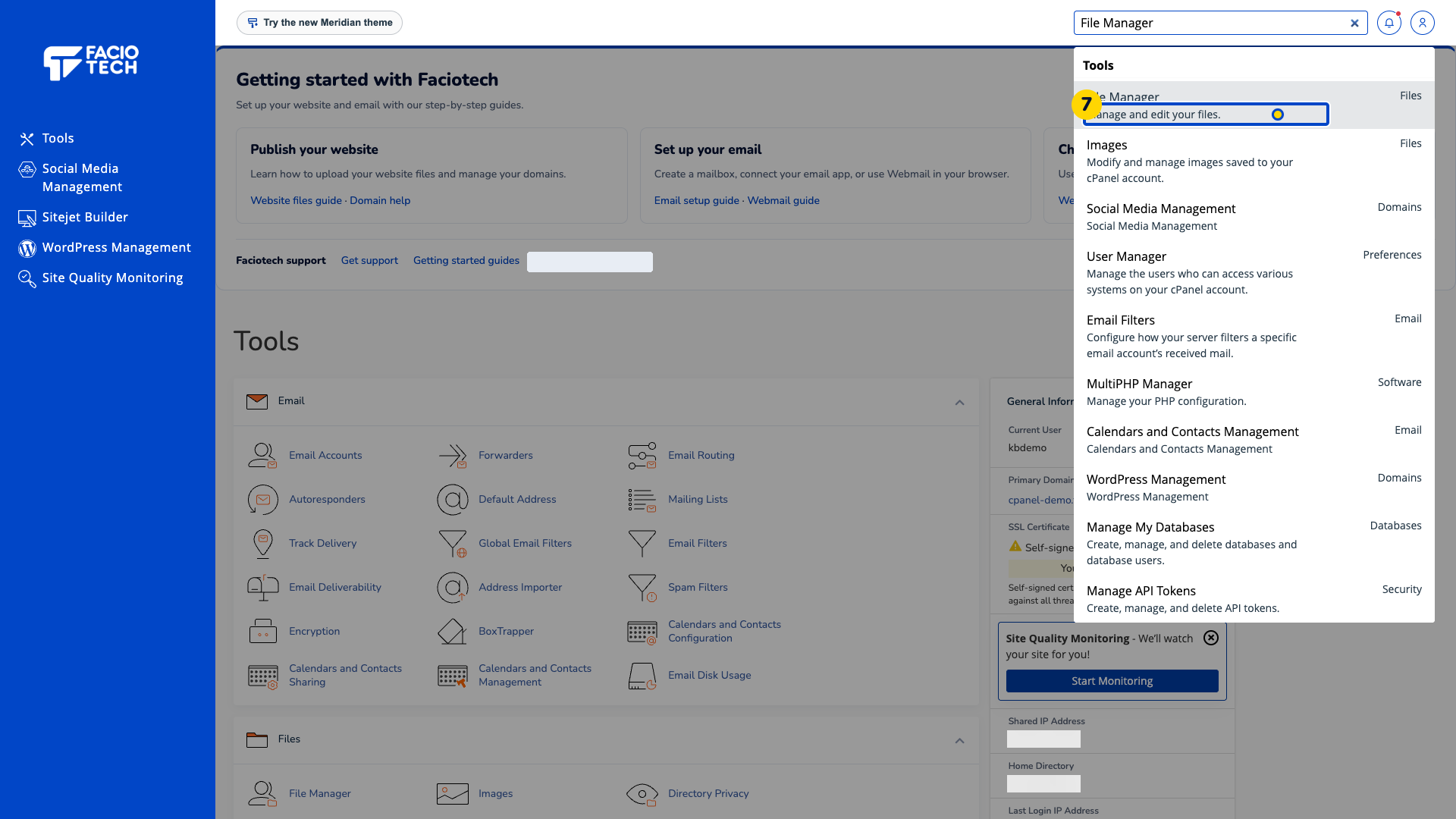
Enter File Manager in Search Tools. The matching File Manager result appears.
Open the File Manager result. File Manager opens in another tab.
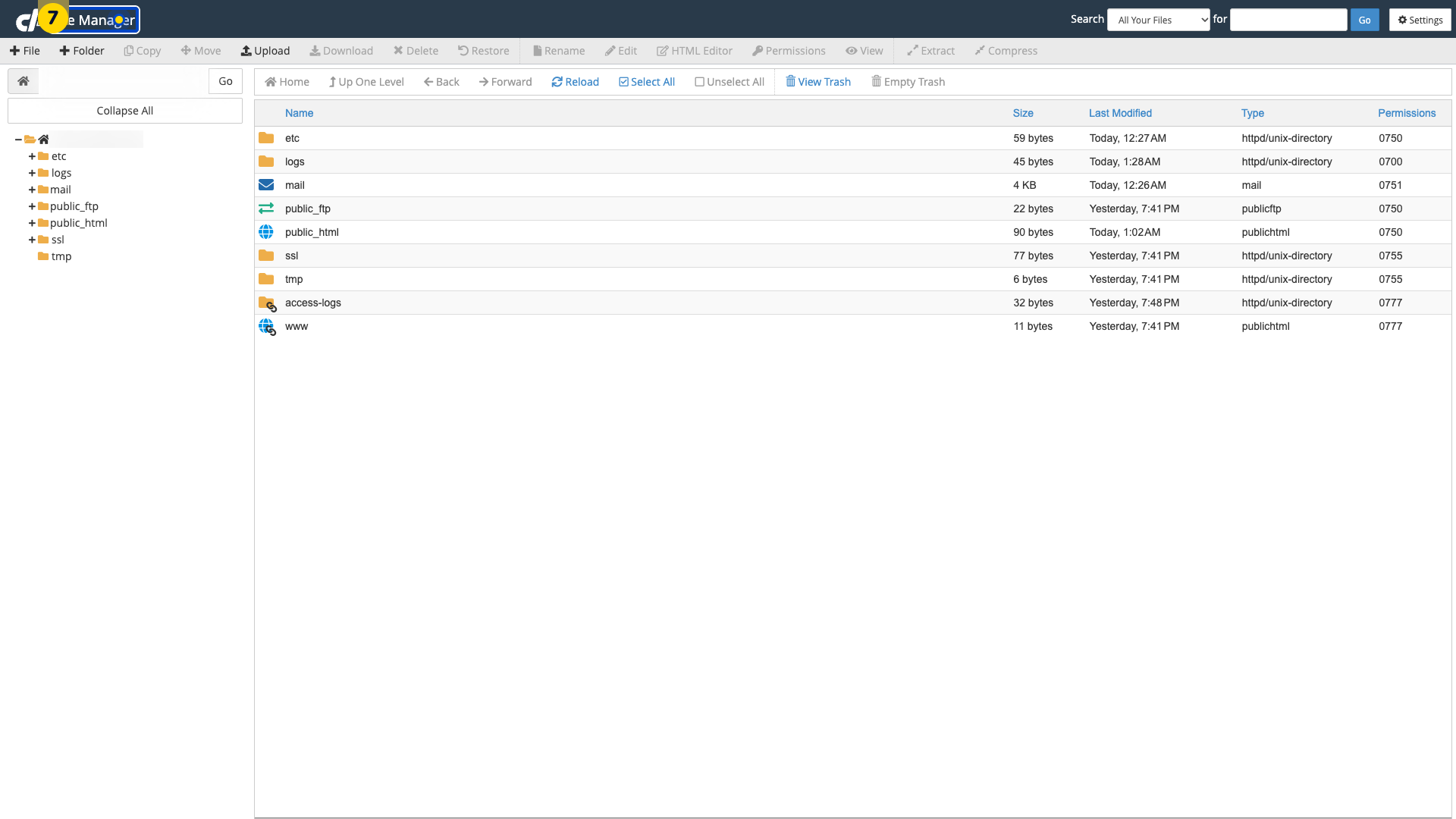
Close the File Manager tab when you finish. The cPanel dashboard tab is visible again.
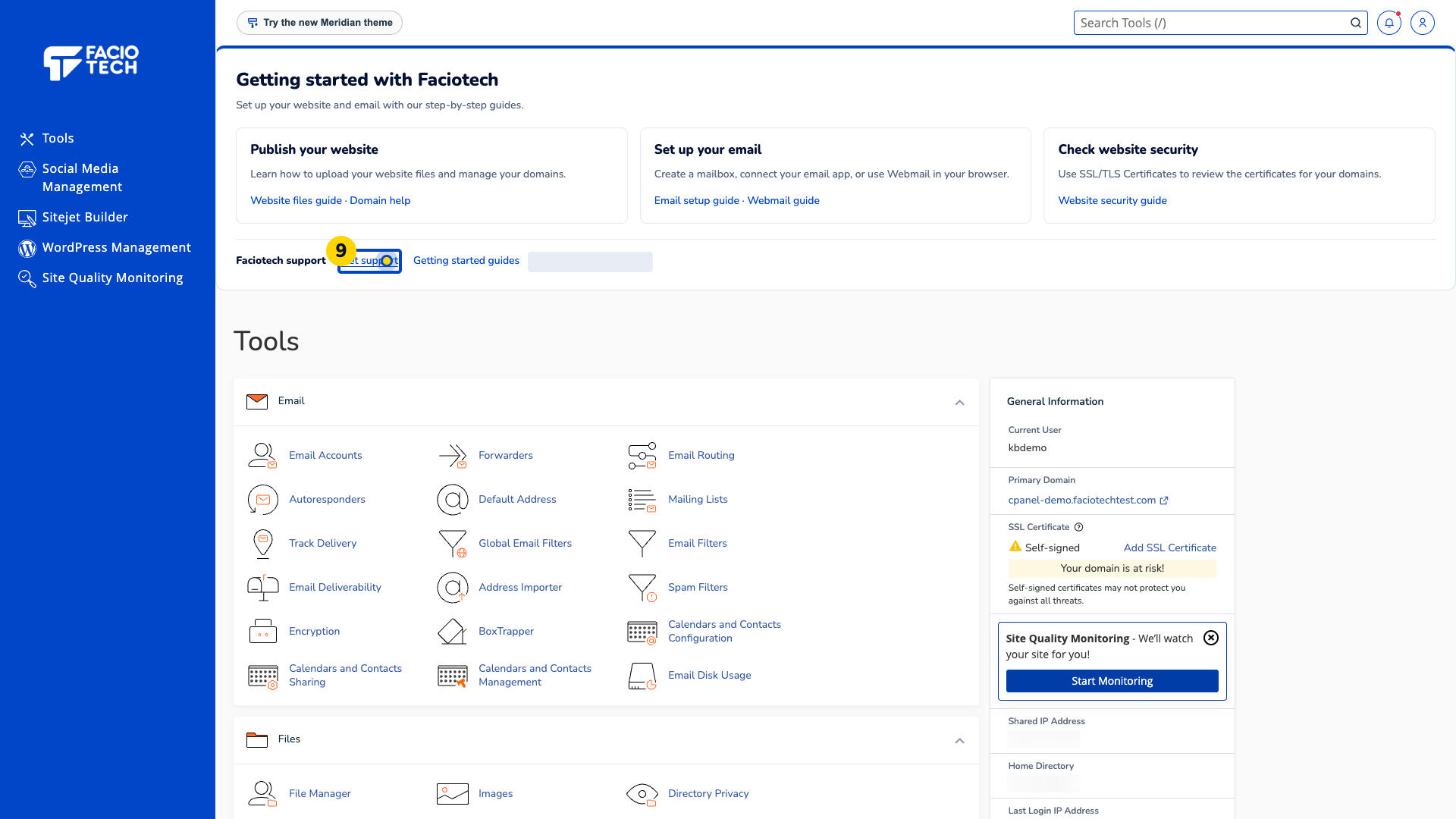
Contact support if a tool you need is missing. Include the tool name and the service you are using.
Video walkthrough
Sources
For help, contact Faciotech support.
