
Open Webmail from your hosting panel, or use the Webmail address in your welcome email to sign in directly.
Open your hosting service from the client area and use its cPanel link. If that link is unavailable, use the panel address in your welcome email. The cPanel dashboard appears after successful sign-in.
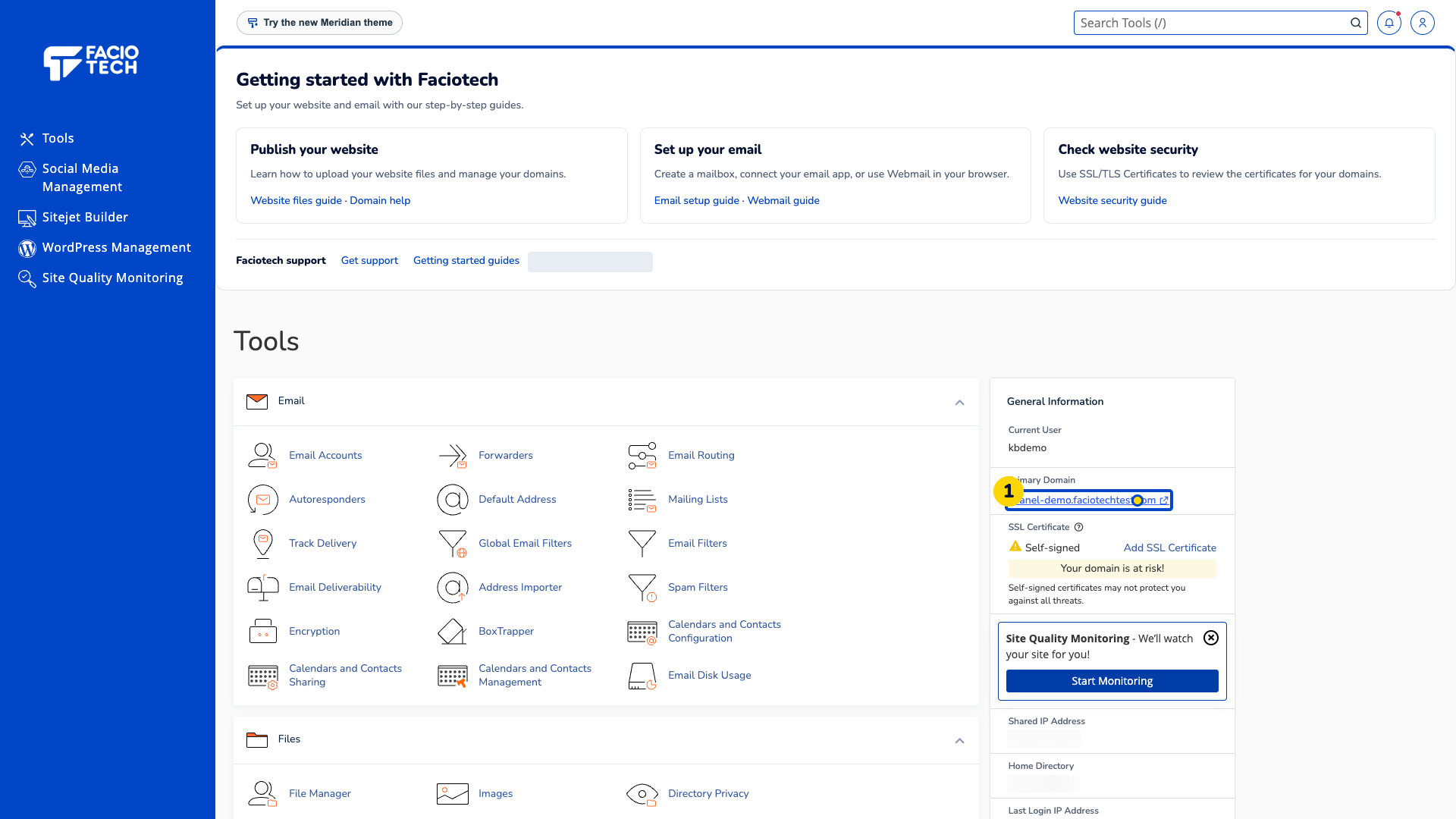
Find your mailbox in cPanel > Email Accounts.
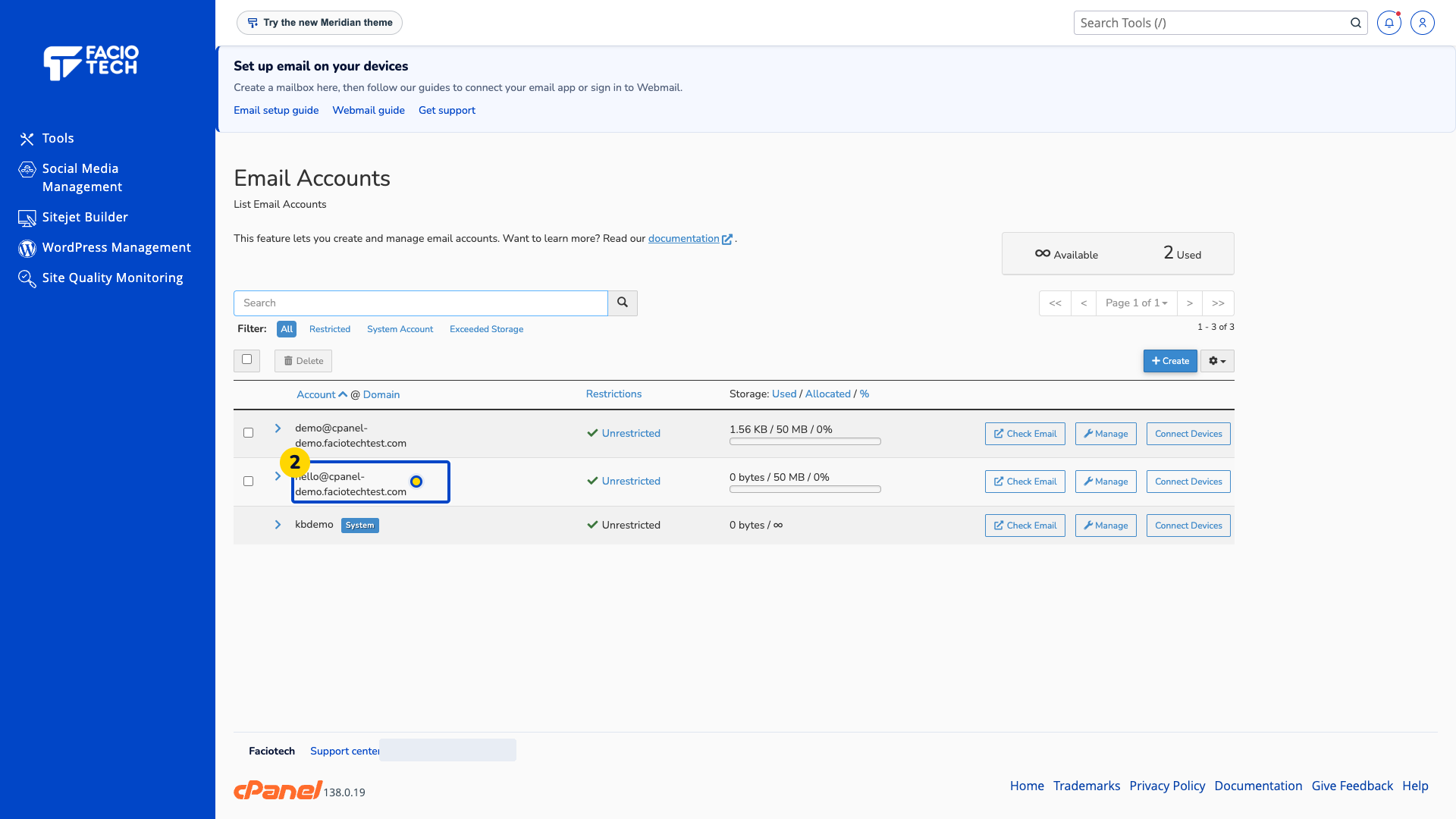
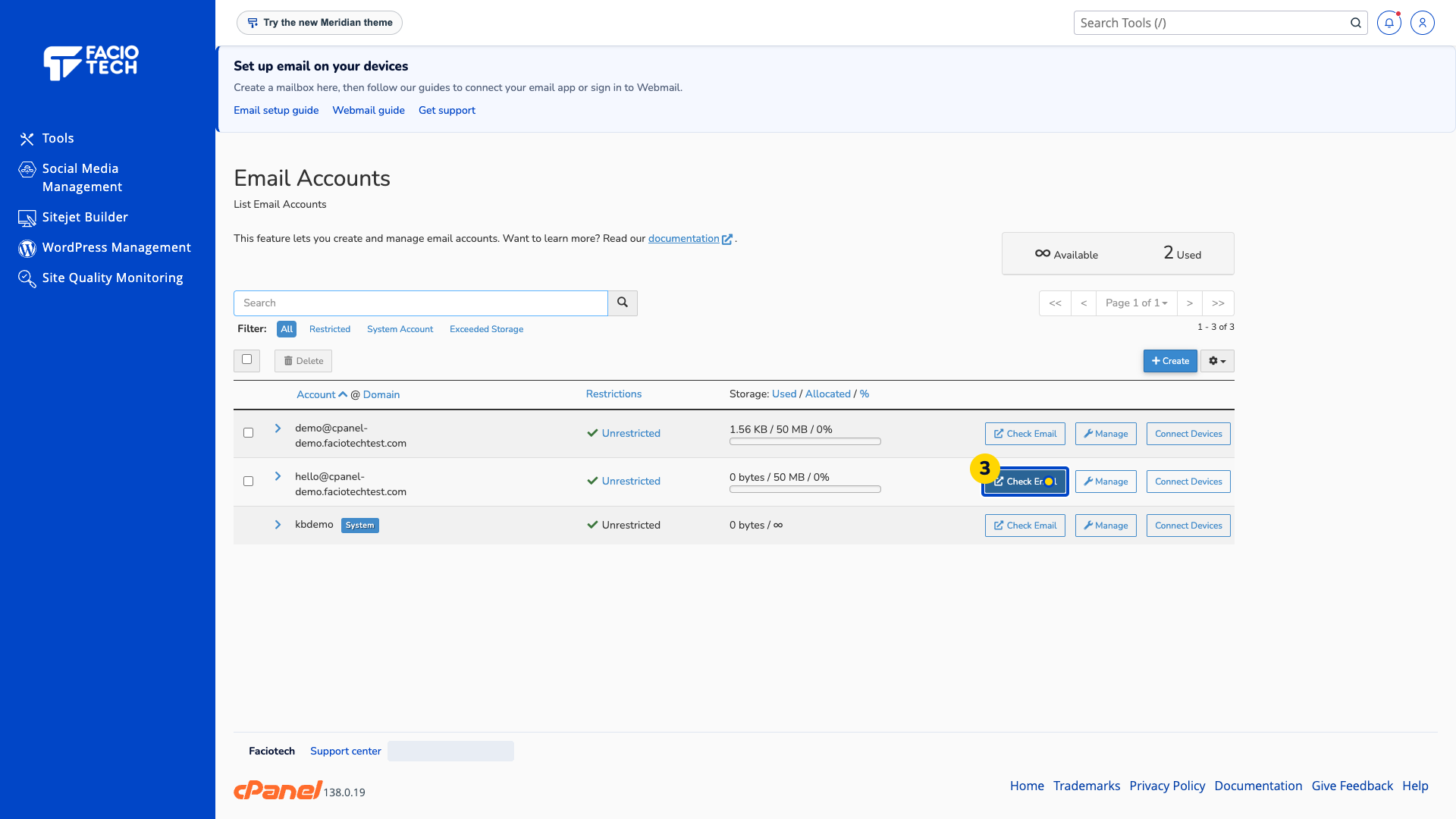
Choose Check Email beside that mailbox. Webmail Home or the Inbox appears.
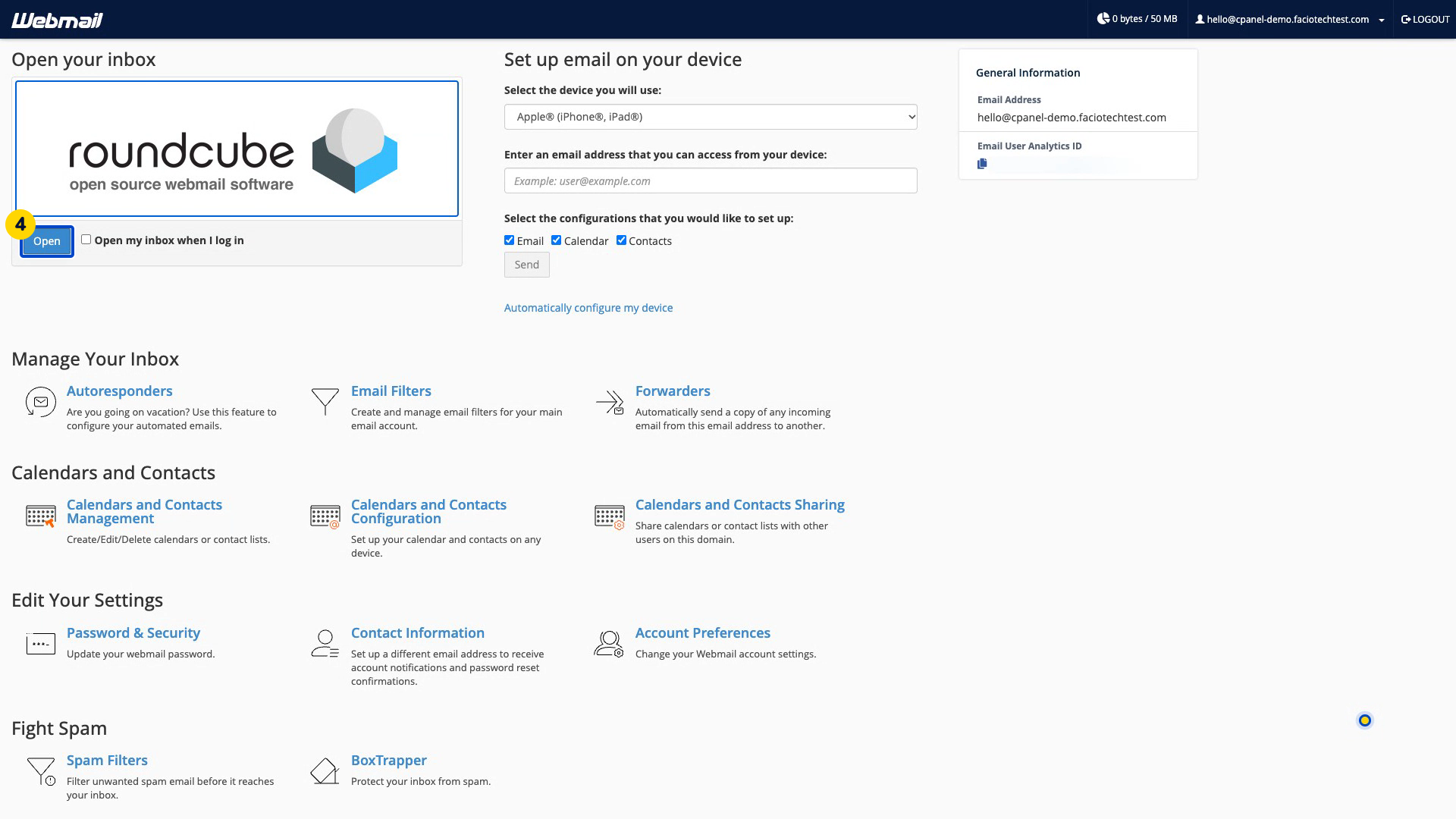
If Webmail Home appears, choose Open beneath Roundcube. The Inbox opens.
For direct sign-in, open the Webmail address in your welcome email. Its sign-in form appears. Skip the direct sign-in actions if cPanel has already opened your Inbox.
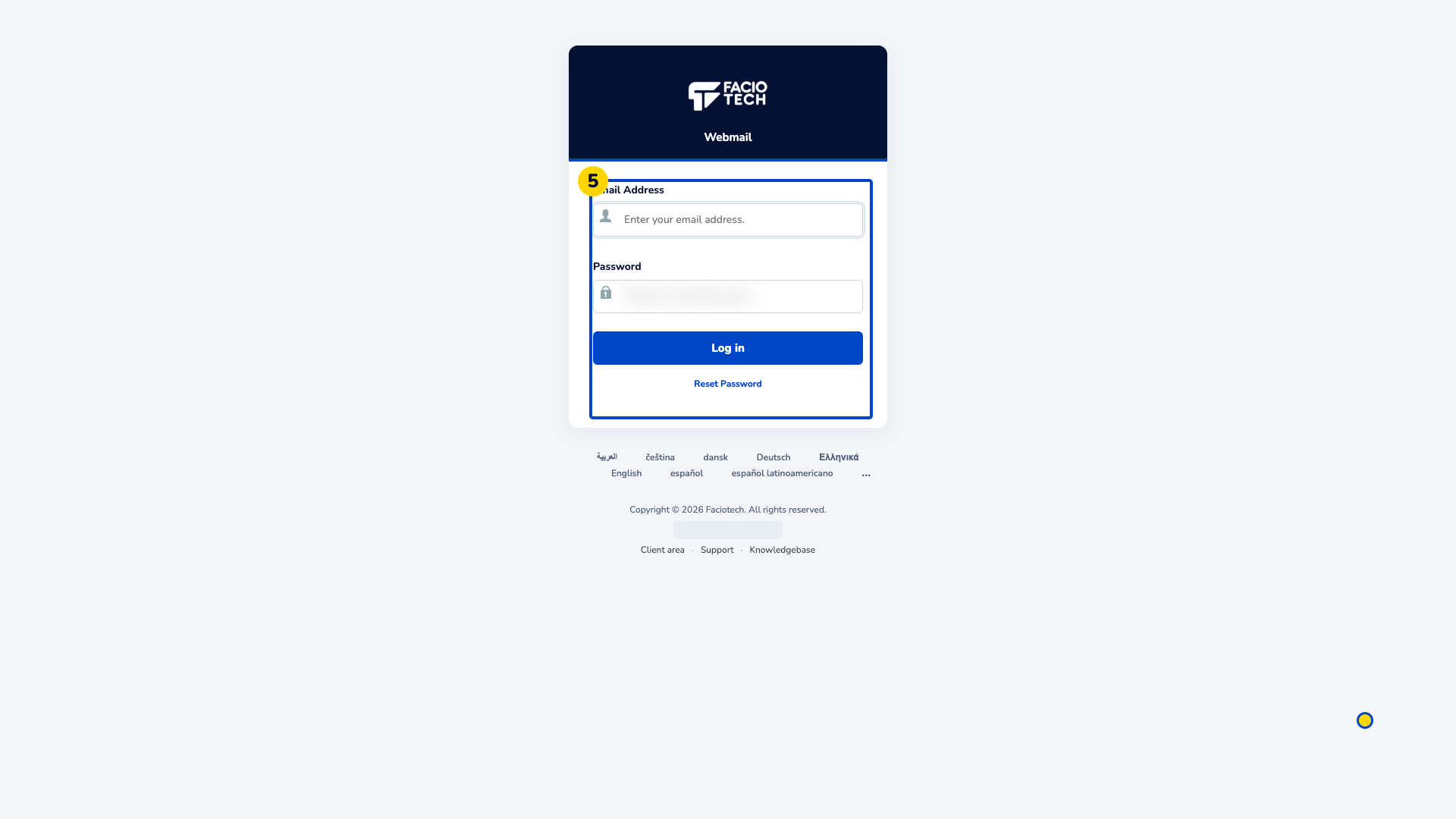
Enter your full mailbox address on the direct sign-in page. The address field shows the mailbox you intend to open.
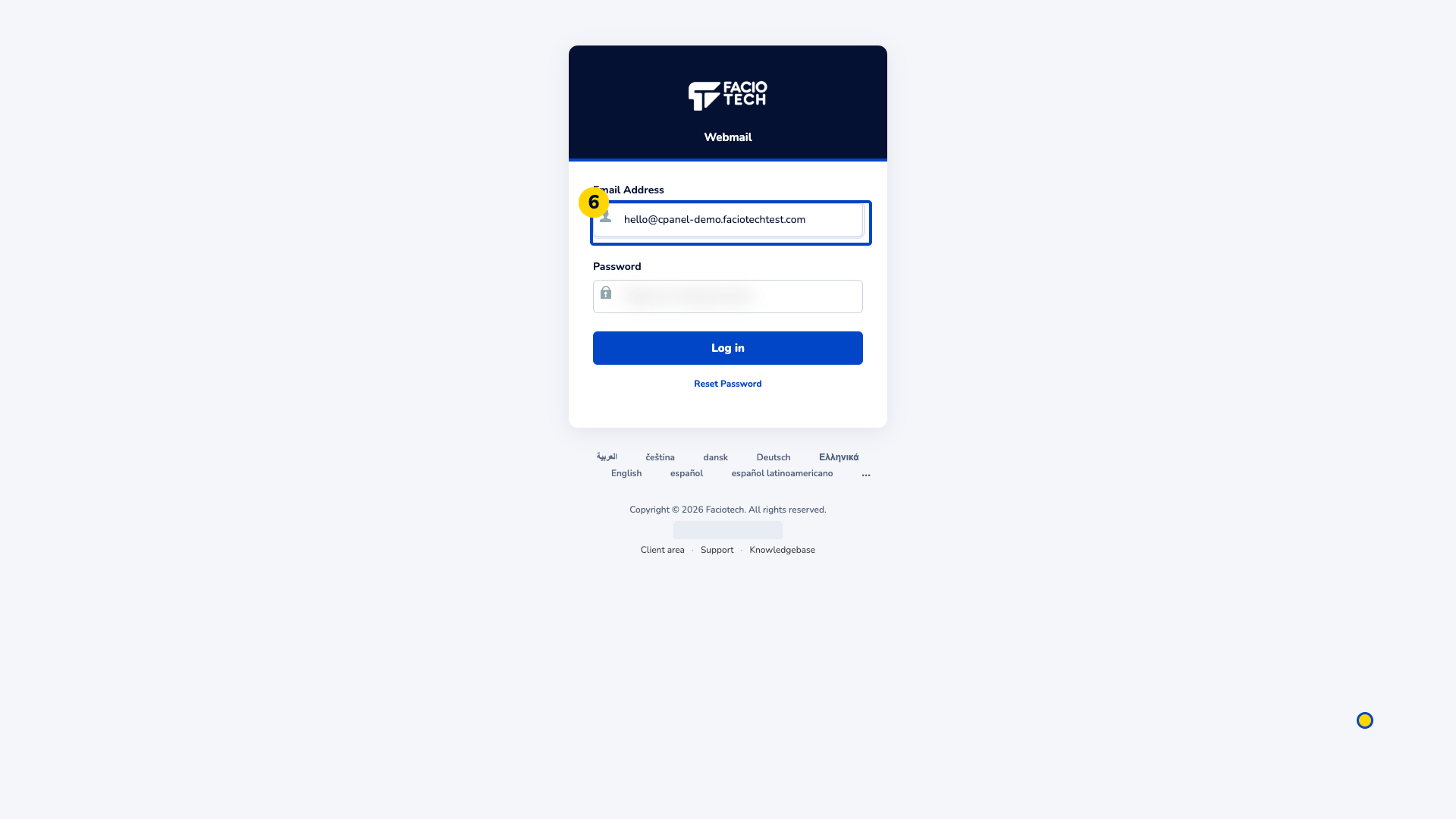
Enter that mailbox’s password in Password. Keep its value private.
Choose Log in. After successful sign-in, the Webmail Home page or your Inbox appears.
If Webmail Home appears, choose Open beneath Roundcube. Your Inbox opens.
Check the full email address shown above the Inbox before reading or sending mail.
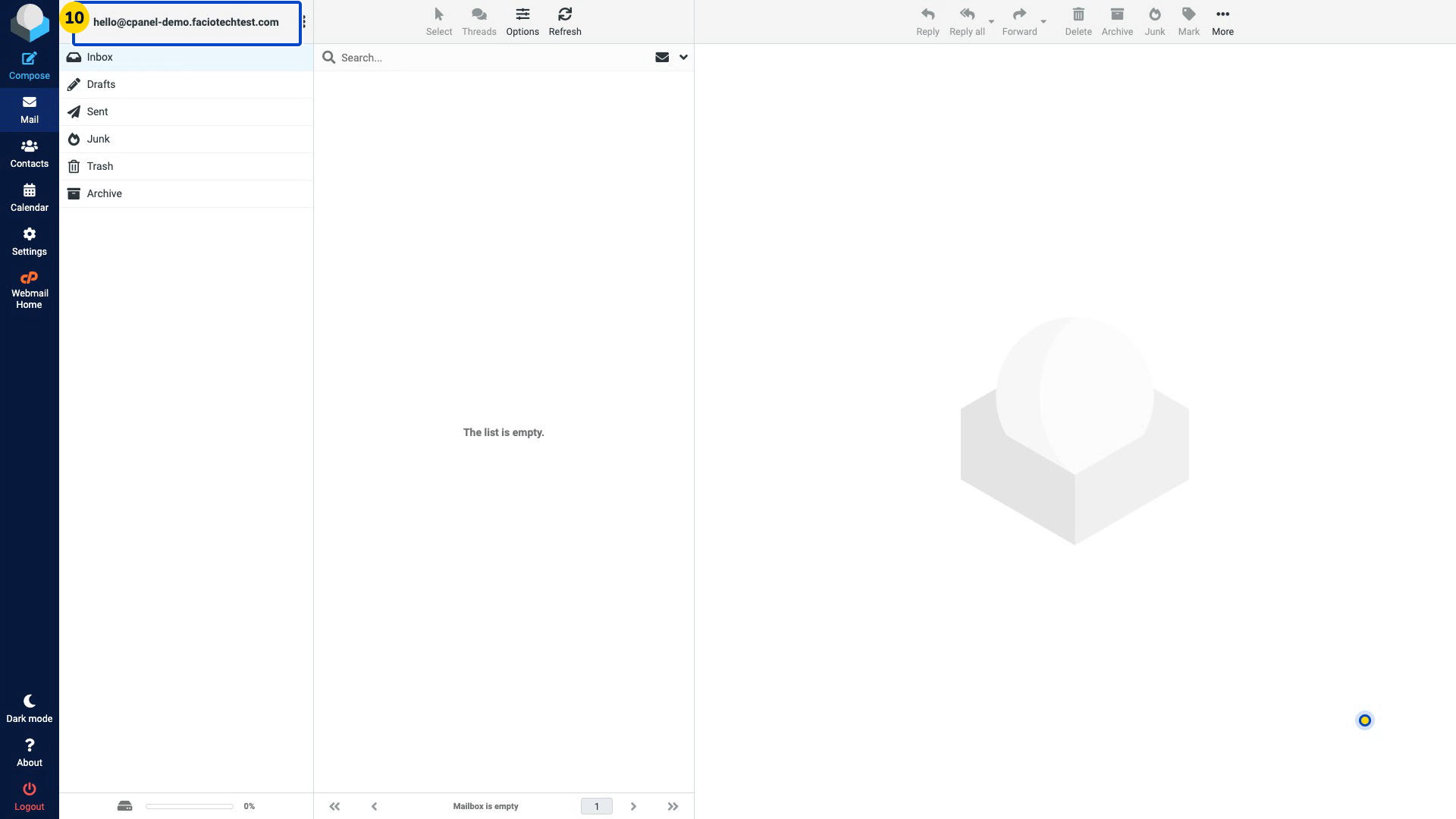
The mailbox password belongs to that email address. Your client area and hosting panel can use different sign-in details.
Video walkthrough
Sources
For help, contact Faciotech support.
