
Find the settings that an email app needs for one mailbox in cPanel.
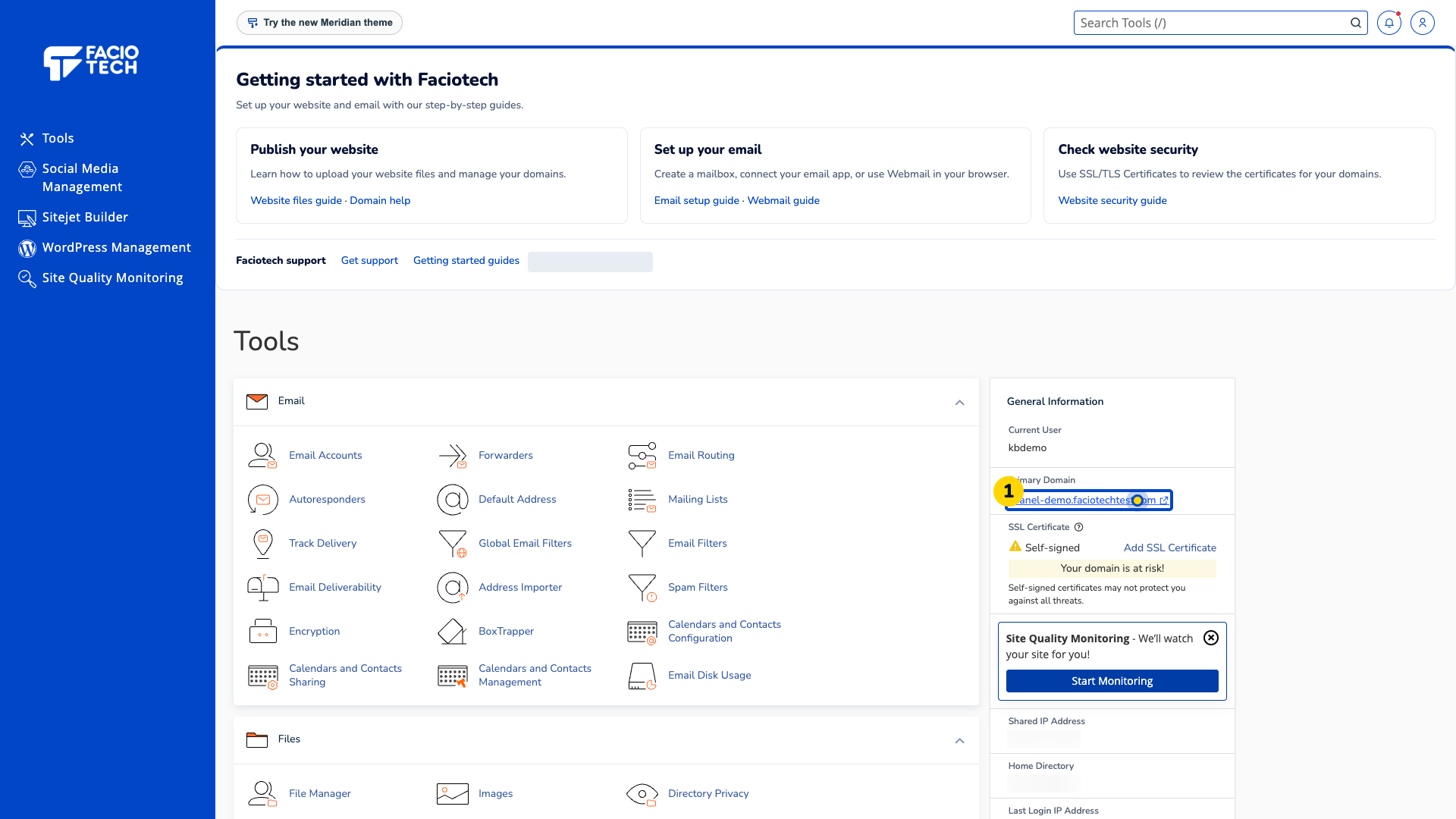
Log in to cPanel from your client area. If that link is unavailable, use the panel address in your welcome email. The cPanel dashboard appears after successful sign-in.
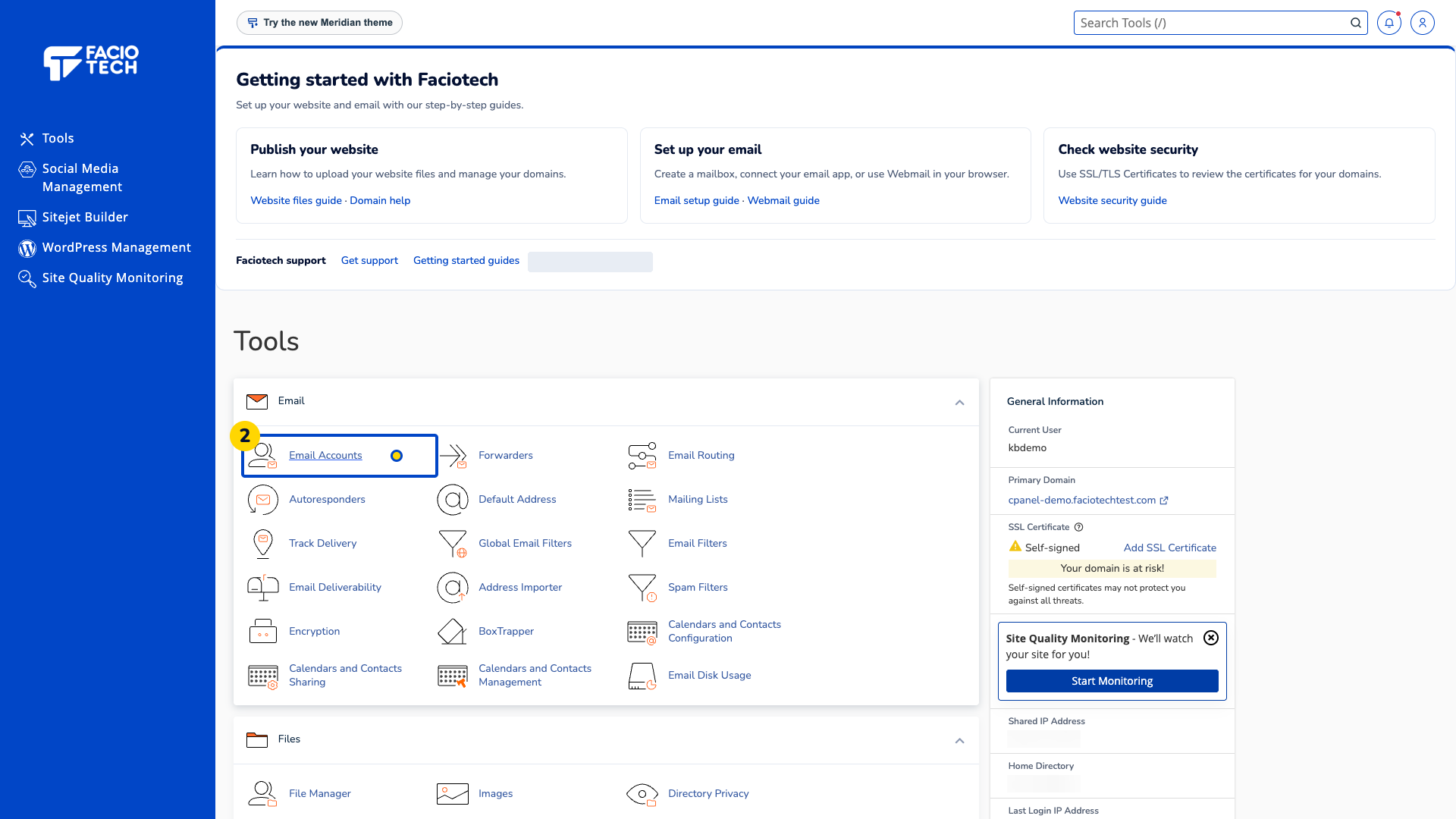
Open Email Accounts. Your mailbox list appears.
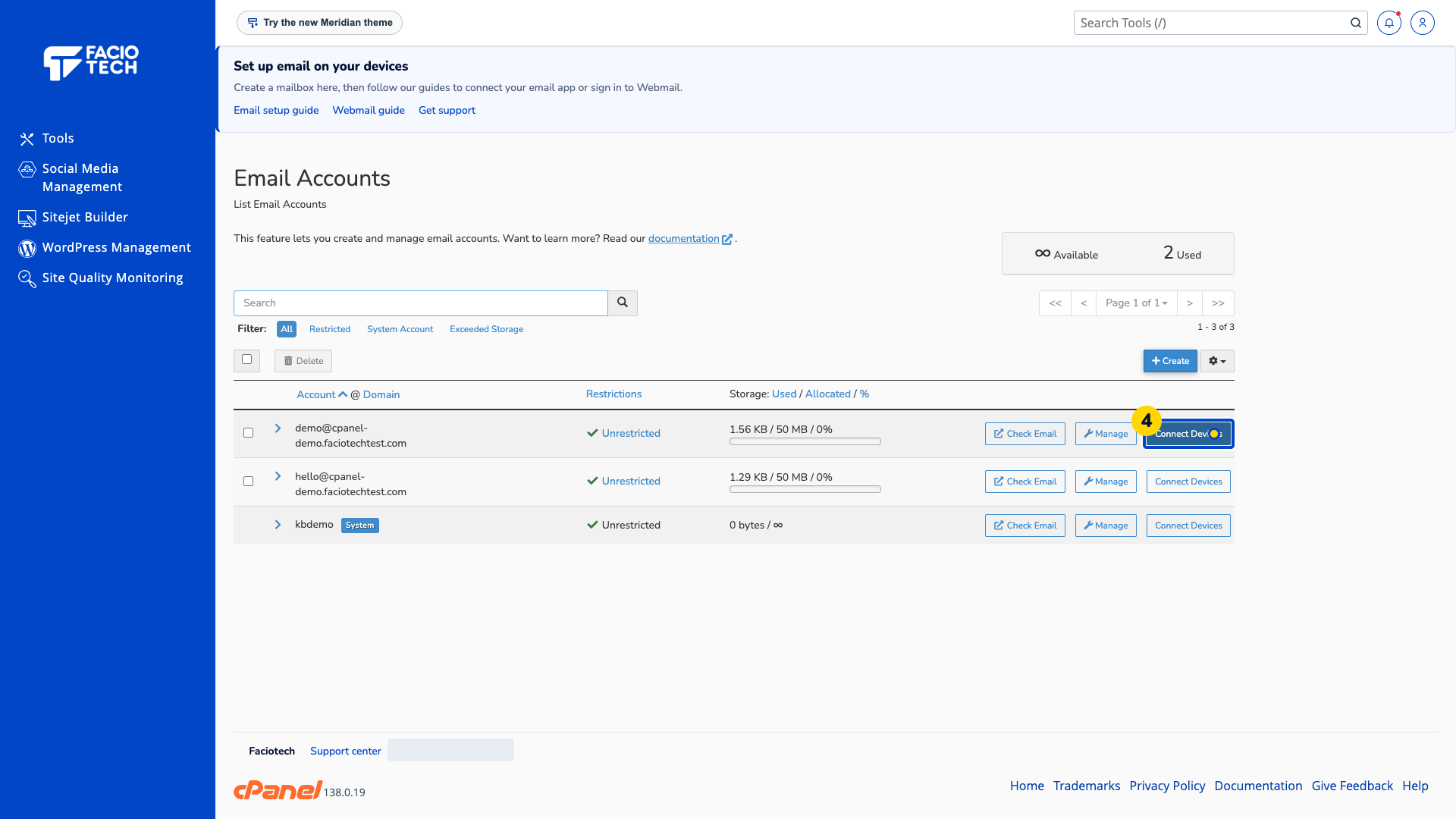
Find the full email address you want to set up. Its row identifies the intended mailbox.
Choose Connect Devices beside that mailbox. Set Up Mail Client opens.
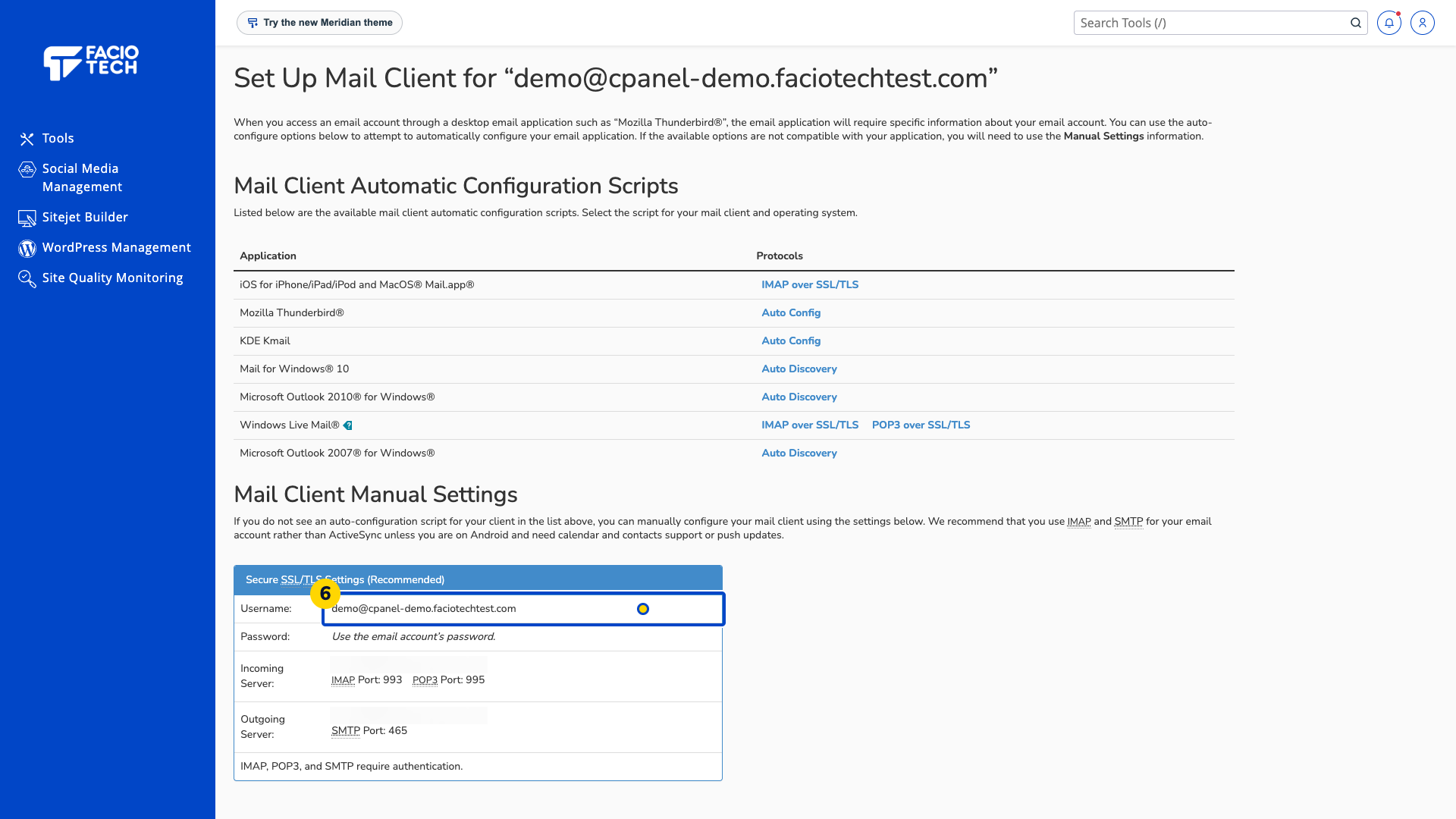
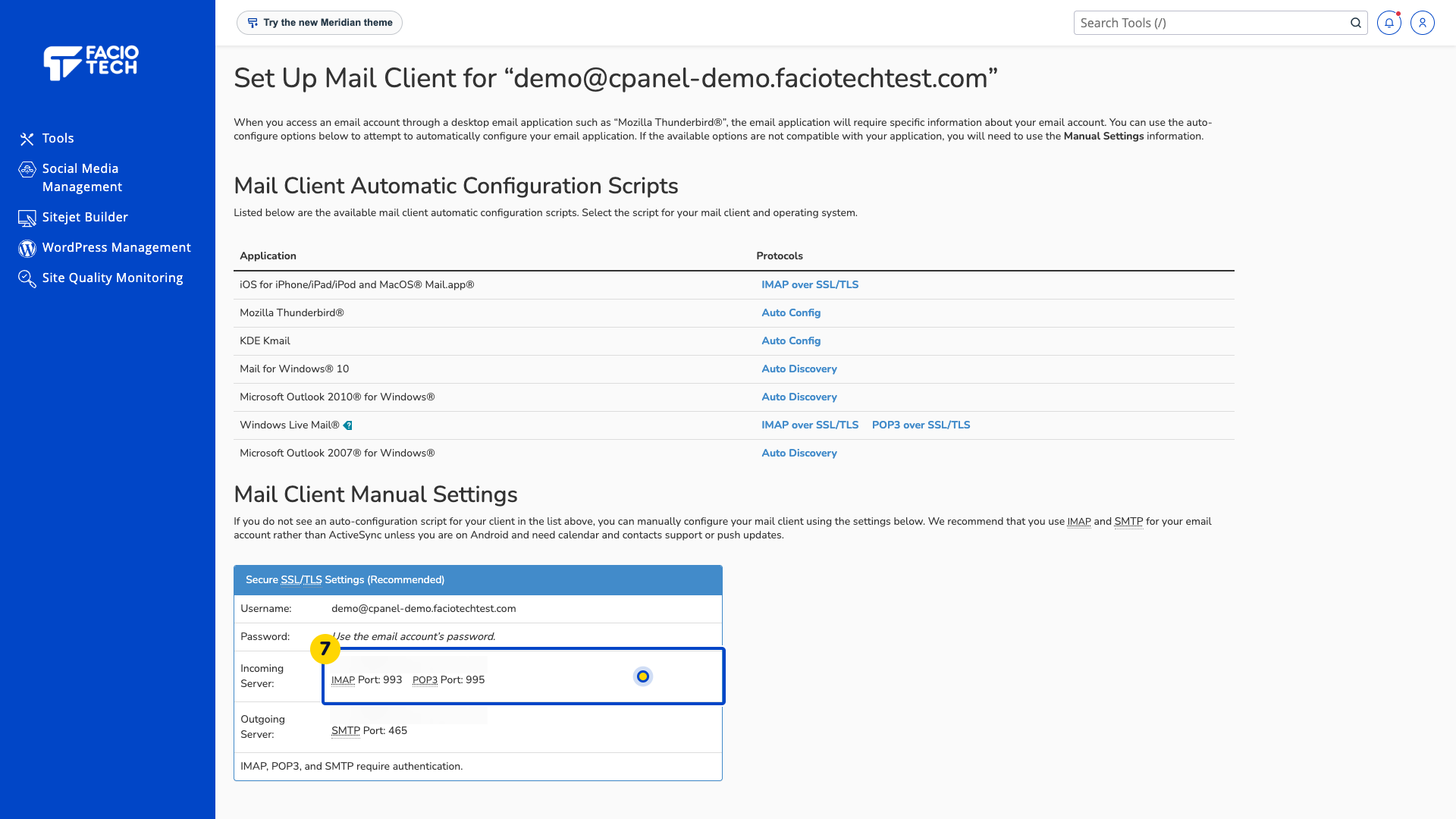
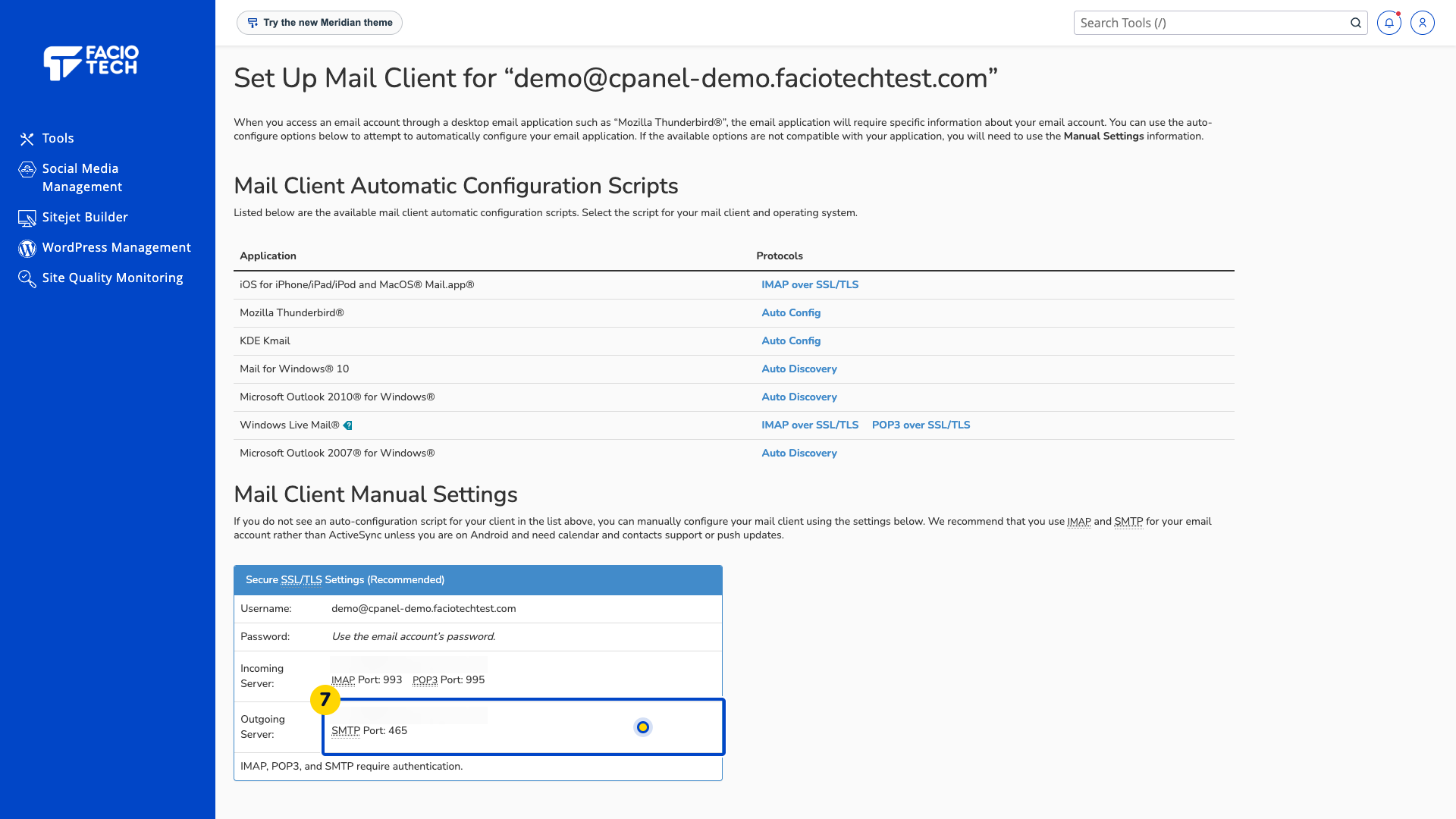
Find Mail Client Manual Settings. Use the Secure SSL/TLS Settings (Recommended) section for that mailbox.
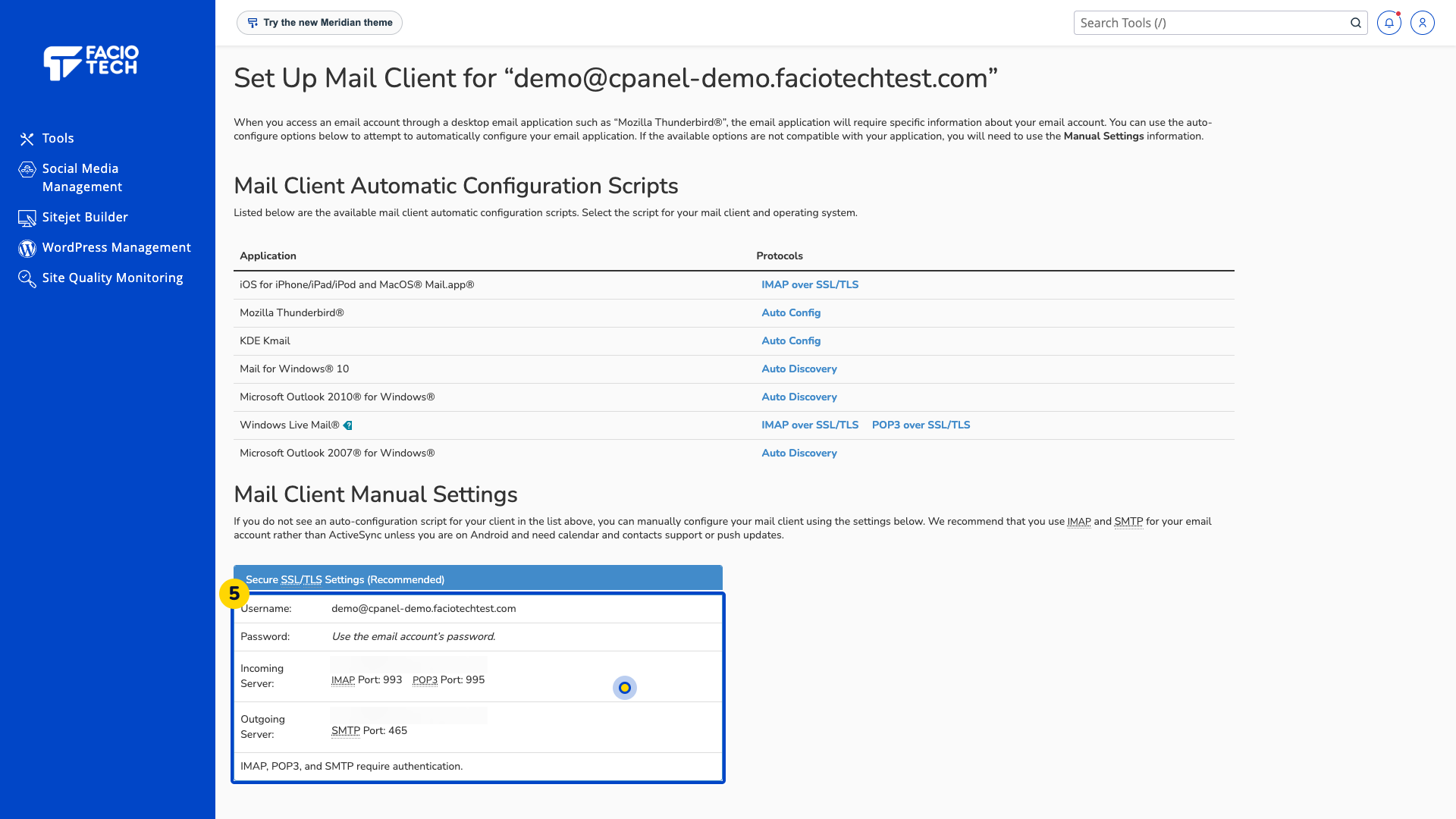
Check Username. Use the full email address shown, including its domain.
Open the Faciotech setup guide for your email app. It identifies the app controls for the incoming and outgoing server, ports, SSL/TLS and authentication; use the mailbox-specific values displayed here.
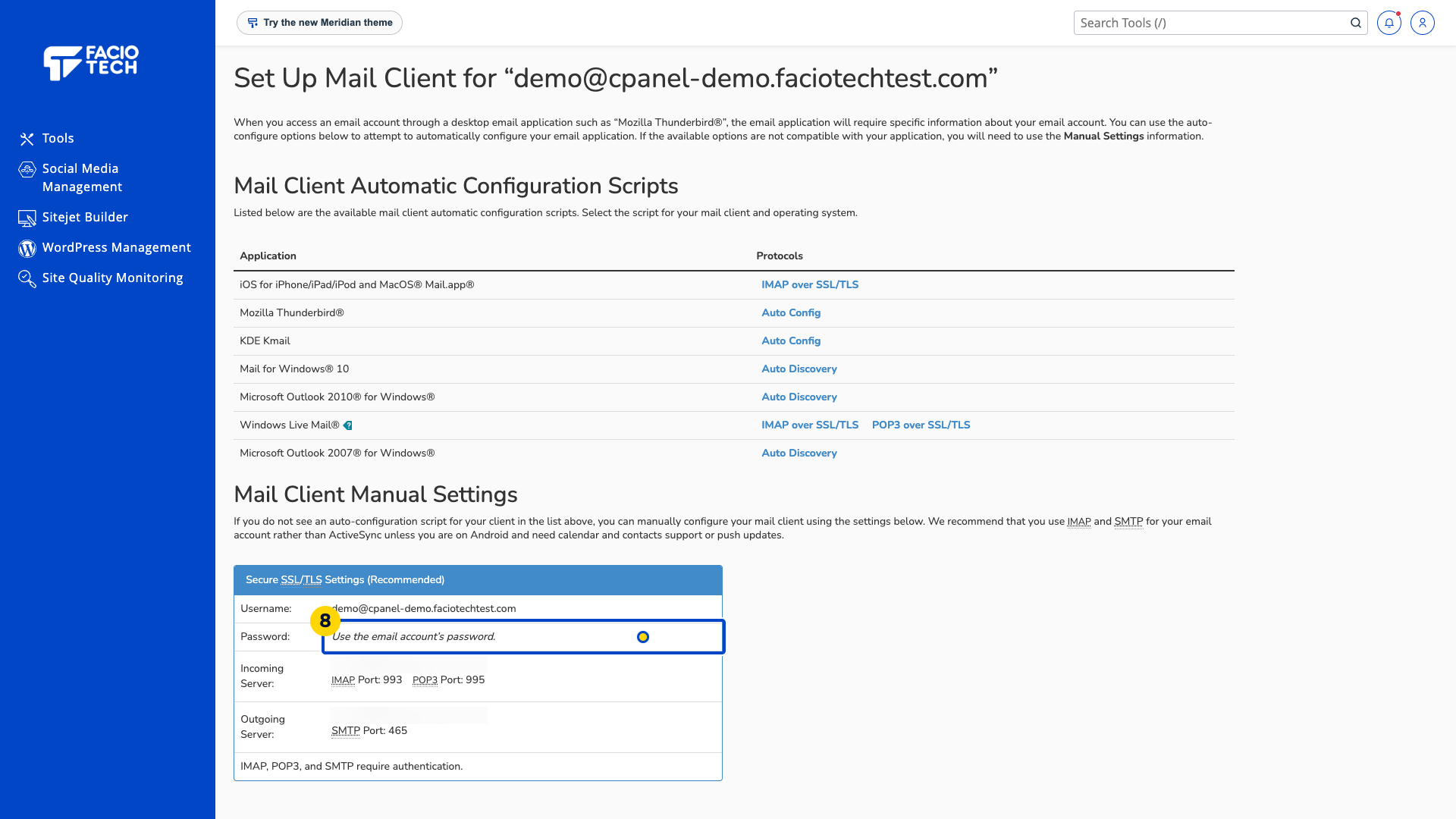
Use the email account password when the app asks for it. Keep that password private.
Server names are hidden in the example screenshots. Copy the values shown for your own mailbox.
This page helps you find the connection details. Follow the separate guide for your email app to finish its account setup.
Video walkthrough
Sources
For help, contact Faciotech support.
