
Upload a harmless file into a separate folder in your website files.
Log in to DirectAdmin from your client area. If that link is unavailable, use the panel address in your welcome email. The DirectAdmin dashboard appears after successful sign-in.
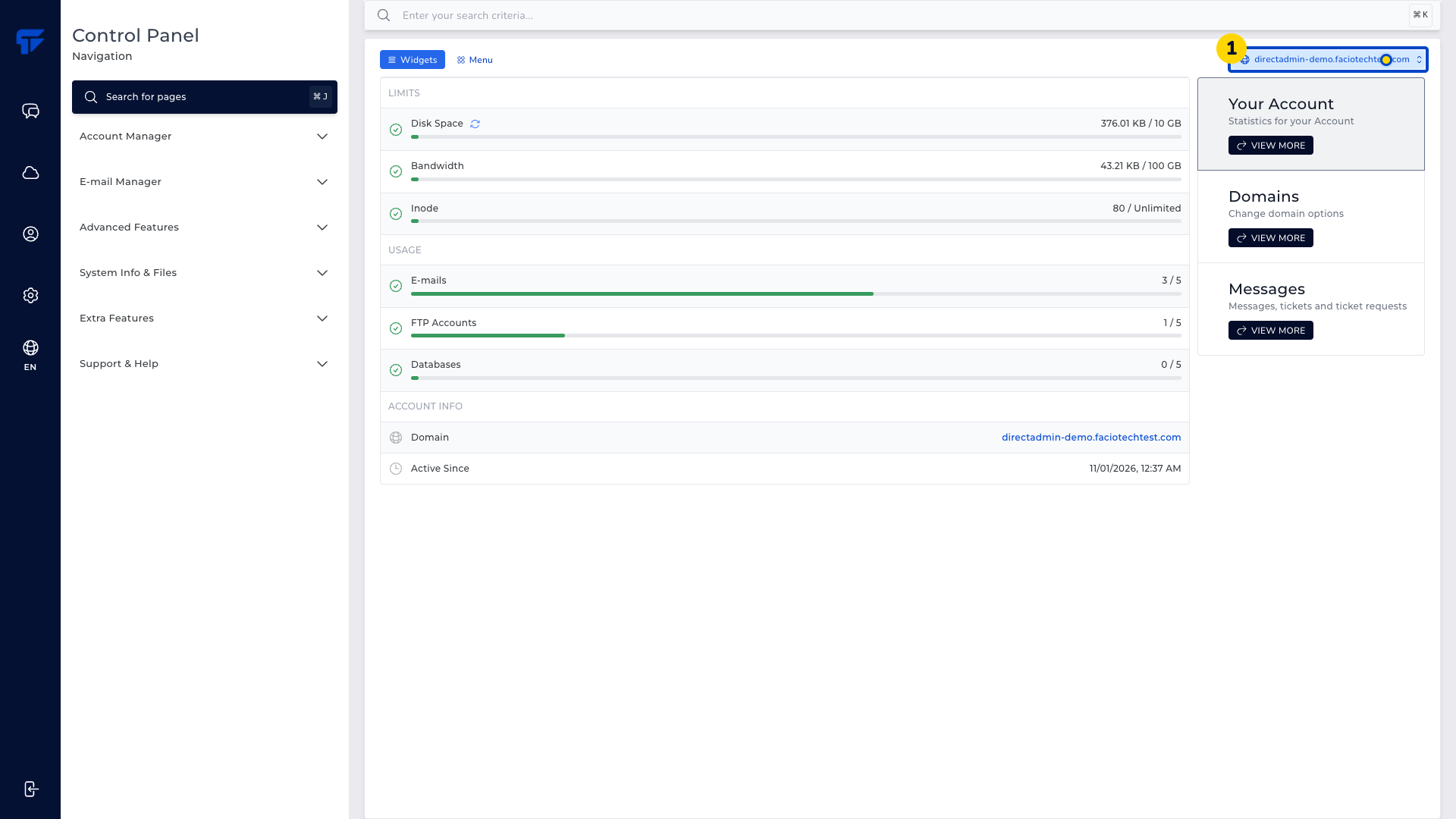
Choose Search for pages. The page-search window opens.
Enter File Manager. Its matching page appears in the results.
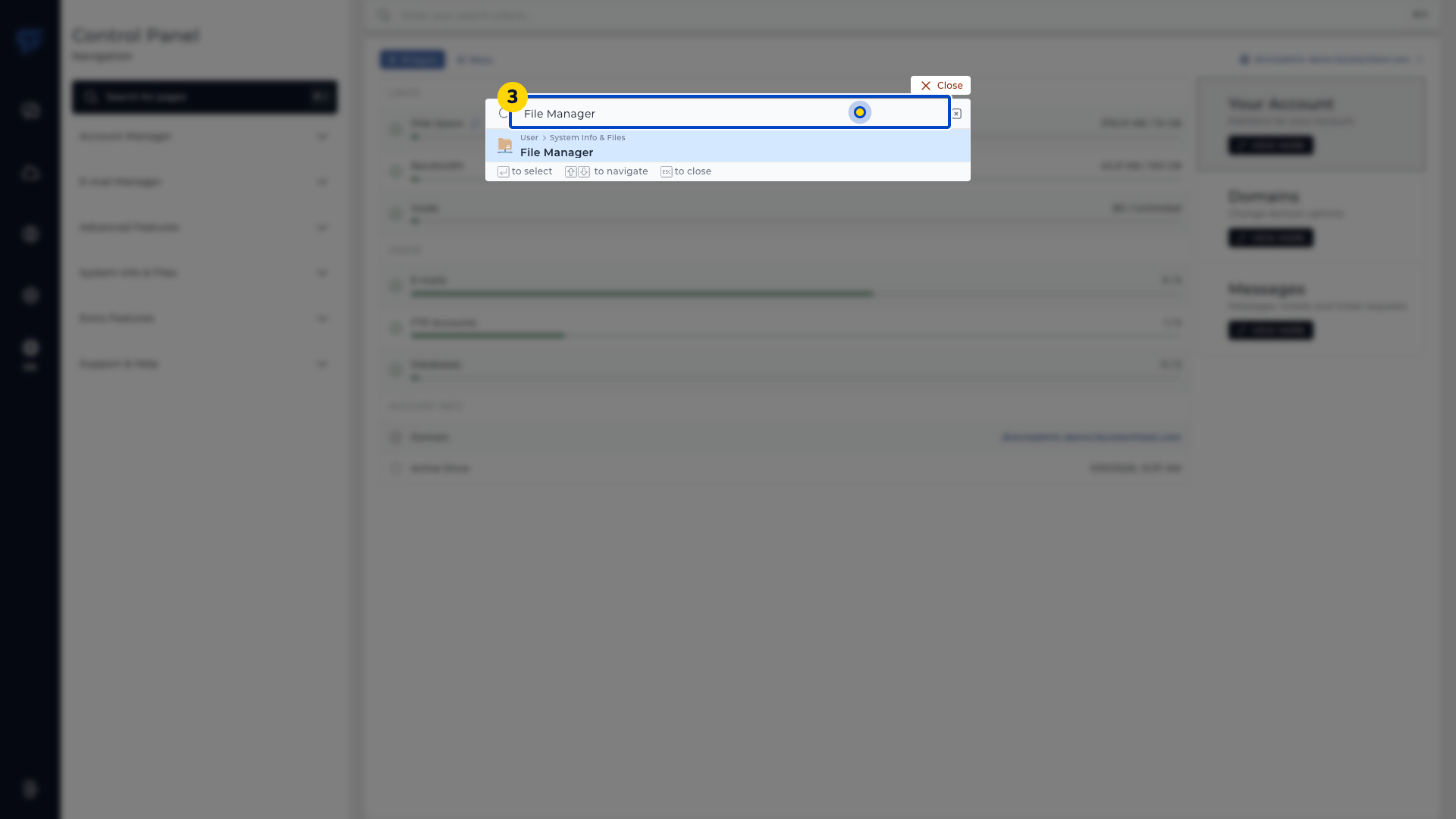
Open the File Manager result. The file browser appears.
Open domains in the folder tree. The account’s website domains appear.
Open the intended website domain. Its website folders appear.
Open that domain’s public_html folder. Check that the folder tree shows the intended website before continuing.
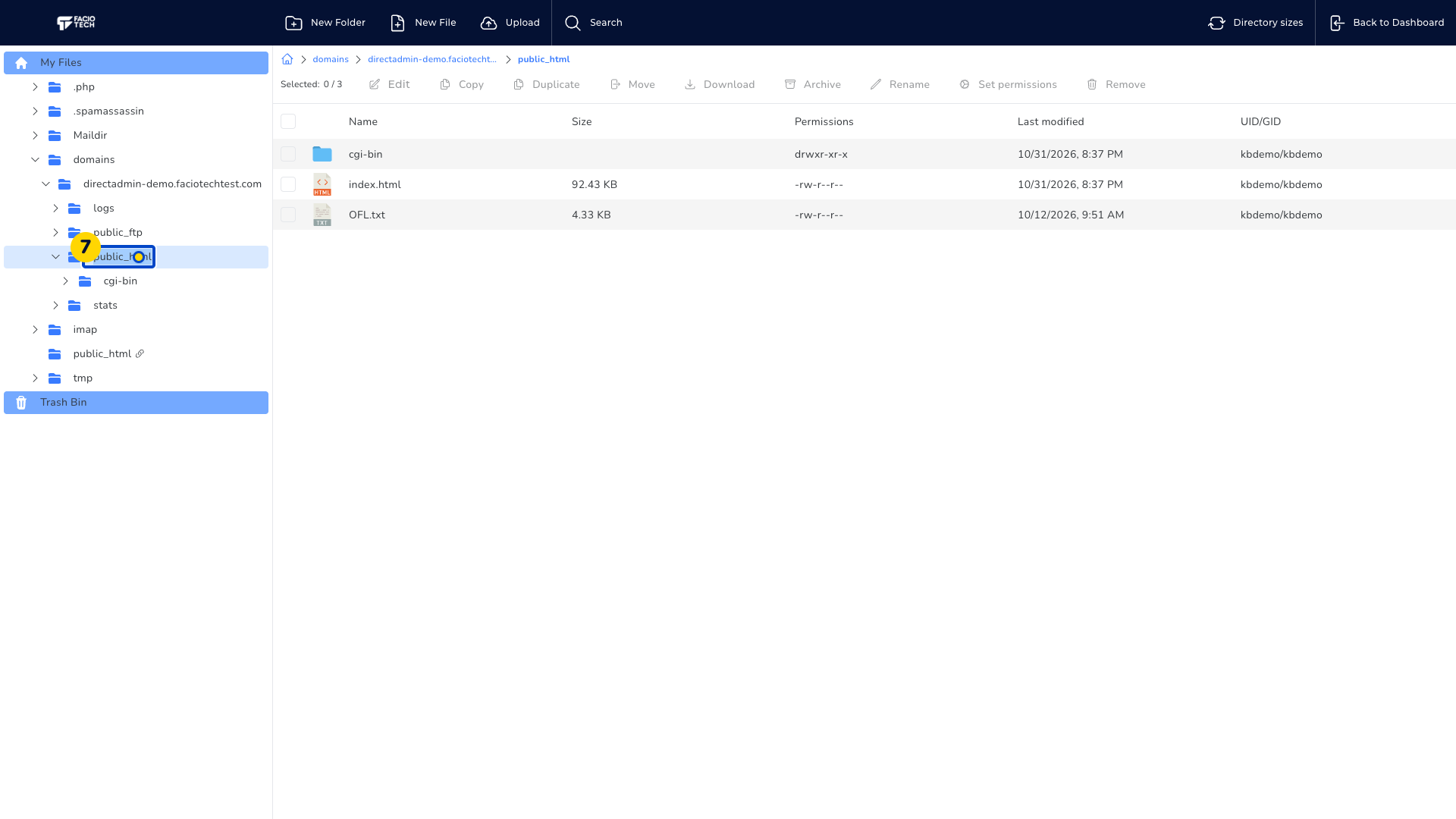
Choose New Folder. The folder-name form appears.
Enter kb-files as the folder name. That name appears in the form.
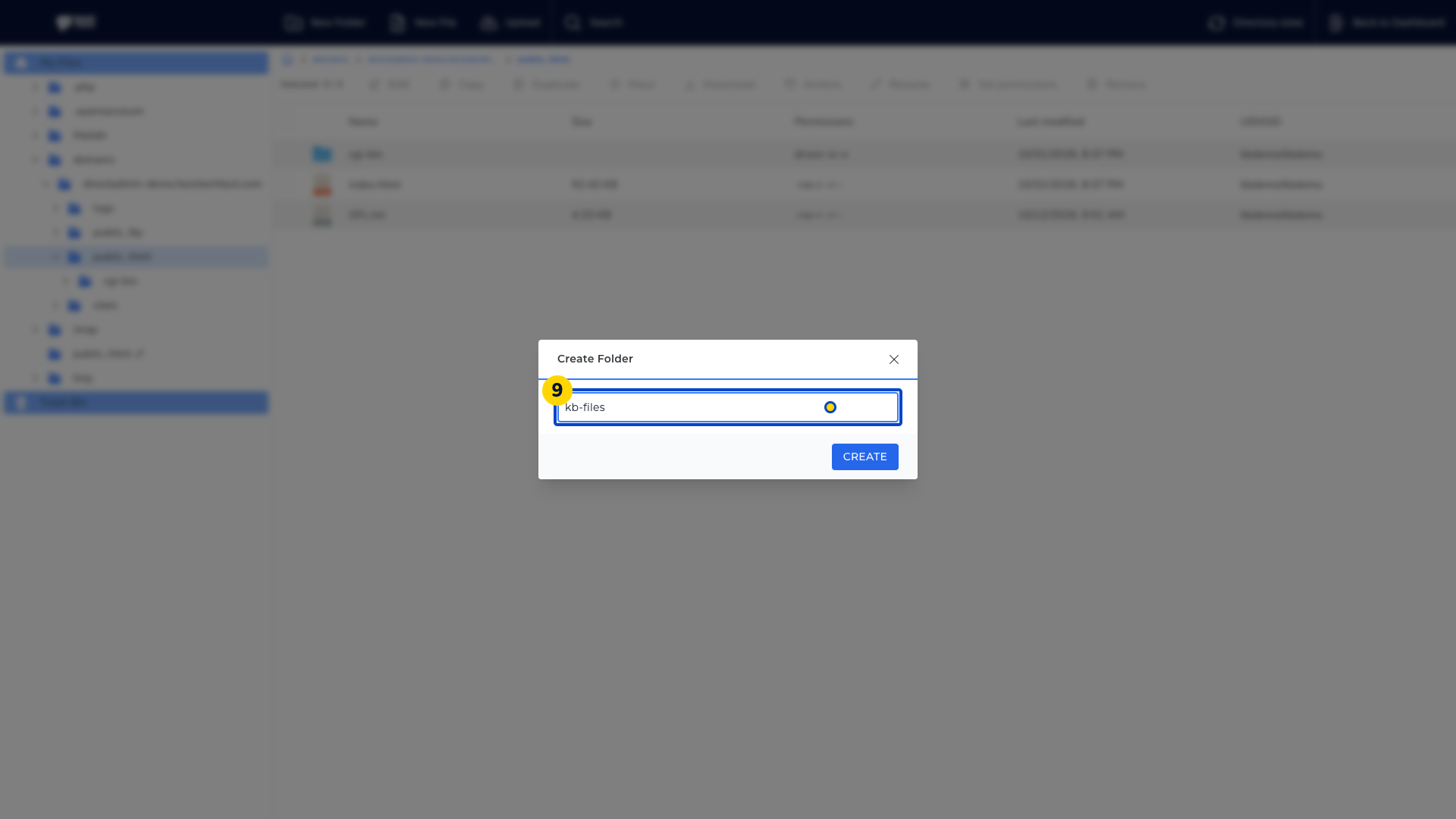
Choose Create. The new folder appears in the file list.
Open kb-files. The file list shows the contents of the new folder.
Choose Upload. The Upload Files dialog appears.
Select a harmless file from your computer. This example uses demo-note.txt, which appears in Upload Files.
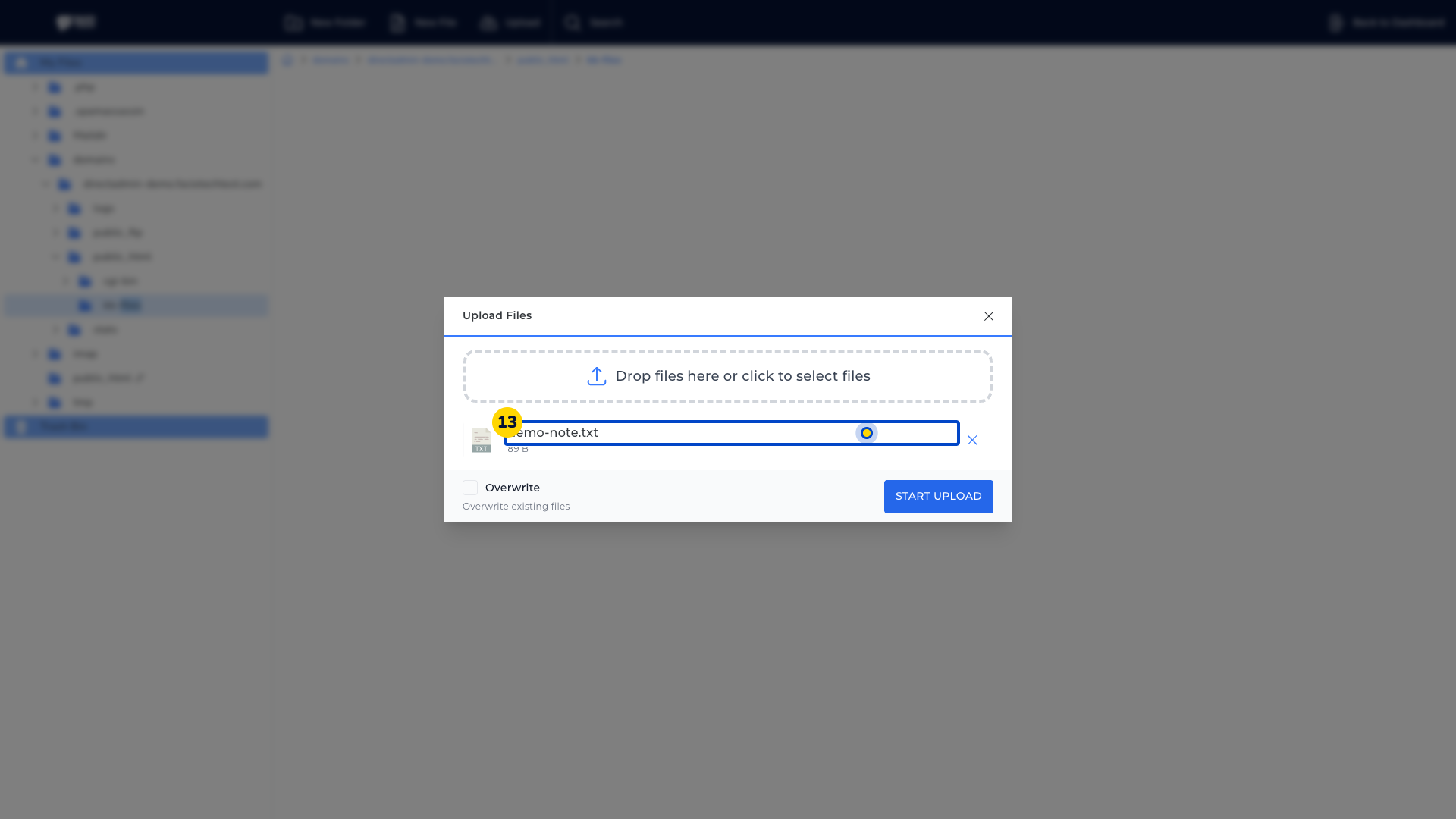
Choose Start Upload. Wait for the file row to turn green and Done to appear.
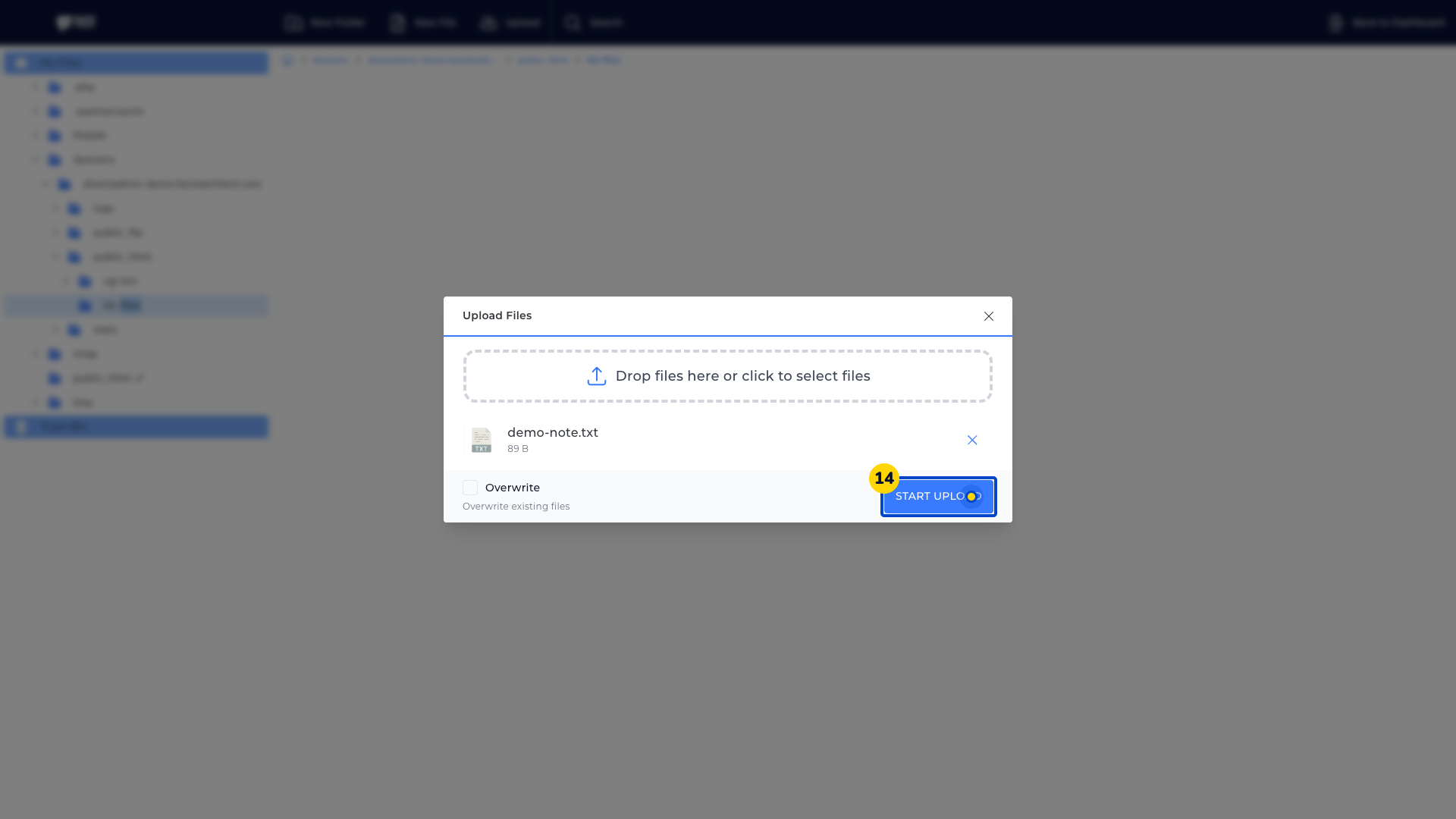
Choose Done. The upload dialog closes and the folder view appears.
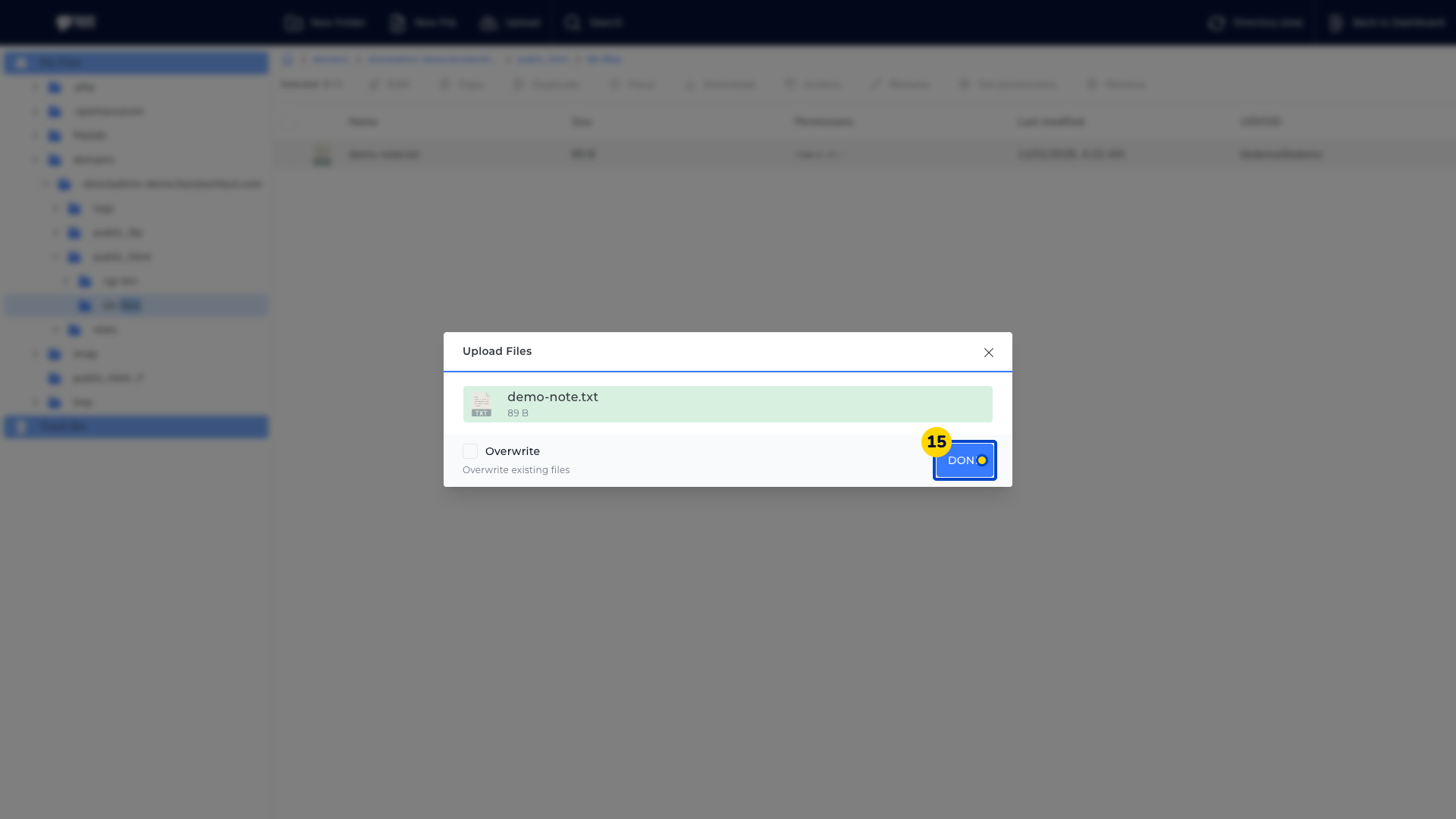
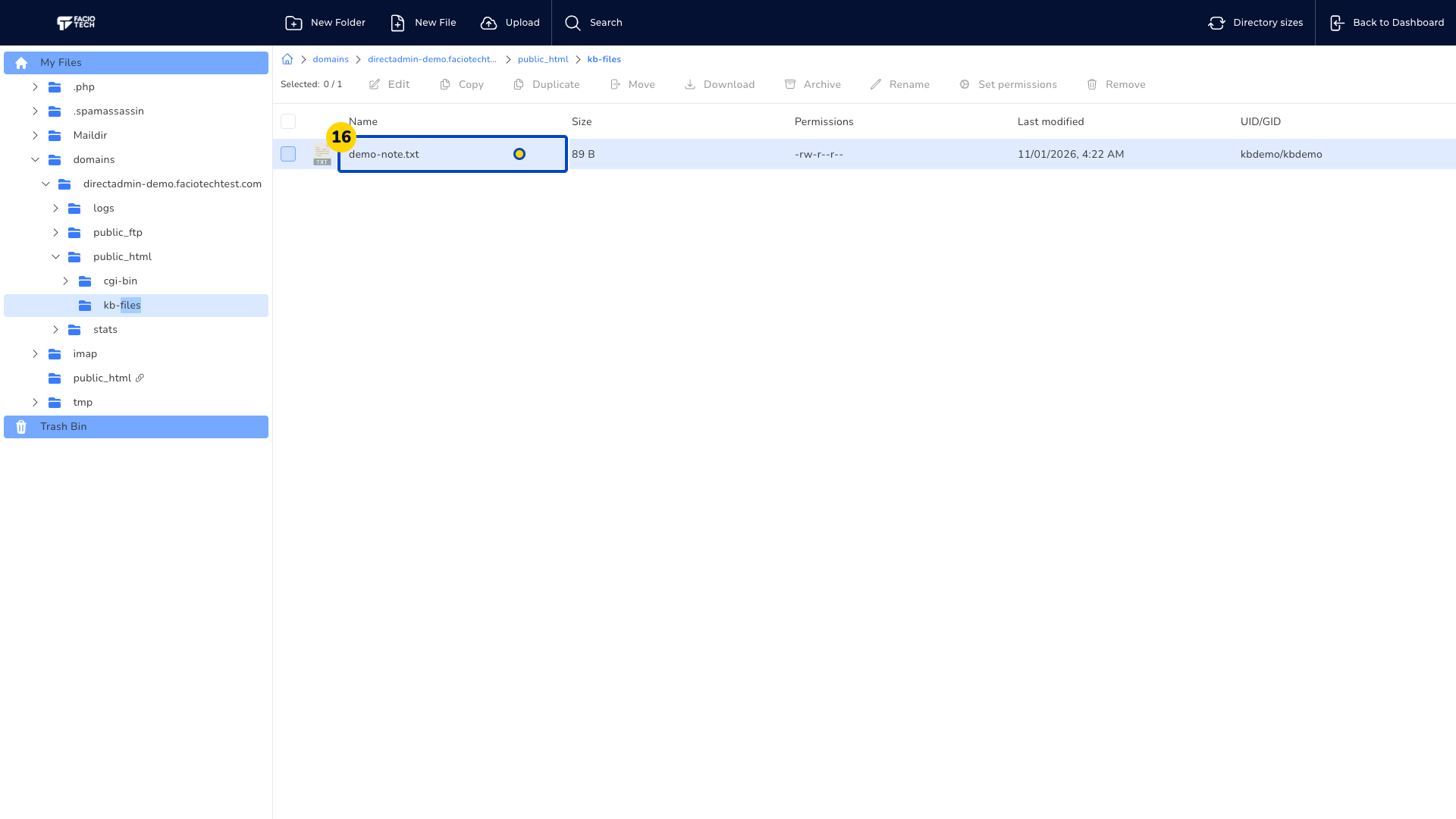
Reopen kb-files to refresh its contents. The list should show demo-note.txt with the expected size; the example file is 89 B.
Leave Overwrite clear for this example so the upload does not replace an existing file.
Video walkthrough
Sources
- DirectAdmin: Evolution upload and path selector
- DirectAdmin: Evolution File Manager selection and editing
For help, contact Faciotech support.
