
Create a separate mailbox for an address on your domain.
You need a hosting account with room for another mailbox. The screenshots use a demo domain; use your own domain.
Log in to DirectAdmin from your client area. If that link is unavailable, use the panel address in your welcome email. You will see your account dashboard.
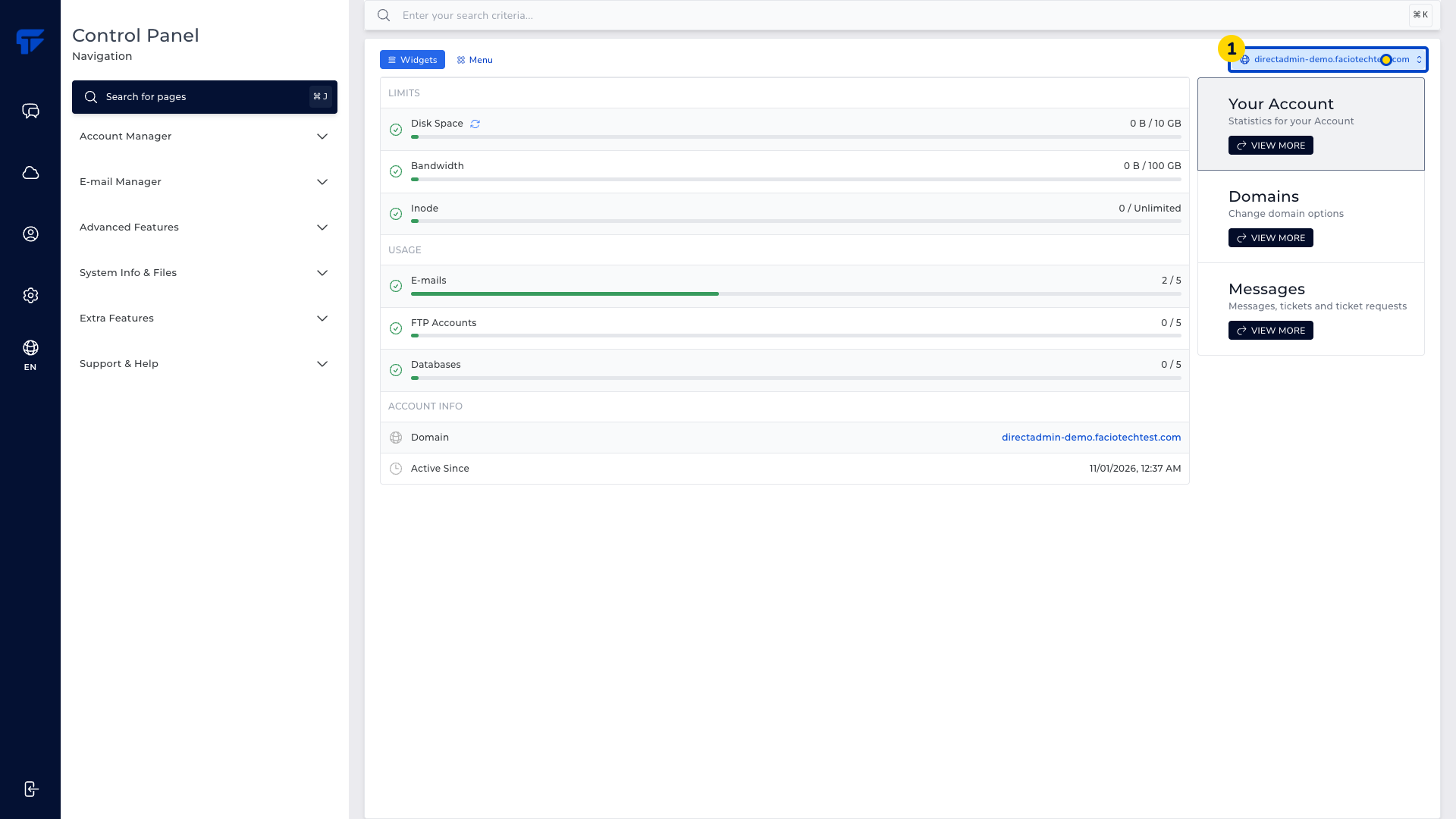
Expand E-mail Manager if it is collapsed. The email tools appear in the navigation menu.
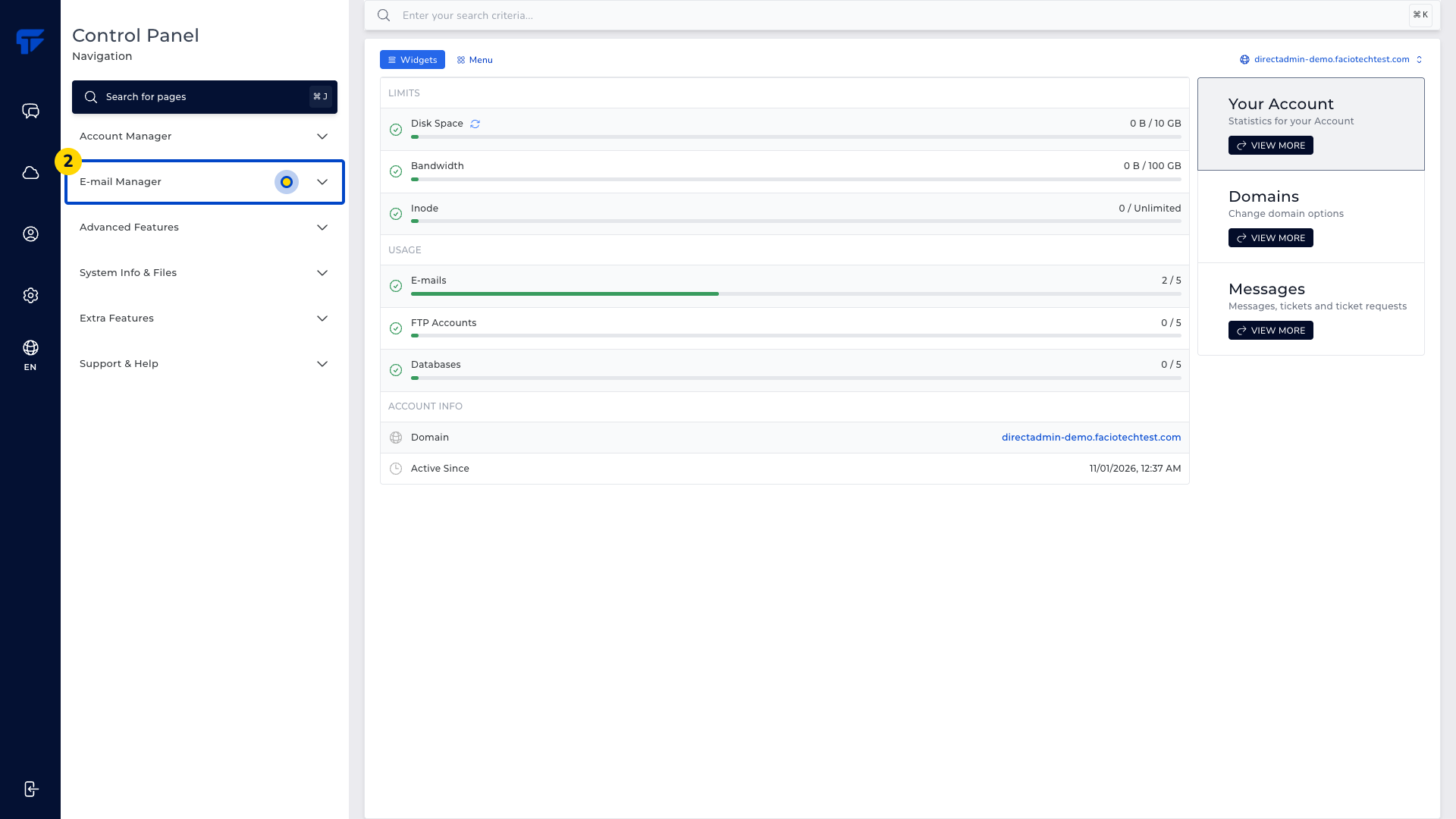
Select E-mail Accounts. You will see the account list.
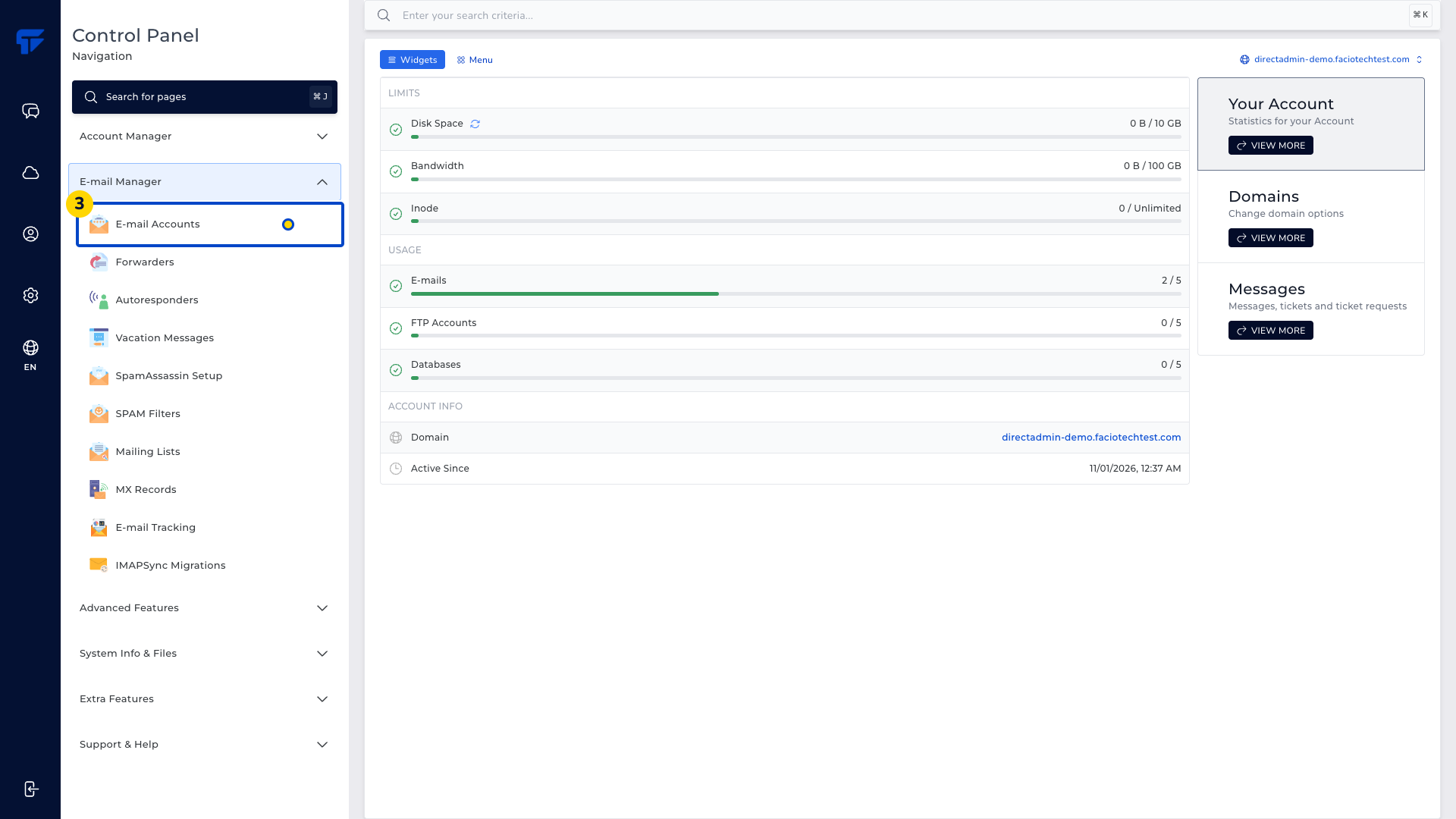
Select Create Account. The Create Mail Account form opens.
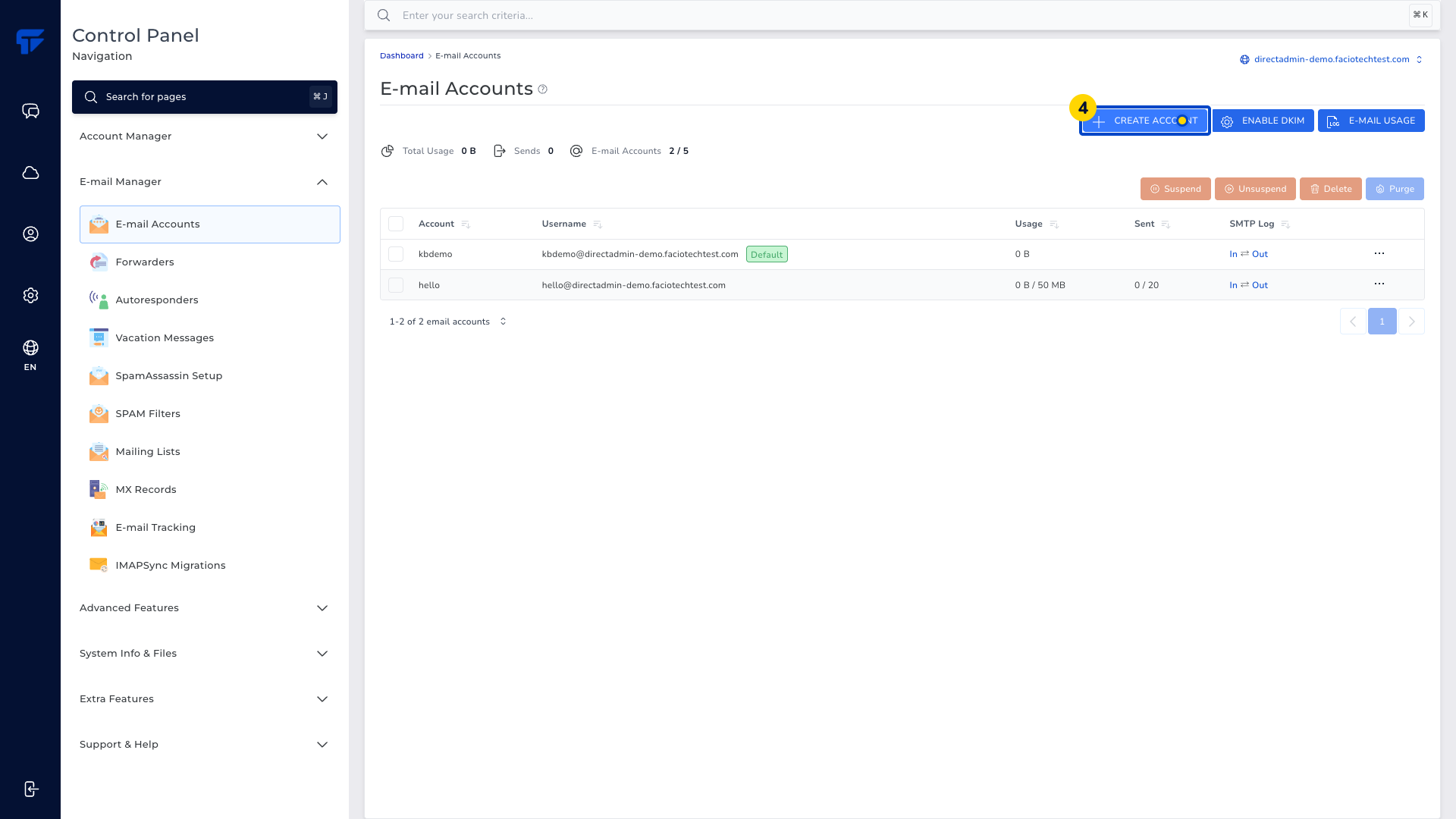
Enter the mailbox name in Username. Enter only the part before the @ sign, such as demo. Your selected domain appears beside the field.
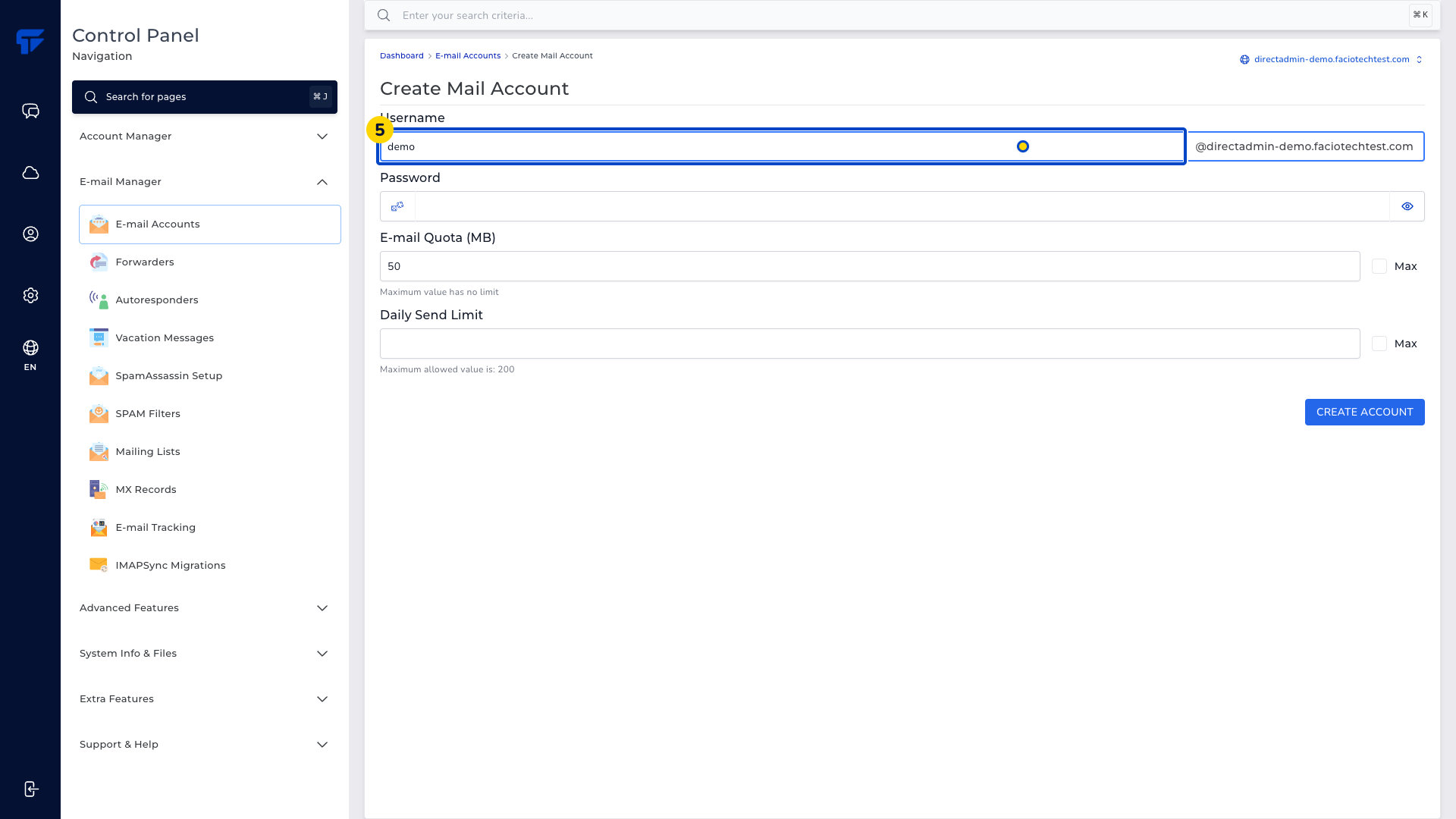
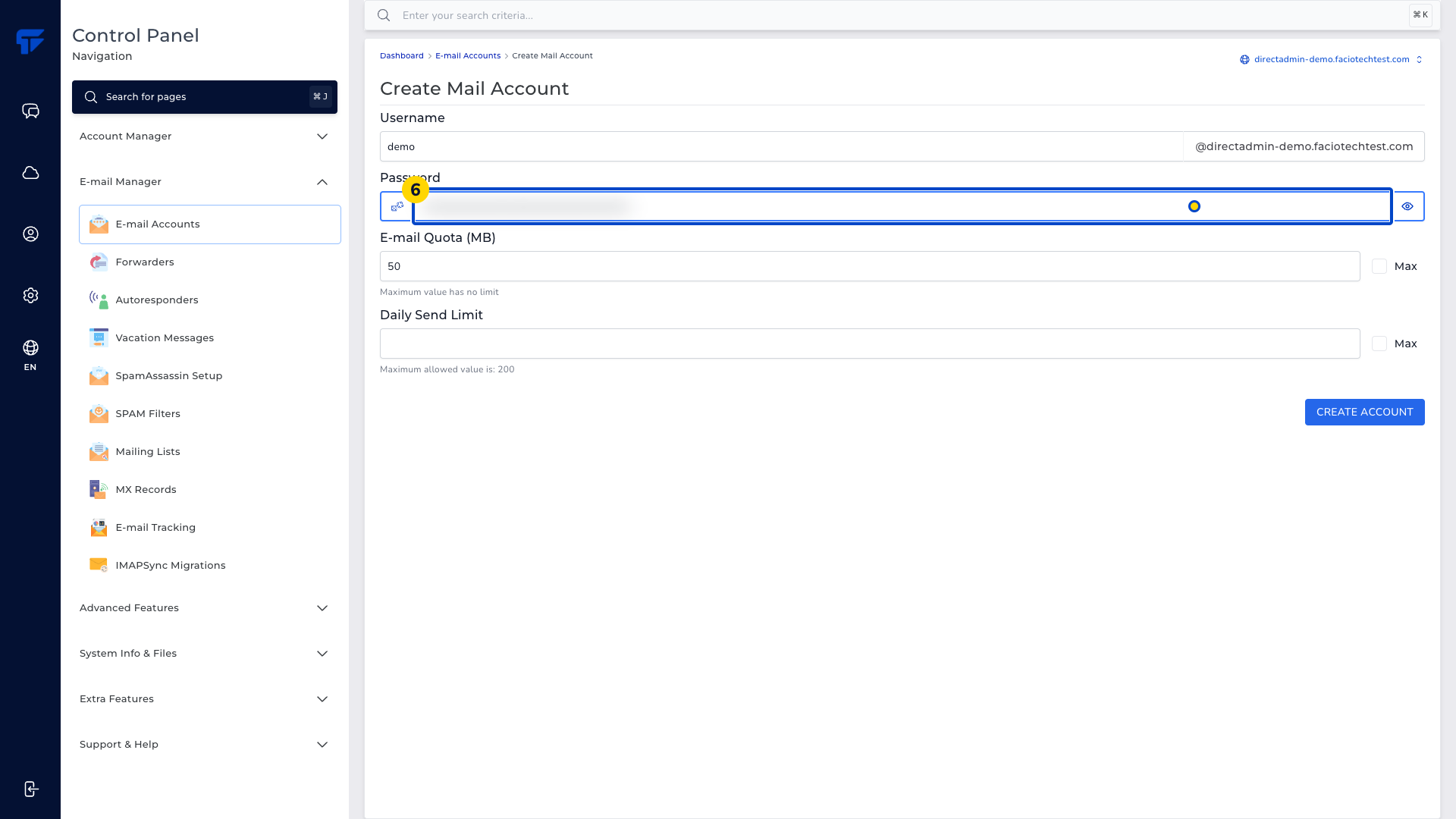
Enter a strong, unique password. Keep the mailbox password private.
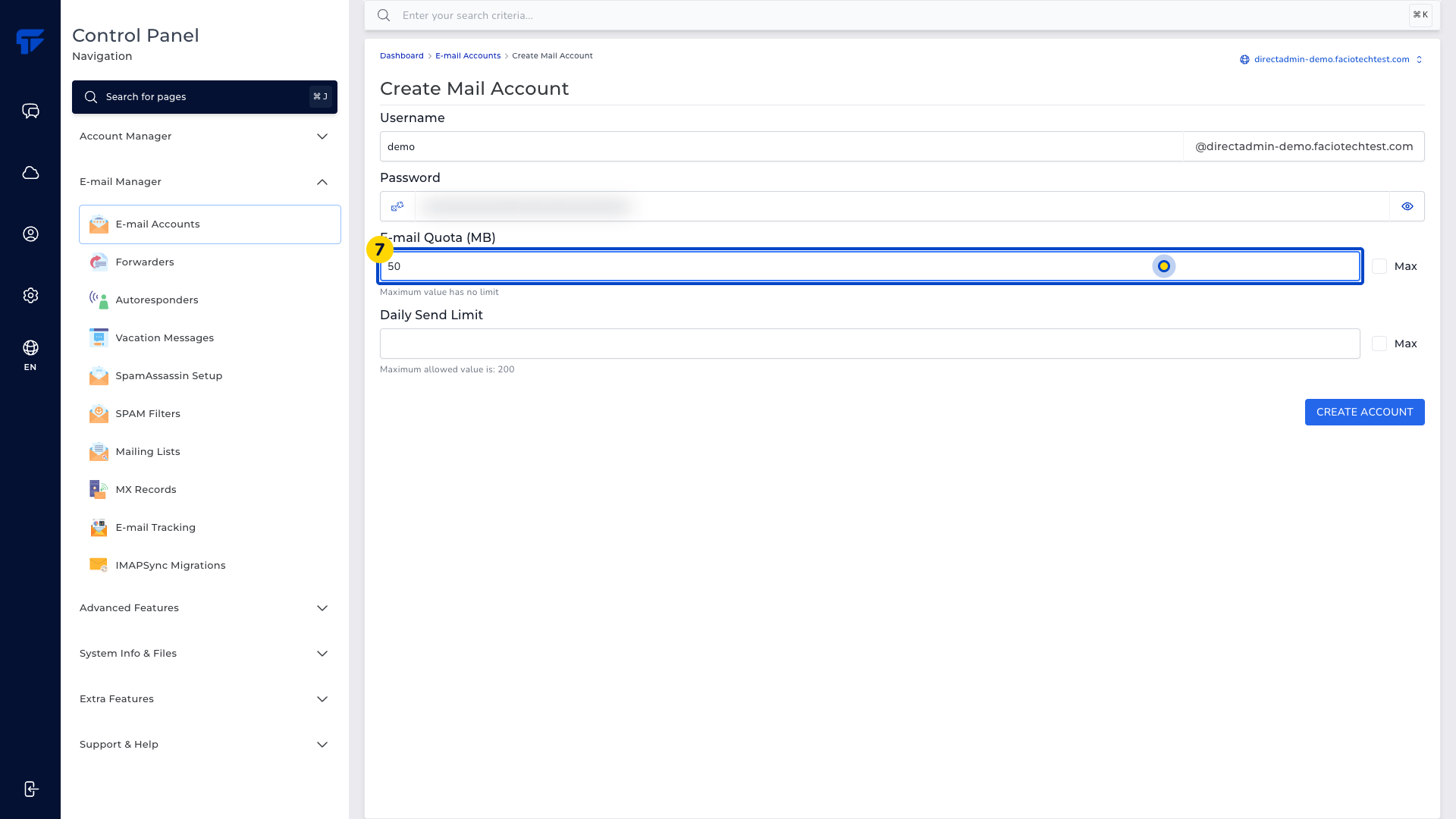
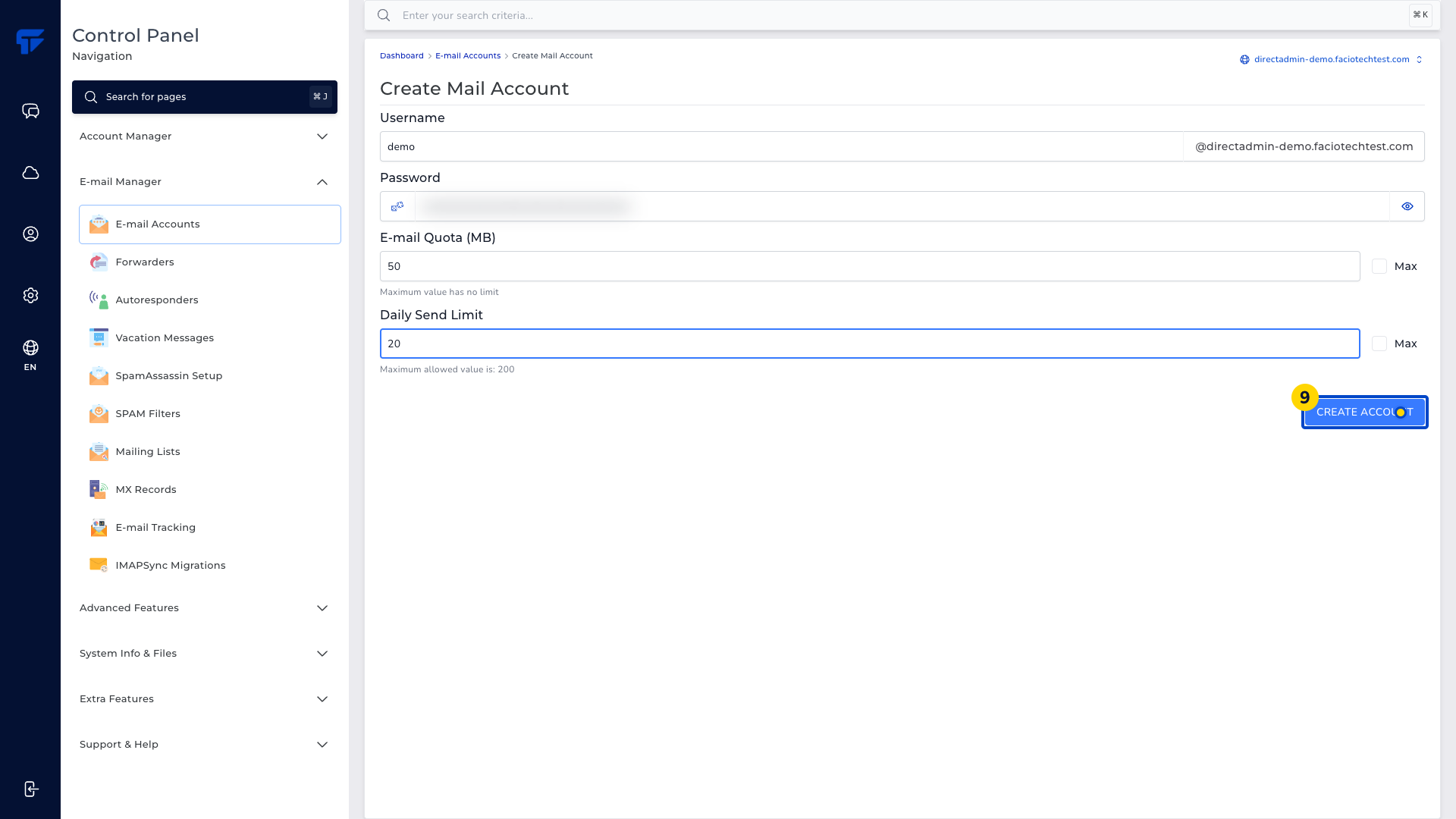
Set E-mail Quota (MB) to fit your available storage. The screenshots use 50 MB for the demo mailbox. Choose a value that fits the space available in your plan.
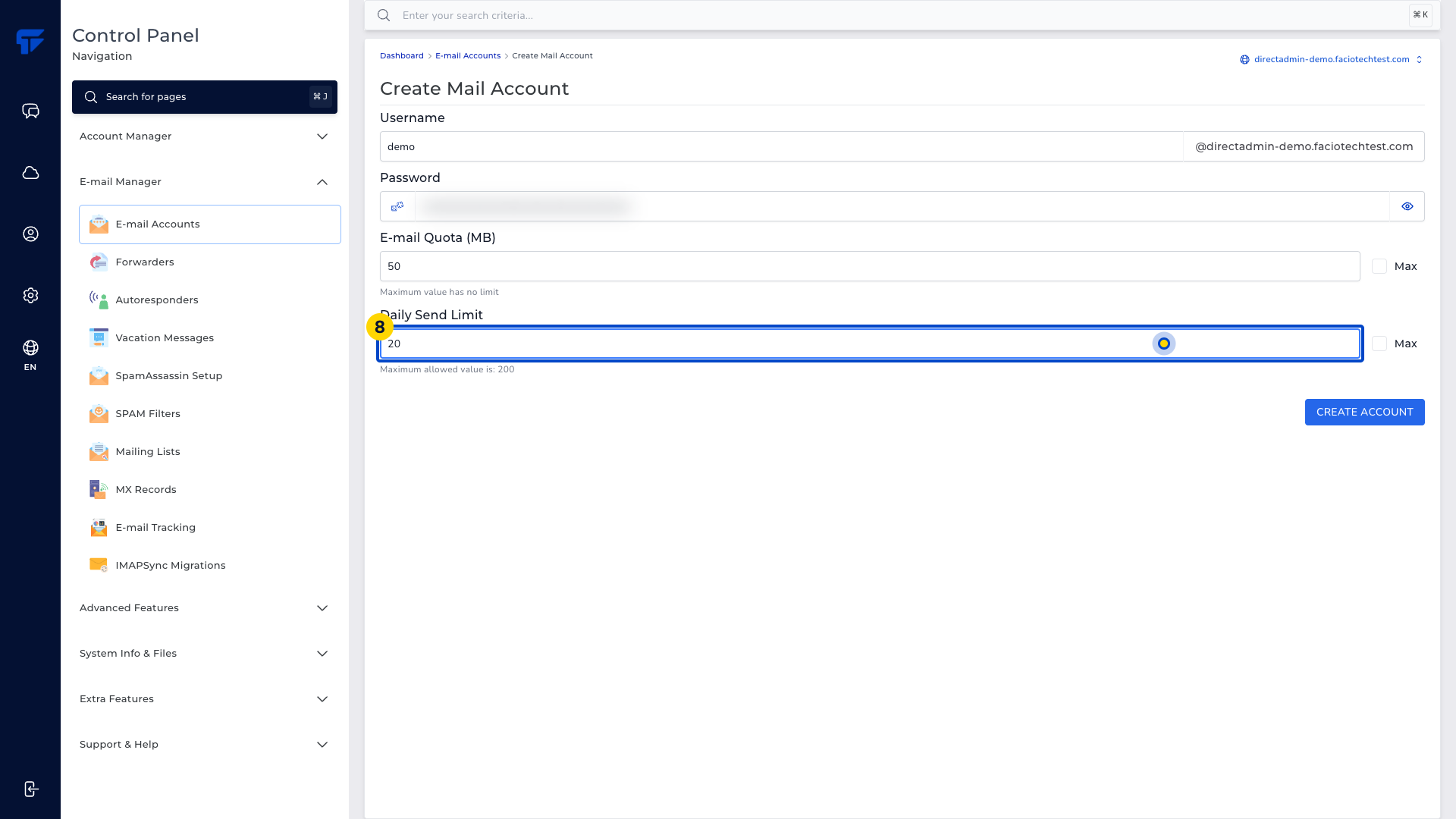
Enter a Daily Send Limit within the maximum shown. This field is required. The screenshots use 20 for the demo mailbox.
Select Create Account. Wait for DirectAdmin to process the request.
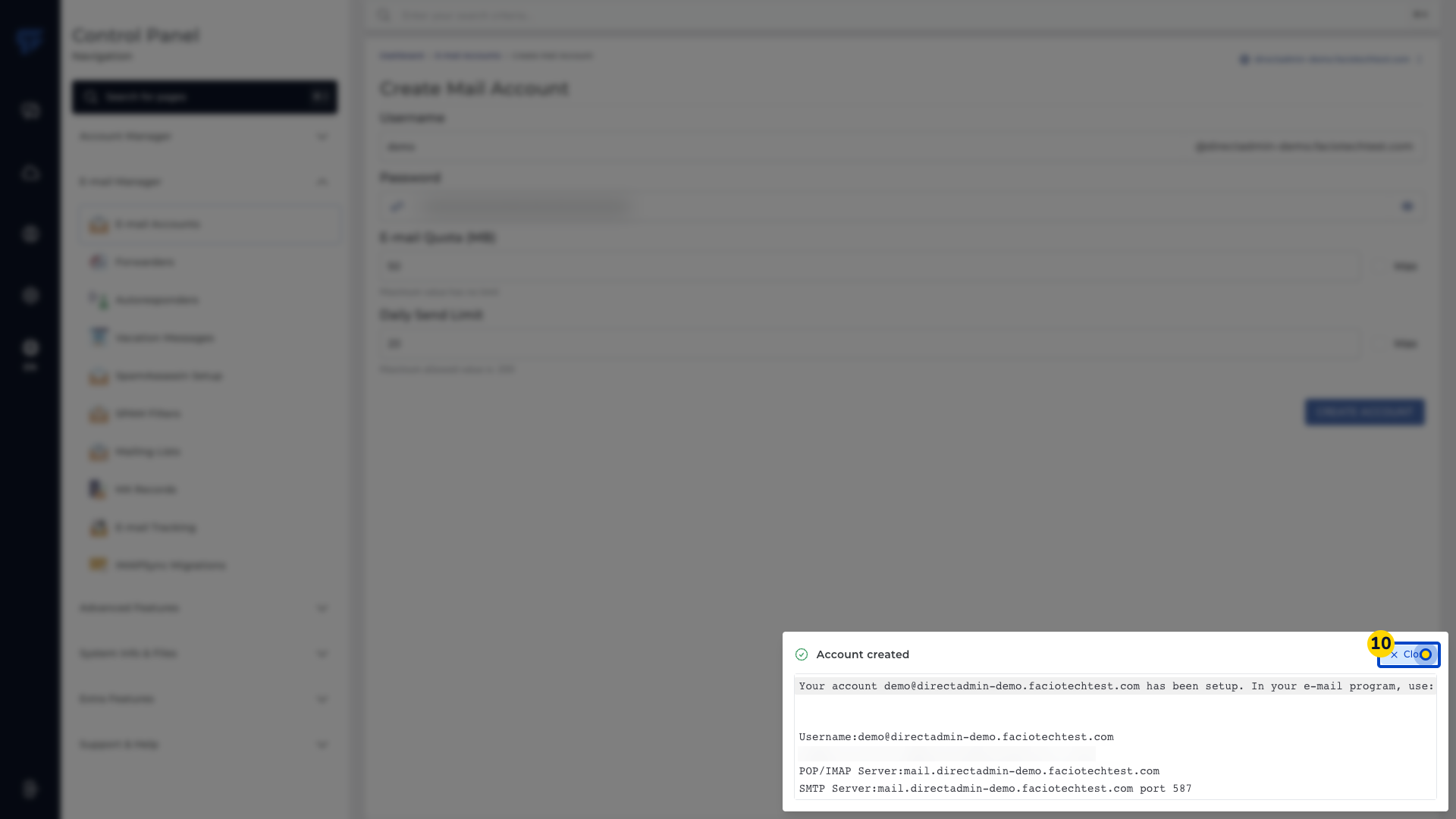
Close the Account created confirmation. The confirmation closes. Keep your mailbox password private.
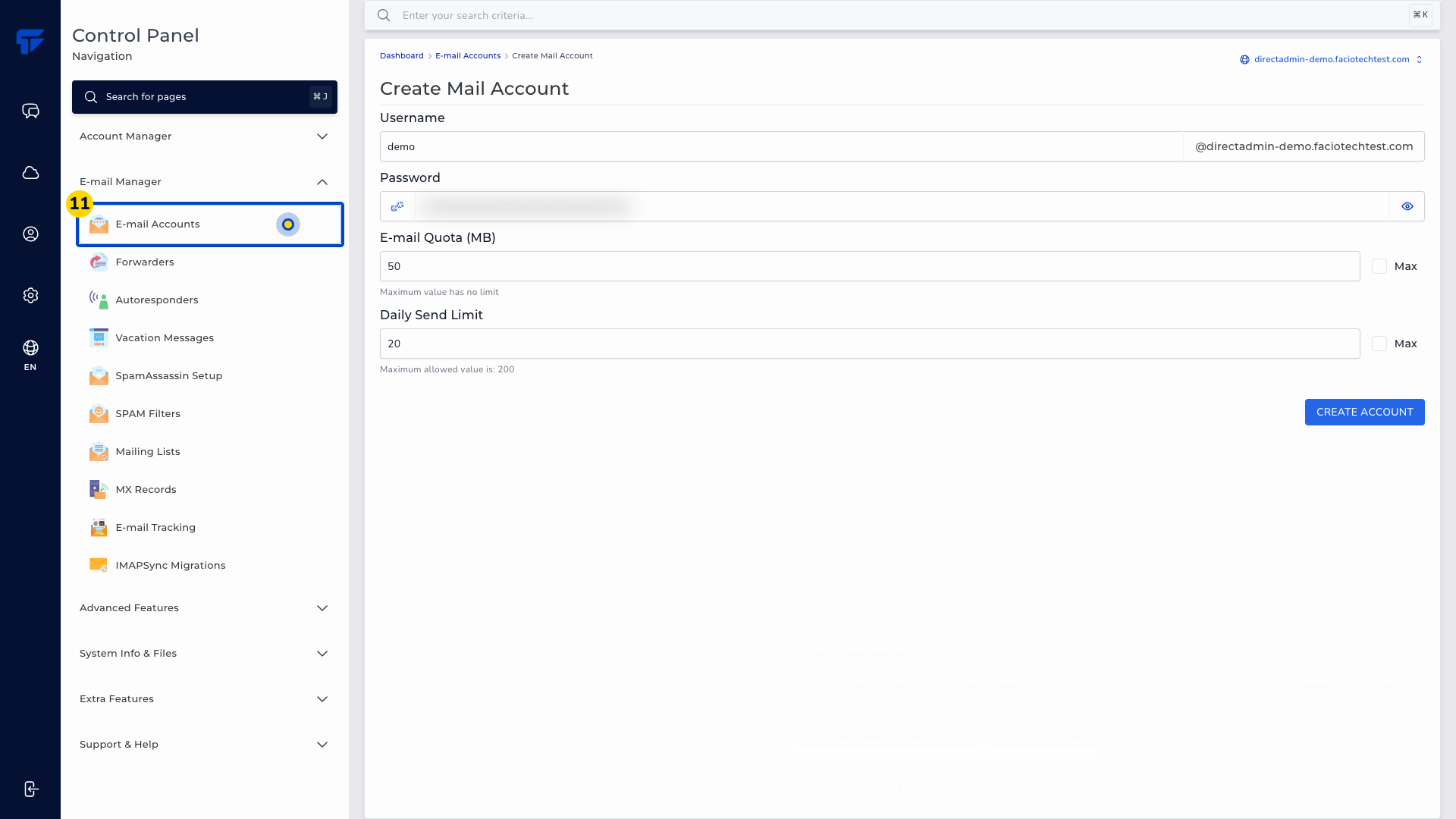
Open E-mail Accounts. The mailbox list appears.
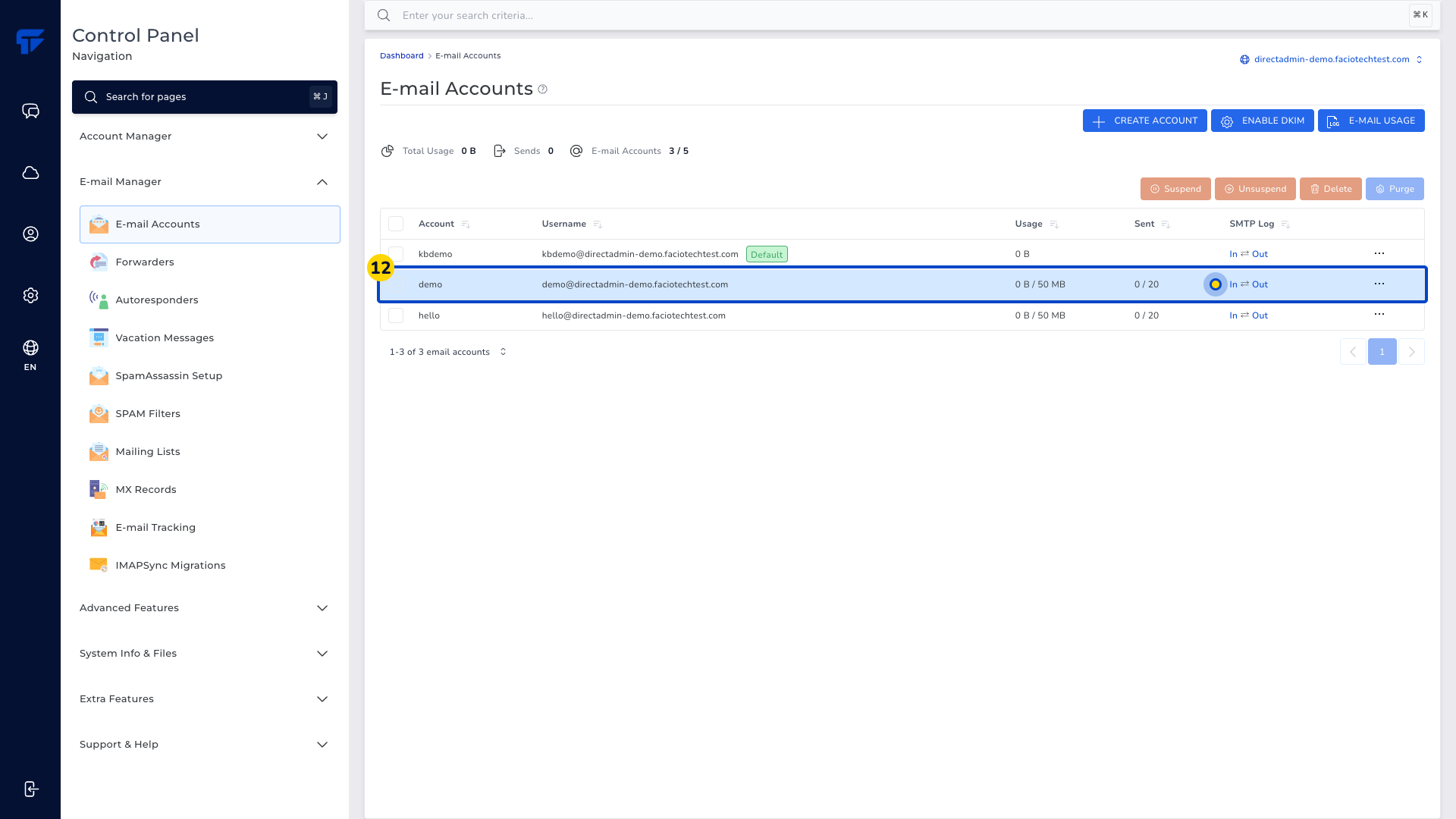
Check that the new address appears in the list. The example address is demo@directadmin-demo.faciotechtest.com. Its row shows the demo quota and send limit.
Video walkthrough
For help, contact Faciotech support.
